
Free tools Windows power users keep installed
One-click scans. No signup required.
iTechGuides is reader-supported. When you buy through links on our site, we may earn an affiliate commission. As an Amazon Associate I earn from qualifying purchases. Learn more
To create a Screen Time Schedule for your child in iOS 27, open Settings > Family > [child’s name] > Screen Time Schedule on your iPhone. Turn on Schedule, tap Add Schedule, choose the days, then set the schedule’s time windows. Apple says the updated Family Sharing controls require version 27 or later on the devices in the family group using them.
Before you set up the schedule
Check that the devices in your Family Sharing group are running version 27 or later if you want to use the updated family controls. If you cannot update every device, Apple says you can continue with the previous Screen Time controls or configure controls directly on your child’s device. See Apple’s parental-controls setup guide and family setup guide for those alternatives.
Create the schedule from your iPhone
- Open your child’s family settings. On your iPhone, go to Settings, tap Family, then tap your child’s name.
- Open Screen Time Schedule. Tap Screen Time Schedule and turn on Schedule.
- Add a schedule. Tap Add Schedule, select the days it should apply to, and confirm.
- Set its time windows. Tap a time window to change its name and start or stop time. Add or adjust windows to fit your child’s routine; Apple’s examples include Before School, School, and After School, as well as custom routines.
- Review what stays available. Check Always Allowed to choose apps and contacts that can remain available when other apps are paused or limited.
Apple also documents the general schedule controls at Settings > Screen Time > Screen Time Schedule. The child-specific Family route above is the parent-facing path for managing the child’s settings. For Apple’s full schedule and allowance instructions, see Set Screen Time Schedules and Time Allowances in Screen Time on iPhone.
Recommended Free Tools
Choose times that match your child’s routine
You can use different days and windows for school days and weekends. For example, set one window around the school routine and another for evenings, then use a separate weekend pattern if your family’s schedule changes. The schedule controls when apps are available, so set the windows around the times you want apps paused or available rather than treating them as a single daily usage quota.
#1 Best Overall
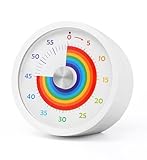
- Easy to Use:By turning the clockwise, the rainbow disk can be adjusted to the desired time duration, then the timer starts to count down.when time is up , timer will make "beep beep beep" to alarm, it will last for 10 seconds, you also can press the top button stop alarm.
- Strong Magnet : Powerful magnets on the back for placement on any iron surface directly. You can use the magnet on the back to attach to a fridge door, whiteboards, or lockers. Fits anywhere from gym equipment to student desks.
- No Ticking and Mute Function: No ticking when the timer is working, ideal for sound-sensitive environments; 2 alert volumes optional: mute, loud.
- Applicable: This 60 minute timer can be used in many occasions; it can be used as a kitchen timer, a study timer for kids, a task timer for teachers in the classroom, or a meeting timer.
- Low Battery Remind: The indicator light will flash if the battery power of the timer is low; 2*AAA batteries included; If there are any problems with our products, please seek advice from us, we will provide you with satisfying solutions.
Apple describes built-in windows such as Before School, School, and After School, and also allows custom routines. Name windows in a way that makes them easy to recognize when you return to the schedule. Apple’s guide to making a schedule for a child’s device use covers these scheduling options.
Understand schedules, time allowances, and Always Allowed
In the updated interface, Schedules determine when apps are available. Time Allowances set how long a child may use apps across categories. The pause outside scheduled hours incorporates the former Downtime behavior; it is not a separate Downtime setup step in the newer schedule flow. Apple explains the distinction in its iPhone guide and family guide.
Rank #2

- Interesting Rainbow Pattern Design: LIORQUE visual timer is a perfect timer for classroom or as a kitchen timer for cooking. Rainbow pattern design stimulates children's interestand facilitates the completion of assigned tasks
- Practical Ways to Improve Efficiency: The passage of time is visible, like an hourglass, making it easy to understand for people of any age. Unlike a digital timer, you don't need to look at numbers, just glance at the countdown timer to know how much time is left
- Extremely Easy to Use: Simply turn the knob to adjust the time. Turn it clockwise to increase time and counterclockwise to decrease it. If you want to turn off the ringer, just turn it clockwise slightly and then back to zero
- Non-Ticking & Adjustable Alarm: Thanks to the sophisticated internal structure, there is almost no sound while running. You can concentrate on your work without any distractions. The volume can be adjusted as you like. We have also added a mute function to this visual timer to meet the needs of more people
- Suitable for Several Occasions: This pomodoro timer is not only suitable for classroom and kitchen, but also for beauty, yoga, work, exercise, group games, or managing entertainment time. NOTE: LIORQUE visual timer for kids requires 2 AAA batteries to operate it, which are included in the package
Always Allowed lets you keep selected apps and contacts available while other apps are paused or limited. Apple lists FaceTime, Maps, Phone, and Messages as examples allowed by default; review the setting to confirm it fits your family’s needs.
What’s actually slowing this PC down?
Pick the symptom - the matching free tool is one click away.
Change the schedule for an unusual day
If your child’s plans change, Apple says you can use Screen Time settings to pause use, allow unlimited use, or change the schedule for that day. These one-off adjustments let you handle a particular day without replacing the recurring schedule. The available parent controls are described in Apple’s parental-controls guide.
Rank #3
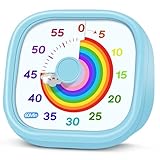
- 【Lively Rainbow Visual Timer】Our visual timer boasts a rainbow pattern to capture kids' attention. Ease their reluctance and make homework or bedtime prep feel like games
- 【Easy Use】Twist the knob clockwise to set the time; flip back to "0" to stop the kitchen timer; or press the rear switch to silence the alarm instantly. Easy enough for kids and seniors to use our visual timer confidently. Only rings when the countdown finishes in ring mode; no sound is emitted in silent mode
- 【Silent & Visual Countdown】No ticking sounds, stay calm and focused. Our visual timer for kids display time through a color shift. No need to read numbers, the kids timer fits all people, especially those with autism or ADHD, to manage time wisely
- 【Ready for All Scenes】Light and compact, slip easily into a schoolbag or a handbag. A reliable time manager for daily routines: ideal as a cooking timer or a visual timer for classroom, office and workouts. The rear button turns the desk timer alarm on or off, also suited for quiet libraries. Not suitable for children under 3 years old
- 【More Details】Powered by one AA battery (not included), the classroom timers for teachers are ready to go anytime. For long-lasting performance, please do not rotate the knob counterclockwise past "0". HIPPIH visual timer, a gentle tool that brings calm and order into everyday routines
If your iPhone shows Downtime instead
A device that has not moved to the updated interface may still show the older, separate Downtime controls. Apple’s older instructions use Settings > Screen Time > Downtime, where you choose Every Day or Customize Days and set start and end times. That is the legacy route, not the iOS 27 Screen Time Schedule path. Apple notes that when Block at Downtime is enabled in the older interface, restricted apps cannot be opened and appear dimmed with an hourglass icon. See Apple’s older Downtime instructions.
Quick Recap
Best Value

- Simple Concept: As time passes, the rainbow disk of visual timer disappears counterclockwise; It is interesting and super easy to understand; This timer will help kids and adults develop a good sense of time and improve time management
- Easy to Use: By turning the center knob clockwise, the rainbow disk can be adjusted to the desired time duration, then the kids timer starts to count down; The protective cover is made of healthy materials, it can effectively protect the timer
- No Ticking and Mute Function: No ticking when the kids timer is working, ideal for sound-sensitive environments; 3 alert volumes optional: mute, weak, loud; lasting alarm: 3 seconds/30 seconds. Press the top button to stop the alert
- Suitable for Many Occasions: This 60 minute analog timer can be used in many occasions; It can be used as a kitchen timer, a study timer for kids, a task timer for teachers in the classroom, or a meeting timer
- Low Battery Remind: The indicator light will flash if the battery power of the timer is low; 2*AAA batteries required but not included; If there are any problems with our products, please seek advice from us, we will provide you with satisfying solutions
Rank #4

- [Time Management] - The 60 minute countdown timer shows time passing in a clear, visible way. A quick glance is enough to understand how much time is left, helping kids and adults stay focused and efficient during study, cooking, workouts, or tasks
- [Easy to Use] - Just turn the knob to set the countdown, and the green disk will shrink as time passes. No screens, no setup—perfect for kids, seniors, and simple tools like a classroom timer, kitchen timer, or small egg timer
- [Silent Mode & No Ticking] - Operates silently without ticking sounds, making it ideal for classrooms and libraries. The optional alarm rings clearly at the end of the countdown, ensuring you never miss a reminder
- [Special Needs] - The intuitive visual dial is easy for all ages to understand, including children with autism, ADHD, or other learning differences. Perfect as a classroom timer, office timer, or study timer for kids and teachers
- [Product Details] - Lightweight, small, and durable ABS construction designed for everyday use at home, school, or office. Powered by 2 AAA batteries (not included). Compact enough for a desk, kitchen, or backpack, so you can take it anywhere
Product prices and availability are accurate as of the date/time indicated and are subject to change. Any price and availability information displayed on Amazon at the time of purchase will apply.

