
iTechGuides is reader-supported. When you buy through links on our site, we may earn an affiliate commission. As an Amazon Associate I earn from qualifying purchases. Learn more
Robin Leinonen’s Saucer is a personal DIY project that mounts a small trackpad to a ZSA Voyager keyboard. It moves pointing control onto the keyboard, which may help when a cat nudges a separate desk trackpad—but it is not an official ZSA accessory or a guarantee against every interruption. Building one involves printed parts, soldering, and firmware setup.
What the Saucer is—and what “cat-proof” means
Saucer is a mount for a 40 mm flat Cirque trackpad that attaches to either the left or right side of a ZSA Voyager. Robin Leinonen described it as a personal passion project rather than an official ZSA product. He said he made it after his cats sometimes brushed his separate trackpad and caused unwanted cursor movement. The mount relocates pointing control; it does not prevent cats from disturbing a desk in other ways. Hackster’s report on the project includes Leinonen’s explanation.
The project’s files and build guidance are in the Saucer GitHub repository. It is a hands-on build, not a plug-and-play accessory.
Free tools Windows power users keep installed
One-click scans. No signup required.
Parts and tools for a Saucer build
The project README lists these materials and tools:
#1 Best Overall

- Compatibility Compatible with Apple Magic Keyboard and Apple Magic Trackpad models that charge via Lightning Cable: MLA22LL/A, MK2A3LL/A, MK293LL/A, MJ2R2LL/A and MK2D3AM/A.
- 【Uniqueness】The keyboard stand fit for left and right handed people. It can be configured for either left-handed or right-handed trackpad use.
- 【Convenience】Keyboard and trackpad are easily powered ON/OFF without take them out. It is also easy access to charging ports.
- 【Non-skid】 Anti-Skid silicone on the bottom of the stand base keep tha stand firmly in place to prevent sliding in desk use.
- 【Two-in-one】Completely untethered to use your Apple Magic Trackpad and Apple Magic Wireless Keyboard together at anywhere - lap, desk, sofa, bed, or boardroom.
- A 40 mm flat Cirque trackpad. The README excerpt does not specify an exact model, so check the current build instructions for the required model and interface before buying; do not assume another trackpad is compatible.
- A printed mount for the Voyager’s left or right side, plus an optional printed lid. STL enclosure files are included in the repository. You can print the parts yourself or use a 3D-printing service.
- Four lengths of small-gauge wire, about 16 cm each.
- A TRRS splitter cable.
- Small heat-shrink tubing.
- A soldering iron and solder, a wire stripper, and a multimeter.
The listed dimensions and quantities are build specifications, not measures of the trackpad’s performance. Check the repository for its current parts list and design files before starting.
What building and setup involve
The README recommends preparing firmware before assembling the hardware. It describes compiling locally with trackpad support, noting that the author found the process straightforward with ZSA’s QMK fork and that using mainline QMK is possible but “a little trickier.” The build also requires wiring and soldering.
Rank #2

- Ergonomic Keyboard and Mouse Tray: Installs underneath a standard desk for comfortable typing angles --Patent Pending--
- Compatibility: If installing to a height adjustable desk, you will need a spacer bracket for the track to fit over the frame crossbar. Search for adapter MOUNT-SPACER01 (not included) for this purpose
- Deluxe Universal 25" x 10" Tray: Fits most keyboards and mice. The keyboard slides forward and back on a 14.25" long and 6.25" wide track (will need 14.25" between the desktop edge and crossbar). Minimum recommended desktop thickness is 5/8"
- Enhance Posture: Reduce wrist soreness with supportive rubber padding, full side to side rotations, and 5" height adjustment
- Simple Assembly Process: All mounting hardware is included for fast and easy assembly. The total tray weight is 10 lbs. Please be sure your desk can support this under-mounted weight
Follow the repository’s current instructions for the exact firmware configuration, wiring, and assembly. Those details can depend on the project’s current files and setup; this overview does not prescribe pin-by-pin connections.
What’s actually slowing this PC down?
Pick the symptom - the matching free tool is one click away.
- Review the current README and identify the required trackpad model and firmware steps.
- Obtain the trackpad, cable, wire, heat-shrink tubing, and printed enclosure parts. Choose the left- or right-side mount that suits your setup.
- Prepare and compile firmware with trackpad support as described in the project instructions.
- Assemble and wire the hardware according to the repository, using the listed soldering tools and multimeter.
Who the Saucer suits—and where it falls short
Leinonen presents the project as a useful pointing option for text-focused work such as writing, office work, and coding. He cautions that it may not suit gaming or creative work as well and is not a complete replacement for every mouse task. The project also notes limitations in QMK mouse gesture support and says the hardware is less polished than an Apple trackpad. These are the project author’s caveats, not results from an independent comparative test.
Rank #3
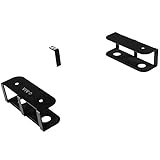
- Universal Laptop Storage Mount: Conveniently place your laptop under your desk with this innovative mount that’s able to fit your laptop or tablet size with a 3-piece bracket set for custom spacing. Supports up to 11 lbs of weight with a secure hold
- Save Desk Space: Win back valuable work space on your table surface by storing your laptop, tablet, keyboard, or other multimedia devices under the desktop
- Under Desk Docking Solution: Clear the clutter from your desktop by mounting your laptop or docking station under your desk. Brackets provide a secure hold and allow devices to be easily accessed with no front bracket blockage
- Scratch Free Padding: Anti-skid padding on the bracket ensures your laptop stays securely stored beneath your desk while protecting it from scratches and damage
- Easy Installation: Brackets are installed with just 5 simple screws into the underside of a desktop or other surface. Please measure your table top to ensure it is at least 0.75” thick to be properly anchored
Warranty and support considerations
The Saucer repository says the personal project has no project warranty or support. It also warns that ZSA cannot promise warranty support if the Voyager is damaged while following the guide. That is not the same as saying the build automatically voids the keyboard warranty; readers should consult ZSA for their specific situation before modifying hardware.
Independent reader supportYour contribution helps us test, update, and keep practical guides available for everyone.Saucer versus ZSA’s Navigator
ZSA now offers and documents Navigator, a separate pointing-device system for Voyager with trackpad and trackball cores. Navigator is not the Saucer, and its official status does not make the DIY build an official accessory. The options differ in effort, support, and documented pointing behavior:
Rank #4

- Comfortable Typing Angles: Secure this 22.8” x 9.8” keyboard tray to your desk with a rotating clamp to hold your keyboard and mouse conveniently below the desk for ideal typing. Please Note: Not compatible with lipped or beveled edges --Patent Pending--
- 360 Rotation for Flexible Placement: The single desk clamp allows this keyboard tray to pivot a full 360 degrees (32" clearance needed for circumference), providing ultimate flexibility for customized placement
- Space Saving Design: When not in use, the tray can be rotated under the desktop for discreet storage, winning back the space you need
- Sturdy C-Clamp: Attach the keyboard tray to your workstation without causing any damage to your desk (2” Maximum Desk Thickness) with a sturdy C-clamp that holds everything tightly in place and is easily adjustable for user convenience
- Easy Installation: All hardware and instructions are provided for assembly, and mounting your keyboard tray to the desk is simple with the single adjustable clamp. The tray holds up to 11 lbs and provides enough room for small to standard-size keyboards
| Option | Build and setup | Support | Pointing behavior and work fit |
|---|---|---|---|
| Saucer | Print or order enclosure parts, wire and solder the trackpad, and compile firmware locally, following the project README. | Personal project with no project warranty or support; ZSA does not promise warranty support for damage caused while following the guide. | The project author notes QMK gesture limitations and recommends it more for text-oriented work than gaming or creative work. |
| Navigator Trackpad | Sold as a module and configured through ZSA’s Oryx setup. See ZSA’s Navigator overview. | Product documented by ZSA. | ZSA describes two-finger vertical and horizontal scrolling and two-finger right-click. It says trackpad behavior works out of the box on Windows and Linux, with a companion app for macOS. ZSA suggests users doing gaming, illustration, or 3D design may still want a dedicated mouse. See the Navigator Trackpad details. |
For Voyager hardware and ZSA’s current pointing-module information, consult the Voyager product page.
Do these 3 things before closing this tab:
1Clear out junk files and repair common Windows errors2Fix the driver behind crashes, sound loss and screen glitches3Repair Windows errors before they cause bigger problemsQuick Recap
Best Value

- DIY Customized Design: Save desk space by transforming your very own keyboard tray (at least 10.5” in width, 0.6” in thickness, and up to 11 lbs in weight) into an under desk sliding tray with this durable set of clamp-on rails
- Height Adjustable for Ergonomic Typing: Easily slide your tray in and out from your desk and enjoy ergonomic typing angles to relieve stress. The mounting brackets are height adjustable for customized placement (2.4” of total adjustment with 5 set points)
- Sturdy C-Clamps: The C-clamps hold everything tightly in place and adjust with simple hand tightening. Please Note: Before purchasing, ensure that your desk surface does not exceed a thickness of 1.75”
- Scratch Safe Design: Anti-skid padding ensures your keyboard tray remains securely attached to your workstation without causing any damage to your desk
- Easy Installation: Simple instructions are provided to assemble your slider tracks and attach your keyboard tray to the brackets. Package includes 2 slider tracks, 2 C-clamps with padding, and all mounting hardware
Product prices and availability are accurate as of the date/time indicated and are subject to change. Any price and availability information displayed on Amazon at the time of purchase will apply.

