
Quick wins for a faster PC:
Fix the driver behind crashes, sound loss and screen glitchesFind Drivers →Repair Windows errors before they cause bigger problemsFix Now →iTechGuides is reader-supported. When you buy through links on our site, we may earn an affiliate commission. As an Amazon Associate I earn from qualifying purchases. Learn more
For better everyday battery management on Nintendo Switch 2, start by lowering handheld brightness to a level that is still easy to see and choosing an auto-sleep interval that fits your breaks. For comfort, adjust accessibility, controller and audio settings to your own needs. Nintendo does not publish measured runtime gains for these individual settings, so treat them as practical adjustments—not guaranteed extra hours.
Which settings can help manage battery use?
Screen brightness and the time before the console sleeps are the most useful everyday adjustments. Their effect depends on how you play, and Nintendo’s support instructions do not quantify a battery-life improvement for any particular setting.
Set brightness for the room you are in
In handheld or tabletop mode, open System Settings > Screen Brightness to move the slider manually or enable Auto-Brightness. Manual brightness gives you a consistent level; Auto-Brightness adapts to ambient conditions. Nintendo Support says, “When Auto-Brightness is enabled, the screen brightness will adjust based on ambient conditions.” Choose a level that remains comfortable to read rather than making the display difficult to see in pursuit of a possible saving. Nintendo’s brightness instructions explain the options.
PC Slower Than It Used to Be?
A free scan shows the junk files, broken settings and background clutter dragging Windows down - then fixes them in one click.Free scan · Windows 10 & 11Outdated Drivers Are Slowing You Down
One free scan finds every outdated or missing driver and matches the right update for your exact hardware.Free scan · exact hardware matchFor a quick adjustment, hold the HOME Button for at least one second to open Quick Settings, then change brightness or Auto-Brightness. Brightness controls are not available while playing in TV mode. Nintendo’s Quick Settings instructions cover the shortcut and its other controls.
#1 Best Overall

- Travel case
- Protection Library holds 12 game cards and offers full screen and analog stick protection
- microSD Card Case 2pcs, each holds 2 microSD Cards
- Comfortable carrying handle and soft cleaning cloth
Choose an auto-sleep interval that suits your pauses
Go to System Settings > Sleep Mode. In handheld and tabletop modes, the available auto-sleep intervals are 1, 3, 5, 10 or 30 minutes, or Never. A shorter interval limits how long the screen stays on when you leave the console idle; a longer interval can be more convenient if you pause frequently. Nintendo does not state how much runtime any interval saves. See Nintendo’s sleep-mode instructions.
Consider the wired-connection sleep option only if it applies
In System Settings > Sleep Mode, “Keep Wired Connection Active in Sleep Mode” allows downloads started from a PC or smart device to begin while the console is asleep. Nintendo says turning it off can reduce energy consumption while the system is asleep and connected to the internet. This option applies only when a wired connection is set up; it is not a general gameplay battery setting, and Nintendo does not give a specific amount saved.
Rank #2
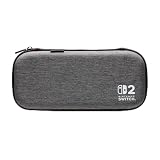
- Structured Protection: Molded interior with soft fabric lining
- Game Storage: Securely holds up to 10 game cards*
- Integrated Play Stand: unfold the convenient play stand and enjoy tabletop mode with ease
- Padded Screen Protector: The play stand doubles as a padded screen protector when the system is inside the case
- Compatibility: Compatible with Nintendo Switch 2
Use Airplane Mode only when you do not need wireless features
Quick Settings also offers Airplane Mode. Nintendo says it disables wireless communication functionality, including internet, local communication, Bluetooth and NFC. It is an option when you do not need those connections, but Nintendo’s support page does not quantify a runtime benefit. Bluetooth is always active in TV mode so the console can be reactivated with a paired controller, according to the Nintendo Switch 2 Important Information booklet.
How should you choose between manual and automatic brightness?
| Choice | What it does | Trade-off |
|---|---|---|
| Manual brightness | Sets the screen level with a slider. | Provides a consistent image, but you may need to adjust it when the room’s lighting changes. |
| Auto-Brightness | Adjusts brightness based on ambient conditions. | Adapts to changing light; the screen level may vary as conditions change. |
There is no universally best brightness level. Use the lowest level that remains clearly visible in your current lighting, and try Auto-Brightness if you move between brighter and darker places often.
Rank #3

- [Compatibility]: Compatible with Nintendo Switch 2 (2025 release) ONLY. Not Compatible with the Switch 2's Kickstand function.
- [Seamless Dock Compatible]: Specifically designed for Switch 2 with uninterrupted docking capability.
- [Foldable Joy Cons Coverage]: Revolutionary hinge mechanism enables Joy Con controllers quickly assembled and disassembled, protects Joy Cons from vibration and keeps Joy Cons firmly connected for a long time.
- [Enhanced Gaming Experience]: Anti-slip rubberized texture improves handling during intense gameplay. 139g weight-balanced construction preserves the console's natural feel while adding professional-grade protection.
- [Premium U.S.-Inspired Design]: Expertly crafted by professional designers with a sleek, futuristic aesthetic and ergonomic. Made with Bayer eco-friendly polycarbonate material from Germany, resistant to yellowing, fingerprints, and dust.
Which battery settings are for monitoring or long-term care?
Show the battery percentage
To display the approximate battery percentage on the HOME Menu, go to System Settings > System > System Battery (%). You can also briefly display the percentage by pressing ZL and ZR together. This makes charge easier to monitor; it does not itself save battery. Nintendo’s battery instructions describe both methods.
Set a charge limit if long-term capacity matters more than a full charge
Nintendo’s System Settings overview says users can choose to stop charging at around 80–90% to help reduce loss of battery capacity over time. This is a charge-limit option for long-term battery care: it caps the charge and does not add play time to the current charge or guarantee a particular battery lifespan.
Rank #4

- NINTENDO CASE - SWITCH 2 COMPATIBLE: Our premium Nintendo Switch case is custom fit for your Switch 2, shielding your console with anti scratch velvet lining and shock absorbing materials—perfect for daily storage, commutes, or long travel days
- TRAVEL READY DESIGN: This compact portable Nintendo Switch 2 carrying case fits easily in a backpack or carry-on or can simply be carried by itself with a wristlet handle for secure handling without risk of drops—great for on-the-go everyday players
- CONVENIENT GAME & AIRTAG STORAGE: Whether at school, traveling or on the go, you can organize up to 12 game cards in a dedicated slot system and track your Case for Nintendo Switch 2 accessories using a hidden AirTag compartment, so it's never lost
- DURABLE & STYLISH: Crafted with an abrasion- and water-resistant polyester exterior and brushed velvet interior lining, plus hidden, no-snag zippers, this Nintendo Switch 2 travel case protector resists wear and tear for lasting device protection
- SUSTAINABLY MADE + 2-YEAR COVERAGE: This durable Belkin Switch 2 Case comes in 100% plastic-free packaging. Plus, you can purchase the Nintendo Switch carrying case with peace of mind knowing that it comes with 2-year coverage
Which comfort settings are worth exploring?
Comfort depends on the player and the way they use the console. The Nintendo settings overview identifies several controls to tailor, rather than prescribing a single setup:
Do these 3 things before closing this tab:
1Repair Windows errors before they cause bigger problems2Fix the driver behind crashes, sound loss and screen glitches3Clear out junk files and repair common Windows errors- Accessibility: Explore button mapping if a different layout better suits you, and text-to-speech if spoken text is useful.
- Controller: Adjust vibration to your preference.
- Audio: Set volume and audio output to suit your environment and listening needs.
These controls are in their respective sections of System Settings. Change the option that addresses a specific need, then see whether the result is more comfortable for you.
Quick Recap
Best Value

- 【CUSTOM FIT FOR NINTENDO SWITCH 2】— Designed specifically for Nintendo Switch 2 (2025). The custom-shaped base, four support grooves and secure hook-and-loop strap help keep the console stable, while the pull tab makes it easier to lift out. Not compatible with the original Switch, Switch OLED or Switch Lite.
- 【HARD-SHELL PROTECTION FOR EVERYDAY TRAVEL】— The protective hard shell helps shield your console from everyday bumps, pressure and scratches inside a backpack or suitcase. Soft interior lining and the card-slot divider help reduce contact with the screen and controls while the console is being carried.
- 【24 GAME SLOTS AND ORGANIZED ACCESSORY STORAGE】— Keep up to 24 physical game cards together and easy to find. The upper zippered mesh pocket organizes a charger, charging cable, earbuds, wrist straps and other small accessories, helping prevent scattered cards, tangled cables and missing gaming gear.
- 【SOFT NYLON ZIPPER PULLS NEAR THE CONSOLE】— Soft nylon zipper pulls help reduce hard-metal contact around the screen and Joy-Con controllers. The fully zippered accessory pocket also keeps small items separated from the console area instead of allowing them to fall loose inside the case.
- 【GRAB-AND-GO GAMING FOR SCHOOL, COMMUTES AND TRIPS】— Whether you are heading to school, commuting, visiting a friend, taking a road trip or packing for vacation, the lightweight case keeps your console, game cards and small accessories together. The sturdy top handle makes it easy to carry alone or place inside a backpack or suitcase.
A practical setup to try
- In handheld or tabletop mode, open System Settings > Screen Brightness and set a clearly visible level, or enable Auto-Brightness if your lighting changes often.
- Open Quick Settings by holding HOME for at least one second when you want to make a quick brightness or volume adjustment.
- Go to System Settings > Sleep Mode and choose an interval that suits how long you usually pause without touching the console.
- If you have a wired connection and use downloads started from a PC or smart device, decide whether keeping that connection active during sleep is worth the energy trade-off.
- Turn on the HOME Menu battery percentage if you want an at-a-glance charge estimate, and review the charge-limit option separately if your priority is long-term capacity.
- Explore accessibility, controller and audio settings for changes that address your own comfort needs.
Product prices and availability are accurate as of the date/time indicated and are subject to change. Any price and availability information displayed on Amazon at the time of purchase will apply.

