
Recommended Free Tools
iTechGuides is reader-supported. When you buy through links on our site, we may earn an affiliate commission. As an Amazon Associate I earn from qualifying purchases. Learn more
To use Blender on a Mac, first match the Blender release to your Mac’s processor, then learn viewport navigation and a handful of modeling shortcuts before moving on to keyframes and rendering. Blender 5.0 and later support Apple silicon Macs; Blender 4.5 LTS was the last release with an official Intel Mac build.
Check your Mac’s processor before installing Blender
Blender 5.0 and later require an Apple silicon Mac. If you have an Intel Mac, Blender 4.5 LTS is the last version with an official macOS build. Earlier official releases may also work on Intel Macs. Blender notes that users can build an Intel version themselves, but those builds are not officially supported. Check the Blender macOS installation instructions and Blender’s system requirements for release-specific details.
Install or update the app
- Download the Blender disk image (DMG) for the release that supports your Mac.
- Open the DMG and drag
Blender.appinto your Applications folder. - Launch Blender. Depending on your macOS security settings, you may need to approve opening the app the first time.
- To update, download the new app and replace the existing
Blender.app. To keep multiple versions, rename or move the existing app before installing the new one.
Make viewport navigation comfortable on a Mac
Learning to orbit, pan, and zoom makes it much easier to inspect a model from different angles. Blender’s default controls assume a three-button mouse, but the manual also describes alternative navigation methods for a trackpad or a mouse without a middle button.
The Tool Desk
Outbyte Driver Updater FREEFix the driver behind crashes, sound loss and screen glitchesFind Drivers →Outbyte PC Repair FREEClear out junk files and repair common Windows errorsFree Scan →| Action | Default input |
|---|---|
| Orbit the view | Drag with the middle mouse button |
| Pan the view | Shift + drag with the middle mouse button |
| Zoom the view | Ctrl + drag with the middle mouse button |
A three-button mouse with a clickable middle button is optional, not required. If you prefer a trackpad or your mouse lacks that button, see Blender’s 3D View navigation guide for the navigation gizmo and alternative controls. The same guide covers navigation options for Macs without a numpad.
#1 Best Overall

- 【Blender 3D Cheat Sheet】The Large mouse pad with Blender 3D Cheat Sheet shortcuts specifically designed for Beginners, making it easy for you to working.
- 【HD Printing】The extra large keyboard shortcut mousepad adopts high-tech printing process to ensure that the pattern of the mouse pad is clear and the color is bright. Ensuring users have quick and easy access to frequently used commands and functions. This is a great office accessories.
- 【Universal Fit】Mouse Pad for Desk is designed for comfort and productivity. Measuring at 31.5x11.8 inches, it provides ample space to accommodate your mouse, keyboard, and other desk essentials.
- 【Invisible Seams & Waterproof】Our large gaming mouse pad has a waterproof coating, the surface can be easily cleaned with water or a damp cloth. It also has invisible stitched process to avoid edge damage caused by long-term use. This design effectively extends the service life of the keyboard shortcut mouse pad and is suitable for computers and laptops.
- 【Easy to Clean and Maintain】 The spill-repellent surface ensures easy cleanup of daily spills or accidents, extending the lifespan of your mouse pad. Say goodbye to the hassle of dealing with spills and enjoy a pristine workspace at all times.
Recover a view when your model seems lost
Select an object in the Outliner and frame it in the viewport, or press Home to fit objects in view. If orbiting around the scene’s central point makes it difficult to inspect an interior, Blender provides options such as View Dolly, Walk/Fly Navigation, Auto Depth, Zoom to Mouse Position, and Zoom Region.
Learn a small set of modeling controls first
Begin with a single object and get comfortable changing its shape before tackling a complex scene. These are Blender’s documented default shortcuts; a customized keymap may differ.
Rank #2

- Extended Dimensions: 31.5" x 11.8" x 0.1" It will fit your desktop perfectly and provide the perfect space to move around, you can also use this extended mouse pad as office, gaming, keyboard pad, platform protector or desk pad, and for all types of mice and more
- Exquisite Design: We choose beautiful and trendy patterns and use superior printing technology to ensure vibrant colors. This is a great desk and home table mat decoration to add some character to your workplace and home
- Stitched Edges: The latest stitching technology ensures that the mouse pad will not fray or deform during use. The stitched frame ensures that it won't fray or come off like other mouse pads, making it easy to use
- Non-Slip Base: The base of this extra-large mouse pad is made of high-quality natural rubber, the mouse pad is designed with densely textured rubber that grips the desktop firmly and provides stable operation for the mouse/keyboard
- Colorfast:Thermal transfer printing process, can be washed again and again and does not fade, so that this mouse pad always maintains the beautiful
- Select an object and press
Tabto enter Edit Mode. - In Edit Mode, press
1for vertex selection,2for edge selection, or3for face selection. - Use
Gto move selected geometry,Rto rotate it, andSto scale it. - Press
Tabagain to return to Object Mode.
Blender also includes tools for meshes, curves, text, and modifiers. Once selecting and transforming geometry feels familiar, explore those tools through the modeling section of the Blender manual.
Use the Mac versions of shortcuts carefully
On macOS, Cmd can replace Ctrl for many Blender shortcuts, but not every shortcut maps that way: some combinations conflict with macOS. Check the operation’s keymap rather than changing every Ctrl shortcut to Cmd by assumption. Blender lists Cmd + , as the shortcut for Preferences in its default keymap reference.
Rank #3
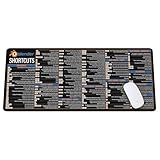
- Extra Large & Comfortable: Measuring 31.5 x 11.8 inches with a 3mm thickness, this XL mouse pad offers ample space for your mouse, keyboard, and more - ensuring comfort and reducing noise.
- Smooth & Precise Control: Enjoy effortless mouse movement with the ultra-smooth surface, perfect for both gaming and office work.
- Non-Slip Rubber Base: The anti-slip rubber base keeps the pad securely in place during intense gaming or work sessions.
- Durable & Stylish Design: Invisible stitching prevents edge wear while maintaining a sleek look, extending the pad’s lifespan.
- Waterproof & Easy to Clean: The water-resistant coating allows for quick cleaning—spills and stains wipe away easily.
Make and review a first animation
A useful first exercise is to animate a simple object’s position or rotation between two frames. The goal is to understand the keyframe-and-playback cycle before adding a rig, constraints, or other complexity.
- Choose a starting frame and position or rotate the object.
- Press
Ito insert a keyframe. - Move to a later frame, change the object’s position or rotation, and press
Iagain to insert another keyframe. - Play the animation to review the motion, then adjust the object or keyframes if needed.
- Use
F12to render the current frame as a still image.
Blender’s manual covers keyframes as well as more advanced animation tools, including drivers, constraints, armatures, and shape keys. For the next stage, use its animation guide and rendering guide. Rendering options include EEVEE and Cycles; which to use depends on the scene and your needs.
Rank #4
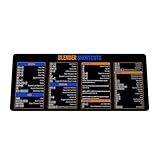
- Extra Large & Comfortable: Measuring 31.5 x 11.8 inches with a 3mm thickness, this XL mouse pad offers ample space for your mouse, keyboard, and more - ensuring comfort and reducing noise.
- Smooth & Precise Control: Enjoy effortless mouse movement with the ultra-smooth surface, perfect for both gaming and office work.
- Non-Slip Rubber Base: The anti-slip rubber base keeps the pad securely in place during intense gaming or work sessions.
- Durable & Stylish Design: Invisible stitching prevents edge wear while maintaining a sleek look, extending the pad’s lifespan.
- Waterproof & Easy to Clean: The water-resistant coating allows for quick cleaning—spills and stains wipe away easily.
Set performance expectations around the scene, not a Mac model
Blender’s troubleshooting guidance notes that old or slow hardware can cause slow viewport rendering, while dense geometry can make selection slower. Performance also depends on scene complexity and render configuration. The available official guidance does not identify one Mac model as the best choice, so avoid treating any single hardware upgrade as a guaranteed speed fix. If the interface slows down, consider whether the scene’s geometry or the chosen render setup is contributing before changing hardware.
What’s actually slowing this PC down?
Pick the symptom - the matching free tool is one click away.
Quick Recap
Product prices and availability are accurate as of the date/time indicated and are subject to change. Any price and availability information displayed on Amazon at the time of purchase will apply.

