
Do these 3 things before closing this tab:
1Clear out junk files and repair common Windows errors2Fix the driver behind crashes, sound loss and screen glitches3Repair Windows errors before they cause bigger problemsiTechGuides is reader-supported. When you buy through links on our site, we may earn an affiliate commission. As an Amazon Associate I earn from qualifying purchases. Learn more
The Logitech MX Master 4 is an exceptional right-handed productivity mouse priced at about $120, with excellent ergonomics, quiet clicks, MagSpeed scrolling, multi-device support, haptic controls, and the new Actions Ring. The mouse is not a radical MX Master 3S redesign, however, and its best new features require Logi Options+.
The MX Master 4 is a refinement of Logitech’s flagship work mouse rather than a complete reinvention. The familiar shape, dual scroll wheels, quiet main buttons, Darkfield tracking, and three-device workflow remain the foundation. Logitech has added a haptic control surface, a customizable radial shortcut interface, a more textured exterior, and some ergonomic changes.
That makes the MX Master 4 an easy recommendation for a new buyer who spends hours at a desk and will use Logitech’s software. The upgrade is less compelling for MX Master 3S owners who already like their mouse, and the MX Master 4 is a poor fit for left-handed users, competitive gamers, software-restricted workplaces, and anyone who prefers a lightweight mouse.
Key takeaways
- The Logitech MX Master 4 costs about $120 in the US and is designed primarily for premium desk productivity rather than competitive gaming.
- The MX Master 4 adds haptic controls, the customizable Actions Ring, a textured exterior, an extra gesture-oriented control, and claimed connectivity improvements over the MX Master 3S.
- The mouse weighs 150g, reports at 125Hz, and has a 200–8,000 DPI Darkfield sensor, so its high DPI rating does not make it a high-performance gaming mouse.
- Logitech rates the 650mAh rechargeable battery for up to 70 days, with up to three hours of use from a one-minute charge.
- Basic pointing, clicking, scrolling, and pairing work without Logi Options+, but button remapping, application profiles, Actions Ring customization, advanced haptics, and automations depend heavily on the software.
- MX Master 3S owners should upgrade mainly if they need haptics, Actions Ring workflows, or the newer materials; otherwise, a discounted MX Master 3S may offer better value.
What is new on the Logitech MX Master 4?
The Logitech MX Master 4 adds new software-driven controls and material changes while preserving the established right-handed productivity-mouse design. Logitech announced the mouse on September 30, 2025, at a US list price of $119.99 and a European list price of €129.99 in its official MX Master 4 announcement.
#1 Best Overall

- Precision you can feel with the Haptic Sense Panel; customizable (1) haptic feedback on specific actions, shortcuts, notifications enhancing productivity on this wireless Bluetooth mouse
- Effortlessly access favorite tools with Actions Ring (2) on this MX Series mouse—a dynamic, customizable overlay adapts to each app, placing most used filters, adjustments, and shortcuts at your cursor
- Scroll 1,000 lines per second and stop on a pixel with the MagSpeed scroll wheel—Logitech’s fastest (3), quietest, and most precise (4) scrolling experience
- Enjoy 2X more powerful connectivity (7) with a USB-C dongle, advanced radio chip, and optimized antenna for faster, stronger, reliable performance—or use Bluetooth for more versatility
- Ergonomic mouse designed for comfort, MX Master 4 keeps you in flow with a natural tilt, intuitive buttons, and a thumb scroll wheel that reduces hand stress for fluid navigation
| Area | MX Master 4 | MX Master 3S | What the change means |
|---|---|---|---|
| Haptic control | Haptic Sense Panel/button | No equivalent built-in haptic control | The MX Master 4 can provide tactile feedback and open the Actions Ring for supported workflows. |
| Shortcut interface | Customizable Actions Ring | No equivalent built-in ring | Users can place shortcuts, tools, filters, and app commands in a radial overlay near the pointer. |
| Exterior | Textured plastic with silicone grips at key contact areas | More extensive soft-touch rubber coating | The MX Master 4 feels less dependent on a soft-touch finish and is intended to resist visible staining better. |
| Ergonomics | Larger main buttons, expanded palm-rest area, and an additional gesture-oriented side control | Established MX Master ergonomic layout | The newer mouse refines rather than replaces the familiar hand position. |
| Core workflow | Right-handed shape, dual wheels, quiet clicks, USB-C charging, multi-device switching | Same general productivity focus | The basic reason to buy an MX Master remains largely unchanged. |
Logitech also claims twice the connectivity strength of the previous generation and describes a new USB-C receiver for some configurations. That is a manufacturer claim, not a guarantee that every user will experience twice the range or a measurable latency improvement. Package contents also vary between the standard and Mac versions, so check the exact listing before buying.
Is the MX Master 4 comfortable for long work sessions?
The MX Master 4 is highly comfortable for many right-handed palm-grip users because the mouse supports the palm, slopes the hand into a natural position, and places the thumb on a dedicated rest. The larger main buttons, broad palm area, and accessible side controls suit long sessions involving documents, browsers, spreadsheets, coding tools, and creative applications.
The shape is not universally comfortable. The MX Master 4 measures 128.15 × 88.35 × 50.8mm and weighs 150g according to Logitech’s official specifications. The substantial body can feel stable and supportive, but users who frequently lift and reposition a mouse may find the weight tiring. Small-handed users should also check the dimensions carefully, because the tall body and thumb-rest geometry may make the far controls harder to reach.
What’s actually slowing this PC down?
Pick the symptom - the matching free tool is one click away.
| User or grip | Likely experience | Recommendation |
|---|---|---|
| Right-handed palm grip | Best match for the palm support, slope, and thumb rest | Strong candidate for long desk sessions |
| Right-handed claw grip | May work, but the large, heavy chassis is less agile than a smaller mouse | Try the shape before buying if possible |
| Fingertip grip | The 150g weight and tall body can make frequent repositioning less comfortable | Consider a lighter mouse |
| Small hands | Some buttons and the broad body may feel difficult to reach | Check fit in person or buy with a good return policy |
| Left-handed users | The MX Master 4 is designed for right-handed use | Choose a symmetrical or left-handed model instead |
The MX Master 4 is a glide-and-control work mouse, not a featherweight design. The weight is an advantage when precise scrolling and stable pointer placement matter, but a disadvantage for users who make large, fast mouse movements.
How good are the MX Master 4’s buttons and scrolling?
The MX Master 4’s most consistently useful feature is still the MagSpeed electromagnetic scroll wheel. The wheel can move between precise, ratcheted scrolling and fast free-spinning scrolling, making it useful for both short lists and long documents, code files, spreadsheets, and timelines.
A separate horizontal thumb wheel handles sideways movement, while the additional gesture-oriented control can provide another layer of shortcuts. Quiet main clicks reduce the audible distraction of office use, although claims about a specific percentage reduction in noise should be treated as Logitech or retail marketing claims rather than universal independent measurements.
In daily work, the MX Master 4’s controls are more valuable than its headline sensor resolution. A writer can move quickly through a long document, an analyst can navigate wide spreadsheets, and a video editor can scroll across a timeline without repeatedly dragging a scrollbar. The horizontal wheel is particularly useful when a workflow regularly moves in two dimensions.
The Tool Desk
Outbyte Driver Updater FREEFix the driver behind crashes, sound loss and screen glitchesFind Drivers →Outbyte PC Repair FREEClear out junk files and repair common Windows errorsFree Scan →What are the haptic controls and Actions Ring?
The MX Master 4’s Haptic Sense Panel provides tactile feedback for supported actions and can open the Actions Ring, a customizable on-screen radial interface for shortcuts, tools, filters, and application commands. The combination is the main reason to choose the MX Master 4 over the older model, but the productivity benefit depends on the applications and actions a user actually performs.
The practical setup is:
- Install Logi Options+ on the computer.
- Pair the MX Master 4 and open its device settings.
- Assign the Actions Ring to the Haptic Sense Panel or another available control.
- Open the radial overlay and configure global shortcuts or application-specific commands.
- Test the commands in the applications used most often, such as Photoshop, Lightroom, Premiere Pro, Excel, or other supported software.
- Adjust haptic behavior and ring settings if those controls are available in the installed Logi Options+ version.
The Actions Ring can reduce the need to move the pointer to distant toolbars or repeatedly remember keyboard shortcuts. Creative users who switch tools, filters, or adjustment controls frequently are the most likely to benefit. A developer or office worker may also find value in custom commands for window management, copying, pasting, or repetitive application actions.
Haptics are more conditional. Tactile feedback can confirm a supported selection, slider adjustment, desktop switch, notification, or other action, but haptic behavior is not equally deep in every application. The Guardian’s review emphasizes that the usefulness of the feedback depends heavily on application plugins, while Apple’s product listing describes haptics for specific actions, shortcuts, and notifications rather than every interaction on the computer.
Logitech says the Actions Ring can produce up to 63% fewer repetitive mouse movements and up to 33% time savings. Those are Logitech claims based on its own study or testing, not guaranteed results for every user. A reader who uses unsupported software, rarely repeats commands, or dislikes on-screen overlays may experience the Actions Ring as setup overhead rather than a productivity gain.
Recommended Free Tools
Rank #2

- Precision you can feel with the Haptic Sense Panel; customizable (1) haptic feedback on specific actions, shortcuts, notifications enhancing productivity on this wireless Bluetooth mouse
- Effortlessly access favorite tools with Actions Ring (2) on this MX Series mouse—a dynamic, customizable overlay adapts to each app, placing most used filters, adjustments, and shortcuts at your cursor
- Scroll 1,000 lines per second and stop on a pixel with the MagSpeed scroll wheel—Logitech’s fastest (3), quietest, and most precise (4) scrolling experience
- Enjoy 2X more powerful connectivity (7) with a USB-C dongle, advanced radio chip, and optimized antenna for faster, stronger, reliable performance—or use Bluetooth for more versatility
- Ergonomic mouse designed for comfort, MX Master 4 keeps you in flow with a natural tilt, intuitive buttons, and a thumb scroll wheel that reduces hand stress for fluid navigation
Does the MX Master 4 work without Logi Options+?
The MX Master 4 works as a basic mouse without Logi Options+, but the product’s distinctive productivity features are substantially software-dependent. Basic pointer movement, standard clicking, ordinary scrolling, and Bluetooth pairing can remain available, while advanced customization generally requires Logitech’s application.
| Function | Without Logi Options+ | With Logi Options+ |
|---|---|---|
| Pointer movement | Yes | Yes, with customization |
| Standard clicks and basic scrolling | Yes | Yes |
| Bluetooth pairing | Generally available, subject to operating-system support | Available with device management |
| Button remapping | Limited or unavailable | Supported |
| Actions Ring configuration | No practical configuration | Supported |
| Application-specific profiles | No | Supported |
| Smart Actions and automations | No | Supported where available |
| Advanced haptic behavior and device controls | Limited | Best supported |
| Settings stored in onboard memory | No onboard settings memory is identified by RTINGS | Profiles depend on the software and computer |
The lack of onboard settings memory matters in schools, offices, laboratories, and other environments where users cannot install utilities. A customized MX Master 4 may not behave the same way when moved to a computer without Logi Options+. Buyers should check whether IT permits the application, its background services, Bluetooth permissions, and firmware updates before paying for software-defined features.
“Works without software” is therefore technically true but practically incomplete. The mouse remains usable as a pointing device, but advanced haptics, Actions Ring workflows, application profiles, and automation are central to the premium model’s value.
How accurate are the sensor and scroll systems?
The MX Master 4 uses a Darkfield high-precision sensor with a 200–8,000 DPI range and is designed to track across ordinary desks and glass. Logitech’s official specification lists a 125Hz report rate, an 8ms reporting interval, and a wireless range of up to 10m.
Glass tracking is useful when a desk has a reflective or unconventional surface, but “tracks on glass” should not be interpreted as a guarantee for every glass type, lighting condition, or desk environment. Surface cleanliness, reflection, and the exact material can still affect performance.
The 8,000 DPI maximum is also easy to misread. DPI describes pointer sensitivity; it is not the same as an 8,000Hz polling rate. The MX Master 4 reports at 125Hz, which is entirely adequate for ordinary office work but less attractive on a high-refresh display or in workflows where cursor-update smoothness and latency are priorities.
Is the MX Master 4 good for gaming?
The MX Master 4 is suitable for casual gaming but not competitive gaming. Accurate tracking and programmable buttons can handle ordinary games, yet the 150g weight, productivity-first shape, and 125Hz report rate make the mouse less suitable for rapid repositioning and high-refresh competitive play.
Independent testing from RTINGS identifies the Keychron M6 as better suited to gaming because it is lighter, offers substantially higher polling rates, and has better click latency. A dedicated gaming mouse or a gaming-oriented hybrid is a better choice for shooters, esports, and other games where fast movement and low latency matter.
Crashes, No Sound, or Screen Glitches?
Random freezes, missing sound and display glitches usually trace back to one bad driver. Find and replace yours safely.Free scan · under a minuteWindows Errors? Fix Them Before They Spread
Repair common Windows errors and clear accumulated junk for a smoother, more stable PC - no reinstall needed.Free scan · no reinstallThe MX Master 4’s high DPI ceiling does not change that conclusion. Competitive gaming depends on the complete movement and input system, including weight, sensor behavior, polling rate, click latency, shape, and glide—not just the maximum DPI number.
How long does the MX Master 4 battery last?
The MX Master 4 has a 650mAh rechargeable battery, USB-C charging, and an official rating of up to 70 days per charge. Logitech also says that one minute of charging provides up to three hours of use; actual endurance varies with usage, connection mode, settings, and battery condition.
Use the official “up to 70 days” figure rather than “70 hours.” A Tom’s Guide roundup contains a “70 hours” wording that conflicts with Logitech’s official specification and launch material and appears to be a unit error.
Rank #3

- Mastered for Mac: With matching Apple finishes, Logi Options+ functions for macOS (1), USB-C charging while you work (cable not included), MX Master 4 for Mac makes for a perfect fit with your Apple setup
- Precision you can feel with the Haptic Sense Panel; customizable (1) haptic feedback on specific actions, shortcuts, notifications enhancing productivity on this wireless Bluetooth mouse
- Effortlessly access favorite tools with Actions Ring (2) on this MX Series mouse—a dynamic, customizable overlay adapts to each app, placing most used filters, adjustments, and shortcuts at your cursor
- Scroll 1,000 lines per second and stop on a pixel with the MagSpeed scroll wheel—Logitech’s fastest (3), quietest, and most precise (4) scrolling experience
- Ergonomic mouse designed for comfort, MX Master 4 for Mac keeps you in flow with a natural tilt, intuitive buttons, and a thumb scroll wheel that reduces hand stress for fluid navigation
The package contents require attention. Apple’s listed Mac package does not include a charging cable, according to its product page, so buyers should verify exactly what comes with the regional edition they select. Receiver inclusion can also differ: RTINGS reports that the Mac variant does not include a Logi Bolt USB-C receiver, although the Mac model remains compatible with one.
Free tools Windows power users keep installed
One-click scans. No signup required.
Is the MX Master 4 repairable?
Logitech’s official specification describes the MX Master 4 battery as not user-replaceable, while The Guardian reports exposed screws, disassembly guidance, and a design that can be repaired with a replacement battery. Those statements are not identical: a product can be physically serviceable without Logitech classifying the battery as user-replaceable.
Treat repairability as dependent on the exact regional unit, replacement-part availability, safety guidance, and the documentation supplied for that model. Do not assume that opening the mouse is officially supported or that a replacement battery is readily available in every country.
Logitech also identifies recycled cobalt in the battery and recycled plastic in the construction. Those material choices are positive sustainability measures, but they do not establish a guaranteed lifespan or make the battery user-replaceable.
How does multi-device switching work?
The MX Master 4 can pair with and switch among up to three devices using Easy-Switch controls. Windows and macOS users can use the mouse across computers, while Logitech Flow and Logi Options+ can extend the workflow with cross-device control and file-transfer features where the operating-system, network, and software requirements are met.
The three-device workflow is useful for someone moving between a work laptop, personal desktop, and tablet or second computer. Bluetooth Low Energy support is required for Bluetooth operation. Apple’s Mac listing specifies macOS 13 for that product configuration, so Mac buyers should verify current operating-system requirements rather than assuming every older Mac is supported.
The standard and Mac versions should not be treated as identical packages. Colors differ by market, and receiver inclusion can differ. Verify whether the chosen box includes a Logi Bolt receiver, especially if Bluetooth is restricted or unreliable on the target computer.
What are the MX Master 4’s main strengths and weaknesses?
| Strengths | Weaknesses |
|---|---|
| Very comfortable right-handed ergonomic shape for many palm-grip users | Large and heavy at 150g |
| Excellent MagSpeed vertical scrolling and useful horizontal scrolling | Not designed for competitive gaming |
| Quiet main clicks | 125Hz report rate is modest for high-refresh use |
| Accurate Darkfield tracking with a 200–8,000 DPI range | No onboard settings memory identified by independent testing |
| Haptics and Actions Ring are distinctive productivity features | Advanced features depend on Logi Options+ and application support |
| Three-device switching and Logitech Flow support | Right-handed-only design |
| Textured exterior and silicone contact grips | Receiver and cable contents vary by edition and retailer |
| Long official battery rating and USB-C charging | Premium price and conflicting interpretations of battery repairability |
Should MX Master 3S owners upgrade?
MX Master 3S owners should upgrade only when the MX Master 4’s new controls or materials solve a real problem. The MX Master 4 is not a fundamental change to the ergonomic shape, dual-wheel workflow, quiet clicking, or multi-device concept.
The upgrade makes the most sense for an MX Master 3S owner who:
- Uses creative or productivity applications that can benefit from Actions Ring commands.
- Wants tactile confirmation for supported actions and notifications.
- Dislikes the older soft-touch exterior and prefers the newer textured treatment.
- Needs the MX Master 4’s additional gesture-oriented control or claimed connectivity refinements.
- Is replacing an aging mouse and can buy the newer model without paying a large premium over the older one.
Keeping the MX Master 3S is sensible when the existing mouse is comfortable, the MagSpeed wheel already solves the main workflow problems, and the owner does not need haptics or radial shortcuts. A discounted MX Master 3S may deliver most of the familiar experience for less money.
Independent reader supportYour contribution helps us test, update, and keep practical guides available for everyone.How does the MX Master 4 compare with alternatives?
| Alternative | Best for | Advantages over MX Master 4 | Trade-offs |
|---|---|---|---|
| Logitech MX Master 3S | Value-conscious productivity users and existing Logitech owners | Familiar ergonomic shape and scrolling at a potentially lower price | No MX Master 4 haptic controls or Actions Ring; current pricing varies |
| Keychron M6 or M6 8K | Users wanting lower weight, higher polling, better gaming performance, or lower pricing | More movement and gaming-focused performance according to RTINGS | Less polished productivity ecosystem and no MX Master 4 Actions Ring/haptic workflow |
| Logitech M720 Triathlon | Basic office work and multi-device switching on a budget | Lower-cost route to multi-device Logitech use | Less premium, with fewer advanced controls and a less sophisticated scroll system |
| Razer Basilisk Mobile | Users wanting a gaming-capable hybrid | More gaming-oriented positioning | Does not replicate Logitech’s deeply integrated productivity workflow |
The RTINGS comparison supports the Keychron M6 family as the stronger direction for lighter movement and gaming performance, while the MX Master 4 remains the better fit for users who prioritize Logitech’s scrolling, customization, and multi-device workflow.
Rank #4
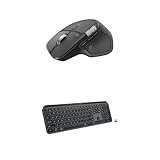
- Precision you can feel with the Haptic Sense Panel; customizable (1) haptic feedback on specific actions, shortcuts, notifications enhancing productivity on this wireless Bluetooth mouse
- Effortlessly access favorite tools with Actions Ring (2) on this MX Series mouse—a dynamic, customizable overlay adapts to each app, placing most used filters, adjustments, and shortcuts at your cursor
- Scroll 1,000 lines per second and stop on a pixel with the MagSpeed scroll wheel—Logitech’s fastest (3), quietest, and most precise (4) scrolling experience
- Fluid Typing Experience: This Logitech MX keyboard, with its laptop-like profile and spherically-dished keys, delivers a fast, fluid, and precise typing experience
- Automate Repetitive Tasks: Easily create and share time-saving Smart Actions shortcuts to perform multiple actions with a single keystroke with this Logitech keyboard and the Logi Options+ app (1)
Who should buy the Logitech MX Master 4?
Buy the MX Master 4 if you are a right-handed desk worker who values comfort, quiet clicks, excellent vertical and horizontal scrolling, multiple-device switching, and extensive software customization. The mouse is especially attractive to developers, writers, spreadsheet-heavy professionals, analysts, and creative users who will configure application-specific commands.
The MX Master 4 is also a strong new purchase when the price is close to the MX Master 3S and the buyer is curious about haptics or the Actions Ring. Those features are genuine differentiators, even though their usefulness depends on software and application support.
Quick wins for a faster PC:
Repair Windows errors before they cause bigger problemsFix Now →Scan for outdated or missing drivers - takes under a minuteDriver Scan →Clear out junk files and repair common Windows errorsFree Scan →Who should skip the Logitech MX Master 4?
Skip the MX Master 4 if you are left-handed, need a lightweight mouse, play competitive games, care about high polling rates, or cannot install Logi Options+. The mouse is also a poor value when the Actions Ring and haptics do not fit the buyer’s workflow, because many of the core ergonomic and scrolling benefits are available in the older MX Master line.
Buyers who want settings to travel automatically between locked-down computers should be especially cautious. The lack of onboard settings memory means that a carefully customized configuration may not be available on a computer without Logi Options+.
Final verdict
The Logitech MX Master 4 is one of the strongest general-purpose productivity mice, but “ultimate” needs qualification. The mouse improves an already excellent formula with haptic feedback, Actions Ring shortcuts, refined materials, an additional gesture control, and claimed connectivity improvements. The comfort, quiet clicks, MagSpeed wheel, horizontal scrolling, tracking, and three-device workflow remain the reasons to buy it.
At roughly $120, the MX Master 4 is a luxury work mouse rather than an automatic recommendation for everyone. New buyers who will install Logi Options+ should strongly consider it. MX Master 3S owners should upgrade only for the new controls or a meaningful hardware need. Gamers, left-handed users, software-restricted workers, weight-sensitive users, and bargain shoppers should choose a different mouse—most notably a Keychron M6/M6 8K for a lighter, faster hybrid or a cheaper Logitech model for basic multi-device office work.
Frequently Asked Questions
Does the Logitech MX Master 4 work without Logi Options+?
Yes, the MX Master 4 can provide basic pointing, clicking, scrolling, and Bluetooth use without Logi Options+, but Actions Ring customization, advanced haptics, button remapping, application profiles, Smart Actions, and other advanced features depend heavily on the software. The mouse also has no onboard settings memory identified by RTINGS.
Is the Logitech MX Master 4 good for gaming?
The MX Master 4 is suitable for casual gaming but is not a strong competitive-gaming mouse. Its 150g weight, productivity-focused shape, and 125Hz report rate are less suitable for fast movement and low-latency high-refresh play than a gaming mouse or Keychron M6 8K.
How long does the MX Master 4 battery last?
Logitech rates the MX Master 4’s 650mAh rechargeable battery for up to 70 days, and says one minute of charging provides up to three hours of use. Actual battery life varies with usage, settings, and connection conditions.
Should I upgrade from the MX Master 3S to the MX Master 4?
Upgrade from the MX Master 3S if you need the MX Master 4’s haptics, Actions Ring, newer exterior, or additional gesture-oriented control. Keep the MX Master 3S if its shape and scrolling already work well and you do not need software-dependent new features.
Do these 3 things before closing this tab:
1Scan for outdated or missing drivers - takes under a minute2Repair Windows errors before they cause bigger problems3Fix the driver behind crashes, sound loss and screen glitchesDoes the MX Master 4 include a USB receiver?
Receiver contents depend on the edition and package. RTINGS reports that the Mac variant does not include a Logi Bolt USB-C receiver but remains compatible with one, so buyers should verify the exact regional listing before purchase.
The Bottom Line
Bottom line: The MX Master 4 is an excellent premium productivity mouse for right-handed users who will use Logi Options+ and benefit from the Actions Ring or haptic feedback. It is not the best choice for competitive gaming, left-handed use, locked-down computers, lightweight-mouse fans, or buyers seeking maximum value.
Quick Recap
Product prices and availability are accurate as of the date/time indicated and are subject to change. Any price and availability information displayed on Amazon at the time of purchase will apply.

