
Do these 3 things before closing this tab:
1Repair Windows errors before they cause bigger problems2Fix the driver behind crashes, sound loss and screen glitches3Clear out junk files and repair common Windows errorsiTechGuides is reader-supported. When you buy through links on our site, we may earn an affiliate commission. As an Amazon Associate I earn from qualifying purchases. Learn more
To sign into your LinkedIn account on a PC, open LinkedIn’s sign-in page and enter the email address or phone number linked to your account and your password. On a phone, use the LinkedIn app or mobile site. If LinkedIn asks for a security check, complete the code or approval prompt; eligible devices may also let you sign in with a passkey.
How to sign in to LinkedIn on a PC
- Open LinkedIn’s sign-in page.
- Enter the email address or phone number associated with your account, then enter your password.
- Select the sign-in button. If LinkedIn requests an additional security check, follow the on-screen instructions to enter a code or approve the sign-in.
A sign-in from a new or unrecognized device may trigger an extra check. The available method depends on the security options configured for your account.
How to sign in on a phone
Open the LinkedIn app, or visit LinkedIn’s mobile site, and enter the email address or phone number and password for your account. If a code or approval prompt appears, use the associated message channel or LinkedIn app to complete it.
The Tool Desk
Outbyte Driver Updater FREEScan for outdated or missing drivers - takes under a minuteDriver Scan →Outbyte PC Repair FREEClear out junk files and repair common Windows errorsFree Scan →If you receive an app approval request you did not initiate, select “No, it’s not me.” LinkedIn says this denies the attempt and prompts you to change your password. Do not approve an unexpected sign-in request. LinkedIn’s guidance for sign-in approval prompts
#1 Best Overall

- POWERFUL SECURITY KEY: The Security Key C NFC is the essential physical passkey for protecting your digital life from phishing attacks. It ensures only you can access your accounts.
- WORKS WITH 1000+ ACCOUNTS: Compatible with Google, Microsoft, and Apple. A single Security Key C NFC secures 100 of your favorite accounts, including email, password managers, and more.
- FAST & CONVENIENT LOGIN: Plug in your Security Key C NFC via USB-C and tap it, or tap it against your phone (NFC) to authenticate. No batteries, no internet connection, and no extra fees required.
- TRUSTED PASSKEY TECHNOLOGY: Uses the latest passkey standards (FIDO2/WebAuthn & FIDO U2F) but does not support One-Time Passwords. For complex needs, check out the YubiKey 5 Series.
- BUILT TO LAST: Made from tough, waterproof, and crush-resistant materials. Manufactured in Sweden and programmed in the USA with the highest security standards.
Which sign-in check should you use?
| Method | What you need | When it helps |
|---|---|---|
| SMS code | Access to the phone number registered with the account | When LinkedIn sends a code by text |
| Authenticator app | Access to the app configured for LinkedIn | When your account requests an authenticator code; LinkedIn recommends this option in its two-factor overview |
| LinkedIn app approval | A LinkedIn app session signed in to your account | When LinkedIn asks you to approve a new-device sign-in |
| Passkey | A supported device with access to the passkey | When passkey sign-in is available for your account and device |
These methods have different access requirements; LinkedIn’s guidance documents their setup but does not establish a comparative performance ranking. Its Two-factor authentication overview states: “LinkedIn encourages all members to turn on two-factor authentication.” LinkedIn Two-factor authentication overview
Sign in with a passkey
A passkey can replace password entry on supported devices. LinkedIn describes using a passkey on the device where it is set up and using a QR code to authenticate across devices. Availability depends on device support and account access; not every account or device necessarily offers the option. See LinkedIn’s passkey instructions for setup and sign-in steps.
Rank #2

- POWERFUL SECURITY KEY: The YubiKey 5 NFC is the most versatile physical passkey, protecting your digital life from phishing attacks. It ensures only you can access your accounts
- WORKS WITH 1000+ ACCOUNTS: Compatible with popular accounts like Google, Microsoft, and Apple. A single YubiKey 5 NFC secures 100+ of your favorite accounts, including email, password managers, and more
- FAST & CONVENIENT LOGIN: Plug in your YubiKey 5 NFC via USB and tap it, or tap it against your phone (NFC), to authenticate. No batteries, no internet connection, and no extra fees required
- MOST SECURE PASSKEY: Supports FIDO2/WebAuthn, FIDO U2F, Yubico OTP, OATH-TOTP/HOTP, Smart card (PIV), and OpenPGP. That means it’s versatile, working almost anywhere you need it
- PRIMARY & SPARE KEYS: Just like having a spare house key, we recommend buying two YubiKeys - one for daily use and one as a spare. That way you’ll never get locked out of your accounts
Reset a forgotten LinkedIn password
- Go to LinkedIn’s sign-in page and select “Forgot password?”
- Enter an email address or phone number linked to your account and request the verification code.
- Retrieve the code through the offered route, enter it, and follow the prompts to set a new password.
- Complete any additional two-factor or security challenge LinkedIn presents.
Use an address or number associated with the account. If you cannot receive the verification message, check whether another recovery route is offered. LinkedIn’s password reset instructions describe the current recovery flow.
Recommended Free Tools
If you lost access to your verification phone or app
First check whether you are still signed in to LinkedIn on another device. If you are, use account settings to change your two-factor authentication method. If you have no active session, follow LinkedIn’s account recovery steps; it may ask you to verify your identity rather than accept repeated guesses at unavailable codes. LinkedIn’s recovery guidance when you cannot access your mobile device
Rank #3

- Manufactured by Hirsch Secure, Inc. — formerly Identiv. PHISHING-RESISTANT SECURITY: FIDO Alliance-certified SecureKey stores site-specific cryptographic credentials on-device to help defend against phishing, password theft and replay attacks. PASSWORDLESS + MFA: Supports FIDO2, U2F and WebAuthn for passwordless sign-in, 2FA and MFA. USB-C + NFC: Works with compatible laptops, desktops and mobile devices across Windows, macOS, Linux, ChromeOS, Android and iOS. MULTI-PROTOCOL: Supports HOTP and PIV, with SecureKey Manager for FIDO2 PIN and device management. TAA COMPLIANT: Built for personal, business, enterprise and government use. Register a second key as backup.
LinkedIn’s identity-verification flow can involve opening the process on a desktop, scanning a QR code with a phone, and submitting government-issued identification. Accepted documents can vary by country, and the process does not guarantee a particular outcome or completion time. Follow the instructions shown for your location. LinkedIn identity verification instructions
Independent reader supportYour contribution helps us test, update, and keep practical guides available for everyone.Add a backup recovery route
Adding a mobile number to your account can provide another route for password recovery, according to LinkedIn. Review your contact details and recovery options in account settings while you still have access. LinkedIn’s instructions for adding a phone number
Quick Recap
Best Value
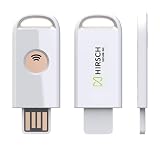
- Manufacturer Information: Manufactured by Hirsch Secure, Inc. - formerly Identiv
- Phishing-Resistant Security: FIDO Alliance-certified SecureKey stores site-specific cryptographic credentials on-device to help defend against phishing, password theft and replay attacks
- Passwordless and Multi-Factor Authentication: Supports FIDO2, U2F and WebAuthn for passwordless sign-in, 2FA and MFA
- USB-A and NFC Connectivity: Works with compatible laptops, desktops and mobile devices across Windows, macOS, Linux, ChromeOS, Android and iOS
- Multi-Protocol Support: Supports HOTP and PIV, with SecureKey Manager for FIDO2 PIN and device management
Rank #4
- POWERFUL SECURITY KEY: The Security Key NFC is the essential physical passkey for protecting your digital life from phishing attacks. It ensures only you can access your accounts.
- WORKS WITH 1000+ ACCOUNTS: Compatible with Google, Microsoft, and Apple. A single Security Key NFC secures 100 of your favorite accounts, including email, password managers, and more.
- FAST & CONVENIENT LOGIN: Plug in your Security Key NFC via USB-A and tap it, or tap it against your phone (NFC) to authenticate. No batteries, no internet connection, and no extra fees required.
- TRUSTED PASSKEY TECHNOLOGY: Uses the latest passkey standards (FIDO2/WebAuthn & FIDO U2F) but does not support One-Time Passwords. For complex needs, check out the YubiKey 5 Series.
- BUILT TO LAST: Made from tough, waterproof, and crush-resistant materials. Manufactured in Sweden and programmed in the USA with the highest security standards.
Product prices and availability are accurate as of the date/time indicated and are subject to change. Any price and availability information displayed on Amazon at the time of purchase will apply.

