
Do these 3 things before closing this tab:
1Clear out junk files and repair common Windows errors2Fix the driver behind crashes, sound loss and screen glitches3Repair Windows errors before they cause bigger problemsiTechGuides is reader-supported. When you buy through links on our site, we may earn an affiliate commission. As an Amazon Associate I earn from qualifying purchases. Learn more
An external antenna is only one link in the connection chain: antenna → Wi‑Fi adapter → driver and operating system → router authentication → IP address and DNS → internet. Identify the failed link before buying hardware. A phone-hotspot test and a check of the adapter in your operating system usually show whether the fault is the computer, the router, or the broadband service.
First, identify the exact symptom
Use the wording of the error to choose the right path:
- There is no Wi‑Fi button: investigate a disabled or undetected adapter, driver, BIOS setting, internal card, or hardware failure.
- Wi‑Fi is available, but no networks appear: check the antenna, range, enabled radio, driver, and supported bands.
- Your network appears, but joining fails: verify the password, saved profile, router security, and band compatibility.
- It connects but says “No Internet”: investigate DHCP, DNS, proxy or VPN software, the router’s WAN link, modem, or ISP. A working Wi‑Fi link does not prove that internet access works.
- It disconnects repeatedly: check signal quality, interference, power management, drivers, overheating, and antenna placement.
- Only 5 GHz or 6 GHz is missing: check the adapter’s capabilities, router channel and security settings, driver, distance, and regional support.
- The problem began after moving or opening a desktop: inspect the antenna leads and internal card before changing software.
Microsoft’s troubleshooting guide separates Wi‑Fi detection, connection, addressing, and internet problems rather than treating them as one fault: Windows Wi‑Fi troubleshooting.
Run two tests before changing settings
- Try the affected computer on a phone hotspot or another known-working Wi‑Fi network. If it connects, the computer’s radio and antenna are probably functional; focus on the original router’s password, band, security, channel, or access controls.
- Try the same router with a phone or another computer. If no device connects, restart or investigate the router, modem, and ISP instead of replacing the computer antenna.
- Use Ethernet temporarily, if available. Ethernet working while Wi‑Fi fails isolates the problem to the wireless path; it also provides a way to download a driver.
- Move the computer close to the router. A nearby test distinguishes range and obstruction from detection or authentication failures.
| Result | Most likely area |
|---|---|
| No device can use the router | Router, modem, ISP, or outage |
| Other devices work; this computer sees nothing | Adapter, antenna, driver, band support, or computer configuration |
| Computer works on a hotspot but not at home | Home router profile, password, security, channel, or band compatibility |
| Wi‑Fi connects but internet does not | DHCP, DNS, proxy/VPN, router WAN, modem, or ISP |
| Ethernet works but Wi‑Fi does not | Wireless adapter, antenna, driver, or wireless configuration |
Inspect a desktop antenna and Wi‑Fi card
- Shut down the PC and disconnect power before opening the case.
- Confirm that the screw-on antenna connectors are attached to the Wi‑Fi card or the motherboard’s rear Wi‑Fi ports.
- Hand-tighten each connector without overtightening. If two ports are present, connect both supplied antennas.
- Place the antennas clear of the metal chassis and large obstructions, then test near the router.
- If the PC was transported or recently opened, check that the card is fully seated in its intended slot and that any required motherboard connection is present.
A loose or damaged antenna can cause weak or unstable reception, but it cannot cause a missing driver, rejected password, unsupported band, or router outage. Laptop antennas are normally internal; do not open a laptop unless you have model-specific service instructions and are comfortable doing so.
#1 Best Overall

- Dual Band WiFi: 2.4GHz (2400 - 2485 MHz),5GHz/5.8GHz (5150 - 5850 MHz); Gain: 3dBi; Direction: Omni-directional; Antenna Connector: RP-SMA Male Connector;
- Package: 2 x WiFi Bluetooth Antennas;
- Compatible with: Wireless Network Router, WiFi AP Hotspot Modem, WiFi USB Adapter, Desktop PC Wireless Mini PCI Express PCIE Network Card Adapter;
- Compatible with: WiFi IP Security Camera; Wireless Video Surveillance DVR Recorder; Truck RV Van Trail Rear View Camera, Reverse Camera, Backup Camera, Industrial Router IoT Gateway Modem, M2M Terminal, Remote Monitoring and Control, Wireless Video, Wireless Extender;
- Compatible with: Furrion vision s backup camera, 5GHz 5.8GHz FPV Camera Monitor, FPV Drone Racing Quadcopeter Controller; 5GHz 5.8GHz Wireless AV Video Audio Receiver Extender;
Make sure Wi‑Fi and the adapter are enabled
Windows 10 and 11
- Select the network icon on the taskbar and turn Wi‑Fi on. Turn Airplane mode off.
- On a laptop, check the physical wireless switch or manufacturer hotkey.
- Open Device Manager → Network adapters. The wireless adapter should be listed without a warning icon.
- If it is disabled, right-click it and choose Enable device, then restart.
- Record any Device Manager error code before changing drivers. If the adapter is absent entirely, Windows is not detecting it; check seating, BIOS settings, hardware, and the correct driver rather than running DNS commands.
macOS
Open the Wi‑Fi menu or Control Center and confirm Wi‑Fi is enabled. Use Wi‑Fi Recommendations when macOS offers them. Apple’s current guidance also recommends restarting, updating macOS, checking the router, and testing another network: Apple Wi‑Fi troubleshooting.
Forget the network and join it again
First verify the current Wi‑Fi password. In Windows Wi‑Fi settings, select the affected network, choose Forget, then select it again and enter the password. This replaces a stale password or corrupted profile and helps after a router replacement that kept the same network name.
On macOS, remove or forget the saved network in Network or Wi‑Fi settings and join it again. Menu names vary by macOS release, so use the labels shown by your installed version. A password rejection is a different problem from a network that never appears.
Rank #2

- Tri band WiFi: 2.4g(2400-2500MHz)/5g(5150-5850MHz)/6g(5900-7125MHz); Support 802.11 b/g/n/ac/ax/wifi 6/wifi 6e; Connector: RP-SMA Male
- Application: wireless network router, PCIe network card, notebook PC desktop computer external USB network adapter, WLAN AP & Hotspot wireless range extender,security IP cameras
- Support Wi-Fi 6E: the new 6 GHz band can bring more bandwidth, faster speeds, lower latency and less interference; perfect for online gaming and streaming 4K/8K video
- Improve Signal Reception: Enhance the speed and stability of your Wi-Fi/Bluetooth connection, ensuring no network drops even when using multiple devices simultaneously
- Long Cable & Magnetic Base: With 6.5ft cords, you can position the antenna in a better signal spot, while the strong built-in magnet securely attaches the base to any steel surface
Check 2.4 GHz, 5 GHz, and 6 GHz compatibility
An adapter may not list a network on a band it does not support. Wi‑Fi 6 is not synonymous with 6 GHz: Wi‑Fi 6 commonly operates on 2.4 GHz and 5 GHz, while 6 GHz requires suitable Wi‑Fi 6E or Wi‑Fi 7 hardware, software, router configuration, and regional approval.
- If the router publishes separate names, test both 2.4 GHz and 5 GHz.
- If only a 6 GHz name is missing, test 2.4 GHz or 5 GHz and check the adapter specification.
- Check whether the router uses a channel or security mode the adapter and driver support.
- Test close to the router; higher-frequency bands generally lose usable range more quickly through walls.
- For a hidden network, join it manually using its exact name and security details.
Microsoft specifically identifies unsupported frequency bands as a reason an adapter may not see a network: Microsoft’s Wi‑Fi guidance.
Update or reinstall the correct driver
- Identify the computer or motherboard model and the exact wireless adapter model.
- Download the driver from the computer or motherboard manufacturer. If the PC is offline, download it on another device and copy it by USB.
- Install it, restart, and test several networks.
Intel’s driver page lists packages by adapter family and Windows version: Intel wireless driver downloads. An OEM package may include system-specific firmware and power settings, so a generic package is not automatically preferable.
Rank #3

- Gain: 9dBi; Tri band WiFi Antenna: 2.4GHz(2400-2500MHz)/5.8GHz(5150-5850MHz)/6GHz(5900-7125MHz); Support 802.11 ax/b/a/ac/g/wifi 6/wifi 6e; Connector Cable: Dual 6.5Feet Cable With RP-SMA Male Connector;
- Application Wireless Network Router Hotspot, WiFi Gaming Motherboard, PC Desktop Computer PCIe WiFi Bluetooth Card, WiFi Access Point;
- Application ASUS ROG STRIX / ROG MAXIMUS / GIGABYTE Series WiFi Gaming Motherboard;
- This is an omni-directional antenna and not require aiming in a specific direction, But in order to get a better WiFi/BT coverage signal, Better located as far from and as high as possible above the PC/Router;
- This antenna is easy to carry and install, especially suitable for offices, homes, The 180 ° rotatable design provides you with the best signal;
If updating fails, save a backup driver first. In Device Manager, right-click the adapter, choose Uninstall device, and restart. Windows can redetect the hardware; reinstall the saved manufacturer package if necessary. Microsoft documents this process and the importance of having a backup when the computer cannot get online: Windows adapter-driver guidance. Avoid random third-party driver-updater sites. If the issue started immediately after an update, use the manufacturer’s rollback option where available.
Repair Windows networking after the basic checks
Use an elevated Command Prompt only when the adapter is detected and the problem looks like a Windows networking configuration or addressing failure. Run these commands in order:
netsh winsock reset
netsh int ip reset
ipconfig /release
ipconfig /renew
ipconfig /flushdns
Restart afterward. Winsock and TCP/IP are reset, the DHCP lease is discarded and renewed, and cached DNS records are cleared. These commands cannot reconnect a loose antenna, install a missing driver, repair a failed radio, fix an unsupported band, or supply the correct password. Microsoft lists this sequence at Wi‑Fi connection icons and their meanings.
Rank #4
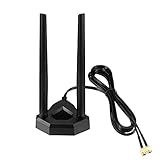
- Omnidirectional dual WiFi antenna; Dual band 2.4GHz and 5.8GHz; Support 802.11 b/g/n/ac/ax/wifi 6
- Application: wireless network router,PCI PCIe network card, built-in wifi motherboard, notebook PC desktop computer external USB network adapter, WLAN AP & Hotspot wireless range extender,security cameras
- Improve Signal Strength: help WiFi devices to have a faster speed and stable connection, get no network drops when using multiple devices simultaneously
- Extend Bluetooth Range:improve coverage and reception stability for your Bluetooth devices, like Bluetooth headphones,headset,wireless controllers,Bluetooth network card,etc
- Long Cords & Magnetic Base:the 6.5ft extension cable allows you move the antenna to a better signal pickup position; and the strong magnet support the base mounted vertically onto a steel surface
Interpret the IP address
- 169.254.x.x: Windows did not obtain an address from the router’s DHCP service; investigate the local link, router DHCP, saved profile, or adapter.
- Valid local address but websites fail: check DNS, proxy, VPN, router WAN, modem, and ISP.
- Local devices work but internet does not: the antenna is unlikely to be the cause; the failure is beyond the local radio link.
Check router, VPN, proxy, and security software
Restart equipment in this order: turn off Wi‑Fi on the computer, restart the computer, unplug the modem and router for about 30 seconds, power the modem back on and wait for its connection, then power the router or access point on and retry. A reboot is reversible. Do not factory-reset the router as an early step: that erases network names, passwords, custom DNS, port forwarding, parental controls, and other settings.
For diagnosis, disconnect a VPN, disable a manually configured proxy, and briefly pause third-party firewall or traffic-filtering software if permitted. Re-enable protection immediately after testing. Managed work or school devices may require their VPN, certificate, WPA‑Enterprise settings, captive portal, or access-control policy; do not bypass those controls.
Free tools Windows power users keep installed
One-click scans. No signup required.
Use built-in diagnostics
Windows
Run the Windows Network troubleshooter, review the adapter’s Device Manager status and error code, and check manufacturer diagnostics. Event Viewer or Windows wireless reports can help with repeated disconnects. Use Network reset only as a later software step because it removes saved networks and other networking configuration.
Best Value

- Fast 1300Mbps USB WiFi Adapter - Nineplus wifi adapter provides long-range and stable wifi connections,Upgrade your desktop or laptop wifi Technology with our AC1300Mbps usb wireless Adapter. Whether your desktop pc's wifi usb is malfunctioning or you’re looking to upgrade to faster dual-band 5GHz and 2.4GHz speeds, this pc wifi adapter is the ideal choice. It’s a budget-friendly way to extend your device’s life and experience the benefits of modern WiFi technology
- Dual-band 5.8GHz and 2.4GHz Bands - 5.8Ghz wifi Connection speed up to 867Mbps,2.4GHz 400Mbps,With these upgraded speeds, web surfing, gaming, and streaming online meeting is much more enjoyable without buffering or interruptions,Experience the High Wi-Fi speed of our AC1300Mbps wifi dongle delivers faster internet speeds and stronger, more reliable signal penetration over long distances. It's a high-speed dual-band wifi usb adapter for pc and easy for the modern user.
- Two 5dBi High Gain Wifi Antenna – The high gain antenna of the desktop wifi adapter greatly enhances the reception and transmission of WiFi signal strengths.Equipped with dual high-gain pc wifi antenna, our wifi dongle for desktop pc ensures accurate capture of WiFi signals, providing a stable and strong connection even at greater distances, ideal for overcoming poor signal issues in bedrooms. This computer wifi adapter, wifi card, and usb wifi antenna extend your coverage.
- Super Speed USB 3.0 - wifi adapter for desktop pc Connect speeds Up to 10x faster than USB 2.0 USB, Super USB3.0 delivers faster data transfer, a more reliable network connection, and improved compatibility for wifi adapter for pc. It fully supports the high-speed demands of AC1300 wireless adapter, ensuring peak performance. Plus, it's backward compatible with standard USB 2.0 ports for added flexibility.usb wifi adapter for desktop pc 3.0
- Compatibility Systems: This Wi-Fi usb adapter is compatible with Windows11/10/8.1/8/7/XP,not supports Mac OS or Chromebook or Linux. Most Windows 11/10 systems will automatically detect and install the drivers. If the system does not detect the driver, you will need to download it from our website. For Windows 7, you will need to manually install the driver for this wifi card.or you go to the website online-setup support,we do online-setup for you.
macOS
Hold Option while selecting the Wi‑Fi menu and choose Open Wireless Diagnostics. Follow the report’s recommendations, restart and update macOS, check router firmware and configuration, and test another network. Apple’s diagnostic overview is available at Apple Wireless Diagnostics.
When is the antenna actually defective?
An antenna becomes a credible suspect when the adapter is detected correctly, the computer fails on multiple known-working networks in the same location, the signal is abnormally weak, and reconnecting or substituting a known-good antenna changes reception. Visible cable or connector damage is additional evidence. A weak signal can also come from interference, router placement, channel selection, case obstruction, a damaged cable, a driver, or a failing radio, so signal strength alone is not proof.
Choose the right replacement—or stop replacing parts
| Evidence | Most appropriate next step |
|---|---|
| Adapter works but antenna or cable is visibly damaged; replacement improves reception | Replace with the correct connector type and, where applicable, a matched two-antenna set. |
| Internal adapter has persistent hardware errors or disappears after driver and seating checks | Test a known-good USB adapter, then replace the internal card if the test restores Wi‑Fi. |
| Computer works on hotspot but not home router | Fix the home password, profile, band, security, channel, DHCP, or access-control settings—not the antenna. |
| Several devices have poor signal in one area | Improve router placement or consider an access point or mesh system. |
| Router fails for every device | Investigate the modem, router, ISP, or outage. |
A USB adapter is a useful diagnostic and emergency connection, but drivers, USB placement, operating-system support, and antenna design vary. A PCIe card requires a compatible desktop slot, antennas, drivers, and possibly Bluetooth support. Check the interface, physical dimensions, antenna connectors, operating-system support, and regional 6 GHz requirements before buying.
What’s actually slowing this PC down?
Pick the symptom - the matching free tool is one click away.
Get support when the evidence points beyond home troubleshooting
- The adapter remains absent after correct driver, BIOS, and hardware checks.
- There is physical damage, repeated hardware failure, or a machine under warranty.
- The device is managed by an employer or school.
- The router or modem fails for every device.
- You need to open a laptop or repair a motherboard antenna connection without model-specific service guidance.
At that point, provide support with the exact error text, adapter model, driver version, operating-system version, whether a hotspot works, and whether Ethernet connects. Those details identify the failing layer faster than saying only that “Wi‑Fi is broken.”
Quick Recap
Product prices and availability are accurate as of the date/time indicated and are subject to change. Any price and availability information displayed on Amazon at the time of purchase will apply.

