
iTechGuides is reader-supported. When you buy through links on our site, we may earn an affiliate commission. As an Amazon Associate I earn from qualifying purchases. Learn more
Xfinity Stream limits what you can watch away from home because the full channel lineup and On Demand library are available only on your household’s Xfinity network. Away from home, you can stream eligible channels and titles marked “TV Go” or “Available Out of Home.” Xfinity says more than 250 channels can be livestreamed out of home, but the channels available to you depend on your service and the program’s eligibility.
Why Xfinity limits viewing away from home
Xfinity distinguishes your household’s in-home network from other Wi-Fi and cellular connections. On the household network, you can stream the channels included in your service. On another network, Xfinity Stream offers only eligible programming; a supported phone, browser, or TV device does not unlock the home-only lineup. See Xfinity’s network availability details.
The exact out-of-home selection varies. In the Xfinity Stream app or portal, look for “Available Out of Home” or “TV Go” labels. Xfinity’s portal documentation describes these as labels for the subset of channels and On Demand programs available away from home. On Android, selecting a channel that is normally in-home only may direct you to that network’s TV Go stream if one is available. Learn about Xfinity TV Go.
Do these 3 things before closing this tab:
1Fix the driver behind crashes, sound loss and screen glitches2Clear out junk files and repair common Windows errors3Scan for outdated or missing drivers - takes under a minuteWays to watch eligible Xfinity content away from home
Use the Xfinity Stream app or portal
Use the Xfinity Stream app on a supported iOS or Android device, or sign in to the Xfinity Stream portal in a supported browser. An active internet connection is required for live TV, On Demand, and streamed recordings. Xfinity’s system requirements and feature details vary by device and service.
#1 Best Overall
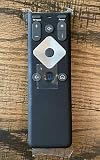
- To Be Used XFINITY FLEX Device Only
- Voice control
- Batteries included
Watch on a TV or cast from a mobile device
Xfinity documents out-of-home access through Amazon Fire TV and casting to supported Chromecast and AirPlay devices. Selected Apple TV, LG, Roku, Samsung, and Xumo TV models are also among the platforms listed for Xfinity Stream, but availability and features depend on the device and service; some TV integrations are in-home only. Check the current requirements for your exact model. A TV device gives you another way to display eligible programming, not access to channels restricted to the home network. See supported network and device options, Fire TV setup requirements, app requirements, AirPlay instructions, and Chromecast instructions.
Fire TV viewing requires a qualifying Xfinity service and Xfinity ID. Live TV and On Demand require Xfinity TV service, and the program must be included in your lineup. Titles available away from home are identified as TV Go; full lineup and full On Demand access require the in-home Xfinity Internet network. Review Xfinity’s Fire TV requirements.
Rank #2

- 【Compatible Models】New XR16 Voice Remote Control for Xfinity Comcast TV Box Compatible with Flex Streaming Device Only.
- 【Voice Search Features】Long press the microphone button on the voice remote control and speak your command to easily search for your favorite TV shows, launch applications, etc. on Comcast/Xfinity TV. The voice search function makes navigation a breeze.
- 【Pair the XR16 Remote to Control an Xfinity Flex TV Box】① Point the remote at your TV Box and press the Voice button once. ② Follow the instructions on screen to pair your remote for voice control. ③ Once your remote is paired, follow the on-screen instructions to set up power, volume and input control for your TV. (Note: Please Make sure the TV and Xfinity Flex TV box are turned on and set the TV input to correspond with the Xfinity Flex TV box)
- 【Pair the XR16 Remote to Control a TV or audio device】① Press and hold the Voice button and give the command “program remote“. You can also get there by navigating to the Settings page, then selecting “Remote Settings“ and then “Voice remote pairing.“ ② Follow the instructions on screen to select your TV and audio devices for power, volume, and input control. ③ Aim the remote at the TV, and press the Power button. If the TV turns off, turn the TV back on and verify that the Volume and Mute buttons work.
- 【Perform Factory Reset】Simultaneously press and hold the“ i ”button and the “Home button [house icon] ” until the status light on the remote blinks. This takes about 5 seconds. Press Power, then Last (<- arrow), then Volume Down (-) on your remote in sequence to complete the factory reset. Once this is complete you can retry pairing your XR16 remote.
Stream a completed Cloud DVR recording
Eligible Cloud DVR recordings can be streamed over the internet once recording is complete. If a program is still recording, wait for it to finish before trying to watch it away from home. Xfinity’s portal help explains remote playback.
Free tools Windows power users keep installed
One-click scans. No signup required.
Download eligible programs before you travel
The Xfinity Stream mobile app can download eligible recordings and On Demand programs for offline playback, subject to service and title eligibility. This is useful when you expect to have no internet connection. Xfinity says downloaded content can be watched offline outside the United States; that does not mean live or streamed Xfinity TV is available internationally. See Xfinity’s download and playback information and app requirements.
Rank #3

- Stunning 4K and Dolby Vision streaming made simple: With America’s TV streaming platform, exploring popular apps—plus tons of free movies, shows, and live TV—is as easy as it is fun. Based on hours streamed—Hypothesis Group
- Breathtaking picture quality: Stunningly sharp 4K picture brings out rich detail in your entertainment with four times the resolution of HD. Watch as colors pop off your screen and enjoy lifelike clarity with Dolby Vision and HDR10 plus
- Seamless streaming for any room: With Roku Streaming Stick 4K, watch your favorite entertainment on any TV in the house, even in rooms farther from your router thanks to the long-range Wi-Fi receiver
- Shows on the go: Take your TV to-go when traveling—without needing to log into someone else’s device.
- Compact without compromises: Our sleek design won’t block neighboring HDMI ports, so you can switch from streaming to gaming with ease. Plus, it’s designed to stay hidden behind your TV, keeping wires neatly out of sight
Check internet use, location, and stream limits
Plan for a connection and possible data charges
Streaming live TV, On Demand, or recordings requires Wi-Fi or cellular internet. Your mobile carrier may charge for cellular data, and Xfinity warns that out-of-home video streaming can count toward internet data usage. Downloads avoid the need for an active connection during playback, but must be eligible and completed in advance. Xfinity’s app guidance covers connection and data considerations.
Account for simultaneous streams
Stream allowances vary by service. For X1, Xfinity documents five simultaneous streams across account devices, with no more than three off the home network. Instant TV and On Campus have different limits, so check the rules for your service. Xfinity’s Fire TV help lists X1 stream limits; device and streaming controls are also available through Manage Devices.
Rank #4
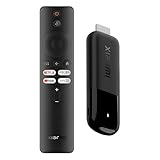
- 4K Streaming Device with Dolby Vision & Atmos: Thanks to the 4K decoding that provides stunningly clear picture quality for an unbelievable viewing experience. Features professional Dolby Vision and supports HDR10+ for a higher dynamic range, cinema-level lighting and shadow details, combined with Dolby Atmos and DTS:X enables panoramic surround sound for a true cinematic experience at home
- Smoother & Faster: Powered by an efficient 6nm high-performance platform with a 2.5GHz quad-core A55 CPU and 64-bit processor architecture, providing powerful performance and smoother operation. Features the latest wireless standard, dual-band Wi-Fi 6 delivering increased network bandwidth, faster transmission speeds, and seamless streaming and instant playback of online videos
- Smart Bluetooth Remote Voice Control: The intuitive Google TV organizes all your movies, stream apps, musics and shows from apps and subscriptions in one place. You can even get recommendations, answers and control smart home devices by pressing the Google Assistant button via the Bluetooth Voice Remote for hands-free control. Besides, access a growing library of free live TV channels
- Easy Set Up & Plug-and-Play: Simply plug Xiaomi tv stick 4k (2nd Gen) into the TV's HDMI port to upgrade your TV into a smart TV in second. You can watch news, movies, sports, reality shows, entertainments and more from free live tv streaming, no subscription is required. Besides, you can easily cast movies, shows, photos from your phone or tablet directly to your TV by using Google Cast app
- Ultra-Slim, Lightweight & Portable Design: You can take your smart tv to any where due to the slim, lightweight, and portable design. Simply plug it into a hotel TV or projector to enjoy your personalized entertainment profiles, streaming apps and contents on the go
Fix an “Out of Home” message when you are at home
If Xfinity Stream thinks you are away while you are at home, check the connection the device is actually using. Xfinity requires the household’s in-home Xfinity network—not a neighbor’s Wi-Fi, public Wi-Fi, or an Xfinity hotspot using the xfinitywifi network name. Try these checks in order:
The Tool Desk
Outbyte PC Repair FREERepair Windows errors before they cause bigger problemsFix Now →Outbyte Driver Updater FREEScan for outdated or missing drivers - takes under a minuteDriver Scan →- Connect to your household Wi-Fi. In your device’s Wi-Fi settings, select your home network and confirm it has internet access. Do not use the
xfinitywifihotspot as a substitute for the in-home network. - Disconnect from a VPN. Xfinity’s troubleshooting guidance recommends checking that the device is not connected to a VPN.
- Test the service another way. Sign out and back in, then try the Xfinity Stream portal or another mobile device to see whether the issue is limited to one app or device.
- Check account and network details. Xfinity advises confirming that the modem details associated with the account are accurate.
- If you use Safari on macOS Monterey, check iCloud Private Relay. Xfinity identifies it as a possible cause because it can hide location and internet service provider information from the portal.
These steps follow Xfinity’s Stream portal troubleshooting guidance and its app troubleshooting help.
Quick Recap
Quick decision guide
- A channel is missing while you are away: Check for a TV Go or Available Out of Home label; the full home lineup is not available on other networks.
- You want to watch on a television: Try a supported Fire TV device or supported casting option, but expect the same out-of-home content eligibility.
- You want a recording: Stream it after the Cloud DVR recording finishes, or download an eligible program in the mobile app before travel.
- The app says you are away at home: Verify your Wi-Fi network, disable VPN, and test the portal or another device.
Product prices and availability are accurate as of the date/time indicated and are subject to change. Any price and availability information displayed on Amazon at the time of purchase will apply.

