
iTechGuides is reader-supported. When you buy through links on our site, we may earn an affiliate commission. As an Amazon Associate I earn from qualifying purchases. Learn more
Ollama can connect compatible local and cloud models to the model picker in ChatGPT Desktop’s Codex mode. It does not make all ChatGPT use local: regular Chat and voice continue using your usual ChatGPT connection. You need Ollama, version 0.34.0 or newer, and the setup takes place in Ollama’s desktop app.
What the Ollama integration does—and what it doesn’t
Ollama’s integration lets you choose compatible Ollama models from ChatGPT Desktop’s Codex model picker. When Codex uses an Ollama model, Ollama routes those requests and any Codex-requested compaction; ChatGPT still manages the sessions. Ollama’s documentation puts the boundary plainly: “Ollama models are for Codex mode. Regular Chat and voice keep using their usual ChatGPT connection.” Ollama’s ChatGPT Desktop integration guide describes this behavior.
| # | Preview | Product | Price | |
|---|---|---|---|---|
| 1 |
|
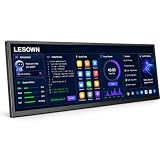
LESOWN 14.1" Ultrawide Secondary Monitor, 1920×550 Stretched Display for AI Workspace, Coding,... | $236.97 | Buy on Amazon |
That distinction matters if your goal is to keep a particular request on a model running through Ollama. Select an Ollama model for Codex; simply installing Ollama does not redirect regular Chat or voice.
What’s actually slowing this PC down?
Pick the symptom - the matching free tool is one click away.
What you need before connecting
- Ollama 0.34.0 or newer. This is the version listed in the integration guide.
- ChatGPT Desktop. The documented workflow connects the desktop app and uses Codex mode.
- A compatible model. Ollama supports local and cloud model choices; they are not interchangeable in where processing happens.
- Enough memory and storage for your chosen model. Requirements vary by model and context length.
Ollama’s Quickstart describes the ChatGPT Desktop integration as available on macOS. Its separate Windows documentation confirms that Ollama itself runs natively on Windows, but does not establish that this ChatGPT Desktop integration is supported there. Check current official compatibility information before relying on a Windows setup. Ollama Quickstart · Ollama for Windows
#1 Best Overall
- AI Workspace & Productivity Expansion Transform your desktop with a dedicated secondary display designed for modern workflows. Keep ChatGPT, AI assistants, code references, dashboards, or productivity tools visible while your main screen stays focused on your primary task.
- Ultrawide 16:4 Stretched Display Featuring a unique 14.1-inch 1920×550 ultrawide screen with a 16:4 aspect ratio, this compact secondary monitor fits naturally below or beside your main display, providing extra information space without taking over your desk.
- Built for Coding, Creators & Desk Setup Enthusiasts Perfect for programmers, designers, streamers, and creators who need additional workspace. Monitor system status, timelines, tools, chat windows, music controls, or reference materials without interrupting your main workflow.
- Touch Control & Flexible Connectivity Enjoy responsive 10-point capacitive touch control and flexible connection options through USB-C and HDMI-compatible input. Compatible with laptops, desktops, mini PCs, and workstation setups.
- Premium Aluminum Design for Modern Workspaces Built with a slim aluminum body and clean modern design, this secondary display blends seamlessly into professional desks, gaming setups, and creative studios.
Connect Ollama to ChatGPT Desktop
- Install or update Ollama. Use Ollama version 0.34.0 or newer.
- Open the Ollama desktop app and select Apps.
- Turn on ChatGPT (Desktop). Follow the prompts to connect it. Restart ChatGPT Desktop if prompted.
- Choose models in Ollama. Open Ollama Settings → Apps → ChatGPT, select up to five compatible local or cloud models, and save.
- In ChatGPT Desktop, switch to Codex mode and choose an Ollama model from the model picker when you want Codex to use it.
To disconnect later, turn ChatGPT off in Ollama’s Apps section. Ollama says this restores ChatGPT’s connection settings and usual profile. The setup, model selection, and disconnect behavior are documented in the integration guide.
Choose between a local and a cloud model
A local model runs on your own computer through Ollama; a cloud model is not local simply because it appears in the Ollama integration. Ollama’s Quickstart demonstrates running a local model without an API key, but that example should not be read as a promise that every model or Ollama capability is free. Check the individual model and service terms, and select a local model if keeping inference on your machine is the priority. Ollama Quickstart · Ollama cloud models
Independent reader supportYour contribution helps us test, update, and keep practical guides available for everyone.Check memory and storage for the model you want
Memory depends on the model and context
As one specific example, Ollama’s Quickstart lists Gemma 4 E2B at about 7.2 GB to download and recommends 8 GB of available VRAM, or unified memory on a Mac. Larger context windows need more memory. These are recommendations for that example model, not a universal minimum for every Ollama model. Consult the chosen model’s requirements before downloading. Ollama Quickstart
Recommended Free Tools
Plan for model files to accumulate
Ollama’s Windows and macOS guides warn that model files can take tens to hundreds of GB. The Windows installer itself needs at least 4 GB of disk space, with more space required for models; that installer figure is for Ollama, not a model-storage allowance. An external SSD can be useful if your internal drive is tight, but it is optional when you have enough internal storage. Ollama for Windows · Ollama for macOS
Ollama’s platform requirements
These are Ollama requirements, not guarantees for ChatGPT Desktop compatibility or for every model:
- Windows: Windows 10 22H2 or newer, Home or Pro.
- macOS: macOS Sonoma 14 or newer; Apple M-series supports CPU and GPU, while x86 supports CPU.
Check the current Windows and macOS installation guides for the latest platform details.
Is Ollama open source and free?
Ollama’s software repository identifies the software as MIT-licensed. That license permits broad use and modification subject to retaining the required copyright and license notices. This describes Ollama’s software license; it does not determine the license, price, or usage terms of an individual model or cloud service. Ollama’s MIT license
Quick wins for a faster PC:
Repair Windows errors before they cause bigger problemsFix Now →Scan for outdated or missing drivers - takes under a minuteDriver Scan →Quick Recap
Product prices and availability are accurate as of the date/time indicated and are subject to change. Any price and availability information displayed on Amazon at the time of purchase will apply.

