
Windows Errors? Fix Them Before They Spread
Repair common Windows errors and clear accumulated junk for a smoother, more stable PC - no reinstall needed.Free scan · no reinstallCrashes, No Sound, or Screen Glitches?
Random freezes, missing sound and display glitches usually trace back to one bad driver. Find and replace yours safely.Free scan · under a minuteiTechGuides is reader-supported. When you buy through links on our site, we may earn an affiliate commission. As an Amazon Associate I earn from qualifying purchases. Learn more
Yes, you can use a foot pedal to control some AI dictation and transcription workflows—but the app must support the pedal directly or accept keyboard shortcuts the pedal can send. The pedal is an input controller; the dictation or transcription software does the speech recognition. Compatibility depends on the app, pedal, operating system, and connection method.
What a foot pedal can—and cannot—do
A pedal can trigger a supported command, such as starting or stopping a recording, moving between fields, or controlling audio playback. It does not itself perform AI speech recognition. The software still captures or processes the speech.
There are two distinct workflows to keep straight: controlling a live microphone or recording, and controlling playback of an existing recording while reviewing a transcript. Axon’s documented pedal setup is for the latter; it is not evidence that the pedal starts live AI dictation.
Quick wins for a faster PC:
Repair Windows errors before they cause bigger problemsFix Now →Scan for outdated or missing drivers - takes under a minuteDriver Scan →Clear out junk files and repair common Windows errorsFree Scan →Check compatibility before choosing a pedal
Do not assume that a USB connector guarantees compatibility. Check the dictation app’s official help for a named pedal, direct pedal pairing, or configurable keyboard shortcuts. Then verify the pedal’s connection method and operating-system requirements.
#1 Best Overall

- Low profile Design. Greater Non Slip Surface Area
| Pedal or family | Documented fit | Important limit |
|---|---|---|
| Start-Stop Power Foot Pedal | Microsoft recommends it for Dragon Copilot; it is designed to generate supported shortcuts. | The recommendation is for Dragon Copilot. Confirm current availability and exact hardware details with the seller. |
| Digital Accessory Corp (DAC) USB foot pedals | Microsoft lists DAC USB pedals as supported with Dragon Copilot. | Microsoft does not identify specific DAC models on its support page. |
| VEC / Infinity-3 USB foot pedals | Microsoft lists these pedal families for Dragon Copilot. | This does not establish that every VEC or Infinity model works in other apps or with Axon’s direct pairing method. |
| Infinity USB Digital Foot Control | Axon documents direct browser pairing for transcript playback in Transcription Assistant. | Axon says this is the only device supported by that direct method; pairing is per transcript. |
| OM SYSTEM RS28N USB Foot Switch | OM SYSTEM lists compatibility with ODMS Cloud and ODMS R8. Its three configurable pedals can mimic shortcuts in third-party software. | The manufacturer says it is available only outside the USA. Third-party use still depends on whether the software accepts the shortcuts. |
| Philips ACC2300-series foot control | The Philips SpeechOne manual describes hands-free dictation controls with compatible dictation software. | It connects through the SpeechOne docking station; third-party software may require drivers. |
Sources: Microsoft’s Dragon Copilot pedal guidance, Axon’s Transcription Assistant guide, OM SYSTEM’s RS28N product page, and the Philips SpeechOne manual.
Choose the right setup method
Direct pairing for a supported app
Axon documents connecting an Infinity USB Digital Foot Control directly through the browser for its Transcription Assistant, without installing software. In that workflow, the left pedal rewinds, the center pedal plays or pauses, and the right pedal fast-forwards. Pair the device for each new transcript; only one transcript tab can hold the pairing at a time. These controls are for reviewing recorded audio while working with a transcript.
Rank #2

- Ergonomic Design: Comfortably rest your foot while dictating or transcribing with our sloping Play pedal and large, easy-to-use surface
- Durable Construction: Built with heavy-duty components and precision switches designed for 2,000,000 depressions, ensuring long-lasting performance
- Accidental Trigger Prevention: Mechanical stop prevents accidental triggering of the center pedal while stepping on side pedals, maintaining control during use
- Wide Compatibility: Works seamlessly with most leading brands of dictation/transcription products and any PC, desktop, laptop, or portable computer with a USB port
- Rechargeable Battery: Powered by a rechargeable battery, providing up to 1000 hours of digital recording time for extended use
Follow Axon’s setup instructions for the current browser and pairing steps.
Shortcut emulation
If the app supports keyboard shortcuts, configure the pedal or its utility to send a shortcut that the app maps to the action you want. For Dragon Copilot, Microsoft gives Ctrl+F10 as an example for starting or stopping recording, Ctrl+F11 for the next field, and Ctrl+F12 for the previous field. Those are Dragon Copilot examples, not universal commands; the pedal must send the shortcut and the app must assign it to the intended action.
Rank #3
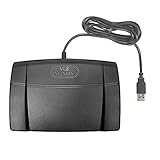
- Infinity 3 Function USB Foot Pedal/Switch
- Sturdy and durable design and ultra-heavy-duty micro switches to ensure countless hours of trouble free performance.
- The ergonomic design includes a wide, central, sloping Play pedal and the large size enables you to easily move your foot from the Play to Fast Forward or Rewind keys.
Some pedals rely on a helper utility to translate presses into keystrokes. The target app must receive those keystrokes, and the utility may need to remain running. The DAC Pedal Pro manual illustrates shortcut mapping, but its legacy Windows requirements do not establish current operating-system support.
See Microsoft’s Dragon Copilot instructions for its supported pedal families and assignment guidance.
Rank #4

- Hands-Free Transcription Control – The Infinity IN-USB-1 Foot Pedal delivers reliable, hands-free audio playback control, allowing transcribers and dictation professionals to work faster and more efficiently without interrupting typing flow.
- Broad Software Compatibility – Designed to work with most major dictation and transcription software platforms, making it a dependable choice for professional transcription environments (software not included).
- Ergonomic & Fatigue-Reducing Design – Engineered for comfort during extended use, the pedal’s thoughtfully contoured layout supports natural foot positioning to help minimize strain and fatigue.
- Professional-Grade Performance – Ideal for medical, legal, insurance, and public safety applications, this USB foot pedal provides consistent responsiveness and durability for daily transcription workloads.
- Reliable Warranty Coverage – Backed by a 1 year Mail-In Parts/Labor Warranty for added confidence and long-term reliability.
Docking-station connection
The Philips SpeechOne manual describes connecting an ACC2300-series foot control to the SpeechOne docking station before connecting the station to the computer. Recording and playback require compatible dictation software, and third-party software may need drivers. Consult the SpeechOne manual and the software maker’s requirements before relying on this setup.
What’s actually slowing this PC down?
Pick the symptom - the matching free tool is one click away.
Set up and test the complete workflow
- Choose the action. Decide whether you want to start or stop live recording, toggle a microphone, navigate fields, or control playback during transcript review.
- Confirm app support. Look for the pedal model in the app’s official documentation, direct pairing instructions, or supported configurable shortcuts. Do not infer support from the connector alone.
- Connect and configure the pedal. Follow its manufacturer instructions. Install any required driver or helper utility, use the specified docking station if required, and complete any in-app or browser pairing.
- Assign one supported action. If using shortcut emulation, choose a shortcut the app supports and map it to the intended function in the app. Avoid assuming that a shortcut listed for one program applies to another.
- Test before dictating. Check that the pedal registers, the intended app or browser tab can receive the input, and the action occurs. Microsoft explicitly advises verifying pedal assignments and Dragon Copilot settings before dictating.
If the pedal does not respond, check that its helper utility is running, the intended window or tab has focus unless the app supports background shortcuts, and another program has not intercepted the shortcut. Also confirm that any required browser permissions, drivers, or transcript pairing are active. These are checks for documented setup dependencies, not a guarantee that every pedal failure has the same cause.
Best Value

- Express Scribe–Exclusive Compatibility – Designed only for use with Express Scribe transcription software by NCH Software (Free and Paid versions) on Windows and Mac. Software not included.
- Custom Hardware for Seamless Operation – Built with an exclusive, modified internal control board specifically engineered for Express Scribe, ensuring reliable and precise playback control.
- Large, Ergonomic Pedal Layout – Oversized pedal design allows easy movement between play, fast-forward, and rewind functions, supporting comfortable, low-fatigue operation during dictation and transcription.
- True Plug-and-Play USB Setup – Pre-programmed and ready to use right out of the box with no foot pedal wizard or manual configuration required—simply connect via USB and start transcribing.
- Professional-Grade Reliability with Warranty – Engineered for consistent performance in professional transcription environments and backed by a 1 year Mail-In Parts/Labor Warranty.
Sources: Microsoft, Axon, and the DAC Pedal Pro manual.
What to compare when selecting a pedal
- Software support: Is the exact model named, does the app pair with it directly, or will it rely on shortcut emulation?
- Intended task: Does it control live recording, field navigation, or playback during transcription review?
- Connection: Does it need a browser pairing, a running utility, drivers, or a docking station?
- Operating system and focus: Check current compatibility and whether the app needs to be the active window.
- Region and hardware details: Verify availability where you live, the number of configurable pedals, and manufacturer specifications such as cable reach. For example, OM SYSTEM lists a 1.8 m cable for the RS28N, and says the product is available only outside the USA.
Manufacturer specifications do not establish that a pedal will feel comfortable or improve speed, accuracy, or ergonomics for a particular person. The cited product documentation does not provide measured evidence for those outcomes.
Quick Recap
Product prices and availability are accurate as of the date/time indicated and are subject to change. Any price and availability information displayed on Amazon at the time of purchase will apply.

