
iTechGuides is reader-supported. When you buy through links on our site, we may earn an affiliate commission. As an Amazon Associate I earn from qualifying purchases. Learn more
On an HP OmniBook 5 running Windows, press Windows + Prt Sc to capture the entire display and save a PNG automatically. Open File Explorer > Pictures > Screenshots to find it. If your keyboard does not respond, hold Fn as well: Fn + Windows + Prt Sc. For a copied image, press Prt Sc (or Fn + Prt Sc) and paste it into another app. To capture only part of the screen, use Windows Snipping Tool.
Choose the screenshot method that fits what you need
The OmniBook 5 keyboard layout can vary by configuration, and HP notes that some laptops require the Fn key with Print Screen shortcuts. Look for a key labeled Prt Sc, PrtSc, Prnt Scrn, or a shortened Print Screen marking, often shared with another function.
| # | Preview | Product | Price | |
|---|---|---|---|---|
| 1 |
|
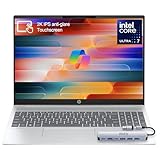
HP OmniBook 5 16” Touchscreen AI Laptop – Intel Core Ultra 7 Processor, 16GB RAM, 1TB SSD,... | $978.00 | Buy on Amazon |
| What you want | Shortcut or app | Result |
|---|---|---|
| Save the entire screen immediately | Windows + Prt Sc (try Fn too) | PNG file in Pictures > Screenshots |
| Copy the entire screen | Prt Sc (or Fn + Prt Sc) | Image on the clipboard; paste it elsewhere |
| Copy only the active window | Shift + Prt Sc, as documented by HP | Active-window image on the clipboard |
| Capture a rectangle, freeform area, window, or full screen | Snipping Tool | Capture that you can edit, copy, or save |
Save a full-screen screenshot as a file
- Arrange the screen exactly as you want it captured. Close menus or notifications that should not appear.
- Press Windows + Prt Sc together. On an OmniBook 5 that needs the function layer, press Fn + Windows + Prt Sc.
- The display normally darkens briefly. Windows saves a PNG with a sequential name such as Screenshot (1).
- Press Windows + E to open File Explorer, choose Pictures, and open Screenshots.
HP identifies Pictures > Screenshots as the default location and PNG as the format. If OneDrive is redirecting your Pictures folder, the Screenshots folder may be inside the OneDrive version of Pictures instead.
Quick wins for a faster PC:
Scan for outdated or missing drivers - takes under a minuteDriver Scan →Clear out junk files and repair common Windows errorsFree Scan →Fix the driver behind crashes, sound loss and screen glitchesFind Drivers →If the shortcut appears to do nothing
- Try the same combination while holding Fn.
- Press and hold Fn first, then press Windows and Prt Sc.
- Check whether your Print Screen marking is a secondary symbol on another key; on such keyboards, Fn activates it.
- Use Snipping Tool as a fallback if the key is damaged or another application has changed the shortcut behavior.
Copy a screenshot instead of saving it
Copy the whole display
- Show the content you need.
- Press Prt Sc. If required, use Fn + Prt Sc.
- Open the destination—for example, a document, email composer, chat, Paint, or another image editor.
- Press Ctrl + V to paste the image.
This method places the capture on the Windows clipboard; it does not create a file until you paste and save it in an image-capable application.
#1 Best Overall
- 🚀 Powerful Intel Core Ultra 7 AI Performance Powered by the latest Intel Core Ultra 7 processor with built-in AI acceleration, delivering fast, intelligent performance for multitasking, productivity, and creative workloads.
- 🖥️ Large 16” Touchscreen Display Enjoy an immersive 16-inch touchscreen with crisp visuals and responsive touch control—perfect for work, presentations, streaming, and creative tasks.
- ⚡ Fast & Reliable Memory and Storage Equipped with 16GB high-speed RAM and a massive 1TB SSD, ensuring smooth multitasking, ultra-fast boot times, and plenty of storage for files, photos, and applications.
- 🤖 AI-Enhanced Windows 11 Experience Runs Windows 11 with Copilot AI support, helping you work smarter with intelligent suggestions, faster workflows, and enhanced security features
- ✨ Premium Design for Work & Everyday Use Sleek silver aluminum design, backlit keyboard, Wi-Fi 6E connectivity, and long battery life—ideal for business professionals, students, and home users.
Copy only the current window
Click the window you want first so it is active, then press Shift + Prt Sc. HP lists this shortcut for copying the active window. Paste it with Ctrl + V. If your OmniBook requires the function layer, try the equivalent combination with Fn.
Capture a selected area with Snipping Tool
Snipping Tool is the practical choice when you need a region, a single application window, or quick markup rather than a raw full-screen file. HP’s Windows guidance covers Windows 11 and Windows 10.
- Open Start, type Snipping Tool, and select the app.
- Choose the capture mode. The available modes are Freeform, Rectangular, Window, and Full-screen.
- For Freeform or Rectangular, drag around the area. For Window, select the window. Full-screen captures all displays shown by the tool.
- Use the resulting Snipping Tool controls to annotate or edit if needed.
- Select the app’s save command to write an image file, or choose copy and paste it into another application.
Use Rectangular mode for clean documentation crops, Freeform when the subject has an irregular outline, Window when browser chrome should be excluded, and Full-screen when you want the same scope as Windows + Prt Sc but need Snipping Tool’s editing controls.
Free tools Windows power users keep installed
One-click scans. No signup required.
Where screenshots are saved and how to locate them
Automatic Windows capture
Captures made with Windows + Prt Sc are saved under Pictures > Screenshots as PNG files. Windows gives them sequential names, so sort that folder by Date modified if you have many captures.
Snipping Tool captures
Snipping Tool lets you decide when and where to save through its save action. A snip that you only copy remains on the clipboard until another copy operation replaces it or you save it from an app.
If Pictures is not where you expect
- In File Explorer, select Pictures from the left navigation pane and look for Screenshots.
- Check whether your Pictures folder points to OneDrive or another redirected location.
- Search File Explorer for
Screenshotand sort by date. - Confirm that the Windows + Prt Sc shortcut actually produced a brief screen dimming; a clipboard-only shortcut will not create a file.
Fixes for common OmniBook 5 screenshot problems
Nothing happens when you press Windows + Prt Sc
The most likely cause is the OmniBook’s function-layer design. Try Fn + Windows + Prt Sc, verify the printed key label, and test Snipping Tool. Also make sure the Windows key itself is not disabled by a keyboard mode or utility.
The screen flashes, but no file is visible
Look in the actual Pictures location used by your Windows account, including a OneDrive Pictures folder. Search for the newest file named Screenshot. If you used Prt Sc without Windows, the image is on the clipboard rather than saved.
What’s actually slowing this PC down?
Pick the symptom - the matching free tool is one click away.
Only part of the screen is wanted
Use Snipping Tool’s Rectangular or Freeform mode. Cropping a full-screen PNG afterward works, but selecting the region at capture time avoids exposing unrelated content and reduces editing.
The pasted image is not the window you expected
Click the target window before using Shift + Prt Sc. A window is “active” only when it has focus. For a precise area, use Window mode in Snipping Tool instead.
The screenshot includes a sensitive notification or private data
Dismiss notifications, minimize unrelated windows, or select only the required region. Review the image before sharing; a full-screen capture can include other monitors, browser tabs, account names, or message previews.
The keyboard has no obvious Print Screen key
Inspect keys for abbreviated text or a secondary icon. HP’s shortcut guidance specifically warns that some laptops need Fn before Print Screen. If the key is absent or inaccessible, Start-search for Snipping Tool and use its on-screen controls.
Practical choices for quality, editing, and sharing
- Best for an immediate file: Windows + Prt Sc. It is fastest and produces a PNG without opening an editor.
- Best for pasting into a ticket or chat: Prt Sc, then Ctrl + V. You avoid creating temporary files.
- Best for one application: Shift + Prt Sc after focusing that window, or Snipping Tool’s Window mode.
- Best for documentation: Snipping Tool, because you can select a precise region and annotate before saving.
- Best for preserving text clarity: PNG is the automatic format for the Windows + Prt Sc route; avoid repeatedly re-saving text-heavy captures as JPEG.
Or skip the browser setup:
The keyboard methods above capture your OmniBook’s own display. If what you actually need is a repeatable image or PDF of a web page—for example, a page in a bug report, a product catalog, or a monitoring workflow—a screenshot API can capture the URL on a server instead of operating the laptop manually. ScreenshotNeo is a website screenshot API and MCP server. It accepts consent banners before capture and removes more than 60 known consent platforms, newsletter popups, and chat widgets; each cleanup step can be disabled. Bot checks, CAPTCHAs, blank pages, timeouts, failed loads, and cache hits are not billed, and the response identifies the page verdict and billing result in X-Page-Verdict and X-Billed headers.
For a one-call WebP capture, see the ScreenshotNeo documentation:
curl -G "https://api.screenshotneo.com/v1/shot" -d access_key=YOUR_API_KEY --data-urlencode url=https://stripe.com -o shot.webpPython
import requests
r = requests.get("https://api.screenshotneo.com/v1/shot", params={"access_key": "YOUR_API_KEY", "url": "https://stripe.com"}, timeout=90)
open("shot.webp", "wb").write(r.content)
Node.js
const q = new URLSearchParams({ access_key: 'YOUR_API_KEY', url: 'https://stripe.com' });
const res = await fetch(`https://api.screenshotneo.com/v1/shot?${q}`);
ScreenshotNeo also supports PNG, JPEG, or PDF output; full-page captures with lazy images loaded; CSS-selector element captures; dark mode; device presets and custom viewports; retina scale; PDF paper sizes, margins, landscape mode, and page ranges; custom CSS and JavaScript; clicks before capture; hidden selectors; waits for selectors, delays, or network idle; blocking ads, trackers, requests, or resource types; custom headers, cookies, user agents, and Authorization; timezone and geolocation; transparent backgrounds; resizing; chosen cache TTLs; signed public-image links; asynchronous jobs with signed webhooks; bulk capture of up to 100 URLs per call; a usage API; an OpenAPI specification; and familiar parameter names for easier migration from other screenshot APIs. Its MCP server provides take_screenshot, get_page_info, and capture_pdf tools for Claude, Cursor, and other MCP clients.
| Plan | Included shots | Price |
|---|---|---|
| Free | 1,000 per month | $0, no card |
| Starter | 3,000 | $5 |
| Growth | 15,000 | $15 |
| Pro | 60,000 | $39 |
| Scale | 250,000 | $99 |
| Business | 1,000,000 | $249 |
Yearly billing provides two months free, and every feature is available on every plan. This service is for web-page captures, not a replacement for the OmniBook keyboard shortcuts when you need an image of your local desktop. Create a free ScreenshotNeo account to get 1,000 screenshots a month with no card.
FAQ
Does every HP OmniBook 5 use the same screenshot key?
No. OmniBook 5 configurations can have different keyboard markings and function-layer behavior. Use the label on your keyboard and try Fn when Print Screen does not respond.
Can I change the automatic screenshot folder?
Windows’ default is Pictures > Screenshots. You can move or redirect the Pictures folder through Windows or OneDrive settings, after which new captures follow that location.
What is the quickest way to annotate a capture?
Open Snipping Tool, select the required mode, and use its editing controls before saving or copying the result.
Why would I use an API instead of the OmniBook shortcut?
An API is useful for automated, repeatable captures of public web URLs or PDFs. The keyboard and Snipping Tool remain the right choices for content currently displayed on your laptop or for information that must stay local.
Frequently Asked Questions
Does every HP OmniBook 5 use the same screenshot key?
No. Keyboard markings and Fn behavior vary by configuration; try Fn when Print Screen does not respond.
Can I change the automatic screenshot folder?
Windows defaults to Pictures > Screenshots, but a redirected Pictures or OneDrive folder can change the effective location.
What is the quickest way to annotate a capture?
Use Snipping Tool, choose a capture mode, annotate, then save or copy.
Why use an API instead of the OmniBook shortcut?
An API automates web-URL or PDF captures, while the keyboard and Snipping Tool capture your local laptop display.
Quick Recap
Product prices and availability are accurate as of the date/time indicated and are subject to change. Any price and availability information displayed on Amazon at the time of purchase will apply.

