
Free tools Windows power users keep installed
One-click scans. No signup required.
iTechGuides is reader-supported. When you buy through links on our site, we may earn an affiliate commission. As an Amazon Associate I earn from qualifying purchases. Learn more
The quickest way to capture part of your HP Envy x360 screen is Windows + Shift + S. The screen dims; choose rectangular, freeform, window, or full-screen capture, then use the notification to copy, annotate, or save the image. For a full-screen PNG saved automatically, press Windows + Print Screen. If your Envy x360 prints “PrtSc” on a secondary key such as the right Shift key, hold Fn as well.
Choose the shortcut that matches what you need
| Goal | Shortcut | Result |
|---|---|---|
| Capture a selected area | Windows + Shift + S | Snipping Tool opens an overlay. Choose rectangular, freeform, window, or full-screen capture, then copy, edit, or save. |
| Save the entire screen immediately | Windows + Print Screen | A PNG is saved in Pictures > Screenshots. |
| Copy the entire screen | Print Screen (PrtSc) | The image goes to the clipboard; paste it into Paint, Word, email, or another image-capable app. |
| Copy only the active window | Shift + Print Screen | The current window is copied to the clipboard. |
Use Windows + Shift + S when you need precision. Use Windows + Print Screen when you want a file without opening an editor. The other two shortcuts are useful when you plan to paste the result immediately.

Use Windows + Shift + S for a selected screenshot
- Open the capture overlay. Press Windows + Shift + S together. Windows dims the display and places Snipping Tool controls at the top.
- Pick a capture mode. Select rectangular snip for a normal box, freeform snip for an irregular outline, window snip for one app window, or full-screen snip for every visible display.
- Make the capture. Drag around the region, click the window, or select the full-screen option. The image is copied to the clipboard.
- Open the notification. Click the preview notification that appears. Snipping Tool lets you mark up the image, crop it, copy it again, or save it.
- Save or share. Choose the save command, select a folder and image name, or press Ctrl + V in another application to paste the capture.
This method does not depend on the physical location of the PrtSc key, so it is the most dependable choice when keyboard legends are unclear.
Windows Errors? Fix Them Before They Spread
Repair common Windows errors and clear accumulated junk for a smoother, more stable PC - no reinstall needed.Free scan · no reinstallOutdated Drivers Are Slowing You Down
One free scan finds every outdated or missing driver and matches the right update for your exact hardware.Free scan · exact hardware matchSave a full-screen PNG with Windows + Print Screen
- Display exactly what you want to capture. Minimize private messages, passwords, or other information that should not appear.
- Press Windows + Print Screen. The screen may briefly dim to confirm the capture.
- Open File Explorer > Pictures > Screenshots. Windows saves the image there as a PNG, using a numbered filename.
On some HP Envy x360 generations, “PrtSc” is printed on the right Shift key or another shared key instead of a dedicated button. In that case, press Fn + Windows + the key carrying the PrtSc marking. The exact placement is generation-dependent; inspect the small legends on your keyboard.
#1 Best Overall
Copy the whole screen instead of saving a file
Print Screen alone
Press Print Screen (or Fn + Print Screen when it is a secondary key). Nothing may appear on screen because this shortcut normally copies the image rather than creating a file. Open Paint or another image-capable application and press Ctrl + V. You can then crop, annotate, and save it in PNG, JPEG, or another format supported by that application.
Copy the active window
Click the window you want, then press Shift + Print Screen. HP’s keyboard reference identifies this combination as copying the current window. Paste with Ctrl + V in Paint, a document, an email, or a chat.
Where is the Print Screen key on an HP Envy x360?
There is no single location shared by every Envy x360 generation. Look for a key labeled PrtSc, PrtScn, or Print Screen. It may be a dedicated key or a secondary legend on the right Shift key or another key in the top-right area. A secondary legend usually means you must hold Fn to activate it.
- If you can see a dedicated PrtSc key, use it directly for Print Screen or with Windows and Shift for the other combinations.
- If PrtSc is printed in the same color or style as the Fn-layer legends, hold Fn while pressing that key.
- If you cannot identify it, use Windows + Shift + S; Snipping Tool works without the hardware Print Screen key.
Troubleshoot screenshots that do not appear
Print Screen seemed to do nothing
That is expected when you used Print Screen alone: it normally placed the image on the clipboard. Open Paint and press Ctrl + V. If nothing pastes, repeat the shortcut while the intended screen is visible and try the Fn key if PrtSc is a secondary legend.
Windows + Print Screen does not create a file
Find the key carrying the PrtSc marking and add Fn: Fn + Windows + PrtSc. Then check File Explorer > Pictures > Screenshots. Do not look only in Downloads; the automatic destination is the Screenshots folder inside Pictures.
The Snipping Tool overlay does not open
Press the keys simultaneously rather than one after another. If the keyboard is in a function-lock state, try the shortcut again without Fn; Windows + Shift + S itself normally does not require the hardware Print Screen key. You can also open the Start menu, search for Snipping Tool, and choose New to begin a capture manually.
The wrong monitor or window was captured
For a single application, use window snip and click the correct window. For a region, use rectangular snip and drag only over the desired area. A full-screen shortcut captures the visible desktop, so move sensitive windows away before pressing it.
What’s actually slowing this PC down?
Pick the symptom - the matching free tool is one click away.
Rank #2
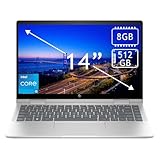
- 14th Gen Core 5 120U 1.40GHz Processor (upto 5 GHz, 12MB Cache, 10-Cores, 12-Threads, 2 Performance-cores); Intel Graphics Integrated Graphics
- 8GB OnBoard RAM; 512GB PCIe NVMe SSD, Wi-Fi 6E AX211, Bluetooth 5.3, Integrated Webcam, Fingerprint Security System, Backlit Standard Keyboard
- 14.0" IPS Full HD (1920x1080) 60Hz Touchscreen Display; 65W Power Supply No, 3-Cell 43 WHr Battery; Natural Silver Color
- 1 x USB-C 3.1, 2 x USB-A 3.0, 1 x HDMI, 1 x SD Card Reader, 1x Headphone/Microphone Combo Jack
- Operating System: Windows 11 Home
The image is blurry or too large
PNG preserves text and interface edges well but can produce larger files. For a smaller shareable copy, paste the capture into an editor and export JPEG, or crop out unused desktop space before saving. Do not enlarge a low-resolution capture and expect additional detail.
Practical screenshot workflow
- Prepare the screen. Close menus you do not need, scroll to the relevant content, and hide personal information.
- Choose the scope. Region for a bug report, window for an app-specific explanation, or full screen for a complete state.
- Choose the destination. Use Windows + Print Screen for an automatic file, or Print Screen/Shift + Print Screen when you will paste immediately.
- Review before sending. Check that the cursor, notifications, account names, and confidential data are not accidentally included.
- Name and organize files. Store captures in a project folder and use descriptive names such as envy-x360-display-settings-2026-09-30.png.
Or skip the browser setup
If you need a screenshot of a web page rather than the laptop’s current desktop, ScreenshotNeo captures it through one API request. Before the capture, it accepts cookie or consent banners like a visitor and removes more than 60 known consent platforms, newsletter popups, and chat widgets; each cleanup step can be disabled. Bot checks or CAPTCHAs, blank pages, timeouts, failed loads, and cache hits cost nothing, and every response reports the result in X-Page-Verdict and X-Billed headers.
See the ScreenshotNeo documentation for all options, including full-page lazy-image loading, CSS-selector element capture, dark mode, device presets, custom viewports, retina scale, PDF output, custom CSS and JavaScript, click-before-capture actions, waits, request blocking, headers, cookies, user agents, authorization, timezone and geolocation, transparent backgrounds, resizing, TTL caching, signed links, asynchronous webhooks, bulk capture of up to 100 URLs per call, usage data, and the OpenAPI specification.
cURL
curl -G "https://api.screenshotneo.com/v1/shot" -d access_key=YOUR_API_KEY --data-urlencode url=https://stripe.com -o shot.webpPython
import requests
r = requests.get("https://api.screenshotneo.com/v1/shot", params={"access_key": "YOUR_API_KEY", "url": "https://stripe.com"}, timeout=90)
open("shot.webp", "wb").write(r.content)
Node.js
const q = new URLSearchParams({ access_key: 'YOUR_API_KEY', url: 'https://stripe.com' });
const res = await fetch(`https://api.screenshotneo.com/v1/shot?${q}`);
An MCP server provides take_screenshot, get_page_info, and capture_pdf tools for Claude, Cursor, and other MCP clients. The Free plan includes 1,000 screenshots per month with no card; paid plans start at $5 for 3,000 screenshots. Create a free ScreenshotNeo account to try it.
Recommended Free Tools
Screenshot privacy and accessibility checks
- Review captures for passwords, recovery codes, email addresses, customer records, and browser tabs before uploading or sending them.
- When documenting an issue, include the complete error message and enough surrounding context for someone else to reproduce it, but crop unrelated personal information.
- For users who cannot perform the three-key Snipping Tool shortcut, open Snipping Tool from Start and use its on-screen controls.
- On a touch-enabled Envy x360, switch to a comfortable laptop or tablet position before capturing; the shortcut captures the display regardless of hinge angle.
Which method should you use?
| Situation | Best choice | Why |
|---|---|---|
| Bug report or tutorial showing one area | Windows + Shift + S | You select exactly the relevant region and can annotate it. |
| Archiving the entire desktop | Windows + Print Screen | It saves a full-screen PNG automatically. |
| Pasting into a message immediately | Print Screen | The capture is already on the clipboard. |
| Explaining one application | Shift + Print Screen | Only the active window is copied. |
| Capturing a web page remotely or repeatedly | ScreenshotNeo | It automates browser rendering and cleanup through an API or MCP server. |
Frequently Asked Questions
Can I take a screenshot while the Envy x360 is in tablet mode?
Yes. Windows captures the current display in any hinge position; use Windows + Shift + S or the appropriate Windows + Print Screen combination.
Why is my screenshot not in Downloads?
Only Windows + Print Screen automatically saves a file, and its default location is File Explorer > Pictures > Screenshots.
Can I capture just one browser tab with the keyboard?
Use Windows + Shift + S, choose window snip, and click the browser window. Crop further in Snipping Tool if needed.
Does Print Screen capture the mouse pointer?
The standard Windows shortcuts capture the screen image; whether a pointer appears depends on the capture method and application. Check the preview before sharing.
Do these 3 things before closing this tab:
1Clear out junk files and repair common Windows errors2Fix the driver behind crashes, sound loss and screen glitches3Repair Windows errors before they cause bigger problemsQuick Recap
Product prices and availability are accurate as of the date/time indicated and are subject to change. Any price and availability information displayed on Amazon at the time of purchase will apply.

