
Quick wins for a faster PC:
Fix the driver behind crashes, sound loss and screen glitchesFind Drivers →Clear out junk files and repair common Windows errorsFree Scan →iTechGuides is reader-supported. When you buy through links on our site, we may earn an affiliate commission. As an Amazon Associate I earn from qualifying purchases. Learn more
To sign out of Adobe remotely, sign in at account.adobe.com, open Plans and payment > Activated devices, select Deactivate beside the device, and confirm. If you can still use the old computer, you can sign out from an Adobe app instead. The available controls depend on the Adobe product and license.
Choose the sign-out method for your situation
| Situation | Route | What you need |
|---|---|---|
| You can access the old computer | In an Adobe app, select Help > Sign Out. | Access to that computer, an Adobe app, and an internet connection. |
| You cannot access the old computer | In your Adobe account, open Plans and payment > Activated devices, then select Deactivate for the device. | Remote deactivation must be supported for your product and license. |
| You are signing in on another computer and see an activation-limit prompt | Choose Sign out for the old device shown in the prompt, then select Continue. | The prompt must appear during sign-in. |
Adobe’s account interface can vary by region or change over time. Use the labels shown in your signed-in account if they differ from these instructions. See Adobe’s device activation and deactivation guidance.

Sign out from the old computer
- Connect the old computer to the internet and open an Adobe app.
- Select Help > Sign Out.
- On the computer you want to use, respond to the activation-limit dialog by confirming that you signed out of one computer, then select Continue.
This method requires access to the old computer. Adobe documents it in its activation-limit troubleshooting instructions.
What’s actually slowing this PC down?
Pick the symptom - the matching free tool is one click away.
Deactivate a device remotely from your Adobe account
- Sign in at account.adobe.com.
- Open Plans and payment > Activated devices.
- Find the device you want to remove and select Deactivate.
- Follow the confirmation prompt. Adobe says to look for a message indicating that deactivation succeeded.
This is the documented route when the old computer is unavailable, provided your product and license support account-page deactivation. Adobe’s activation help describes the account-page controls.
#1 Best Overall

- 3-months of Adobe Creative Cloud on us: Pair two of the world’s top creative tools. Buy one MX Creative Console and claim your free 3-month Adobe Creative Cloud membership
- Speed Up Your Creative Workflow: The Logitech MX Creative Console lets you quickly access tools and actions on your favorite apps, allowing you to fully focus on your work
- App Integrations: Adobe Photoshop, Premiere Pro, Illustrator, Lightroom and Lr Classic, Final Cut Pro, Figma, Davinci Resolve, Spotify, Zoom, and more; quick start with recommended profiles (1)
- Tactile Analog Control: Make precise adjustments with the low-friction control dial, navigate with the roller, and access actions with the programmable keypad (stand included for flexible placement)
- Customize for Any App: Assign tools and actions to up to 15 keypad pages by profile, dial, and roller, and upload your own icons to the customizable LCD display keys
Use the activation-limit prompt during sign-in
If Adobe blocks a sign-in because of the activation limit, the prompt may let you sign out the old device directly. Choose Sign out for the listed device, then select Continue. Adobe says this allows access on the computer where you chose to remain signed in. This route is useful when the prompt is already open; otherwise, use the account page or sign out on the old computer.
Switch to a different Adobe ID on one computer
In an Adobe app, select Sign Out and confirm. Adobe says this signs you out of all Adobe applications on that computer. Then open an app and select Help > Sign In to use the other Adobe ID. This signs out the applications on that system; it does not automatically sign out your other computers.
Rank #2

- Split keyboard design helps eliminate wrist and shoulder pain while you type. By keeping your hands and arms properly aligned, this ergo keyboard helps provide pain-free typing for 8 plus hours a day.
- Built-in tenting and palm support ensures your hands stay comfortable all day. With 7 degrees of angle built into the wrist rests, this full-sized keyboard keeps you in typing bliss because your hands stay in their natural position.
- Do you suffer from sore wrists, RSI Symptoms, Carpal Tunnel, or Arthritis? This keyboard can help - It can be separated up to 8 inches keeping your arms & wrists ergonomically aligned. This reduces the stress you feel after typing for long periods.
- Kailh Linear Red switches provide low activation force with a smooth and linear feel. The RGB backlit keys ensure all characters are illuminated and are easy to read. Each back light color is easily selectable with the included app.
- Works as a business or gaming keyboard. Whether you're at the office getting work done or playing a FPS game at home, this PC keyboard is ready. It has pro-level features like a full number keypad, 10x programmable macro keys, and a USB pass through.
Limits and product exceptions
How many devices can be signed in?
For Creative Cloud individual plans, Adobe’s device policy allows sign-in on up to two devices at a time. Adobe separately says its apps can be actively used on only one device at a time, even though apps may be downloaded to any number of devices. These are policy limits, not permission to use the apps simultaneously on two devices. See Adobe’s additional-device policy.
Uninstalling an app does not deactivate the computer
Deleting or uninstalling the Adobe app, or formatting the old computer, does not clear its activation. Use the account-page controls for supported Creative Cloud apps. Adobe explains this in its computer-switching guidance.
Rank #3
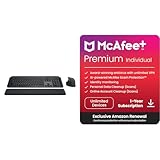
- Engineered for Speed and Precision: MX Keys S Wireless Keyboard features fast fluid laptop-like typing combined with the fast, precise scrolling of MX Master 3S Wireless Mouse
- Fluid Typing Experience: Laptop-like profile with spherically-dished keys shaped for your fingertips delivers a fast, fluid, precise and quieter typing experience
- Scroll 1000 Lines Per Second: With MagSpeed, Logitech’s fastest and most precise scroll wheel (3), and an 8K DPI sensor, this Logitech Mouse tracks anywhere – even on glass (4)
- Automate Repetitive Tasks: Easily create and share time-saving Smart Actions shortcuts that perform multiple actions with a single keystroke with the Logi Options+ app (1)
- PERSONALIZED PROTECTION WHEREVER YOU CONNECT — award-winning antivirus, 24/7 identity monitoring, and automatic VPN across all your devices including Windows, macOS, Android, iOS, and now ChromeOS
Some standalone products are not covered by account-page deactivation
Adobe’s activation-limit instructions say account-page deactivation is unavailable for Lightroom 6 and Acrobat purchased as a standalone, non-subscription product. The instructions say it is available for single-app memberships. For another product or license type, check the product-specific Adobe support instructions rather than assuming the same remote control is available.
If the computer is missing and you suspect account misuse
Deactivating a device addresses its app activation; Adobe’s activation instructions do not establish that this changes your password or secures every account session. If you suspect unauthorized access, follow Adobe’s account security and password guidance.
Quick Recap
Product prices and availability are accurate as of the date/time indicated and are subject to change. Any price and availability information displayed on Amazon at the time of purchase will apply.
The Tool Desk
Outbyte PC Repair FREERepair Windows errors before they cause bigger problemsFix Now →Outbyte Driver Updater FREEScan for outdated or missing drivers - takes under a minuteDriver Scan →
