
iTechGuides is reader-supported. When you buy through links on our site, we may earn an affiliate commission. As an Amazon Associate I earn from qualifying purchases. Learn more
Set up a DGX Spark by choosing local or network first boot, preparing a reliable internet connection and peripherals before applying power, then completing NVIDIA’s initial setup without interrupting its software installation. One important qualification: NVIDIA’s product page lists the 64GB configuration as “Coming Soon” and exclusive to participating OEM partners. Verify that a listing and its specifications are for the 64GB SKU; NVIDIA’s detailed hardware overview describes a 128GB system.
Before you buy: verify the 64GB configuration
NVIDIA’s DGX Spark product page lists 64GB and 128GB coherent unified-memory configurations, but marks 64GB as “Coming Soon” and says it is available exclusively through participating OEM partners. Check the exact SKU and its associated specifications with the seller before purchase. Do not assume specifications on a page for another configuration apply to the 64GB model.
| # | Preview | Product | Price | |
|---|---|---|---|---|
| 1 |

|
NVIDIA GX Spark - Founders Edition, W129251900 | $10,991.00 | Buy on Amazon |
| 2 |
|
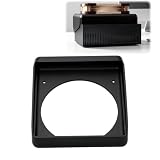
Cooling Duct Compatible with NVIDIA DGX Spark GB10, 140mm Fan Mount Adapter | $27.99 | Buy on Amazon |
NVIDIA’s separate hardware overview describes a 128GB system. Its details—including storage options, dimensions, weight, and operating conditions—should not be presented as verified specifications for a 64GB Spark without a corresponding official 64GB specification.
Choose how you will complete first boot
You can set up the Spark at its desk with a directly attached display and peripherals, or use another computer on the same network. Network setup avoids attaching a monitor and keyboard to the Spark during setup; local setup is a useful fallback if network discovery or access is a problem. NVIDIA documents local, network, and mixed use after setup in its first-boot guide.
#1 Best Overall
| Setup mode | Prepare | Useful when |
|---|---|---|
| Local | Display, keyboard, and mouse connected to the Spark | You want to use the on-screen setup wizard or need a fallback when network setup is blocked. |
| Network | Another computer on the same network; use the SSID and password in the included Quick Start Guide | You want to set up and access the Spark without a monitor and keyboard attached. |
Prepare the room, network, and connections
- Choose a fast, reliable internet connection so the Spark can obtain required setup updates. NVIDIA does not recommend captive-portal networks or connections prone to dropping, such as phone hotspots.
- For local setup, have a display, keyboard, and mouse ready. For network setup, have another computer available on the same network.
- If using Ethernet, connect the cable before installation. Attach the peripherals and network connections you plan to use before connecting power: the Spark starts when power is applied.
- Allow time for the initial download and installation. NVIDIA says setup can take up to 10 minutes to install updates and join the network; do not shut down or reboot during installation. The system may reboot more than once.
If reliable internet is unavailable, NVIDIA points to system recovery media as an alternative route to install current software. Use the Spark-specific recovery guidance rather than instructions or media intended for enterprise DGX systems.
Set up the Spark over your home network
- Connect the Spark’s power and network. If using wired networking, connect Ethernet first. The system starts when power is connected.
- Join its temporary Wi-Fi hotspot. On the other computer, select the SSID and enter the password printed in the included Quick Start Guide.
- Open the setup page in a browser. Follow the on-screen steps to provide setup information and connect the Spark to your home network.
- Wait while setup finishes. When the Spark joins the home network, its temporary hotspot turns off and the other computer reconnects through the home network. Do not interrupt software installation, even if the system reboots.
- Reconnect to the Spark on the home network. Keep the Spark and the other computer on the same network for access after setup.
If the other computer cannot reach the Spark
NVIDIA identifies device isolation, the computer being on a different network, and mDNS restrictions as possible causes. Check that both devices are on the same network and that the router is not isolating them. If network setup does not work, connect a display, keyboard, and mouse to continue locally.
Set up locally at the Spark
- Connect the display, keyboard, and mouse before power. Connect Ethernet too if you plan to use a wired connection.
- Apply power and follow the on-screen wizard. Setup includes language and time zone, terms, account creation, and optional information-sharing settings. Local setup also includes keyboard layout.
- Provide network access. Choose Wi-Fi in the wizard if Ethernet is not already providing internet access.
- Let software download and install. Keep the system powered on and do not reboot or shut it down while installation is underway.
Access and use the system after setup
You can work directly at the Spark with its monitor and peripherals, or use another computer on the same network. NVIDIA documents access through NVIDIA Sync, SSH, and remote desktop. Its system overview also describes the built-in DGX Dashboard for system monitoring, updates, and JupyterLab access. See the DGX Spark system overview for the documented software and access options.
Do these 3 things before closing this tab:
1Clear out junk files and repair common Windows errors2Fix the driver behind crashes, sound loss and screen glitches3Repair Windows errors before they cause bigger problemsUnderstand the capabilities—and their limits
NVIDIA advertises support for models up to 200 billion parameters and performance of up to 1 PFLOP at FP4, and describes connecting multiple systems for larger workloads. These are vendor specifications, not independent benchmarks or guarantees for a particular 64GB unit. Whether a model fits or performs well depends on details such as precision, quantization, context length, and workload. Treat the headline parameter count as a capability claim, not a promise that every model of that size will run with every configuration.
Rank #2
- 140MM FAN MOUNT: Built around a 140 mm fan layout with approximately 124.5 mm hole spacing, creating a defined top-mount position for a compact workstation cooling setup
- SINGLE-PIECE DUCT: One-piece fan shroud forms a simple airflow channel between the upper vent area and a 140 mm fan position, keeping the desktop workstation setup compact
- TOP-MOUNT LAYOUT: Designed to sit above a compatible compact AI workstation, the cooling duct uses the upper device area without requiring a larger external frame
- OPEN AIRFLOW PATH: The central round passage links the workstation vent area with the fan mount, giving the setup a clear physical airflow route without internal moving parts
- COMPACT SIZE: Approx. 157 x 178 x 51 mm body keeps the fan duct close to the workstation, fitting home lab, AI development desk, and compact compute setups
The product page lists Grace Blackwell architecture, a 20-core Arm CPU, a Blackwell GPU, 64GB or 128GB coherent unified system memory, 273 GB/s bandwidth, up to 4TB of NVMe M.2 storage, Wi-Fi 7, 10GbE Ethernet, ConnectX-7 networking, four USB-C ports, HDMI 2.1a, and a 240W power supply. Because the 64GB configuration is marked “Coming Soon,” confirm which of these specifications apply to the exact unit you are considering. NVIDIA’s detailed hardware page is for a 128GB system.
Independent reader supportYour contribution helps us test, update, and keep practical guides available for everyone.Keep software and recovery guidance specific to your system
NVIDIA describes DGX OS as a customized Linux distribution with hardware-tailored drivers, tools, and settings. Release notes list Founders Edition versions as DGX OS 7.5.0, NVIDIA GPU Driver 580.159.03, CUDA Toolkit 13.0.2, and Canonical Kernel 6.17; NVIDIA’s July 2026 notes describe improved handling of memory pressure. These are release-note values for the Founders Edition, not a guarantee of the versions installed on every unit. NVIDIA cautions that partner GB10 systems may receive updates at different times, so check the current release notes for the exact system.
For recovery, follow NVIDIA’s DGX Spark DGX OS guidance. NVIDIA says Spark recovery differs from enterprise DGX recovery and directs Spark owners to system-specific recovery instructions rather than an enterprise DGX OS ISO.
Windows Errors? Fix Them Before They Spread
Repair common Windows errors and clear accumulated junk for a smoother, more stable PC - no reinstall needed.Free scan · no reinstallCrashes, No Sound, or Screen Glitches?
Random freezes, missing sound and display glitches usually trace back to one bad driver. Find and replace yours safely.Free scan · under a minuteQuick Recap
Product prices and availability are accurate as of the date/time indicated and are subject to change. Any price and availability information displayed on Amazon at the time of purchase will apply.

