
Recommended Free Tools
iTechGuides is reader-supported. When you buy through links on our site, we may earn an affiliate commission. As an Amazon Associate I earn from qualifying purchases. Learn more
On Windows 10 or Windows 11, press Windows+Shift+S, choose Rectangular snip, and drag from one corner of the monitor to the opposite corner. The selected image opens through Snipping Tool, where you can edit, save, or share it. This is the reliable built-in way to capture one monitor’s desktop area without including the others.
If you need only one application, activate its window and press Alt+Print Screen. That captures the foreground window, not the rest of the monitor.
Choose between a monitor area and an application window
“One monitor” and “one window” are different targets. A monitor-area capture can include the desktop background, taskbar, and several windows visible on that display. A window capture contains only the active application window.
| What you want | Shortcut | What it captures | Selection required |
|---|---|---|---|
| One monitor’s visible desktop | Windows+Shift+S, then Rectangular snip | The rectangle you draw, including an entire monitor if you trace its visible bounds | Yes; drag across the target display |
| One application | Alt+Print Screen | The active foreground window | No, but the correct window must be active |
| All connected displays | Print Screen under its default behavior | The entire virtual screen | No |
Capture one monitor’s desktop area
- Press Windows+Shift+S. Windows opens the Snipping Tool capture overlay.
- If the toolbar is set to another mode, select Rectangular snip.
- Move to a corner of the monitor you want. Press and hold the mouse button, then drag to the opposite corner. Keep the rectangle inside that display; do not extend it onto the neighboring monitor.
- Release the mouse button. The selected area is copied and a Snipping Tool notification appears.
- Select the notification, or open Snipping Tool, to review the image. From there you can edit, save, or share it.
How to trace the monitor accurately
Start just inside the display’s top-left corner and finish just inside its bottom-right corner. On a multi-monitor desktop, the displays may be arranged side by side or one above another, so the target can be to the left, right, above, or below the primary display. The overlay shows the rectangle while you drag; release only after its edges match the monitor’s visible area.
#1 Best Overall

- Compatible Model(s): Magicmoon brand filter only for 24 inch -diagonally measured - widescreen monitor - aspect ratio 16:9 - filter size: width: 20 15/16", Height: 11 13/16" (531mm x 298mm)
- Superior Privacy: The computer privacy filter makes the screen appear dark when looking at it from an angle (the angle is about 30 to 60 degree), but bright when looking directly at it. To change the privacy level - simply adjust your monitor’s brightness accordingly
- Eye and Screen Protection: Privacy Filter does not only protect your private life but also protects your eyes by blocking 30% of blue light , blocking the harmful blue light between 380 to 495 nm, it filters out the blue light and relieves eye strain
- Perfect For Open Workspaces: Great for maintaining screen privacy in open work spaces
- Includes Two Options: Option 1 uses clear adhesive strips that securely attach to any computer screen. Option 2 (for computer screens with a raised bezel only) uses slide mount tabs that easily stick to the display frame, allowing you to slide the privacy screen filter on and off as needed
This is a manual selection. Windows’ documented shortcuts do not provide a universal key that automatically chooses “the monitor under the cursor.” If exact edges matter, zooming the display or making a second snip can be faster than trying to correct an oversized rectangle in an editor.
Capture only the active application window
- Click the application window you want so it is the foreground window.
- Press Alt+Print Screen.
- Paste the clipboard image into the destination app, such as an image editor or document, and save it if you need a file.
Microsoft’s multiple-display documentation describes this behavior as “ALT+PRINTSCRN takes a snapshot of the foreground window.” It does not promise to include the monitor’s empty desktop, taskbar, or other windows. Use the rectangular snip when those areas are part of the subject.
Why Print Screen can include every monitor
With its normal Windows behavior, Print Screen captures the entire virtual screen—the combined desktop space occupied by all connected displays. That is why a plain Print Screen image can be much wider than the monitor you were looking at.
Windows has an exception: if Use the Print screen to open screen capture is enabled in Settings, pressing Print Screen launches the installed Snipping Tool-type capture app instead. The exact Settings presentation can vary by Windows version and configuration. If Print Screen suddenly shows a selection overlay rather than copying all displays, that setting is the reason.
Rank #2
![[2 Pack] 24 Inch Computer Privacy Screen Filter for 16:9 Widescreen Monitor](https://m.media-amazon.com/images/I/41SBKw3J4ML._SL160_.jpg)
- 【24 PRIVACY FILTER DIMENSIONS】 Width: 20 15/16" (20.9 inches/532 mm), Height: 11 13/16" (11.8 inches/299 mm) - 16:9 Aspect Ratio. Mamol computer privacy filters are designed to be perfectly compatible with HP, Samsung, Dell, Lenovo, Acer, Asus, LG, ViewSonic and other brands of monitors. Please check the width and height dimensions of your computer screen before ordering. If you have any questions about the dimensions, please contact us.
- 【ENHANCED PRIVACY PROTECTION】Mamol 24 inch computer privacy filter keeps your electronic information confidential, making it excellent for use in high traffic areas. the computer privacy screen 24 inch is designed with advanced microlouver technology to block visibility at around 30 degrees and black out screens completely near 60 degrees.
- 【EYES PROTECTION】 This blackout privacy screen greatly reduces eye strain and minimizes potential hazards to vision. It filters 99.9% of UV rays and suppresses 98% of blue light. As a reversible 24-inch privacy screen filter: The glossy side of the protector provides extra clarity and greater privacy, and the matte side minimizes glare and distracting reflections. Satisfy your different daily uses as needed.
- 【BETTER HD CLARTIY】Mamol 24 inch computer privacy screen Shield adds an extra layer of AR Ultra HD light transmission compared to others. It maintains the high definition of the screen without sacrificing too much screen brightness. It won't reduce the brightness and cause eye fatigue because of the privacy screen installed on the screen.
- 【ANTI SCRATCH & WASHABLE 】Our privacy anti-glare Monitor film has a surface enhancement layer to protect the privacy filter from scratches and fingerprints. It is washable and reusable. Even after prolonged use, you will get a brand new privacy screen for your desktop computer monitor after cleaning. Very Durable!
For a dependable one-monitor result, use Windows+Shift+S and draw the rectangle yourself rather than relying on what Print Screen currently does.
Save, edit, and share the result
Use the Snipping Tool notification
Selecting the notification opens the capture in Snipping Tool. You can annotate or crop it, then use the save command to create an image file or the share command to send it to another app. The capture is initially available through the clipboard as well.
Paste directly into another application
After a snip, switch to the document, chat, presentation, or editor where the image belongs and paste. This is useful when you do not need a permanent image file. For an Alt+Print Screen capture, pasting is the normal next step because the shortcut copies the foreground-window image.
Check the final boundaries
Before sending the image, inspect its edges. A neighboring monitor, a strip of the desktop, or a clipped taskbar usually means the drag began or ended outside the intended display. Take another rectangular snip if the boundary is wrong.
Rank #3
![[2-Pack] 24 Inch Privacy Screen for Computer Monitor Hanging Removable 16:9](https://m.media-amazon.com/images/I/41myUlG2izL._SL160_.jpg)
- 【Privacy Screen Dimensions】 Width: 21 9/16"(547 mm), Height:12 5/8"(320 mm), Diagonal=24 13/16"(630mm) - 16:9 aspect ratio. Zspeed computer privacy for computer monitor are designed to be perfectly compatible with Dell, HP, Samsung, Lenovo, LG, Acer, ASUS, Toshiba, ViewSonic, Aoc, Sceptre, PHILIPS, ViewSonic and other brands of monitors. ✔ Fits Most 24" Widescreen Monitors Designed for broader screen coverage. Please measure the visible width and height of your monitor before ordering, as monitor dimensions may vary by brand and bezel design
- 【Designed for Wider Compatibility】Unlike adhesive privacy filters that require an exact edge-to-edge fit, our hanging privacy screen is designed slightly wider to fit a broader range of 24-inch widescreen monitors across different brands. Not All 24" Monitors Have the Same Dimensions. For best results, please measure your monitor’s visible screen area before ordering
- 【Hanging Removable Easy to Install and Reusable】: The Hanging design monitor privacy screen installs in just seconds. Easily install remove, the screen without leaving any residue or damaging your monitor. It is washable and reusable. Even after prolonged use, you will get a brand new privacy screen protector for your desktop computer monitor after cleaning
- 【Clear View from the Front, Privacy from the Side】: Our 24 inch privacy screen for monitor utilizes advanced micro-louver technology to restrict The viewing angle is limited to ±30°. Anyone viewing from the side sees only a darkened screen, effectively preventing visual peeping. It is ideal for offices, healthcare environments, banks, and other workplaces where protecting sensitive information and maintaining reliable screen coverage is essential
- 【Eyes Protection】: This computer privacy screen engineered to block up to 96% of harmful blue light and 99% of ultraviolet radiation, reducing eye strain, fatigue, and headaches from long work sessions. Ideal for students,Office staff and healthcare workers who spend hours in front of their screens. Our computer screen privacy shield supports your long term vision health
Common problems and fixes
Windows+Shift+S does nothing
- Press all three keys together and release them; the capture toolbar should appear.
- If the shortcut still fails, open Snipping Tool from the Start menu and use its new-capture command. The built-in workflow applies to Windows 10 and Windows 11.
- Close a full-screen application temporarily if it is intercepting keyboard shortcuts, then try again.
The screenshot contains both monitors
- You probably pressed Print Screen, which normally targets the virtual screen.
- Repeat the capture with Windows+Shift+S, choose Rectangular snip, and keep the drag within one monitor.
Alt+Print Screen captured the wrong thing
- The desired application was not active. Click its title bar first, then press Alt+Print Screen again.
- Remember that this shortcut captures a window, not a monitor. Use a rectangular snip if you need the whole display.
The notification disappeared
Open Snipping Tool from the Start menu to review recent capture work, or paste immediately into another app while the image remains on the clipboard. If you need a file, perform another snip and save it from the Snipping Tool window.
The monitor is arranged above or beside the others
That arrangement is supported. The snipping overlay spans the virtual desktop; simply drag over the display’s actual position. Start and end at that monitor’s visible corners, regardless of whether it is left, right, above, or below another screen.
I expected an automatic “current monitor” shortcut
Windows’ documented methods establish rectangular area selection and foreground-window capture, not a universal shortcut that detects the monitor under the pointer. Use the rectangle when the monitor itself is the target.
A quick decision checklist
- Need the entire visible area of one display? Windows+Shift+S → Rectangular snip → drag around that monitor.
- Need only the app currently in front? Activate it → Alt+Print Screen.
- Getting a giant image containing every display? You used Print Screen’s virtual-screen behavior; switch to a rectangular snip.
- Need to edit or save? Open the Snipping Tool notification and use its edit and save controls.
Or skip the browser setup
Windows shortcuts are right for a physical desktop. If what you actually need is a clean screenshot of a public webpage for documentation, testing, or a report, ScreenshotNeo returns the image from one request without configuring a browser. Its API can capture PNG, JPEG, WebP, or PDF output; the example below requests a WebP image:
Rank #4
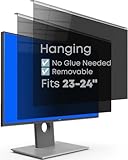
- Strong Privacy Shield & Total Peace of Mind: Blocks 95% of light. 50% blocked at 20°, 80% at 30°, 100% at 30°+. Keeps screen content private from side views in office or public spaces.
- Instant Setup & Effortless Use: Hanging design, no installation needed. 1-second switch between privacy and sharing modes. User-friendly for enterprise staff, personal users, teams, or multi-monitor setups.
- Eye-Friendly & Health Guarding: Reduces 87% blue light and 97% UV, converts harmful light to harmless heat. 93% light transmittance ensures clear viewing while easing eye strain from prolonged screen use.
- Wide Compatibility: Fits 2 types of monitors: fully flat frameless and bottom bezel raised ≤3mm. Available in 22" (fits 21-22"), 24" (fits 23-24"), 27" (fits 26-27") sizes.
- Premium Package & Quality: Includes hanging privacy screen(s), cleaning cloth(s), and UV & blue light test card(s). Made of high-grade acrylic with absorbers to block short-wave blue light, UV-A, and UV-B.
See the ScreenshotNeo API documentation for the complete parameter reference.
cURL
curl -G "https://api.screenshotneo.com/v1/shot" -d access_key=YOUR_API_KEY --data-urlencode url=https://stripe.com -o shot.webpPython
import requests
r = requests.get("https://api.screenshotneo.com/v1/shot", params={"access_key": "YOUR_API_KEY", "url": "https://stripe.com"}, timeout=90)
r.raise_for_status()
open("shot.webp", "wb").write(r.content)
Node.js
const q = new URLSearchParams({ access_key: 'YOUR_API_KEY', url: 'https://stripe.com' });
const res = await fetch(`https://api.screenshotneo.com/v1/shot?${q}`);
if (!res.ok) throw new Error(`HTTP ${res.status}`);
const buffer = Buffer.from(await res.arrayBuffer());
require('fs').writeFileSync('shot.webp', buffer);
ScreenshotNeo is for webpages, not a replacement for capturing pixels from your local Windows monitors. Before the webpage is captured, it accepts the cookie or consent banner like a visitor and removes more than 60 known consent platforms, newsletter popups, and chat widgets; each cleanup step can be disabled. Bot checks or CAPTCHAs, blank pages, timeouts, failed loads, and cache hits are not billed, and response headers identify the page verdict and whether the request was billed.
For automation, it also provides an MCP server with take_screenshot, get_page_info, and capture_pdf tools for Claude, Cursor, and other MCP clients. Options include full-page capture with lazy images loaded, CSS-selector element capture, dark mode, device presets or custom viewports, retina scale, PDF paper and margin controls, custom CSS or JavaScript, clicks before capture, selector waits, delays, network-idle waits, request and resource blocking, custom headers, cookies, user agents, Authorization, timezone and geolocation, transparent backgrounds, resizing, configurable caching, signed image links, asynchronous jobs with signed webhooks, bulk capture for up to 100 URLs per call, a usage API, an OpenAPI specification, and compatible parameter names used by other screenshot APIs.
Quick wins for a faster PC:
Clear out junk files and repair common Windows errorsFree Scan →Scan for outdated or missing drivers - takes under a minuteDriver Scan →| Plan | Allowance | Price |
|---|---|---|
| Free | 1,000 shots per month | $0, no card |
| Starter | 3,000 shots | $5 |
| Growth | 15,000 shots | $15 |
| Pro | 60,000 shots | $39 |
| Scale | 250,000 shots | $99 |
| Business | 1,000,000 shots | $249 |
Every feature is included on every plan, and yearly billing provides two months free. Create a free ScreenshotNeo account to get 1,000 screenshots each month with no card; paid plans start at $5 for 3,000 shots.
Independent reader supportYour contribution helps us test, update, and keep practical guides available for everyone.Frequently Asked Questions
Does Windows+Shift+S automatically save a PNG file?
No. It places the capture in Snipping Tool and on the clipboard; use Snipping Tool’s save command when you need a file.
Best Value

- 【24 Inch Privacy Protection Film Size】Width: 20 inches (20.91 inches/531 mm), height: 11 inches (11.77 inches/298 mm) -16:9 aspect ratio. This computer privacy protection film can be seamlessly adapted. Support most mainstream models on the market. In order to ensure the best user experience, it is recommended to carefully measure the width and height of the screen before placing an order. If you have any questions about the size, please contact us. It is not recommended to choose the size only according to the diagonal
- 【Enhanced Privacy Protection】DMFXNBLM 24 inch computer privacy filter can ensure the security of your electronic information in your daily work and study, which is very suitable for use in public. The 24 inch computer privacy screen adopts advanced micro-blind design technology, which can completely cover the screen at about 26 degrees. Protect the screen privacy of your computer monitor and no longer disclose any confidential data
- 【Protect Eye Health】DMFXNBLM 24 inch monitor privacy screen can block 95% of blue light and 98% of ultraviolet light, and filter all harmful light emitted by the screen to minimize the potential harm to eyesight and take care of your eyes. As a double-sided privacy filter, the matte surface can provide a clearer field of view and better privacy, while the matte surface can minimize glare and interference reflection. Meet your different daily needs
- 【Anti-scratch, Washable】Anti-glare display protective film high-hardness anti-scratch coating can resist daily friction and say goodbye to scratches; when stained, it can be wiped clean with a soft cloth dipped in water. After tearing off, you can clean up the residue and paste it again. Repeated use will not affect the effect
- 【Two Accessories Options】Easy to install 1) Use slide tabs to fix the label on both sides of the monitor, slide the filter on the screen 2) Remove the adhesive strips and paste them on the four corners of the monitor to complete the installation. All installation accessories are attached to the packaging and come with detailed graphic tutorials, easy to operate and easy to use
Can Alt+Print Screen capture a monitor’s taskbar and desktop?
Not as a monitor-area workflow. It is defined as a foreground-window capture, so use Rectangular snip for the surrounding desktop.
Why does Print Screen behave differently on two Windows PCs?
The Print Screen key follows the virtual-screen default unless the Windows setting that opens screen capture is enabled, and that setting can differ between installations.
Do I need a second monitor accessory or capture device for this?
No. Windows’ built-in Snipping Tool and keyboard shortcuts provide the required software capture workflow.
Quick Recap
Product prices and availability are accurate as of the date/time indicated and are subject to change. Any price and availability information displayed on Amazon at the time of purchase will apply.

