
The Tool Desk
Outbyte Driver Updater FREEScan for outdated or missing drivers - takes under a minuteDriver Scan →Outbyte PC Repair FREEClear out junk files and repair common Windows errorsFree Scan →iTechGuides is reader-supported. When you buy through links on our site, we may earn an affiliate commission. As an Amazon Associate I earn from qualifying purchases. Learn more
Receive the dead-letter message with Peek-Lock, diagnose and correct the cause, resend it to the intended queue or topic, then complete the dead-letter copy only after the send succeeds. For a stronger broker-side handoff, use a supported Service Bus transaction to combine the send and completion. Separate send and completion can still produce a duplicate if the process stops between them, so make downstream work idempotent; no broker workflow makes external database or service effects exactly once.
What resubmitting a dead-letter message can—and cannot—guarantee
A dead-letter queue (DLQ) is a subqueue associated with a queue or topic subscription, not a separate entity to manage. Service Bus retains messages there until an application retrieves and completes them; it does not automatically clean up the DLQ. DLQ messages themselves do not observe TTL. See Microsoft Learn’s Service Bus Dead-Letter Queues.


The safe recovery pattern is to keep the source message unsettled while you investigate and resend it. If the send fails, leave the DLQ message unsettled. If the send is accepted but your process crashes before completing the DLQ message, Service Bus can redeliver the source and your retry can send a duplicate. A transaction can couple send and completion atomically in supported configurations, but it does not enlist a database or other external service automatically.
Windows Errors? Fix Them Before They Spread
Repair common Windows errors and clear accumulated junk for a smoother, more stable PC - no reinstall needed.Free scan · no reinstallOutdated Drivers Are Slowing You Down
One free scan finds every outdated or missing driver and matches the right update for your exact hardware.Free scan · exact hardware matchChoose the right DLQ and delivery mode
Find the source of the dead letter
For a queue, inspect that queue’s DLQ. For a topic, messages are copied to matching subscriptions, so inspect the DLQ of the subscription that contains the affected message. A failed auto-forward or send-via transfer may instead be in the source entity’s transfer DLQ, rather than the destination’s DLQ. In .NET receiver options, select SubQueue.DeadLetter for a regular DLQ or SubQueue.TransferDeadLetter for a transfer DLQ.
#1 Best Overall
Use Peek-Lock, not Receive-and-Delete
Peek-Lock keeps the message unsettled while you inspect and recover it. If the lock expires or the receiver abandons the message, it can be delivered again; complete it only when the recovery action is done. Receive-and-Delete removes a message as it is delivered, so a client-side failure can lose it. Microsoft advises: “Use peek lock for any workload where losing a message is unacceptable.” See Message Transfers, Locks, and Settlement and Prevent message loss and duplicate processing in Azure Service Bus.
Microsoft Learn documents a default Peek-Lock duration of one minute and a maximum of five minutes; renew the lock if diagnosis or processing will take longer. The queue or subscription’s configured delivery-count limit determines when repeated abandon or lock expiry dead-letters a message. Microsoft documents 10 deliveries as the default maximum; check the entity’s actual setting rather than assuming the default applies.
Rank #2
Diagnose and correct the failure before replay
Inspect DeadLetterReason and DeadLetterErrorDescription before resending. Common system reasons include MaxDeliveryCountExceeded, TTLExpiredException, HeaderSizeExceeded, Session ID is null, and MaxTransferHopCountExceeded. Other dead-lettering causes include filter evaluation errors and transfer failures. Correct the underlying cause first; otherwise the replay may fail in the same way. Microsoft’s DLQ documentation describes these reasons and the associated scenarios.
What’s actually slowing this PC down?
Pick the symptom - the matching free tool is one click away.
Resubmit through Service Bus Explorer or an application
Operator-led replay in the portal
Service Bus Explorer is the documented portal option for inspecting, editing, and resending an individual message or a batch. Use it when an operator needs to review or correct a small number of messages. Treat removing or completing the original as a separate settlement action: verify the resend succeeded before completing the DLQ copy.
Automated replay with the SDK
- Receive: Create a receiver for the correct dead-letter subqueue using Peek-Lock.
- Inspect and correct: Read the dead-letter reason and description, then fix the message or the condition that caused rejection.
- Send: Send the corrected message to its intended queue or topic and wait for a successful send acknowledgment.
- Settle: Complete the DLQ message only after the send is acknowledged. If the send fails, leave the source unsettled so it can be retried.
- Observe retries: Record the original and resubmitted message identifiers and make repeated processing safe, especially if a crash could occur after send but before completion.
Microsoft’s .NET sample, Explore deadlettering in Azure Service Bus, demonstrates retrieving, correcting, and resubmitting messages. Microsoft dates that sample page April 22, 2026.
Decide whether to use a Service Bus transaction
When the configuration supports it, a Service Bus transaction can make the destination send and input-message completion a single broker-side operation. Microsoft describes transactional results as visible to downstream consumers only upon success, including successful settlement of the input message. Transactions are not universal: Basic tier does not support them; Standard and Premium do. Microsoft’s transaction documentation also says the JavaScript SDK does not support transactions, cross-entity transactions require client configuration, and a transaction times out after two minutes. Check the current support for your SDK, tier, and entity path before designing around atomic handoff. See Overview of Service Bus transaction processing.
Rank #4
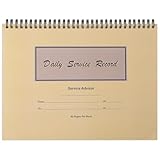
- Record Book: the package includes 1 daily service record book with 80 sheets, offering ample space to meet daily logging needs; It's a practical tool for tracking appointments, managing tasks, and enhancing customer service efficiency
- Ideal Size: measuring 8.5 x 11 inches, this activity log notepad balances portability and capacity; With 80 pages, it's ideal for daily use in the automotive industry, serving as a reliable service record management tool for consistent tracking
- Nice Quality: crafted from quality paper, the activity log book features reliable coil binding for easy page turning and tear-out; Its structured layout provides ample space for detailed entries, supporting effective schedule planning
- Friendly Design: designed for convenience, the daily log book's coil binding allows effortless sheet removal whenever needed; The intuitive layout ensures quick access to logging sections, making daily activity recording simple and efficient
- Versatile Usage: the service log book is a helper for the automotive industry or individuals to record scheduled maintenance, the shop can use it to register the maintenance needs of different customers, individuals can use it to keep track of flat rate hours
A transaction only covers supported Service Bus operations. It does not make a database write, HTTP call, or other external side effect atomic with the broker settlement. Those effects still need their own idempotency or recovery strategy.
Prevent duplicate business effects
Peek-Lock redelivery and the gap between a successful send and completion mean replay should tolerate repetition. Use a stable application business key or MessageId to make downstream processing idempotent. Service Bus duplicate detection is a sender-side safeguard, not a substitute for idempotent consumers: it compares MessageId, or MessageId plus partition key where partitioning applies, within a finite configured history window. Microsoft documents a 10-minute default, a 20-second minimum, and a seven-day maximum; duplicate detection can affect throughput. A duplicate send inside the window may be acknowledged but discarded. Details are in Azure Service Bus duplicate message detection.
Best Value
Preserve business order when sessions are involved
Resending a session message gives it a new enqueue time and sequence number, so it does not return to its former position in the session’s order. If order matters, sequence replay using business data or reconcile the order explicitly rather than assuming FIFO replay restores the original position. See Azure Service Bus Enable FIFO with Sessions.
Which replay approach fits?
| Approach | Best fit | Recovery and duplicate tradeoff | Limits |
|---|---|---|---|
| Service Bus Explorer | Operator-led inspection or individual and batch replay | Supports inspection, edits, and resend; verify the send before completing the original | Manual workflow; does not guarantee exactly-once downstream effects |
| SDK, separate send and completion | Automated correction when transactions are unavailable or unnecessary | Leaves the source recoverable if send fails; a crash after accepted send and before completion can cause duplicate replay | Requires idempotent business handling and observability |
| SDK transaction or send-via transfer | Automated handoff where tier, SDK, entities, and configuration support it | Can couple destination send and source completion atomically | Basic tier and JavaScript SDK do not support transactions; cross-entity configuration is required where applicable; transaction timeout is two minutes |
Choose based on whether replay is operator-led or automated, whether atomic broker settlement is supported, how much message correction is needed, throughput, duplicate tolerance, and session-order requirements.
Microsoft Learn notes retirement of legacy Service Bus SDKs and SBMP on September 30, 2026. For new or maintained replay workflows, use current Azure SDK libraries and check Microsoft’s current migration and support guidance.
Do these 3 things before closing this tab:
1Clear out junk files and repair common Windows errors2Scan for outdated or missing drivers - takes under a minute3Repair Windows errors before they cause bigger problemsQuick Recap
Product prices and availability are accurate as of the date/time indicated and are subject to change. Any price and availability information displayed on Amazon at the time of purchase will apply.

