
iTechGuides is reader-supported. When you buy through links on our site, we may earn an affiliate commission. As an Amazon Associate I earn from qualifying purchases. Learn more
Start with the exact gift and its product template, then prepare your image for the template’s print area and intended physical size. Check effective resolution, choose PNG or JPEG for the image, follow the provider’s color and bleed instructions, and inspect the final preview before ordering. Requirements vary by product and printing method, so no single DPI, color profile, or canvas size applies to every print-on-demand gift.
1. Choose the product and its template first
A mug wrap, poster, canvas, and garment print location each have different printable areas and proportions. Before editing, open the chosen product’s current file guidelines and download its template. The template shows the relevant dimensions and any safe zones; a generic canvas can leave artwork misplaced or cropped. Printful recommends using the product-specific file guidelines and templates in its file-preparation guide and digital print file guidance.
2. Check resolution at the gift’s actual print size
Use the original photo or artwork when possible. To estimate effective pixels per inch, divide the image’s pixel width by the intended print width in inches; do the same for height. For example, a 3000-pixel-wide image placed across 10 inches works out to 300 pixels per inch across that dimension. If you enlarge the placement to 20 inches, it works out to 150 pixels per inch. Increasing dimensions in an editor does not recreate detail that was absent from the original file.
Quick wins for a faster PC:
Clear out junk files and repair common Windows errorsFree Scan →Fix the driver behind crashes, sound loss and screen glitchesFind Drivers →Repair Windows errors before they cause bigger problemsFix Now →Use the selected provider’s requirement for that product rather than treating a general figure as a guarantee. Printful gives a general range of 150–300 DPI depending on product requirements. Gelato’s guidance for print-ready PDF uploads calls for at least 150 DPI and a maximum of 300 DPI at actual size. Those are provider-specific specifications, and the Gelato figures apply to its PDF workflow, not every upload or service.
#1 Best Overall
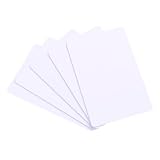
- 【Wide Compatibility】 Our blank ID cards are compatible with most photo ID badge printers, including DataCard, Zebra, Fargo, Evolis, Magicard, Nisca, NBS, and more. (Please note: they are not suitable for inkjet printers.)
- 【Double-sided Printing】 These smooth white PVC cards can be printed on both sides. They do not contain chips, magnetic stripes, or pre-punched slots, offering clean blank surfaces to meet all your printing demands.
- 【International Standard Size】 Each blank plastic card measures approximately 85.6 x 53.98mm, with a thickness of 30 mil, fully conforming to ISO CR80 credit card industry standards.
- 【Wide Range Of Uses】 Ideal for office badges, membership cards, gift cards, and student IDs. Some customers also use these blank plastic cards for tabletop RPG index cards, DIY crafts, decal adhesion, and guitar pick punching!
- 【What You Will Get】 You will receive a set of 24 graphic quality blank white PVC cards. If you have any questions, please feel free to contact us, and we will try our best to assist you.
Paper products or small artwork with fine details may need more resolution than a large, simple design. If the source looks soft or pixelated at the intended size, use a higher-quality original, reduce the printed size, or choose a different image rather than assuming upscaling will restore clarity.
3. Choose the file format for the artwork
| Format | Best suited to | Important limitation |
|---|---|---|
| PNG | Transparent designs, logos, illustrations, and artwork with crisp edges. | File size can be larger than a comparable JPEG. Confirm the product accepts PNG. |
| JPEG/JPG | Opaque photographs and full-coverage designs without transparent areas. | JPEG does not preserve transparency. A transparent area may appear as a solid background if exported this way. |
| Print-ready PDF | Layouts that need print-ready page dimensions or vector content, where the provider supports PDF. | Export settings matter: hidden layers, fonts, blend modes, strokes, or transparency effects may render differently. Gelato’s PDF requirements are specific to its PDF workflow. |
Printful says, “For most print products, use PNG or JPEG/JPG, depending on the product and printing method.” Its guide also notes that PDF files can render complex elements differently and recommends a flattened PNG or JPEG when predictable rendering is the priority. Check the chosen product’s accepted formats before export.
Rank #2

- Customize by uploading a logo, image, photo, or any combination you prefer. Personalize further by entering your own text and maximize your customization with front and back printing options.
- Classic, casual tee with a ribbed crewneck, straight hem, durable-double needle stitching, and short sleeves for everyday comfort.
- Available in an inclusive range of sizes for the perfect fit, including fits for men, women, toddlers, kids, big and tall, and plus size. For classic styling in all-gender, unisex sizes, consider the Men's fit type.
- Printed in the USA using Direct-to-Garment (DTG) printing technology. Personalize both sides for printing on the front and back of the t-shirt with no additional fees.
- Order in bulk quantities of up to 250 items.
If the design should have a transparent background, inspect the exported file against a checkerboard or in a transparency preview. JPEG cannot retain transparency, and a white background in the exported image will print as part of the artwork rather than remain clear.
4. Follow the provider’s color instructions
Color on a lit screen will not necessarily match ink or other printed output. Printful recommends the sRGB IEC61966-2.1 profile for uploaded files and says its system converts colors for printing. It cautions that “Colors on a screen won’t always match the final printed product exactly.” Very bright neon, highly saturated, or deep colors may not reproduce as vividly.
Rank #3
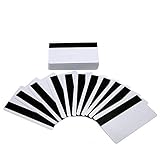
- [HICO MAGNETIC STRIP WITH 3 TRACKS]-The magnetic swipe cards have 1/2" high coercivity magnetic stripe (HiCo) 3 magnetic stripe encoding tracks, programmability can be used with 1, 2, or 3 track reader / writers.The magnetic stripe is blank, you must encode it before use , please notice!
- [GREAT PRINT COMPATIBILITY] - Our magstripe cards feets a great graphic quality print with all of the most popular card printers(Does NOT Work with INKJET Printer) - Evolis, Zebra, Badgy, Fargo, Magicard and DataCard.
- [YOUR CARDS ARRIVE SAFE & SEALED] - All magnetic credit card arrive sealed in shrink wrap - No loose cards banging around in your shipment - We realize that only clean and undamaged cards will work with your expensive printer and protect it for years of use.
- [HIGH-QUALITY IDCARD PRINTING CONSUMABLES] - Print your Logo or your face - Use with an overlay or not- Great cards for printing and encoding for P.O.S. or access control.
- [30 MIL THICKNESS] - The cards have a super low failure rate and work great with all machines - a popular choice for schools, universities, student ID's, gift cards, loyalty and gym membership cards, access control card and more.
Do not apply an RGB-or-CMYK rule to every service and product. Gelato’s cited PDF/X-4 guidance supports sRGB and CMYK objects with a GRACoL 2006 output intent; it recommends sRGB images for posters and non-paper products, and CMYK image files for small-format digital printing such as brochures and stationery. These are instructions for the specified PDF workflow. Follow the live color-profile guidance for the exact product and upload type you are using.
5. Account for bleed and keep key details safe
Bleed and safe area address different risks. Bleed extends artwork beyond the trim edge so a small cutting variation does not leave an unprinted sliver. The safe area keeps faces, text, logos, and other important details away from the cut or covered edge. For edge-to-edge artwork, extend the background through the template’s bleed but keep essential content inside its safe area.
Rank #4
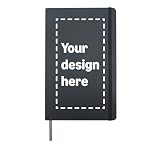
- Custom hardcover journal featuring your design. Fully customize the cover with your graphics, logo, and more to create a one-of-a-kind notebook for yourself, your group, or your team.
- Easy-to-use design interface lets you add, position, and resize logos, and graphics. Create a journal that's as unique as you are — perfect for gifts, events, teams, or personal use.
- 240 line-ruled pages on archival-quality, acid-free paper — ideal for notes, lists, journaling, goal tracking, and more. Includes a bookmark, elastic closure, and expandable inner pocket for storing loose items.
- Printed in the USA using durable Direct-to-Film printing technology for vibrant, long-lasting results. Compact 8.3 x 5 x 0.6 inch hardcover design fits easily in a bag or backpack.
As one scoped example, Gelato’s print-ready PDF guidance specifies 4 mm of bleed on all sides and a safe area at least 4 mm inside the trim line; for the stated Wire-O products, the binding-side safe area is 12 mm. The same guidance says a frame covers approximately 4–5 mm on each side for the framed prints it describes. These dimensions are not universal POD measurements: use the actual product template because trim, binding, and frame coverage differ.
6. Export and review before submitting
- Set the template dimensions and orientation. Keep the artwork aligned to the selected product’s print area and follow any placement or safe-area guides.
- Export in an accepted format and suitable quality. For Printful, avoid a Save for Web export if it produces an unsuitable low-resolution file; its guide recommends Save As or Save a Copy for print files.
- Inspect edges and transparency. Look for stray background pixels, unwanted white areas, clipped text, and visible seams at the bleed boundary.
- Upload and review warnings. Read any resolution, format, or placement warning from the platform rather than assuming the file is ready because it uploaded successfully.
- Check the product preview. Confirm orientation, crop, scale, and placement in the preview or mockup before submitting the order.
Printful’s reviewed file-library guidance lists a 200 MB file-size limit and maximum dimensions of 20,000 × 20,000 pixels; files beyond those limits may fail to upload. These are Printful limits, not general limits for other POD providers. See its current file-preparation guide for the applicable details.
Best Value
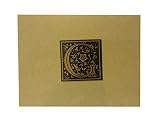
- Black and Gold Monogram "G" on Craft Paper Note Card with Patching White Envelope
- Card is 4.25" x 5.25". one card per order
- Blank inside of your own message.
- Craft color inside. Includes white envelope
- Letter is centered in 1.75" square on card
Which workflow should you use?
- For a photo gift: Start from the highest-quality original, calculate effective resolution at the intended size, and use JPEG if the image is opaque and the product accepts it.
- For a logo or transparent illustration: Use PNG when supported, verify that transparency survived export, and keep thin lines and small text within the product’s resolution and safe-area constraints.
- For a print layout or vector-based design: Use a print-ready PDF only when the provider supports it and you can meet its page, color, and PDF/X export requirements; otherwise use a flattened accepted raster file.
In each case, the chosen product’s current template and file guidance take precedence over general tips.
Quick Recap
Product prices and availability are accurate as of the date/time indicated and are subject to change. Any price and availability information displayed on Amazon at the time of purchase will apply.

