
The Tool Desk
Outbyte Driver Updater FREEScan for outdated or missing drivers - takes under a minuteDriver Scan →Outbyte PC Repair FREERepair Windows errors before they cause bigger problemsFix Now →iTechGuides is reader-supported. When you buy through links on our site, we may earn an affiliate commission. As an Amazon Associate I earn from qualifying purchases. Learn more
You can play The Legend of Zelda: Breath of the Wild on a PC using Cemu, a Wii U emulator. You’ll need your own Wii U game copy, Cemu, and the game’s update; the emulator does not provide the game. Start with Cemu’s current setup guide, install the base game and update, then configure keyboard, mouse, or a controller. Performance depends on your hardware and graphics settings, so begin with conservative defaults.
Which emulator should you use?
For the Wii U version of Breath of the Wild, use Cemu. Its project repository identifies it as a Wii U emulator, and Cemu’s setup guide links to instructions for configuring it and its graphics options. This guide covers the Wii U/Cemu route; it does not compare Switch emulation options.
What you need before setting up Cemu
- A PC running a supported operating system. Cemu lists Windows and Linux downloads. Its native macOS build is experimental and is not described as stable for issue-free gameplay; the project also notes performance problems on ARM Macs related to MoltenVK and Rosetta. Check the Cemu README for current platform details.
- Your own Wii U copy of the game, dumped from your console. Cemu’s guide explains the game-dumping workflow. Cemu does not supply the game. Legal rules about making or using a copy vary by jurisdiction, and the cited documentation does not resolve those questions.
- The game’s update files, which you install separately from the base title. Cemu’s guide notes that Breath of the Wild may need its latest update to function correctly in Cemu.
- Input hardware: a keyboard and mouse will work, while a controller is another option. Some game elements work better with motion controls, so a motion-capable controller may be useful but is not required for every part of the game.
How to install and launch Breath of the Wild
- Get Cemu and its current setup instructions. Use the official Cemu project page and setup guide rather than an old download or video tutorial. Release availability and setup details can change.
- Dump your own game copy from Wii U hardware. Follow Cemu’s guide for preparing a game dump. Do not treat Cemu as a source for the game itself.
- Install the base game. In Cemu, choose
File→Install game title, update or DLC, then select the appropriatemeta.xmlfrom the prepared dump, as described in Cemu’s game-installation guide. The guide notes that Linux users may encounter differences when installing updates or DLC, so follow the current platform-specific instructions if the workflow differs. - Install the game update. Use the same installation workflow for the update files. Cemu’s guide specifically flags the update as potentially necessary for Breath of the Wild to work correctly.
- Set up your controls. Configure a keyboard and mouse or map a controller in Cemu. Motion input can help with some game elements; it is an optional enhancement rather than a universal prerequisite. See the installation guide for controller and input details.
- Launch the game at conservative settings first. Confirm that the game starts and runs acceptably before increasing resolution, frame-rate limits, or other graphics options. Then change one setting at a time so you can identify what helps or causes trouble.
How to improve performance without guessing
Cemu’s Breath of the Wild optimization guide describes the game as demanding, especially when you raise resolution or frame rate. Its settings are configuration guidance, not benchmark results: they do not establish what a particular PC will achieve. Treat each adjustment as a tradeoff and keep a stable configuration you can return to.
Use FPS++ cautiously
The FPS++ graphics pack can raise the frame-rate limit. Higher limits are not guaranteed to work without issues on every system or in every game situation. Cemu’s guide advises returning to 30 FPS until past an affected point if you encounter problems. If a raised limit causes glitches or instability, lower it rather than assuming the PC needs a different emulator.
#1 Best Overall

- Discover Hyrule as never before: by making your own path, choices, and consequences
- Ingenuity is the key to survival: find multiple solutions to tons of dynamic puzzles
- Surprises hide around every corner: scavenge weapons, armor, plants, animals, and more
- Live off the land: find weapons and armor, cook food, and brew elixirs
- Utilize special technology: the in-game Sheikah Slate controls, objects and enemies in fun ways
Balance resolution and GPU load
Increasing resolution can make the image sharper, but it also asks more of the GPU. If performance worsens after a resolution change, reduce it and check whether the game becomes smoother before altering other options.
Adjust shadows only if the tradeoff is worthwhile
Higher shadow resolution can improve shadow detail while reducing performance. The optimization guide warns that a 400% shadow setting may cause instability, so it should not be treated as a universal recommendation. If you try higher shadows, watch for instability and return to a lower setting if it appears.
Rank #2

- Step into a world of adventure—now enhanced for the Nintendo Switch 2 system!
- Use your ingenuity to survive and thrive in Hyrule
- Support your journey with ZELDA NOTES on the Nintendo Switch app
What to check if the game will not start
- Confirm that you are using a complete, correctly prepared game dump and that the required setup for your copy is present.
- Make sure you have installed the game update as well as the base title.
- Check the Cemu project page for the latest official version and use the current instructions for your operating system.
- If you are on Linux, consult the current installation guidance for platform-specific update or DLC steps.
- For further diagnostics, follow Cemu’s troubleshooting guide.
Keyboard and mouse or controller?
Cemu supports keyboard and mouse, so a controller is not a prerequisite. A controller can offer a more familiar console-style layout, and motion controls can help with some elements of the game. Choose input based on what you have and how you prefer to play; motion input is a convenience for particular interactions, not a requirement for the entire game.
Quick Recap
Best Value

- Brand New in box. The product ships with all relevant accessories
Rank #4
![The Legend of Zelda: Breath of the Wild - Nintendo Switch [Digital Code]](https://m.media-amazon.com/images/I/51xVZUUZ1hL._SL160_.jpg)
- Discover Hyrule as never before: by making your own path, choices, and consequences
- Ingenuity is the key to survival: find multiple solutions to tons of dynamic puzzles
- Surprises hide around every corner: scavenge weapons, armor, plants, animals, and more
- Live off the land: find weapons and armor, cook food, and brew elixirs
- Utilize special technology: the in-game Sheikah Slate controls objects and enemies in fun ways
Rank #3
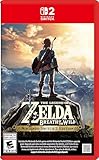
- Enhanced resolution, framerates, and load times optimized for Nintendo Switch 2.
- Explore a massive open-air version of Hyrule with complete freedom.
- Solve physics-based puzzles, survive dynamic weather, and uncover hidden secrets.
- Customize your adventure with weapons, gear, and food you craft yourself.
- Use the ZELDA NOTES app for bonuses, item sharing, and social features.
Product prices and availability are accurate as of the date/time indicated and are subject to change. Any price and availability information displayed on Amazon at the time of purchase will apply.

