
Quick wins for a faster PC:
Fix the driver behind crashes, sound loss and screen glitchesFind Drivers →Clear out junk files and repair common Windows errorsFree Scan →Scan for outdated or missing drivers - takes under a minuteDriver Scan →iTechGuides is reader-supported. When you buy through links on our site, we may earn an affiliate commission. As an Amazon Associate I earn from qualifying purchases. Learn more
You can reduce how much mechanical keyboard noise a Blue Yeti picks up, but you cannot expect complete silence while the microphone sits close to a keyboard you type on during recording. The most effective approach combines a directional pickup pattern, a microphone position that keeps the keyboard at the rear, a lower gain setting, and, if needed, the noise reduction and gate tools in Logitech’s Blue VO!CE software. Work through these in order, because the free settings come first and the software tools carry the most risk to your voice.
Why the keyboard gets picked up
A condenser microphone such as the Yeti responds to any sound that reaches its capsules. Key clicks travel two ways: through the air from the keys, and through the desk or stand the microphone rests on. Most fixes below address the airborne path. Only a mount addresses the vibration path, and even then only partly. Keep that split in mind, because it explains why some changes help a lot and others barely change anything.
Step 1: Set the pickup pattern to cardioid
The standard Blue Yeti supports four pickup patterns: cardioid, bidirectional, omnidirectional, and stereo, according to Logitech’s Yeti specifications. For a single speaker, cardioid is the pattern to start with, because it is designed to focus pickup toward the front of the microphone.
Logitech’s Yeti Nano product page describes its cardioid mode in similar terms: “Cardioid mode captures sound sources that are directly in front of the microphone, delivering rich, full-bodied sound.” That wording comes from the Nano page, so treat it as the manufacturer’s description of that model rather than a standard Yeti specification. Cardioid focuses pickup but does not guarantee that nearby noise is rejected. Your keyboard is still a sound source, and if it sits close to the front or sides of the capsule, it will still be captured.
#1 Best Overall

- 【Custom-developed Mold, 100% Fit】This microphone shock mount is specially developed for Blue Yeti microphone, and it can be perfectly matched with the above products.
- 【The Latest Model For 2026】Using a custom-designed shock mount for the Yeti microphone and connecting it to a cantilevered stand, the microphone can be isolated from ambient noise, reducing post-production time and delivering a better voice capture result.
- 【User-Friendly Design】With this customized microphone shock mount, you can better adjust the height and angle of the microphone until it suits you. The microphone shock mount is equipped with a rotary knob for easy adjustment.
- 【Universal Compatibility with Boom Arm Stands】This customized shock mount has a 5/8" interface and comes with both 3/8" screws 1/4"screws, making it compatible with most cantilever stands (boom arms) and desktop stands on the market.
- 【Boost Audio Quality and Reduce Background Noise】Enhance your recordings with the customized Yeti microphone shock mount, protecting your recordings from background noise and improving the sound quality of your game streaming, podcasts, Twitch streams and broadcasts.
If you own a Yeti Blackout or another variant, confirm its pattern list on Logitech’s support page for that exact model. The specification checked here covers the standard Yeti.
Step 2: Position the microphone relative to your mouth and keyboard
Point the front of the microphone at your mouth and place the keyboard toward the rear, which is the less sensitive side for a cardioid pattern, as far as your desk allows. Then, where practical:
Rank #2
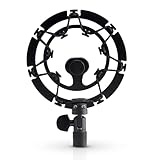
- Superior - Our studio microphone mount is crafted with optimized suspension bands to shield your mic from vibrations, shock pops, and distortions.
- Durable - The robust, ultra-reinforced, noise isolating mic shock mount keeps your microphones securely set up and your audio crisp.
- Compact - At 5.5" x 3.5" and 7 oz., this portable microphone holder and shock mount is the perfect size for recording professional quality audio anywhere you go.
- Easy - Compatible with Blue Yeti, Blue Yeti Pro USB, and Blue Snowball microphones, our Blue Yeti shock mounts have multi-sized threads (3/8" and 5/8") to fit US and European mic arms. No adapter necessary.
- Multipurpose - These microphone mounts can be used for singing, voiceovers, podcasts, streaming, vlogging, gaming, and is a thoughtful and useful gift for those looking for premium quality sound.
- Move the microphone closer to your mouth.
- Move it farther from the keyboard, or move the keyboard farther from the microphone.
- Avoid placing the microphone directly in front of the keys, where the keys are loudest.
No source establishes a universal distance for this. The right spacing depends on your desk, your typing force, and how close you need to sit. Record a short test with you typing and speaking at normal volume, then listen back on headphones and adjust until the keys are less prominent.
Step 3: Lower the gain until speech stays clear
Logitech’s Yeti product page describes the gain control as adjusting microphone sensitivity. Lowering gain reduces everything the microphone captures, including keystrokes, so it is the simplest way to make typing quieter relative to a careful speaking voice. The trade-off is that a gain setting that is too low makes you quieter on the recording and can push you into the position of leaning toward the mic, which brings the keyboard closer in relative level.
Rank #3

- Blue Compass PREMIUM MICROPHONE BOOM ARM is not included and sold separately.
- Blue Radius III custom shockmount is designed especially for Yeti and Yeti Pro Microphones, featuring a vintage-style suspension to isolate the mic from noise, shock and ambient vibration
- Elevate your audio recordings with Radius III custom shockmount to shield your microphone from background noise, improving the sound quality of podcasts, Twitch streaming, voiceovers and broadcasts
- This universal mic shockmount cradles the mic in style and features a new streamlined, lightweight design made for live streaming on camera
- Designed for Yeti and other professional broadcast mics, pair Radius III shockmount with the Yeti mic and the Compass boom arm (sold separately) for a professional home studio broadcast setup.
Use a recording test, not a memorized number. Set gain, record a sentence at your normal speaking volume while typing lightly, and listen for both problems: keys are still prominent, or your voice has become thin or distant. No percentage or gain value is established as correct for this situation, so the right setting is the one that passes that test on your own setup.
Step 4: Use noise reduction and gate in Blue VO!CE, carefully
Blue VO!CE, which runs through Logitech G HUB, provides software effects for Yeti-family microphones. According to Logitech G’s Yeti with Blue VO!CE product page, these include EQ, a limiter, a depopper, and other effects, and the software requires G HUB. The Blue VO!CE reviewer’s guide, hosted by Best Buy, shows the input gain, high-pass, noise reduction, and gate controls. Those values in the guide are example interface settings, not recommended presets, so do not copy them.
Rank #4
![jidinung [2026 Upgrade] Custom Blue Yeti Shock Mount with Pop Filter](https://m.media-amazon.com/images/I/41JSp-N5LFL._SL160_.jpg)
- 【100% Fits Blue Yeti】This microphone shock mount is precision-engineered for Blue Yeti. The blue yeti shock mount’s inner groove curvature and screw holes perfectly match the blue yeti microphone for "zero-gap" installation. Compared to universal mounts, it reduces mic sway by 85%, eliminating mechanical noise from loose fittings.
- 【70% Cut in Post Editing】The hybrid metal-plastic frame combines with elastic suspension bands to dampen vibrations from all angles. The elastic suspension system isolates the mic from desk vibrations, floor tapping, and equipment resonance, keeping raw audio clean and reducing post adjustment time.
- 【Fits most Boom Arm Mic Stands】This shock mount for blue yeti equipped with 3/8" to 5/8" adapter + 5/8" Interface – No extra adapters needed fits seamlessly with most blue yeti boom arm stands(cantilever stands) and desktop blue yeti mic stands.
- 【Pro Filter, 80% p/b Noise Out】Premium quality acoustic foam (pop Filter) eliminates most of "p/b" noise interference, for crystal-clear audio in podcasts, gaming streams, live streams and recordings. Support ±45° tilt/360° swivel adjustment, quickly find the perfect voice pickup angle.
- 【Quality Service】24-month replacement service and lifetime parts replenishment.
Adjust in small increments, one control at a time:
- Turn on noise reduction at a low amount and record your typing and speech again.
- If keys are still audible between words, add a noise gate with a threshold set low enough that it closes only in pauses. Raise the threshold slowly.
- Test quiet word beginnings such as “s,” “t,” and soft consonants. If those are clipped or the ends of sentences vanish, back off the gate.
- Compare the result to the unprocessed recording. Stop when your voice sounds natural and the keys are noticeably less prominent.
A gate closes below its threshold, so aggressive settings can cut quiet speech and make the recording sound choppy. Noise reduction can also leave an audible artifact on your voice if pushed hard. Heavier processing is a poor trade if your speech is what listeners need to hear.
Step 5: Separate vibration from airborne sound
If you feel thumps through the desk when you type, or the microphone shakes when keys are struck, the sound is traveling through the furniture. A suspension mount helps with that path. Logitech’s product information, hosted by Flixcar, describes the Radius III as isolating the Yeti and Yeti Pro from shock and ambient vibration. That covers desk-transmitted noise. It is not evidence that the mount blocks clicks traveling through the air to the capsules, so a mount alone will not solve a loud keyboard.
Best Value

- 【2026 Upgraded Precision Mold】– 100% Compatible Fit Guaranteed Engineered to hug every contour of your Blue Yeti like a glove, eliminating gaps and wobbles for broadcast-ready stability.
- 【Improved Sound Quality and Reduced Noise】Mic Windscreen Foam Cover with Shock Mount , Mount Made from Quality Materials (Metal/Plastic) to Eliminate Vibrations -Acoustic Foam Act as a Pop Filter for your Mic.- Filter out those harsh "p" and "t" sounds.
- This Custom Built Shock Mounts features a new streamlined, Designed for Blue Yeti Mic, robust protection against lateral impact , lightweight design made for live streaming and recordings
- Elevate your audio recordings with Yeti mic custom shock mount to shield your microphone from background noise, improving the sound quality of podcasts, Twitch streaming, voiceovers and broadcasts
- 【Universally compatible with mic boom arm stands】This custom shock mount has a 5/8-inch interface with 1 3/8-inch screw and is compatible with most cantilever mounts (boom arms) and tabletop mounts on the market.
Pop filters and foam windscreens are designed for breath and plosive issues, not key clatter. They are not a keyboard fix.
Step 6: Change the source or the arrangement if the result is still not good enough
If the earlier steps leave keys clearly audible, the remaining options work at the source or in the room. A quieter keyboard, or one with switches designed for less noise, reduces what the microphone receives in the first place. Moving the keyboard away from the microphone, or using a separate microphone position for recording sessions, changes the arrangement. Neither option is free or guaranteed, and the sources checked here do not provide a verified noise-reduction figure for either approach.
Comparing the fixes
| Fix | What it targets | Main risk | Cost | Depends on desk layout |
|---|---|---|---|---|
| Cardioid pattern | Airborne sound from the front and sides | Keyboard still captured if close to the front | No extra cost | Yes, for keyboard placement |
| Mic position | Airborne sound | Voice may sound distant if the mic moves too far away | No extra cost | Yes |
| Gain reduction | All captured sound, including keys | Thin or quiet speech; you may lean in | No extra cost | Minimal |
| Blue VO!CE noise reduction and gate | Steady background and sound between words | Artifacts, clipped word starts, choppy speech | Software in G HUB, price not stated in the sources checked | No |
| Suspension mount (Radius III, per Logitech) | Vibration through the desk or stand | No effect on airborne key clicks | Price not stated in the sources checked | Yes, for fit with your stand |
| Quieter keyboard or room change | Source noise or reflections | Larger change to your setup | Not stated in the sources checked | Yes |
What the evidence does and does not establish
The manufacturer materials establish the pattern options, the gain control’s function, the existence of Blue VO!CE noise reduction and gate controls, and the isolation claim for the Radius III. They do not establish a percentage by which keyboard noise falls, an ideal gain value, or a universal microphone distance. Any figure you see for those in a guide or video should be treated as an example from one setup. Testing your own recording is the only reliable check, and the results will vary with your keyboard, switches, desk material, and how hard you type.
Sources: Logitech’s Yeti product page covers product identity, USB connection, the gain control, and software requirements. The product details above are as shown on Logitech’s current pages, checked in October 2026.
Quick Recap
Product prices and availability are accurate as of the date/time indicated and are subject to change. Any price and availability information displayed on Amazon at the time of purchase will apply.

