
iTechGuides is reader-supported. When you buy through links on our site, we may earn an affiliate commission. As an Amazon Associate I earn from qualifying purchases. Learn more
To factory reset a PS4, back up anything you want to keep, then go to Settings > Initialization > Initialize PS4 and choose Full. Sony calls the factory reset process “initialization.” If the console won’t open Settings, use Safe Mode and select Initialize PS4. A reset erases user data; Restore Default Settings only resets settings and keeps console content.
Choose the right reset option
The option depends on what you need the PS4 to do. Sony’s Safe Mode choices distinguish a settings reset, a data-erasing initialization, and an initialization that also reinstalls system software.
- Restore Default Settings: Resets system settings but does not delete games, apps, screenshots, video clips, or saved data.
- Initialize PS4: Deletes user data and restores the console to its original state. Choose this for a standard factory reset.
- Initialize PS4 (Reinstall System Software): Deletes user data and removes the PS4 system software as part of a reinstall. Use this when you specifically need to reinstall the system software.
Sony’s Safe Mode documentation explains these options: PlayStation Safe Mode.
What’s actually slowing this PC down?
Pick the symptom - the matching free tool is one click away.
Back up data before erasing the PS4
Initialization deletes saved information and cannot be undone. If you want to keep data, back it up first. Sony’s USB backup workflow is Settings > System > Back Up and Restore > Back Up. A backup can include games and apps, saved data, screenshots and video clips, and settings.
#1 Best Overall

- Included: (1) 16GB USB Flash Drive Firmware Update - Version: 14.00 (Latest)
- Resolve software issues: Fix freezing, crashing, or other problems with a factory reset and firmware update.
- Upgrading from an older version: Get the latest features and security patches with a simple update.
- Authenticity Guaranteed: We source all updates directly from official releases, ensuring you get the real deal.
- Quality Assurance: Each flash drive is inspected & tested before it reaches your hands, guaranteeing its reliability and performance.
- Format a USB drive as FAT32 or exFAT, then connect it to the PS4.
- Open Settings > System > Back Up and Restore > Back Up and follow the prompts.
- Sync trophies separately from the Trophies screen: press OPTIONS, then select Sync Trophies With PSN.
- Leave the console on until the backup finishes. The USB drive must have free space of at least twice the backup file size.
See Sony’s PS4 backup and restore instructions for the full process. A USB drive is needed for this backup method, not for the reset itself.
Factory reset from Settings
Use this method if you can navigate the PS4 menus. For a console you’re transferring or disposing of, Sony’s instructions specify a Full initialization.
Rank #2

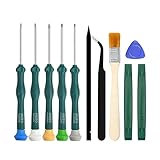
- 【Differences from other products】-- Compared with other products, we have added a high-grade metal double-ended crowbar, which can be used in conjunction with nylon double-ended crowbar to meet your various needs; we also added 4 handle rocker caps and 4 handle screws are easy to replace; we have improved the arc-shaped tweezers to make it easier for you to grasp small PS4 and PS5 accessories.
- 【Screwdriver set for ps4 ps5】-- PH00 (2.0mm) Phillips screwdriver is used for PS4 and PS5 controller ; PH0 (3.0mm)/T8 screwdriver is used for PS4 game console; PH1 (4.0mm) Phillips screwdriver is used for various household appliances , Furniture and toys.
- 【Magnetic S2 Steel Screw Head】-- Our screwdrivers are all magnetic design, which can fix small screws to avoid falling or loss; and made of high-quality S2 steel, after heat treatment, it is more accurate and more accurate than silver CRV drill bits. durable.
- 【Slip-resistant flexible handle】-- The screwdriver handle is made of TPR and PP materials, with a special non-slip design, easy to grasp and very comfortable; the flexible cover at the bottom of the screwdriver handle can rotate smoothly, and when you use the screwdriver vertically, press it down hard and Turning the screwdriver handle makes it easier to repair the instrument through force transmission, thereby making maintenance work more effective.
- 【PS4 full set of screwdriver set]】-- This set includes PH00, PH0, PH1 Phillips screwdriver and T8 Torx safety screwdriver, tweezers, brushes and PS4 handle 2.0 screws and handle rocker cap for replacement.
- From the PS4 home screen, open Settings > Initialization.
- Select Initialize PS4.
- Choose Full for the transfer or disposal workflow.
- Confirm only after you have backed up anything you want to keep.
Sony’s PS4 transfer or disposal instructions describe this process and warn that deleted data cannot be recovered.
Factory reset from Safe Mode
Use Safe Mode when you cannot access Settings. A USB cable is required to connect the controller in Safe Mode.
Rank #3

- 【Widely application】Torx T6/T8 and crossed screwdriver 2.0/4.0 suitable for Xbox 360 Xbox One controllers and PS3, PS4, PS5 controllers and many common electronic devices.
- 【Differences from other products】We added a Slotted screwdriver that can be removed from the PS5 base and other household appliances for a wider range of uses.
- 【High-quality Material】The screwdriver bit is made of high-quality S2 steel, which is hardness up to 60 degrees, durable. The handle is made of PPR and PP materials, non-slip and flexible, easy to use, light and flexible.
- 【Strong magnetic】The screwdrivers all have magnetic,It can be easily fixed by attaching screws.
- 【After-sales service】If receive missing or defective products,you can contact us an any time,we can provide return service.
- Turn the PS4 fully off by holding the power button for about three seconds. Wait for the power indicator to stop.
- Press and hold the power button again. Release it after the second beep, which Sony says occurs about seven seconds after the first.
- Connect the controller to the PS4 with a USB cable, then press the controller’s PS button.
- Select Initialize PS4 to erase user data and reset the console.
Do not select Restore Default Settings if your goal is to erase the console: that option preserves content on console storage. Select Initialize PS4 (Reinstall System Software) only if you need the reinstall route described below.
Reinstall PS4 system software
This is a separate Safe Mode option, not a routine requirement for a factory reset. Sony’s reinstall procedure uses an official reinstallation file on a USB drive and deletes all PS4 data.
- On a computer, format a USB drive as FAT32 or exFAT.
- Create folders named PS4 and, inside it, UPDATE.
- Download Sony’s official reinstallation file and save it in the UPDATE folder as PS4UPDATE.PUP.
- Connect the USB drive to the PS4 and start Safe Mode using the steps above.
- Select Initialize PS4 (Reinstall System Software) and follow the on-screen instructions. Do not interrupt the installation.
Use Sony’s PS4 system software reinstallation instructions to get the official file and confirm the current steps.
If you are resetting to sell, transfer, or dispose of the console
Back up wanted data, remove USB devices and any disc, then run Settings > Initialization > Initialize PS4 > Full. Sony cautions that initialization deletes saved information and cannot be undone. Its instructions do not describe this process as a certified secure-wipe standard. Moving the internal hard drive to another PS4 also reformats it and deletes its data.
Best Value

- Upgrade tools set are essential tools for gamers.
- ABS, long time use.
- Insert and play, easy to operate.
- Small and lightweight in size, easy to carry.
- Meet your game modification needs and ensures stability.
If the PS4 has a problem but you are unsure about erasing it
A reset is not a guaranteed fix for every problem, particularly a hardware fault. Sony’s Safe Mode guidance includes Rebuild Database, which scans the drive and creates a new database; it can help with certain system-feature issues or a game icon that remains after deletion. Sony’s error-code guidance gives a possible escalation path: restart, try Rebuild Database, back up save data, then initialize if needed.
If the PS4 will not enter Safe Mode, Sony suggests powering it off and on again or checking the cables, then using its repair diagnostic flow.
Quick Recap
Product prices and availability are accurate as of the date/time indicated and are subject to change. Any price and availability information displayed on Amazon at the time of purchase will apply.

