
Free tools Windows power users keep installed
One-click scans. No signup required.
iTechGuides is reader-supported. When you buy through links on our site, we may earn an affiliate commission. As an Amazon Associate I earn from qualifying purchases. Learn more
Choose a display for the image-viewing task, not by panel label alone. A research visualization screen, a monitor used to present visual stimuli, and a display for clinical diagnosis have different requirements. Assess the actual device under its intended settings and viewing conditions, and use applicable quality-assurance guidance when clinical interpretation is involved.
What electronic displays do in bioimaging
Electronic displays are the viewing endpoint for digitally acquired bioimages. In clinical workflows, soft-copy displays are part of picture archiving and communication systems (PACS), where clinicians interpret images. The American Association of Physicists in Medicine (AAPM) describes medical display workstations as integral to PACS and diagnostic interpretation in its 2005 OR03 report.


For research, the screen may instead be used to inspect images, compare visual detail, or present controlled stimuli to study participants. Those uses do not automatically share the acceptance criteria for diagnostic review. Start by specifying the task, the image characteristics that matter, and the viewing environment; then assess whether the display can reproduce them reliably.
Recommended Free Tools
Which display technologies should you compare?
LCD and OLED are established flat-panel categories covered by AAPM medical display quality-assurance guidance. A technology review also compares LCD and OLED with mini-LED and micro-LED configurations across dimensions such as power consumption, ambient contrast, response time, dynamic range, flexibility, and transparency (Huang et al., 2020). These categories describe technologies, not a guarantee of image-viewing performance: implementation, settings, and the intended task all matter.
#1 Best Overall
Use the following measures to compare specific displays. The applicable acceptance thresholds should come from the relevant experimental protocol or professional guidance rather than a universal bioimaging rule.
- Luminance: measure the usable output range and how output changes with stimulus size and display settings.
- Uniformity: check whether luminance varies across the panel, particularly across the area where images will be viewed.
- Grayscale response: examine gamma, linearity, and channel additivity when the relationship between image values and displayed intensity matters.
- Color: assess gamut, channel behavior, spectra, and color accuracy when color encodes meaningful image information.
- Temporal behavior: evaluate pixel response time and waveform for changing stimuli or time-sensitive measurements.
- Viewing setup and operation: account for resolution, viewing distance, ambient illumination, ergonomics, device stability, settings, and firmware.
- Workflow: weigh QA requirements, cost, and whether the use is exploratory research, routine visualization, or clinical diagnosis.
Can a consumer OLED monitor work for scientific image viewing?
It can be a candidate for some vision-science experiments, but the evidence is specific to tested devices and configurations and does not establish general diagnostic suitability. In a 2024 evaluation, Abu Haila, Kunst, Khanh, and Wallis assessed four systems: an ASUS OLED ROG Swift PG27AQDM, a Samsung OLED TV, an LG UltraGear 27GN950-B LED gaming monitor, and a VPixx PROPixx projector. They measured luminance response and uniformity, gamma and linearity, channel behavior, gamut, pixel response, and waveform.
Rank #2

- 【DisplayPort KVM switch 4 computers 2 monitors】 4 port KVM switch Perfects for hooking up to 4 desktops or laptops to share 1 set of keyboard, mouse and 2 monitors for home office setup, gaming consoles and streaming devices. Meet the needs of your different devices, reduced clutter and free up desk space by reducing the number of unwanted keyboards, monitors and mice. Create a simplified workstation.
- 【Lifetime Technical Support】You may not be a technician or have any questions, please don't worry, you can reach out to us at any time, Our technical support will do everything in our power to provide you with any support.
- 【Supports cascading through DCCI】 Cascading can achieve the function of expanding from dual monitors to quad monitors, making your application scenarios broader. Note: Just like all DisplayPort products on the market, there is NO EDID on PKS0802A10. If you mind the EDID, Please select our HDMI series products HKS0802A1U.
- 【Nice metal enclosure, Rack-mount ears】 TESmart KVM switch is made of metal. Compared to cheap plastic boxes, it is sturdy and durable. 4 port dual monitors KVM switch is rack mountable, which keeps your desktop tidy and saves the most needed rack space in your server room.
- 【5 Advanced Switching Modes】 The 4 port KVM switch provides several switching options for different scenarios: Front panel keys for selecting manually, keyboard hotkeys for quick channel selection, mouse gesture for fast switching, auto scan with adjustable interval for monitoring and testing, and just think how cosy you could be after the whole work day, when you switch the signal via IR remote control (AAA batteries not included)!
In that study, the tested ASUS OLED and LG LCD each covered approximately 94% of DCI-P3 color space. The tested ASUS OLED gaming monitor also produced a sharp square waveform at 240 Hz. Those are results for the configurations evaluated, not specifications that apply to every OLED or LCD display. The authors emphasize that suitability depends on experimental requirements and that monitor settings and firmware behavior matter. See the study for its methods and device-specific results.
Quick wins for a faster PC:
Repair Windows errors before they cause bigger problemsFix Now →Fix the driver behind crashes, sound loss and screen glitchesFind Drivers →For a research setup, define the required behavior first, then measure the selected display in the configuration that will actually be used. A consumer monitor that meets one experiment’s needs may not suit another experiment, and these findings cannot be used as evidence that it is appropriate for clinical diagnosis.
Rank #3
How should display quality be assessed for medical image review?
AAPM Report No. 270, Display Quality Assurance, provides recommendations for assessing flat-panel displays used in medicine, including LCD and OLED displays used for image acquisition and review. Its stated purpose is “to provide recommendations for the assessment of display quality for flat-panel displays used in medicine.” The report can inform the design of a medical display QA program and purchasing decisions. AAPM lists the report as published in 2019 and last reviewed in 2022; consult the official Report No. 270 listing for its scope.
The earlier AAPM OR03 report dates to 2005 and focuses on monochromatic medical images, with tests substantially oriented toward CRT and LCD displays. It explains the need to ensure that electronic displays do not compromise image quality. For modern flat-panel QA framing, use Report No. 270 rather than treating the older report as current, comprehensive guidance for every display type.
Rank #4

- MULTI MONITOR ADAPTER FOR WINDOWS: DisplayPort to HDMI MST hub drives up to 3x HDMI monitors in extended or duplicate mode using a DP port on Windows desktop PCs or laptops | Not compatible with macOS
- DISPLAY RESOLUTION: Multiple monitor DisplayPort to HDMI MST hub supports HD resolutions up to 3x 1080p 60Hz on three monitors, or dual 4K 30Hz on two monitors, or can support three ultrawide displays up to 2560x1080
- COMPATIBILITY: 3-Port DisplayPort to HDMI MST video splitter requires host system with DP 1.2/HBR2/MST or later from HP, Dell & Lenovo and AMD, NVidia & Intel video cards; Not compatible with laptops/computers with HDMI output ports
- INCREASE PRODUCTIVITY: Increase productivity by extending your desktop at your workstation in the office/home office; MST technology uses your GPU/video card performance to deliver uncompressed video and use minimal system resources
- GPU CAPABILITIES: Please verify maximum number of displays supported by your GPU; Some GPU chips (such as Intel HD Graphics) are only capable of supporting a maximum of three displays (laptop screen may be disabled when connected to three monitors)
Clinical interpretation requires more than choosing a technology or checking a single specification. Follow the applicable professional and institutional QA process for the imaging task and jurisdiction. The available guidance cited here does not establish one universal acceptance threshold for all bioimaging displays.
What changes for digital pathology?
In digital pathology, a display functions as the pathologist’s digital “microscope,” so display characteristics and viewing conditions are relevant to image review. A 2020 review discusses calibration and ambient-light considerations, but its discussion did not establish how broadly strict luminance calibration applies to pathology generally. That uncertainty is not evidence that calibration is unnecessary. For diagnostic pathology, check the current institutional and jurisdiction-specific requirements rather than assuming one calibration rule applies everywhere. The cited review is Display Characteristics and Their Impact on Digital Pathology: A Current Review of Pathologists’ Future “Microscope”.
Best Value
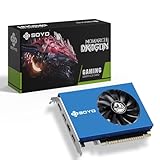
- 【Professional Quad-HDMI Output】: Equipped with 4x HDMI 2.0 ports, this GT 730 allows you to power up to four displays simultaneously. It is the ultimate solution for Video Walls, Projector Blending, and Multi-Screen Digital Signage without the need for expensive splitters.
- 【Ideal for Financial & Security Monitoring】: Perfectly designed for Stock Trading, Forex Analysis, and CCTV Security Monitoring. Expand your workspace across four monitors to track multiple data streams in real-time with crystal-clear 1080P/4K resolution support.
- 【4GB VRAM & Smooth Performance】: Features 4GB DDR3 memory and a 64-bit bus width, providing stable and reliable performance for high-definition video playback and professional office multitasking.
- 【Low Power & Energy Efficient】: With a low TDP of only 38W, this graphics card draws minimal power and generates very little heat. It is a cost-effective choice for 24/7 commercial operations like information kiosks and medical imaging stations.
- 【Space-Saving & Quiet Operation】: Measuring only 6.38x4.65x0.79 inches, this compact card fits easily into most desktop chassis. The integrated cooling fan ensures the GPU stays within safe temperatures (tested at 122°F environments) while maintaining low noise levels.
A practical selection and QA workflow
- Define the use. Record whether the display is for exploratory research, routine visualization, controlled stimulus presentation, or clinical interpretation, and identify the image features that must remain visible or accurate.
- Set task-specific requirements. Choose the relevant measures—such as luminance range, uniformity, grayscale response, color behavior, or temporal waveform—and establish acceptance criteria from the experiment protocol or applicable professional guidance.
- Compare actual devices. Review resolution, viewing conditions, stability, available settings, firmware behavior, and the required QA effort alongside the underlying display technology.
- Measure the intended configuration. Evaluate the device with the settings, firmware, image content, and viewing environment that will be used in practice. A change in settings or firmware can affect whether prior measurements still describe the setup.
- Apply the right QA boundary. For medical image acquisition or review, use a QA program informed by AAPM Report No. 270 and relevant local requirements. Do not infer diagnostic acceptance from a research-display evaluation.
- Reassess after changes. If a device, operating setting, or firmware changes, determine whether the change affects the measured behavior or requires renewed evaluation under the applicable protocol.
A colorimeter or other display measurement instrument may help characterize a screen, but the sources cited here do not establish a particular instrument’s compatibility or suitability for a given QA protocol. Confirm both with the instrument documentation and the protocol before selecting measurement equipment.
What the evidence does—and does not—establish
The cited sources support task-based assessment, professional QA for medical flat panels, and the possibility that particular consumer OLED configurations can serve some vision-science experiments. They do not provide a universal bioimaging performance threshold, a population-wide comparison of display technologies, or proof that a consumer display is suitable for every scientific or clinical use. Treat reported measurements as device- and setup-specific, and use the guidance governing the actual application.
Quick Recap
Product prices and availability are accurate as of the date/time indicated and are subject to change. Any price and availability information displayed on Amazon at the time of purchase will apply.
What’s actually slowing this PC down?
Pick the symptom - the matching free tool is one click away.

