
iTechGuides is reader-supported. When you buy through links on our site, we may earn an affiliate commission. As an Amazon Associate I earn from qualifying purchases. Learn more
Choose a graphics card by checking two separate requirements: whether its output and the monitor’s exact input support 3840 × 2160 at 240 Hz, and whether the card can render your games at the frame rate and visual quality you want. A 240 Hz signal does not mean a game will run at 240 frames per second. You also do not automatically need DisplayPort 2.1: many compatible setups use DisplayPort 1.4 or HDMI 2.1 with Display Stream Compression (DSC).
Start with the monitor input and the graphics card output
Look up the specifications for the exact monitor model and the exact graphics card model you plan to use. Confirm that the chosen input supports 3840 × 2160 at 240 Hz, then check that the card has a compatible output and supports the required link mode. Do not assume every port on a monitor offers the same modes: a model may support 240 Hz over one connection using DSC and use a different signaling mode over another.
For example, Dell lists the Alienware AW2725Q at 3840 × 2160 and 240 Hz, with DisplayPort 1.4 and DSC and HDMI 2.1 FRL support for 4K at 240 Hz. Those are specifications for that monitor, not a guarantee that every 4K 240 Hz display or graphics card has the same capabilities. Dell’s AW2725Q refresh-rate specifications.
Check the selected port for the features you intend to use, including HDR and variable refresh rate (VRR). Confirm that the monitor, graphics card, and connection support those features together at the desired resolution and refresh rate.
#1 Best Overall

- High-Performance Display Specifications: 26.5-inch 4K (3840 x 2160) QD-OLED gaming monitor with 240Hz refresh rate and 0.03ms response time
- Advanced QD-OLED Technology: Latest 4th-gen QD-OLED technology delivers sharper imagery and crystal-clear text, a longer lifespan over previous-gen OLEDs
- Enhanced Viewing Comfort: OLED Anti-Flicker 2.0 technology includes a new luminance compensation algorithm that reduces flicker by 20% compared to previous-gen panels, ensuring comfortable viewing
- Intelligent Burn-In Protection: New ASUS OLED Care Pro functions with Neo Proximity Sensor that precisely detects when the user is away, switching to a black screen to reduce the risk of burn-in
- Comprehensive Connectivity Options: Extensive connectivity options include DisplayPort 2.1a UHBR20 with full 80Gbps bandwidth, USB-C (90W PD), HDMI 2.1, and a tripod socket
Understand DSC and when DisplayPort 2.1 matters
DSC is a visually lossless compression technology intended to carry higher resolutions at higher refresh rates over display connections. NVIDIA documents DSC support on GeForce Turing-class and newer GPUs over DisplayPort 1.4 and newer, and on Ampere-class and newer GPUs over HDMI 2.1. Older cards may not expose a display’s maximum resolution or refresh rate. Check NVIDIA’s compatibility guidance for the relevant GPU and connection. NVIDIA’s DSC support guidance.
DisplayPort 2.1 UHBR20 can avoid DSC in some specific monitor-and-card combinations, but it is not a universal requirement for 4K 240 Hz. MSI says its MPG 272URX QD-OLED uses DisplayPort 2.1a UHBR20, rated at 80 Gbps, to support 4K at 240 Hz without DSC. That example applies to the named monitor and its documented connection. MSI’s MPG 272URX QD-OLED connection details.
Rank #2

- Dual Mode Display Technology: 32-inch 4K (3840 x 2160) WOLED gaming monitor with versatile dual mode (4K @ 240 Hz or FHD @ 480 Hz)
- ROG-Exclusive OLED Anti-Flicker Technology: Helps reduce the flicker during refresh-rate fluctuations for more comfortable viewing during extended gaming sessions
- Advanced AI Assistant Features: Provides dynamic AI Crosshair, AI Sniper, and AI Visual functions for improved gaming experiences
- Uniform Brightness Setting: Optional uniform brightness setting ensures consistent luminance levels across the entire display
- DisplayWidget Center Software: Allows users to easily access OLED Care functions and adjust monitor settings using a mouse
If avoiding DSC is a firm requirement, verify that both the monitor input and the specific graphics card output support the same DisplayPort 2.1 UHBR20 mode. A DP 2.1 label alone does not establish that a device supports UHBR20.
Quick wins for a faster PC:
Scan for outdated or missing drivers - takes under a minuteDriver Scan →Repair Windows errors before they cause bigger problemsFix Now →Separate desktop refresh rate from gaming performance
The display connection determines which signal modes the setup can send; it does not determine how many frames a game can render. A card may drive the desktop at 4K 240 Hz while delivering far fewer than 240 frames per second in a demanding game. The specifications cited here describe display modes, not frame rates in particular games.
Rank #3

- 31.5" UHD (3840 x 2160) QD-OLED panel
- High 240Hz refresh rate, ultra-low 0.03ms GtG response time
- 1.07 billion colours (10-bit) with incredible gamut (DCI-P3 99%) & accuracy (ΔE ≤2)
- VESA DisplayHDR True Black 400 certified
- OLED Care 2.0 & MSI Gaming Intelligence AI
Choose a performance tier based on the games you play, your graphics settings, the frame rate you consider acceptable, and whether you are willing to use upscaling or frame generation. Compare benchmarks for those games and settings before choosing a card. Without that workload information, there is no sound basis for naming one universally best or minimum GPU for a 4K 240 Hz OLED monitor.
Compare candidate cards on these factors
| Factor | What to verify | Why it matters |
|---|---|---|
| Signal compatibility | GPU output, monitor input, supported resolution and refresh rate, and whether the mode uses DSC | Establishes whether the connection can deliver the desired display mode. |
| Game performance | Frame-rate results in your games at 4K and your preferred settings | Estimates the experience in games; interface bandwidth alone cannot answer this. |
| HDR and VRR | Support for the features across the chosen GPU, port, and monitor mode | Features may depend on the particular connection and mode. |
| Other displays | Number of screens, their modes, and any applicable GPU bandwidth or display-head limits | High-bandwidth multi-display configurations can have restrictions. |
| System fit | Exact card dimensions, power connectors, PSU recommendation, and case clearance | These specifications can differ among cards using the same GPU. |
Check multi-monitor limits and the specific card’s fit
If you plan to drive other displays at the same time, check the GPU maker’s guidance for the combined display configuration. NVIDIA notes that some DSC and high-bandwidth configurations can limit supported GeForce 20-, 30-, and 40-series setups to two simultaneously driven displays. The limitation depends on configuration; see NVIDIA’s guidance on display counts for GeForce RTX 30-series GPUs and its DSC support guidance.
Rank #4
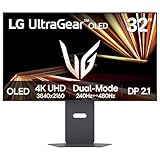
- Dual Mode: 4K UHD 240Hz or Full HD 480Hz - LG UltraGear OLED is a VESA Certified Dual Mode gaming monitor. This innovation allows gamers to experience graphically rich, story-driven games in 4K/UHD at up to 240Hz or switch to Full HD at up to 480Hz for fast-paced FPS, MOBA or racing games via hotkey.
- Leave Lag Behind with 0.03ms Response Time - Enjoy smoother scenes with less lag or ghosting thanks to LG UltraGear OLED's nearly instantaneous 0.03ms (GtG) response time.
- NVIDIA G-SYNC Compatible and AMD FreeSync Premium Pro - Officially validated by NVIDIA as G-SYNC Compatible and equipped with AMD FreeSync Premium Pro means this UltraGear provides smooth, fast action that reduces screen tearing and stutter. Never miss a frame of the action as you clinch your victories.
- Bright OLED Gaming - This UltraGear features Micro Lens Array+ technology. So with a typical brightness of 275 nits and a peak brightness of up to 1300 nits, this monitor is UltraGear's brightest OLED gaming display.
- VESA DisplayHDR True Black 400 & 1.5M:1 Contrast Ratio - VESA DisplayHDR True Black 400 certified means this monitor meets industry standards for brightness as well as deep, rich black color expression. With a 1.5M:1 contrast ration, the benefit for gaming impeccable color and image detail in dark scenes for a stunning visual experience.
Finally, check the exact add-in-board card, not just the GPU family or a reference specification. Partner models can differ in ports and physical dimensions, and system power requirements vary. NVIDIA lists DP 2.1b UHBR20 on its current premium reference specifications, making a premium card such as a GeForce RTX 5090 a potential option when high display bandwidth and avoiding DSC are priorities. That does not establish it as the minimum or best-value choice, or prove its frame rates in any specific game. Verify the exact card’s ports, power needs, and fit before buying. NVIDIA’s GeForce RTX 50 Series specifications.
What’s actually slowing this PC down?
Pick the symptom - the matching free tool is one click away.
Quick Recap
Best Value

- Immersive 4K QD-OLED Display: 32-inch 4K (3840 x 2160) QD-OLED gaming monitor with 240 Hz refresh rate and 0.03 ms (GTG) response time for immersive gaming
- Advanced Heat Management System: Highly efficient custom heatsink, advanced airflow design, and graphene film for better heat management to reduce the risk of burn-in
- Exceptional HDR Performance: VESA DisplayHDR 400 True Black compliance, 99% DCI-P3 gamut, true 10-bit, and Delta E < 2 color difference for astonishing HDR performance
- Uniform Brightness Setting: Optional uniform brightness setting ensures consistent luminance levels across the entire display
- Convenient Monitor Control: DisplayWidget Center allows users to access OLED Care functions, as well as adjust monitor settings with a mouse
Make the decision in order
- Identify the monitor’s supported mode. Find the model’s specifications and confirm 3840 × 2160 at 240 Hz on the input you plan to use.
- Match the GPU output. Check the exact card’s port and the required DisplayPort or HDMI mode, including DSC if applicable.
- Decide whether DSC is acceptable. If not, require matching DP 2.1 UHBR20 support on both devices; do not infer it from a generic DP 2.1 label.
- Set a gaming target. List your games, desired image quality, acceptable frame rates, and whether you will use upscaling or frame generation; compare relevant 4K benchmarks.
- Verify the whole setup. Check HDR and VRR compatibility, simultaneous display limits, card dimensions, connectors, PSU recommendation, and case clearance.
Product prices and availability are accurate as of the date/time indicated and are subject to change. Any price and availability information displayed on Amazon at the time of purchase will apply.

