
Do these 3 things before closing this tab:
1Repair Windows errors before they cause bigger problems2Fix the driver behind crashes, sound loss and screen glitches3Clear out junk files and repair common Windows errorsiTechGuides is reader-supported. When you buy through links on our site, we may earn an affiliate commission. As an Amazon Associate I earn from qualifying purchases. Learn more
On most Android phones and tablets, the download location you can change is the one Chrome uses. Open Chrome, go to ⋮ > Settings > Downloads, and look for Download location. If your device supports removable storage, Chrome may offer an SD Card destination. Android does not have one system-wide download folder that every app follows, so if the file came from another app, you will need that app’s own settings.
Which download location you are changing
Android handles downloads per app. Google’s Chrome help for Android says downloaded files are saved to Chrome’s default download location and points you to the Files app to find them. It does not describe one location shared by every app. Google’s Android file-management help adds that content downloaded in various apps may need to be found inside the app that downloaded it, and that steps vary by device.

That means the instructions below change where Chrome saves files. If you want a different browser or an app such as a messaging or streaming app to save elsewhere, check that app’s own settings. Google’s consumer help does not document a system-level Android setting that redirects all downloads, so avoid changing storage settings in hopes that they will affect every app.
Free tools Windows power users keep installed
One-click scans. No signup required.
Change Chrome’s download location
The menu route below comes from a May 2024 answer by a Google Chrome Help Community Product Expert and matches the labels in Chromium’s Android interface strings. Google’s own Chrome help pages do not list this exact route, and menu labels can change between Chrome versions, so if your screen differs, look for a Downloads section inside Settings.
#1 Best Overall

- Compatible with Nintendo-Switch (NOT Nintendo-Switch 2)
- Expand your storage in a flash: ideal for Android smartphones and tablets, Chromebooks, and Windows laptops.
- Increase your TV show, movie, and Full HD video[4] recording collections dramatically with up to a massive 1.5TB[1].
- Transfer files fast with up to 150MB/s[2] read speeds and SanDisk MobileMate USB micro 3.0 microSD card reader[6].
- Load apps faster with A1-rated performance[3].
- Open Chrome on your Android phone or tablet.
- Tap the three-dot menu (⋮), then tap Settings.
- Tap Downloads.
- Tap Download location. If this entry does not appear, your Chrome version or device does not expose the option (see the troubleshooting section).
- Choose the destination offered, such as internal storage or SD Card. Confirm if Chrome asks you to.
- Download a small test file, then check where it landed (see the next section).
Chromium’s Android strings also include an option labelled Ask where to save files. If it appears on your device, Chrome prompts you for a location on each download instead of using a fixed folder. Whether it appears depends on the device and Chrome release, so treat it as an available setting rather than a guaranteed one.
Check where a download was saved
Start with Chrome’s own Downloads list, which shows the file and its status. To find the file in storage, open the Files app. Google’s Chrome help directs Android users there. Folder names and structure differ between phones and file-manager apps, so do not assume an exact path. Use the search function in the Files app with the file name if you cannot find it quickly.
Rank #2
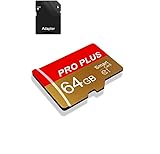
- 【Single Pack】: Each purchase includes a TF card and an adapter, allowing users to flexibly expand storage capacity and seamlessly manage data on multiple devices.
- 【Versatile Compatibility】: 8GB, 16GB, 32GB, 64GB, 128GB multiple capacity Micro TF card options, Designed to work flawlessly with a wide range of devices including mobile phones, computers, game consoles, cameras, drones, surveillance equipment, and car recorders, ensuring hassle-free usage without worrying about compatibility issuesv
- 【Rapid Data Transfer】: The high speed TF card Experience blazing-fast data transfer speeds of , ensuring swift and efficient transfer of photos, videos, files, and data. (Note:TF cards transfer speed may vary depending on capacity, test platform hardware, test software, and operating system)
- 【Reliable Stability】: Utilizing high-speed C10, A1 grade chips, our TF cards offer exceptional stability, providing robust protection for your valuable data, and ensuring peace of mind in various scenarios
- 【Bonus Adapter】: Each TF card includes a adapter, expanding compatibility and enhancing convenience for accessing and transferring data across a broader range of devices
Using an SD card as a download destination
The SD Card choice only works if your phone or tablet supports removable storage and the card is set up in a way Android recognises. Google’s Android help describes two ways to set up a card:
Recommended Free Tools
| Setup mode | What Google’s help says | Can you move the card to another device? |
|---|---|---|
| Portable storage | Files such as photos and videos can be saved to the card, and it can be used across devices. | Yes. The card can be removed and used in another compatible device. |
| Internal storage | The card is formatted to extend the phone’s internal storage. | No. The card is tied to the phone it was set up on. |
Setting up a card as internal storage can make the card an extension of the phone, which is useful if you want more space for apps and downloads but less useful if you plan to move files between devices. Google’s help also warns that formatting an SD card permanently deletes its data, so copy anything you need to a computer or another device before you set up or reformat the card.
Rank #3
A microSD card is only needed if your device supports removable storage and you want extra space. Changing Chrome’s download location does not require buying one. Before buying a card, confirm your phone’s supported card format and maximum capacity in its manufacturer specifications.
Quick Recap
Rank #4

- Compatible with Nintendo-Switch (NOT Nintendo-Switch 2)
- Expand your storage in a flash: ideal for Android smartphones and tablets, Chromebooks, and Windows laptops.
- Increase your TV show, movie, and Full HD video (4) recording collections dramatically with up to a massive 1.5TB(1).
- Transfer files fast with up to 150MB/s(2) read speeds and SanDisk MobileMate USB micro 3.0 microSD card reader(6).
- Load apps faster with A1-rated performance (A1 performance is 1500 read IOPS, 500 write IOPS. Based on internal testing. Results may vary based on host device, app type, and other factors.)
Troubleshooting
- Download location is missing. Update Chrome through the Play Store, check whether your device supports removable storage, and look for the same option in the app that started the download. The option may not be offered on every device or Chrome release.
- SD Card is not listed. Confirm the card is inserted and recognised by Android, and that it is set up as portable storage. A card set up as internal storage will not appear as a separate download destination.
- You cannot find the file. Check Chrome’s Downloads list first, then search in the Files app. If the file came from another app, look inside that app.
- Your download is from a different app. Change the setting in that app, since Chrome’s download location does not control other apps’ downloads.
Quick reference
- Chrome path to try: ⋮ > Settings > Downloads > Download location. Labels can vary by device and version.
- Google says downloaded files go to Chrome’s default location and can be found in the Files app.
- SD Card destinations depend on removable-storage support and how the card is set up.
- Formatting an SD card permanently deletes its data.
Product prices and availability are accurate as of the date/time indicated and are subject to change. Any price and availability information displayed on Amazon at the time of purchase will apply.

