
iTechGuides is reader-supported. When you buy through links on our site, we may earn an affiliate commission. As an Amazon Associate I earn from qualifying purchases. Learn more
You can send photos from an iPhone to a Samsung Family Hub refrigerator through the SmartThings app, then open them in the fridge’s Gallery or place one on the Home screen as a tile or wallpaper. The transfer runs in one direction, from your phone to the fridge, and it works only after the refrigerator is connected to SmartThings on the same account. The steps below follow Samsung’s published support instructions, with notes on where the guidance differs between regions and software versions.
What you need before you start
- A Samsung Family Hub refrigerator that is already set up and connected to the SmartThings app on your iPhone. Samsung’s iOS support guide describes two ways to connect: add a Samsung refrigerator by scanning the QR code inside the fridge door, or add Family Hub without a QR code and complete Easy Connection on the refrigerator itself.
- The SmartThings app installed and signed in on the iPhone.
- Photo access granted to the app. If you denied access earlier, turn it back on in the iPhone’s Settings app before you start.
- Samsung Australia’s support guidance says the iPhone and the refrigerator should be on the same Wi-Fi network and signed into the same Samsung Account. Samsung’s US pages for this task do not spell out that condition, so treat it as a sensible check rather than a universal rule.
Step-by-step: upload pictures from the iPhone
- Open SmartThings on the iPhone, go to Devices, and select your Family Hub refrigerator.
- On the refrigerator’s device card, tap Upload pictures and videos, then select Picture.
- If prompted, choose the photo source, either Gallery or Google Photos, and allow the access it requests.
- Select the photo or photos you want. Tap Done if the button appears, then tap Upload.
- On the refrigerator, open the Gallery notification to view the uploaded image.
- To find it later, go to Apps > Gallery > Pictures on the refrigerator.
Samsung’s US support page says a phone can upload up to 10 files at a time. Pictures and videos must be uploaded separately, so a batch that mixes both needs two passes. The page does not show a publication year, so treat the 10-file limit as the figure Samsung published at the time of writing rather than a permanent specification.
Show a photo on the Home screen or as wallpaper
An uploaded picture is not automatically shown on the Home screen. To place it there, use the Family Hub screen’s Add to Home action, or tap an empty area of the Home screen and choose Pictures. Samsung also documents using an uploaded photo as the wallpaper. Menu labels and the exact route can vary by software version, so if a option is not where this guide says, look for the same action in the Home screen’s add or edit menu.
The Tool Desk
Outbyte Driver Updater FREEScan for outdated or missing drivers - takes under a minuteDriver Scan →Outbyte PC Repair FREERepair Windows errors before they cause bigger problemsFix Now →Which app to use: check the refrigerator’s software version
Samsung’s sources do not agree on one cutoff for which app to use, so check your refrigerator’s software version and compare it with the table below.
#1 Best Overall

- BoxWave Screen Protector Compatible With Samsung Family Hub Refrigerator with AKG Speaker. Custom Designed - Specifically designed and precision-cut to fit your device's screen dimensions. All ports and functionalities will accessible. ⭐ *** PLEASE NOTE, FAMILY HUB REFRIGERATOR WITH AKG SPEAKER DEVICE NOT INCLUDED ***
- High Transparency - Provides up to 99% visual clarity for a clear, vibrant viewing experience with a smooth, glass-like surface.
- Durable Screen Protection - Made from high-quality thermoplastics to help protect your screen against everyday scratches, dust, and minor impacts.
- Easy, Residue-Free Application - Features a glueless adhesive that adheres smoothly to the screen and removes cleanly without leaving residue.
- Includes Full Application Kit - Package includes two ClearTouch Crystal screen protectors, one applicator card, and one microfiber cleaning cloth. Note: The low-tack adhesive may take up to 48 hours to fully settle along the edges. Any initial air bubbles typically clear with regular use.
| Source | Software version | App to use |
|---|---|---|
| Samsung Support US, iOS device guidance | Below 6.0 | Family Hub app |
| Samsung Support US, iOS device guidance | 6.0 and above | SmartThings |
| Samsung Family Hub app listing | TIZEN 4.0 and below | Family Hub app (the listing says the app works only for these versions) |
| Samsung Family Hub app listing | Newer than TIZEN 4.0 | SmartThings, as the listing directs |
The two sources use different version labels, and Samsung’s listing states that its information has not been verified by Apple. If you cannot tell which app matches your fridge, check the software version in the refrigerator’s settings and compare it against your region’s Samsung support page before you install anything.
Troubleshooting a missing upload
- Wrong device selected. Confirm that you tapped the Family Hub device card, not another appliance, before you chose Upload pictures and videos.
- Photo access not granted. If you skipped the permission prompt, re-enable Photos access for SmartThings in the iPhone’s Settings app and try again.
- App or software mismatch. If the upload option is missing or the steps don’t match, check whether your fridge is on the version range that matches the app you installed.
- Not found on the refrigerator. Open the Gallery notification first, then check Apps > Gallery > Pictures.
- Network or account mismatch. Confirm that the iPhone and refrigerator share the same Wi-Fi network and Samsung Account, following Samsung Australia’s guidance.
These checks follow the steps Samsung documents. Samsung’s support pages do not list a format or resolution restriction for uploaded images, and they do not include a model-by-model compatibility list. If an image fails to appear, Samsung’s documentation does not confirm a specific conversion or file format as the fix, so try a different photo before changing its format.
Rank #2

- COLOR CUSTOMIZATION: Customize the design of your french door french door refrigerator with changeable door panels. Choose from a variety of colors and two finishes to create a space that fits your style.
- BEVERAGE CENTER: Quick access to refreshingly cool, filtered water two ways. Choose from an internal dispenser or a built-in pitcher that automatically refills, with the option to infuse with a flavor.
- EXTRA LARGE CAPACITY: With 29 cu. ft. of capacity, this spacious french door french door refrigerator is designed for convenience, offering flexibility and organization to store and access all your favorite foods with ease.
- DUAL ICE MAKER WITH ICE BITES: Enjoy your favorite beverage with your choice of ice. Select from cubed ice or Ice Bites that chill your drink faster.
- FLEXZONE DRAWER: The FlexZone Drawer is customizable with 5 different temperature settings. From french door refrigerator to soft freeze, this middle drawer can store everything from fruit and vegetables to your favorite meat & seafood.
What the documentation does not settle
- Which image formats, resolutions, and file sizes each refrigerator model accepts.
- Whether the 10-file limit applies unchanged across every region and software release.
- The exact menu labels on every model, since the wording can change with software updates.
For those details, use the support page for your region and model, or contact Samsung support directly.
Windows Errors? Fix Them Before They Spread
Repair common Windows errors and clear accumulated junk for a smoother, more stable PC - no reinstall needed.Free scan · no reinstallCrashes, No Sound, or Screen Glitches?
Random freezes, missing sound and display glitches usually trace back to one bad driver. Find and replace yours safely.Free scan · under a minuteSamsung Support US, “Use your Family Hub refrigerator with iOS devices,” states: “You can upload pictures and videos from your iOS device to your Family Hub fridge, and then add them to the panel’s Home screen.”
Rank #3
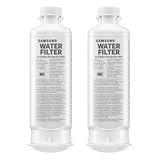
- FRESH FILTERED WATER: Samsung water filters reduce contaminants, giving your family fresh tasting water; Use with your Samsung French Door or Side by Side Refrigerator
- REDUCES CONTAMINANTS: Samsung’s ultra-high-grade carbon block reduces 99% of potentially harmful contaminants
- GENUINE SAMSUNG FILTERS: Samsung filters are designed to work with your refrigerator to avoid the risk of flooding while giving you clean, filtered water; Use our Authentication Tag to make sure your filter is a genuine Samsung filter
- LONG LASTING USE: Samsung refrigerator water filters offer long-lasting use and easy installation; It is recommended to replace your water filter every 6 months
- AVOID WATER DAMAGE: Only Samsung filters are guaranteed to perform correctly with your refrigerator, avoiding the risk of water damage to your fridge and your home
In practice, a photo sent from an iPhone through SmartThings appears in the fridge’s Gallery under Pictures. From there, you can place it on the Home screen or set it as wallpaper.
No additional cable, storage device, or accessory is needed for this transfer, since the upload is handled through the app and the refrigerator’s own connection.
Quick Recap
Best Value

- FLEX ZONE DRAWER: A flexible storage drawer with four different temperature settings and an adjustable Smart Divider to stay organized.
- TWIN COOLING PLUS: Independent fridge and freezer controls keep food fresher, longer.
- SMARTTHINGS AI ENERGY: SmartThings AI Energy Mode helps you save money and alerts when you reach your monthly bill target by monitoring your energy consumption.
- MODERN DESIGN: Flat panel door design with easy-to-open recessed handles blends into your cabinetry to give you a modern built-in-look.
- EXTERNAL DISPENSER: External dispenser gives you easy access to chilled, filtered water and two types of ice: cubed and crushed ice.
Rank #4

- LARGE CAPACITY: Completely redesigned interior with 27.4 cu. ft. capacity that fits 10% more groceries than ever.
- MODERN DESIGN: Flat panel door design with easy-to-open recessed handles blends into your cabinetry to give you a modern built-in-look.
- FINGERPRINT-RESISTANT FINISH: Finish that withstands everyday smudges so you spend less time cleaning.
- ALL-AROUND COOLING: The multivent technology keeps items on every shelf evenly cooled.
- INDOOR ICEMAKER: High-capacity indoor icemaker that saves shelf space for your frozen foods.
Product prices and availability are accurate as of the date/time indicated and are subject to change. Any price and availability information displayed on Amazon at the time of purchase will apply.

