
Recommended Free Tools
iTechGuides is reader-supported. When you buy through links on our site, we may earn an affiliate commission. As an Amazon Associate I earn from qualifying purchases. Learn more
Home Assistant blueprints let you reuse the logic of an automation, script, or template entity while choosing different devices and settings for each use. Instead of maintaining several near-identical automations, you can configure one blueprint multiple times with home-specific inputs.
What a Home Assistant blueprint changes
A blueprint is a reusable configuration template. Its author defines the shared logic and the inputs that someone setting it up can choose—for example, which motion sensor to watch or which light to control. Each automation created from the blueprint can use different input values while drawing on the same blueprint definition. See Home Assistant’s blueprint overview.
This is useful when several rooms or devices need the same behavior but not the same entities. It reduces duplicated configuration; it does not automatically make every automation a blueprint. Home Assistant’s guide recommends that beginners start with blueprint automations, while ordinary automations remain appropriate when the logic is unique or needs direct editing (Automating Home Assistant).
Import and configure a community blueprint
Home Assistant supports importing blueprints from sources such as its community forum, GitHub, and GitHub Gists. The fields you see depend on the blueprint’s author and may include required or optional inputs.
#1 Best Overall

- Home Assistant provides a professional and reliable platform for home automation, designed to run continuously 24/7.
- Powered by a 64-bit Quad-Core Cortex-A53 processor, delivering smooth and efficient performance for smart home automations.
- Includes 4GB SDRAM for reliable multitasking and 64GB eMMC
- Features a Mali-450 MP2 GPU for responsive visual interfaces, housed in a compact 85 × 85 × 15mm (3.35" × 3.35" × 0.59") design that fits easily in any space.
- Typical power consumption is under 10W, with fanless operation for quiet performance suitable for any room in your home.
- Find a blueprint for the behavior you want. Read its description and check that its inputs and requirements suit your setup.
- In Home Assistant, open Settings > Automations & scenes > Blueprints, select Import Blueprint, enter the blueprint URL, then preview and import it.
- On the Blueprints page, select the imported blueprint and choose Create automation.
- Name the automation, choose values for the displayed inputs, and save. The resulting automation uses the blueprint’s shared logic with the choices you supplied.
To review or change the configured values later, return to the Blueprints page and open the automation created from that blueprint. Home Assistant documents the full blueprint import and use workflow.
Keep blueprint updates under control
Blueprint-based automations use the shared blueprint definition. After the blueprint changes and automations are reloaded, those changes can affect its existing instances. That can be convenient when an author improves shared logic, but it also means an update is not isolated to a newly created automation.
Rank #2

- Powered by SmartThings: Connect, monitor, and automate your home through the SmartThings app. Build a reliable, unified smart home using Samsung's proven ecosystem
- Matter + Zigbee Smart Home Hub: Supports the newest Matter standard plus Zigbee for lighting, sensors, plugs, switches, thermostats, and more - thousands of compatible devices. PLEASE NOTE: Z-Wave not supported
- Easy Setup with Wi-Fi or Ethernet: Get started in minutes using Wi-Fi or a wired Ethernet connection for apartments, houses, and expanding smart home systems - Z-Wave not supported
- Automations That Work for You: Create custom routines for security, lighting, comfort, and energy savings. Many local automations continue working even if your internet goes offline
- Wide Device Compatibility: Connect compatible smart devices from Aeotec and many other brands to build a unified system for lighting, voice control, energy management, and climate settings
To retrieve an update to an imported blueprint, use Re-import blueprint on the Blueprints page. Re-importing overwrites the installed blueprint, and Home Assistant cautions that an incompatible change can break automations that depend on it. Check the update before applying it, especially if your setup relies on particular inputs or behavior.
The Tool Desk
Outbyte Driver Updater FREEScan for outdated or missing drivers - takes under a minuteDriver Scan →Outbyte PC Repair FREERepair Windows errors before they cause bigger problemsFix Now →Use “Take control” when you need direct edits
If a blueprint does not expose a choice you need, open the automation and select Take control. Home Assistant converts it into a regular automation whose triggers, conditions, and actions can be edited directly. The converted automation is no longer linked to the blueprint, so later blueprint changes will not update it. The action does not convert it back to a blueprint-based automation. See Home Assistant’s automation troubleshooting guide.
Rank #3
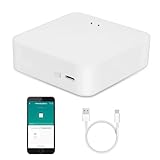
- MULTI-MODE GATEWAY: Smart home bridge supports Zigbee, Bluetooth Mesh dual-protocols, and supports WIFI control at the same time. Whether your device supports Wi-Fi or ZigBee or Bluetooth, you can control them together through the smart gateway on the Smart Life App. It is more stable and safer than using wifi system.
- APP CONTROL: Smart Bluetooth Zigbee hub work with smart life/Tuya App, Support Adding devices, device reset, third-party control and group control. You can manage and remotely control the device through the Smart Life App. You can manage and remotely control your lights, fingerbot and other smart devices via the app, even when you're not home.
- VOICE CONTROL: Smart Zigbee gateway Bluetooth hub compatible with Amazon Alexa/Google Assistant Home/Siri, you can control Smart LED and smart home devices by voice. All smart devices can be controlled with just one command, freeing hands.
- CREAT A SMART SCENE: Sub-devices of the gateway act as trigger conditions for Interacting with devices such as ZigBee, Bluetooth, Wi-Fi, for device linkage. Featured as one powerful network bridge for whole house linkage in a real sense for all smart home devices.
- MULTI-DEVICE COMPATIBILITY: Wireless gateway, Compatible with various smart home devices, you can add and control 128 smart devices at the same time, Zigbee hub is like a brain, stably manages multiple devices. Build a fully intelligent home ecosystem. 24 months warranty included
Make a blueprint from an automation that already works
For a reusable pattern of your own, start with a functioning automation rather than designing the logic and blueprint at the same time. Home Assistant’s tutorial uses motion-triggered lighting as an example: the author replaces the specific sensor and light in the working automation with inputs, then references those inputs in the blueprint.
- Write and test the ordinary automation for one set of devices.
- Move the values that should vary—such as an entity or target—into the blueprint’s
inputdefinitions. - Replace the corresponding fixed values in the automation logic with
!inputreferences. - Add selectors to present suitable choices in the UI, then save the file in
<config>/blueprints/automation/. - Reload automations after editing the YAML so Home Assistant picks up the change, then create an automation from the blueprint and test it with the intended inputs.
A blueprint’s YAML includes metadata such as name and domain, an input section for configurable values, and the automation logic that uses those values. Inputs can be simple strings or more complex values such as a target object. Selectors describe what an input accepts and how the interface should present it—for example, limiting an entity choice to motion-class binary sensors or a target choice to lights. The official blueprint tutorial walks through this pattern and informal sharing through GitHub Gists and the Blueprint Exchange forum.
Rank #4

- [Multi-Protocol Hub with Matter Bridge] The M3 is a versatile hub supporting Aqara Zigbee and Thread devices. It integrates third-party devices into the Aqara Home app. Supports advanced Matter bridge functionality, enabling Aqara-exclusive scenes and signals to sync with Matter ecosystems such as Home Assistant for seamless integration. Supports up to 127 Aqara Zigbee devices (** Not third-party Zigbee devices) and 127 Thread devices (Repeaters are needed).
- [Edge Compatibilities and Local Automations] The M3 serves as an Edge Hub, prioritizing local control and automation. Upon integration, it supersedes existing Aqara hubs, shifting the automations among them to local operation (Some cloud-based notifications still require internet). Upgrade-friendly, it supports migrating Zigbee devices from older Aqara hubs.
- [Smart IR Blaster with Feedback and Learning] The 360°IR blaster not only sends commands but also provides accurate status updates by detecting traditional remote use. It connects IR air conditioning units to Matter, functioning as an AC thermostat when paired with an Aqara Temperature and Humidity Sensor. (Note: Only one AC device can be exposed to Matter. Functionality may vary based on the Matter integration app. For Apple Home exposure, use Matter integration instead of HomeKit.)
- [Optimal Wired and Wireless Connectivity] Offering both wired and wireless solutions, the smart home hub M3 provides dual-band Wi-Fi (2.4/5 GHz) with advanced WPA3 security, and a Power over Ethernet (PoE) port. The addition of a USB-C port allows for mini-UPS and power bank connections, delivering unparalleled stability. (2A USB power adapter is not included. ) . Note: To ensure a stable connection, place the Hub M3 between 6 to 19 feet from the router.
- [Privacy-Focused with Encrypted Storage, Easy Setup and Versatile Placement] The M3 prioritizes privacy by excluding microphone or camera components. It boasts 8GB end-to-end encrypted local storage, for device lists, configuration parameters, and automation configuration data. Additionally, it includes a mount and screws for flexible placement on flat surfaces, walls, or ceilings. Magic Pair technology ensures effortless detection by the Aqara Home app upon power-up.
Check domain and version requirements
The blueprint schema supports the automation, script, and template domains. Authors can include optional min_version metadata when a blueprint depends on newer Home Assistant features. Input sections were introduced in Home Assistant version 2024.6.0; blueprints that use them should declare an appropriate minimum version. Consult the blueprint schema documentation when writing or troubleshooting a blueprint.
Free tools Windows power users keep installed
One-click scans. No signup required.
Quick Recap
Product prices and availability are accurate as of the date/time indicated and are subject to change. Any price and availability information displayed on Amazon at the time of purchase will apply.

