
iTechGuides is reader-supported. When you buy through links on our site, we may earn an affiliate commission. As an Amazon Associate I earn from qualifying purchases. Learn more
The best Nintendo Switch 2 HDR settings for TVs and monitors are Game Mode, HDR enabled on the dock’s HDMI input, HDR output set to supported software only, HGiG or neutral tone mapping, and RGB Range set to Automatic initially. Dock the console, configure the display first, then run Adjust HDR again before judging the result.
Key takeaways
- Set the Nintendo Switch 2 to Only for Supported Software as the safest HDR starting point for a mixed game library.
- Use the TV or monitor’s Game Mode, enable HDR for the exact HDMI input, and configure tone mapping before running the Switch 2 HDR adjustment.
- Use HGiG when the display provides a suitable HGiG-style option; otherwise test tone mapping Off or the display’s neutral HDR mode.
- Leave RGB Range on Automatic first because Full Range is not inherently better than Limited Range; the console and display must use matching interpretations.
- HDR calibration is display-specific, so repeat Adjust HDR when moving the dock to another TV or monitor.
- If HDR still looks worse than SDR after correct setup, use HDR only for compatible software or turn HDR off rather than forcing a poor conversion.
What are the best Nintendo Switch 2 HDR settings for TVs and monitors?
There is no universal Nintendo Switch 2 HDR number that is correct for every television or monitor. The most reliable baseline is to dock the console, enable HDR on the HDMI input, select Game Mode, use HGiG or neutral tone mapping, set HDR output to supported software only, leave RGB Range on Automatic, and then run Adjust HDR.
Nintendo’s Switch 2 display-settings documentation identifies the relevant console controls: HDR output, Adjust HDR, TV Resolution, and RGB Range. Nintendo does not prescribe one universal RGB setting or one calibration value because the correct result depends on the connected display and its input configuration.
Outdated Drivers Are Slowing You Down
One free scan finds every outdated or missing driver and matches the right update for your exact hardware.Free scan · exact hardware matchWindows Errors? Fix Them Before They Spread
Repair common Windows errors and clear accumulated junk for a smoother, more stable PC - no reinstall needed.Free scan · no reinstall- Connect the official dock directly to the TV or monitor if possible.
- Enable HDR for the specific HDMI input used by the dock.
- Turn on Game Mode or the display’s equivalent gaming mode.
- Choose HGiG if the display offers it. If not, begin with tone mapping Off or a neutral HDR mode.
- On the Switch 2, open HOME → System Settings → Display.
- Set HDR output to Only for Supported Software, or the equivalent compatible-software option.
- Set RGB Range to Automatic.
- Open Adjust HDR and calibrate again with the display in its final HDR gaming mode.
Why does Nintendo Switch 2 HDR look washed out?
Washed-out Switch 2 HDR usually comes from a mismatch between the console’s signal and the display’s HDR processing, not from one universally incorrect console slider. The most common causes are tone-mapping conflicts, an RGB-range mismatch, HDR being disabled on the dock’s HDMI input, forced HDR applied to SDR software, or calibration performed before the display was configured.
#1 Best Overall

- Quality Visuals: The VG270K 27" IPS monitor with 3840 x 2160 UHD resolution in a 16:9 aspect ratio presents stunning, high-quality images with excellent detail. The zero-frame design does away with the thick frames found on conventional monitors freeing up precious screen space.
- AMD FreeSync Premium Technology: Say “goodbye” to stuttering and tearing. With AMD FreeSync Premium, the monitor’s frames are synced with the graphics card’s frames, which eliminates screen tearing and provides the smoothest gaming experience.
- Quick Refresh Rate: Different content has different refresh rate and resolution requirements. If you are playing an FPS or racing game, you will need a monitor with a high refresh rate. However, if you are doing office work or streaming videos, a higher resolution will be more beneficial. With DFR technology, users can choose a higher resolution, or a higher refresh rate based on what is suitable for them.
- Responsive: Up to 0.5ms GTG (Gray to Gray) response time enhanced gamers’ in-game experience. No matter if the fast-moving action or any dramatic transitions will be rendered smoothly without the annoying effects of smearing or ghosting.
- ZeroFrame Design: With a Nitro VG270K monitor, you’ll want to see as much of the display as possible. Get more real estate with the near bezel-less design, allowing you to see more and do more. The ZeroFrame design lets you place multiple monitors next to each other for a seamless, almost uninterrupted view.
1. Tone mapping is processing the image incorrectly
HDR content contains brightness information that must be mapped to the capabilities of the connected screen. A TV may apply dynamic tone mapping on top of a console calibration that expects HGiG-style behavior. That extra processing can lift the image, compress highlights, clip detail, or create a pale, overprocessed appearance.
HGiG’s HDR gaming guidance describes calibration using the display’s maximum full-frame luminance, peak tone-mapping luminance, and minimum tone-mapping luminance. The guidance also describes adjusting patterns until intended detail just disappears. The practical implication is important: Adjust HDR is a display-dependent calibration process, not a universal brightness control.
Testing reported by Nintendo Life, based on HDTVTest’s analysis, found that the Switch 2’s familiar two-sun adjustment can behave appropriately on HGiG-capable displays but can produce excessive calibration values on some displays without HGiG. That behavior can result in a washed-out image. Read the Nintendo Life report on Switch 2 HDR calibration behavior for the display-specific testing context.
Recommended Free Tools
2. The RGB range does not match
RGB Range determines how the console and display interpret the brightness values in the video signal. The Switch 2 offers Automatic, Full Range, and Limited Range. A mismatch can produce gray blacks, crushed shadow detail, reduced contrast, or a flatter image.
Full Range is not a higher-quality HDR setting. Limited Range is not automatically inferior. The correct choice is the one that matches the display’s HDMI black-level or input-range setting. Nintendo advises users to consult the TV or monitor manual because manufacturers use different labels and defaults.
3. HDR is disabled somewhere in the HDMI path
The TV may support HDR while the HDMI input used by the dock does not have HDR enabled. Some displays place the control under HDMI input format, enhanced format, deep color, UHD color, external-device settings, or a similar label.
Nintendo identifies several basic causes of HDR problems: the display may not support HDR, HDR may be disabled in the TV’s general settings, HDR may be disabled for the dock’s HDMI port, or the console may not be docked. Nintendo’s HDR support guidance also explains that HDR setting changes should be made with the console in the dock and that HDR does not operate when the console is outside TV mode.
4. HDR is being forced on SDR software
Not every Switch 2 game renders native HDR. When HDR output is set to Always On, SDR software may be converted or displayed through an HDR processing path that makes colors and brightness look wrong. Supported-software-only is the least confusing baseline because it avoids forcing every SDR game into HDR.
How should I configure the Nintendo Switch 2?
Configure the Switch 2 from HOME → System Settings → Display. Change the display’s HDR mode first, then make the console changes and run Adjust HDR last.
Rank #2

- 27-inch 4K Ultra HD Display: Features 3840 x 2160 resolution gaming monitor with ultra-fast 160Hz refresh rate designed for professional gamers and immersive gameplay
- ASUS Extreme Low Motion Blur Sync Technology: ELMB Sync technology enables ELMB and variable-refresh-rate technologies to work simultaneously to eliminate ghosting and tearing for sharp gaming visuals with high frame rates
- Advanced Synchronization Technologies: NVIDIA G-SYNC Compatible, AMD FreeSync Premium, and exclusive Variable Overdrive technology ensure seamless, tear-free gaming experience
- Superior Color Performance: High dynamic range (HDR) technology and 95% DCI-P3 professional color gamut provide amazing color accuracy and vibrant visuals
- Package Contents: Includes DisplayPort cable, L-shaped Screwdriver, Power cord, Quick start guide, and Warranty Card
HDR Output: choose supported software only first
| HDR Output choice | Best use | Trade-off |
|---|---|---|
| Only for Supported Software | Recommended baseline for most libraries and troubleshooting | Games without HDR remain in SDR rather than receiving forced HDR output |
| Always On | Experimentation or a deliberate preference for forced HDR output | SDR games and other SDR content may look inaccurate or overprocessed |
| Off | Diagnostic fallback when HDR looks worse than SDR | HDR-compatible software will not use HDR output |
Use supported-software-only while diagnosing a washed-out picture. After the display is working correctly, Always On can be tested if you prefer its appearance, but Always On makes it harder to determine whether a problem belongs to the game, console, or display.
Adjust HDR: calibrate after the display is ready
Run Adjust HDR only after selecting the intended HDR gaming mode, HGiG or neutral tone mapping, black-level setting, and input range. The Switch 2 should be docked during calibration. Nintendo notes that HDR output may need adjustment for each TV, so repeat the process when using a different display.
Follow the on-screen pattern instructions and stop when the intended highlight detail disappears. Do not push the control as high as possible and do not apply a universal “click this many times” recommendation. The correct position depends on the display model, firmware, tone-mapping behavior, and calibration method.
If the test pattern behaves strangely—for example, important elements disappear together or the image becomes obviously pale—do not keep increasing the control. Change the display’s tone-mapping mode, then run Adjust HDR again.
RGB Range: start with Automatic
Set RGB Range to Automatic first. Check the display’s HDMI black-level or input-range menu before forcing Full or Limited.
| Visible symptom | First setting to test | What to check next |
|---|---|---|
| Gray or raised blacks | Automatic, then matched Limited | Whether the display is set to Video/Limited while the console is set differently |
| Crushed shadows | Automatic, then matched Full | Whether the display expects PC/Full range |
| Pale image after HDR calibration | HGiG or neutral tone mapping | Re-run Adjust HDR after changing the display mode |
| Blown-out highlights | HGiG or tone mapping Off | Recalibrate peak highlights and inspect bright detail |
| SDR games look wrong | Only for Supported Software | Turn off Always On |
Change both ends as a pair. Do not set the Switch 2 to Full while leaving a display configured for Limited, or change the display without checking the console. After changing range, inspect black bars, dark clothing, shadow detail, and a bright scene.
TV Resolution: leave it out of HDR troubleshooting unless the handshake is faulty
TV Resolution is not an HDR calibration control. Use Automatic for most setups. Choose the display’s preferred or native mode only when Automatic negotiates incorrectly, and select 4K only when the display and the entire HDMI chain support it. Resolution changes should not be presented as a fix for washed-out color unless the actual problem is a failed HDMI negotiation.
Which TV settings should I change?
Use function-based names because manufacturers rename the same controls. The following is a model-neutral HDR gaming profile.
| Display function | Recommended starting point | Why |
|---|---|---|
| Picture mode | Game, Game Optimizer, or equivalent | Reduces processing and provides gaming-specific HDR controls |
| HDR mode | Normal HDR game mode | Avoids vivid or shop-demo processing while troubleshooting |
| Tone mapping | HGiG when suitable; otherwise Off or Neutral | Prevents an aggressive second tone map from undermining calibration |
| Dynamic contrast, contrast enhancer, live color, vivid mode, HDR enhancer | Off initially | These controls can conceal the actual cause of incorrect contrast or color |
| Color temperature | Warm or neutral reference setting | Avoids the artificially cool cast of some default presets |
| Sharpness | Neutral or default | Sharpness does not repair HDR tone mapping |
| Black level/input range | Automatic initially, then match the Switch 2 | Prevents gray blacks or crushed shadows |
| Local dimming | Usually enabled on LCD/QLED, subject to model behavior | Can improve HDR contrast, although blooming or flicker may justify a different setting |
| OLED brightness or panel brightness | Normal HDR setting | Do not lower panel brightness to compensate for incorrect tone mapping |
Does HGiG guarantee accurate HDR?
No. HGiG can make console HDR calibration more predictable on a compatible display, but HGiG is not a guarantee of perfect HDR and is not a universal certification label. HGiG describes itself as a group that publishes best practices rather than a certification body. Its official explanation of HGiG’s purpose and status is the safest reference for that distinction.
Rank #3
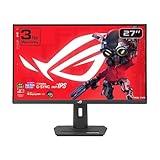
- Dual Mode Display Technology: 27-inch 4K (3840 x 2160) gaming monitor with versatile dual mode capability supporting 4K at 160 Hz or FHD at 320 Hz for flexible gaming performance
- Fast IPS Response Time: ASUS Fast IPS technology enables a 1ms response time (GTG) for sharp gaming visuals with high frame rates and minimal motion blur
- Advanced Motion Blur Reduction: ASUS Extreme Low Motion Blur Sync (ELMB SYNC) technology enables ELMB together with variable refresh rate, eliminating ghosting and tearing for sharp gaming visuals with high frame rates
- Superior Color Accuracy: 95% DCI-P3 color gamut with ASUS advanced gray-scale tracking technology ensures smoother color gradation delivered and uniformity for vibrant and accurate colors
- Convenient Settings Management: DisplayWidget Center enables easy monitor settings adjustments with a mouse for streamlined control and customization
Some televisions use different names for similar controls. LG, for example, may expose the relevant control as Tone Mapping Compensation inside Game Optimizer, with menu paths that vary by webOS version. LG also warns in its HGiG and Tone Mapping Compensation support guidance that HGiG can look darker than tone mapping enabled. A darker picture is not automatically wrong if shadow detail remains visible and bright objects retain texture.
What’s actually slowing this PC down?
Pick the symptom - the matching free tool is one click away.
How do I calibrate HGiG correctly?
On a display with a suitable HGiG-style mode, use HGiG before running the Switch 2 calibration. The display should not apply a competing dynamic tone map while the console is being calibrated.
- Connect the dock directly to the TV or monitor where possible.
- Enable HDR for the exact HDMI input.
- Enable Game Mode.
- Select HGiG or the display’s equivalent neutral HDR-gaming mode.
- Open HOME → System Settings → Display on the Switch 2.
- Set HDR output to Only for Supported Software.
- Select Adjust HDR.
- Follow the test pattern and stop when the intended highlight detail just disappears. Do not maximize the slider.
- Adjust paper white or midrange brightness only if the display or game exposes that control.
- Test at least one bright scene and one dark scene in a known HDR-compatible game.
- Check clouds, lamps, sunlit surfaces, and specular highlights for retained texture.
HGiG may reveal that a display is dimmer than its dynamic tone-mapping mode. That is a trade-off, not proof that the calibration failed. If the display cannot produce convincing HDR with HGiG, compare HGiG against its neutral HDR mode and choose the mode that preserves shadow detail and highlight texture without making the whole image milky.
What should I do if my TV does not support HGiG?
On a display without HGiG, begin with tone mapping Off or the display’s neutral HDR mode, then run Adjust HDR cautiously. If the calibration pattern still produces a pale image or behaves inconsistently, use supported-software-only HDR, compare the result with SDR, and disable HDR when SDR is visibly more accurate.
Dynamic tone mapping can look brighter and more immediately impressive, and it may help a display that cannot reproduce the complete HDR range. However, dynamic tone mapping can also change brightness from scene to scene, clip highlight detail, and make console calibration less predictable. Test the display’s neutral mode before assuming that the brightest mode is the best mode.
The Tool Desk
Outbyte PC Repair FREERepair Windows errors before they cause bigger problemsFix Now →Outbyte Driver Updater FREEScan for outdated or missing drivers - takes under a minuteDriver Scan →Do not keep raising the Switch 2 HDR adjustment to compensate for a display that is applying its own tone map. The two-sun pattern is useful only when interpreted in the context of the display’s processing. Nintendo Life’s coverage of the Switch 2 HDR issue describes why non-HGiG displays can require a different approach.
How should monitor owners configure Switch 2 HDR?
Monitor owners should configure the monitor’s HDMI HDR mode and input range just as carefully as TV owners, but monitor labels vary more widely. A monitor accepting an HDR10 signal does not necessarily deliver strong HDR performance; peak brightness, local dimming, and the quality of the HDR preset determine the visible result.
- Use the monitor’s HDMI input. Do not rely on USB-C or an adapter unless that connection is explicitly compatible with the dock’s output path.
- Enable HDR in the monitor’s on-screen display.
- Select HDR Game, HDR Standard, DisplayHDR, or the closest neutral gaming preset.
- Leave input range on Auto initially.
- If blacks look gray, test the monitor’s Limited or Video setting together with Switch 2 Limited.
- If shadows are crushed, test the monitor’s Full or PC setting together with Switch 2 Full.
- Check the monitor’s black-level, dynamic HDR, local-dimming, and contrast controls.
- After every range or tone-mapping change, run Adjust HDR on the Switch 2 again.
- Compare HDR and SDR in at least two games before deciding that the monitor or console is defective.
A low-brightness HDR monitor with no useful local dimming can produce a flatter or dimmer picture than accurate SDR. HDR support in a monitor’s specifications means the monitor can accept an HDR signal; it does not guarantee a bright, high-contrast HDR image.
How do I fix gray blacks, blown highlights, or a dark HDR picture?
If blacks look gray and the image has low contrast
Gray blacks usually indicate an RGB-range or HDMI black-level mismatch, although a non-game picture mode or incorrect HDR processing can also contribute.
Rank #4

- Dual Mode Display Technology: 32-inch 4K (3840 x 2160) gaming monitor with versatile dual mode (4K @ 160 Hz or FHD @ 320 Hz)
- Ultra-Fast Response Time: ASUS Fast IPS technology enables a 0.3ms response time (minimum) for sharp gaming visuals with high frame rates
- Advanced Motion Blur Reduction: ASUS Extreme Low Motion Blur Sync (ELMB SYNC) technology enables ELMB together with variable refresh rate, eliminating ghosting and tearing for sharp gaming visuals with high frame rates
- Superior Color Accuracy: 95% DCI-P3 color gamut with ASUS advanced gray-scale tracking technology ensures smoother color gradation delivered and uniformity
- Convenient Settings Management: DisplayWidget Center enables easy monitor settings adjustments with a mouse
- Return Switch 2 RGB Range and the display’s input range to Automatic.
- Confirm that HDR is enabled for the dock’s actual HDMI port.
- Confirm that Game Mode is active.
- Restart the display and console, then reconnect the dock directly to the display.
- If gray blacks remain, match Limited with Video/Limited or Full with PC/Full according to the display manual.
- Run Adjust HDR again after the range is matched.
If highlights are blown out
Blown highlights usually indicate dynamic tone mapping overriding calibration, HGiG calibration performed with tone mapping enabled, or an adjustment slider pushed beyond the point where highlight detail disappeared.
- Enable HGiG if the display offers a suitable option.
- If HGiG is unavailable, test tone mapping Off or Neutral.
- Run Adjust HDR again.
- Inspect bright clouds, lamps, sunlit surfaces, and reflections for texture rather than judging brightness alone.
If the picture is too dark
HGiG can look darker than dynamic tone mapping, and LG explicitly documents that behavior. A dark image is not automatically inaccurate, but shadow detail should remain visible and bright objects should retain texture.
- Check that the HDR Game preset is not an unusually dim mode.
- Check black level and RGB Range.
- Confirm that OLED brightness or LCD backlight is not reduced.
- Compare HGiG with the display’s neutral tone-mapping mode.
- Do not immediately raise black level or Contrast Enhancer, because those changes can crush shadows or clip highlights.
If only one game looks washed out
One game looking washed out does not prove that the Switch 2 or display is defective. The game may have a muted art style, its own HDR slider, a separate brightness calibration, no native HDR support, or a different response to the console’s HDR output mode.
Test at least two games, the Switch 2 system interface, and an SDR title. Calibrate the individual game when it provides an HDR or brightness control, but do not use saturation as a substitute for correct tone mapping or RGB range.
Do these 3 things before closing this tab:
1Repair Windows errors before they cause bigger problems2Scan for outdated or missing drivers - takes under a minute3Clear out junk files and repair common Windows errorsIf HDR works on one display but not another
Repeat HDR calibration separately for every TV or monitor. Nintendo states that HDR adjustment may be required for each TV because the display’s HDR characteristics differ.
Independent reader supportYour contribution helps us test, update, and keep practical guides available for everyone.What is the difference between HGiG and dynamic tone mapping?
| Approach | Advantages | Disadvantages | Best starting use |
|---|---|---|---|
| HGiG or neutral tone mapping | More predictable interaction with console calibration and less risk of a second aggressive tone map | Can look darker and can expose the limits of a dim display; labels and implementation vary | Displays with a suitable HGiG-style gaming option |
| Dynamic tone mapping | Often looks brighter and can compensate for a display that cannot reproduce the full HDR range | Can clip highlights, change brightness scene by scene, and make calibration less predictable | Comparison testing when HGiG is unavailable or the display is visibly too dim |
| HDR Off or SDR | Can provide a more consistent image on weak or poorly implemented HDR displays | Removes HDR output from compatible software | Fallback when correctly configured HDR still looks worse than SDR |
The goal is not the brightest possible picture. The goal is a picture with visible shadow detail, retained highlight texture, natural midtones, and no gray veil over the image.
Should I use Full or Limited RGB Range?
Use Automatic first, then choose Full or Limited only when the display’s expected range is known. Full Range is appropriate when the display is configured for full-range or PC levels; Limited Range is appropriate when the display expects video-range HDMI levels.
Neither range is inherently better. The console and display must agree. Changing only one side can create gray blacks or crushed shadows, and increasing saturation afterward only hides the underlying mismatch.
Quick wins for a faster PC:
Clear out junk files and repair common Windows errorsFree Scan →Scan for outdated or missing drivers - takes under a minuteDriver Scan →Repair Windows errors before they cause bigger problemsFix Now →When should I disable HDR?
Disable HDR when a correctly configured display still produces a visibly worse image than SDR, especially on a low-brightness monitor or a display with poor HDR tone mapping. Use Only for Supported Software when some games look good in HDR and others look wrong; use Off as a diagnostic or quality fallback when HDR is consistently inferior.
Best Value

- Improved ComfortView Plus: Reduces harmful blue light emissions to ≤35%, for all-day comfort without sacrificing color accuracy.
- Refresh rate: A smooth, tear-free experience with AMD FreeSync Premium (refresh rate up to 120Hz) and an ultra-low 0.03ms response time create a captivating experience for work and play.
- Vivid colors: Immerse yourself in breathtaking 4K visuals with in-plane switching technology. Enjoy vibrant colors with 99% sRGB. The 1500:1 contrast ratio and HDR readiness deliver excellent depth and detail.
- Re-engineered sound quality: Enjoy more detailed sound with spacious audio featuring greater output power, deeper frequency response and more decibel range than the previous generation.
- Ultra-thin bezel: Designed with a sleek, modern aesthetic and an ash white finish, this display features ultra-thin bezels for a refined, minimalist design.
Turning HDR off is not a failure. HDR requires a capable display, a correctly negotiated HDMI signal, compatible software, and sensible tone mapping. A clean SDR image is preferable to a forced HDR image with lifted blacks, clipped highlights, or inaccurate colors.
Should I buy a new TV, monitor, dock, or HDMI cable?
Buying a new display should not be the first fix. A tone-mapping or RGB-range mismatch can affect a new screen too if the new screen is configured incorrectly. Consider replacement only when the current display lacks a usable HDR Game mode, has very weak HDR brightness, cannot disable aggressive tone mapping, cannot accept the required signal, or shows broken HDR behavior with multiple sources.
A better HDR display should offer a dedicated HDR gaming mode, controllable tone mapping, adequate HDR brightness, and clearly documented HDMI input-range controls. LG OLED televisions are relevant for buyers who value OLED contrast and commonly exposed Game Optimizer and HGiG-related controls, although they may be less suitable for very bright rooms. Samsung OLED televisions can suit buyers prioritizing bright OLED gaming, but menu names and behavior vary by model. TCL QLED or Mini-LED televisions can suit buyers seeking large, bright HDR images, but tone-mapping controls and calibration behavior vary by model.
Free tools Windows power users keep installed
One-click scans. No signup required.
ASUS ROG and Alienware gaming monitors are relevant for desk setups, but DisplayHDR support alone does not make every monitor comparable to a strong OLED television. A monitor’s peak brightness, local dimming, HDR preset, and input-range controls matter. Official product pages should be checked for the exact model rather than relying on a product family name.
Do not buy a generic HDMI cable as the primary HDR fix. A cable, adapter, repeater, or third-party dock matters when it prevents HDR negotiation or causes an unstable signal; a cable does not correct tone mapping or RGB-range errors. If the setup uses questionable dock hardware, compare it with the official Nintendo Switch 2 hardware and accessory ecosystem before replacing the display.
A reliable final test
- Use the direct dock-to-display HDMI connection.
- Confirm that the display reports HDR on the correct input.
- Use Game Mode and the display’s normal HDR game preset.
- Set HGiG or neutral tone mapping before calibration.
- Set Switch 2 HDR output to supported software only.
- Set RGB Range to Automatic.
- Run Adjust HDR.
- Check one dark scene for visible shadow detail.
- Check one bright scene for retained highlight texture.
- Compare at least two games and one SDR title.
If gray blacks remain, investigate matching Limited or Full range. If highlights remain clipped, remove dynamic tone mapping and recalibrate. If the entire HDR image remains pale or dim despite correct settings, compare the display’s neutral mode with SDR and use the mode that preserves detail and natural contrast.
Frequently Asked Questions
Does Nintendo Switch 2 HDR work in handheld mode?
Nintendo Switch 2 HDR output is primarily relevant in docked TV mode. Nintendo says HDR-setting changes should be made with the console in the dock and HDR will not work when the console is not in TV mode.
What RGB Range should I use on Nintendo Switch 2?
Set RGB Range to Automatic first. Use Full or Limited only when the TV or monitor’s HDMI input-range setting is known and matched to the console; Full Range is not automatically better.
Why does HGiG make my Switch 2 picture darker?
HGiG can look darker than dynamic tone mapping because HGiG avoids some of the display’s additional brightness processing. A darker image can still be correct if shadow detail remains visible and bright objects retain texture.
Should Nintendo Switch 2 HDR be set to Always On?
Always On is not the safest default because SDR games may look inaccurate when forced through an HDR output path. Use Only for Supported Software while troubleshooting and for a mixed game library.
Can a new HDMI cable fix washed-out Switch 2 HDR?
A cable, adapter, repeater, or third-party dock can matter if it prevents HDR negotiation or causes an unstable signal, but a cable does not fix tone-mapping or RGB-range mismatches. Configure the existing display and HDMI path first.
Do these 3 things before closing this tab:
1Clear out junk files and repair common Windows errors2Scan for outdated or missing drivers - takes under a minute3Repair Windows errors before they cause bigger problemsThe Bottom Line
The dependable fix for washed-out Nintendo Switch 2 HDR is a sequence, not a magic value: dock the console, enable HDR on the correct HDMI input, use Game Mode, select HGiG or neutral tone mapping, choose supported-software-only HDR, leave RGB Range on Automatic initially, and rerun Adjust HDR after every display-mode or range change. If correctly configured HDR still looks worse than SDR, use SDR.
Quick Recap
Product prices and availability are accurate as of the date/time indicated and are subject to change. Any price and availability information displayed on Amazon at the time of purchase will apply.

