
Free tools Windows power users keep installed
One-click scans. No signup required.
iTechGuides is reader-supported. When you buy through links on our site, we may earn an affiliate commission. As an Amazon Associate I earn from qualifying purchases. Learn more
If the LEDs on a Gigabyte Z390 Aorus Pro stay on one color and remain lit after shutdown, first separate the system-on setting from the S3/S4/S5 (sleep, hibernation and soft-off) setting in BIOS. Then determine whether the light is onboard or on an attached strip. RGB Fusion is the intended software control, but repeated software reinstalls or BIOS resets cannot rule out a firmware or motherboard fault.
What this symptom means
The reported case describes motherboard LEDs that are stuck on and stuck on a single color, including when the computer is powered off. The original post, dated May 31, 2020, says the user had already tried RGB Fusion, disabling lighting in BIOS, resetting and updating BIOS, and reinstalling Gigabyte software. That post does not document a confirmed cause or a final fix.
Lights that remain visible after Windows shuts down are not necessarily ignoring the BIOS. The Z390 AORUS PRO manual treats normal operation and low-power shutdown states separately, so a setting can be correct for one state and still allow lighting in another.
What’s actually slowing this PC down?
Pick the symptom - the matching free tool is one click away.
Check the two BIOS lighting controls
Enter UEFI/BIOS and look for the settings named in the motherboard manual. Labels can vary slightly with firmware revisions, so use the wording rather than assuming a particular menu location.
#1 Best Overall

- Supports 9th and 8th Intel Core processors
- Dual channel non-ECC unbuffered DDR4, 4 DIMMs
- Intel optane memory ready
- 12+1 phases digital VRM solution with DrMOS
- Advanced thermal design with multi cuts heatsinks and heat pipe. Bluetooth 5
- LEDs in System Power On State: controls motherboard lighting while the PC is running.
- LEDs in Sleep, Hibernation, and Soft Off States: controls lighting in ACPI S3, S4 and S5 states. The manual says this option is configurable when system-on lighting is enabled.
To test the controls cleanly, set the system-on option to the desired value, then set the S3/S4/S5 option to the desired value and save. Shut down from the operating system and check whether the behavior changes. If the light remains on, also check whether you are observing a true soft-off state rather than sleep or hibernation.
Why a BIOS reset may not settle the question
A reset returns firmware settings to defaults; it does not prove that the LED controller, firmware state or motherboard circuitry is healthy. Updating or resetting BIOS can therefore leave a stuck-light symptom unchanged. Treat those actions as configuration checks, not as evidence that the board is definitely defective.
Rank #2
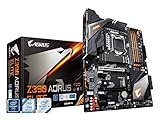
- Supports 9th and 8th Intel Core processors
- Dual Channel Non-ECC Unbuffered DDR4, 4 DIMMs
- Intel Optane Memory Ready
- 12+1 Phases digital VRM solution with DrMOS
- Advanced thermal design with screw mounted heatsinks
Confirm which LEDs are actually stuck
The Z390 AORUS PRO has onboard lighting and separate headers for external LED strips. Identify the physical source before changing more settings:
Do these 3 things before closing this tab:
1Clear out junk files and repair common Windows errors2Scan for outdated or missing drivers - takes under a minute3Repair Windows errors before they cause bigger problems- Onboard lighting: LEDs integrated into the motherboard, such as lighting around the board or heatsinks.
- Attached strip: a separate light strip connected to one of the board’s RGB or digital LED headers.
The manual documents both regular RGB and digital LED-strip headers. Those headers explain how accessories are connected; buying or adding a strip will not repair onboard LEDs that are stuck.
Rank #3

- Supports 9th and 8th Intel Core processors
- Dual channel non ECC unbuffered DDR4, 4 DIMMs
- Intel optane memory ready
- 12+1 Phases digital VRM solution with DrMOS
- Advanced thermal design with direct touch heat pipe
Use RGB Fusion for supported lighting
Gigabyte documents RGB Fusion, including RGB Fusion 2.0, as the software path for customizing lighting on supported motherboards and peripherals. In Windows, use it to select the motherboard lighting region and choose an effect or fixed color, then apply the change.
If RGB Fusion can change the color or mode while the PC is on, the software path is functioning at least partially. If it cannot detect the board, changes do not apply, or the LEDs remain fixed despite the BIOS settings, do not assume another reinstall will cure the problem. The documentation establishes the intended control path, not a guarantee that software can recover a hardware or firmware failure.
Rank #4
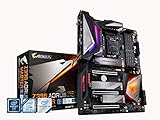
- Supports 9th and 8th Intel Core processors
- Dual Channel Non ECC Unbuffered DDR4, 4 DIMMs
- Intel Optane Memory Ready. I/O Controller is iTE I/O Controller Chip
- 12 phases IR digital VRM solution with power stage
- Advanced thermal design with Fins Array heatsink and direct touch Heat pipe
A practical diagnostic sequence
- Record the symptom: note the exact color, whether it is constant, and whether it appears on the motherboard, a strip, or both.
- Test system-on lighting: in BIOS, change LEDs in System Power On State, save, boot and observe.
- Test shutdown lighting: configure LEDs in Sleep, Hibernation, and Soft Off States, shut down fully, and observe again.
- Check the physical source: disconnect power before inspecting headers, and distinguish onboard LEDs from an attached strip. Do not move a strip between regular-RGB and digital headers; they are different connection types.
- Test RGB Fusion once the source is known: select the motherboard or the relevant supported device, change both color and effect, and apply.
- Compare results across states: document whether each control affects running, sleep/hibernate, and soft-off states. This prevents treating a setting that only affects S5 as a fix for system-on lighting.
| Control or action | Lighting state affected | Where it applies | What a failure suggests |
|---|---|---|---|
| LEDs in System Power On State | PC running | BIOS/UEFI; onboard lighting | Persistent fixed lighting after changing it points beyond a simple Windows setting. |
| LEDs in Sleep, Hibernation, and Soft Off States | S3/S4/S5 | BIOS/UEFI; onboard lighting | Lights after shutdown can be expected if this option permits them. |
| RGB Fusion | Primarily active-system customization | Windows software; supported motherboard regions and peripherals | No response may indicate detection, firmware or hardware trouble; reinstalling is not proof of a fix. |
| RGB or digital LED header | Depends on the attached strip and its configuration | External accessory | A header or strip issue does not diagnose stuck onboard LEDs. |
When to suspect a motherboard fault
Consider a hardware or firmware fault only after the two BIOS state controls, the physical source, and RGB Fusion behavior have been checked. Useful evidence includes onboard LEDs that ignore both BIOS settings, a fixed color that never changes with RGB Fusion, or lighting that behaves differently from the documented controls while an attached strip works normally.
A Tom’s Hardware cross-post contains one user’s report that replacing the motherboard solved a similar symptom. That is an anecdotal outcome, not proof that the original Z390 AORUS PRO was defective and not a failure-rate statistic. Replacement is therefore a last-resort, conditional option: back up data, verify the replacement is electrically and physically compatible, and confirm warranty or retailer support before purchasing. Current stock and pricing are not established here.
Quick Recap
What not to conclude
- LEDs visible after shutdown do not, by themselves, prove that RGB Fusion is broken.
- A BIOS reset or update that changed nothing does not prove the board is healthy or faulty.
- An external LED-strip header is not a repair for onboard lighting.
- The single replacement report does not establish a general solution for every Z390 AORUS PRO.
Product prices and availability are accurate as of the date/time indicated and are subject to change. Any price and availability information displayed on Amazon at the time of purchase will apply.

