
iTechGuides is reader-supported. When you buy through links on our site, we may earn an affiliate commission. As an Amazon Associate I earn from qualifying purchases. Learn more
If a monitor’s power button is stuck in the on position, the screen may still work—but you can no longer use that button to switch it off or restart it. In a November 2008 AnandTech Forums thread, a Dell 2407FPW owner described a spring-loaded button that stayed depressed after about 18 months. Other users suggested the external button had rotated out of alignment with the internal switch. That explanation and the tape workaround were forum reports, not an official Dell diagnosis or a guaranteed repair.
What happened to the Dell 2407FPW?
The thread starter identified the monitor as a Dell 2407FPW; later replies often referred to the 2407WFP. The discussion began on November 28, 2008, and describes one owner’s experience—not a measured failure rate or proof of a model-wide defect. Read the original AnandTech discussion.
The owner said the spring-loaded power button had only about 1 mm of travel and stopped popping back out. It remained physically depressed, although the monitor was still on. The other monitor buttons continued to work. Pressing, prying, and twisting did not initially solve it.
What’s actually slowing this PC down?
Pick the symptom - the matching free tool is one click away.
Why “stuck on” is fortunate—and inconvenient
The display may remain usable if it is otherwise stable, but a failed power button removes the normal way to switch it off or power-cycle it from the front panel. That can be inconvenient when troubleshooting standby or input problems, or when you prefer not to leave the monitor powered or in standby. The original owner said they usually turned it off and believed that used less electricity than standby; the thread gives no power measurements, so it does not establish the difference for this monitor.
#1 Best Overall
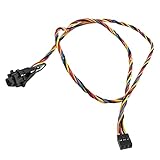
- 100% Brand new and high quality
- Cable as the picture
- Easy for you replace your faulty,cracked or broken one ,seller remind that you should replace this in the off state.
- We have more than 10,000 inventory of this item, please feel free to contact us if you need to place bulk order.
- Special skills and techniques required for proper installation.
Could the button be misaligned rather than electrically failed?
A later participant in the thread proposed that the external plastic button had rotated out of alignment with the internal switch. That user reported that carefully rotating it back could restore operation, and that tape could help keep it aligned. Other participants described similar symptoms on Dell 2407WFP and 2001FP displays. These are anecdotal reports, not an official Dell finding or evidence that all monitors of those models share the same fault.
Several different problems can feel like a “broken power button”:
- Misaligned external button: The cap may no longer line up with the switch it is meant to press.
- Broken plastic actuator: The button may be cracked, loose, or unable to transfer pressure.
- Damaged internal switch: The button may move normally but fail to trigger the monitor.
- Control-board or power fault: A detached control assembly or a separate electronics problem can also prevent normal operation.
The forum diagnosis cannot determine which fault is present in a different monitor. A button that feels normal but has no effect, for example, does not establish the same rotating-button problem.
The Tool Desk
Outbyte PC Repair FREERepair Windows errors before they cause bigger problemsFix Now →Outbyte Driver Updater FREEScan for outdated or missing drivers - takes under a minuteDriver Scan →Rank #2

- 【Unique】Compatible with Dell Inspiron 15 5551 5552 5555 5566 5758 5558 5559 14-5455 5458 Vostro 3558 3458
- 【P/N】94MFG 094MFG LS-B844P
- 【Package】Include 1X Power Button Switch Board,come with cable
What to do before trying a fix
- Stop forcing it. Repeated hard pressing, prying, or twisting can damage the bezel, actuator, or internal switch.
- Check support options before opening the monitor. Look up the purchase date and any remaining seller or manufacturer coverage. Warranty comments in a 2008 thread do not establish current Dell policy.
- Record what you see. Note the model, whether the button is visibly rotated or stuck, whether other buttons work, and whether the display stays on reliably. A photo may help when contacting support.
- Watch for electrical warning signs. If there is unusual heat, a burning smell, smoke, sparking, buzzing, flickering, or repeated power cycling, stop using it and arrange qualified service or replacement.
When gentle external realignment may help
If the external button is visibly rotated and the monitor has no other symptoms, the thread’s least invasive proposed fix was to rotate the button back into alignment and secure it lightly with clear or masking tape. Some users said this helped their units, but it is an improvised workaround—not a manufacturer-approved repair, and not a solution for a broken actuator or switch.
- Work only from the outside and use gentle pressure; stop if the button resists or appears cracked.
- After realignment, check that it is not being held continuously in the pressed position.
- If using tape, apply only enough to discourage rotation. Keep it clear of vents, labels, neighboring controls, and openings.
- Do not tape the button down. If the button is loose, hot, damaged, or accompanied by electrical symptoms, do not attempt this workaround.
Ways to control the monitor without its button
Let the computer turn off the display
If you only need the screen to go dark when idle, use the computer’s display-sleep settings and leave the monitor’s power control alone. This does not restore the ability to switch the monitor off or restart it with its front button.
Use a switched power strip or outlet switch
A switched strip can cut power without touching the monitor’s button, and the original discussion mentioned this as a workaround. Use it for the monitor alone where practical; switching off a strip that also powers other devices will cut power to those devices too. Removing power is not the same as using the monitor’s normal controls, so consider whether connected equipment or your use case requires standby.
Rank #3

- 100% Brand new and high quality.
- 6 Months Quality Warranty
- Special skill and techniques required proper installation. Please check both the models and pictures before purchasing.
- Compatible part #‘s:500GM 0500GM
- Compatible Model:For Dell Inspiron 3880 3891 OptiPlex 5080 7071 XPS 8940
Test a smart plug before relying on it
A smart plug is useful only if the monitor returns to a usable state after power is restored. Test that behavior while you can still operate the monitor normally; some displays may remain in standby rather than turn on automatically. Do not assume the Dell 2407FPW supports automatic restart based on the forum discussion.
Do these 3 things before closing this tab:
1Clear out junk files and repair common Windows errors2Fix the driver behind crashes, sound loss and screen glitches3Repair Windows errors before they cause bigger problemsCheck for supported external controls
Use a remote or another external control only if the particular monitor supports it. A separate user’s report about an Acer model in the thread does not establish remote-control support on the Dell.
Independent reader supportYour contribution helps us test, update, and keep practical guides available for everyone.When repair or replacement makes more sense
Contact the seller or Dell first if the monitor may still be covered. The thread contains one user’s account of receiving a replacement monitor through warranty service, but that is an individual historical outcome—not a promise of current coverage or replacement.
Rank #4

- Compatible with Dell Optiplex 7070 7060 7050 7040 5070 5060 5055 5050 5040 3040 3050 3060 3070 3046 TOWER Desktop Series.
- NOTE*: NOT fits for Optiplex 7000 5000 3000 Small/Micro Form Factor Desktop Series and Optiplex 5080 5090 7080 Tower Desktop Series.
- D P/N: 4M0RP, 04M0RP; Connector of motherboard: 5-pin FFC Wire-to-board
- Connect the power switch cable to the connector on the system board, If it is broken, the Desktop will not receive the signal to boot up.
- Each Pack come with: 1x Front Power button Switch cable. (Cable overall Length approx: 7.40-inches / 18.50 cm)
If the fault appears internal, have a qualified electronics technician assess it rather than opening the monitor as a routine fix. Monitors can retain hazardous voltages, especially around the power-supply section and capacitors, even after unplugging. The forum’s suggestions to open the display or replace a switch are informal comments, not safe instructions for an untrained repair.
For an older monitor, compare the likely repair cost and inconvenience with replacement. If it has other faults, shows electrical warning signs, or would require work on the power section, continued use or a DIY repair may not be worth the risk.
Free tools Windows power users keep installed
One-click scans. No signup required.
Quick Recap
Product prices and availability are accurate as of the date/time indicated and are subject to change. Any price and availability information displayed on Amazon at the time of purchase will apply.

