
iTechGuides is reader-supported. When you buy through links on our site, we may earn an affiliate commission. As an Amazon Associate I earn from qualifying purchases. Learn more
You can build an Android app that captures microphone audio, processes it, and plays it back through headphones in close to real time. The delay you hear, though, is not set by your processing code alone. It is the sum of the microphone input path, your app’s processing time, and the output path, and each part depends on the specific phone, its Android build, and the route the audio takes. Low-latency settings in Oboe or AAudio are requests and optimizations, not guarantees. The steps below show how to build the path, what the official Android guidance says to expect, and how to measure what your own device actually does.
What “amplifier” means in this project
In this context, an “amplifier” is a live microphone monitor: sound enters through a microphone, your code can change it (gain, filtering, effects), and the result goes out to a headset or another output. Volume gain is only one of the things you can do to the signal. The harder engineering problem is keeping the delay between speaking and hearing yourself short enough to feel natural.
Where the delay comes from
Android’s audio latency documentation measures monitoring delay as a round trip. It includes three parts that you should treat separately when you design and debug the app:
Free tools Windows power users keep installed
One-click scans. No signup required.
- Microphone input latency: the time from sound reaching the microphone to samples arriving in your app.
- App processing time: the time your callback takes to process each block of samples.
- Output latency: the time from your app handing samples to the output stream until sound leaves the headphones.
Startup warmup latency is a different concept. It is the delay before a stream first begins delivering audio and does not describe the steady-state delay during monitoring, so do not mix the two when you report numbers.
#1 Best Overall
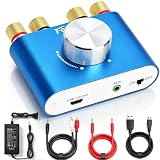
- 【Upgraded Chip for Higher Output Power】-- Here is Facmogu's new power amplifier. Based on the previous design, we enhanced its output power while still keeping its mini compact size and sleek appearance. The NEW F900S Bluetooth Amplifier provides 50Wx2 dual channel stereo output with the Upgraded Chip TPA3116, which is more powerful! Impedance: 4~8 Ohm.
- 【Truly Amplified Your Music Experience】-- This little powerhouse delivers crystal-clear stereo sound that belies its size. The 50W+50W 2 channels fill your space with rich, high-fidelity tunes, effortlessly streaming via Bluetooth from devices or connected through the handy AUX/USB inputs. Don’t let its size fool you. It has a high quality feel and sounds wonderful. The small size means you can tuck it right under one monitor, leaving the volume control handy and taking no desk space.
- 【User-friendly 3 Inputs Optional】-- With Bluetooth 5.0 / USB / 3.5mm AUX audio cable input, compatible with most common audio device such as phone, tablet, computer, TV, CD player, etc. Bluetooth 5.0 wireless input achieves faster and more stable transmission, USB input plug and play, no need for any driver. The connectors on the back work with both spliced cables or banana plugs. Equipped with complete accessories, you can enjoy its powerful function at once when you receive it.
- 【Compact & Versatile for Various Scenarios】 -- Small footprint makes it easy to fit in tight spaces. Ideal for racing simulators, desktop setups, RVs, workshops, or garages, pairs well with bookshelf speakers or other passive speakers for a clean, space-saving audio solution.
- 【Note & Packing Included】 -- NOT compatible with Amazon Echo, Alexa, etc. Mode switch has "USB mode"/"Bluetooth mode" voice announcement; power-on sound cannot be changed. Package includes: 1 x F900S Amplifier, 1 x DC12V 5A Power Adapter, 1 x USB Cable, 1 x 3.5mm AUX Cable, 1 x RCA to 3.5mm AUX Cable.
Several other factors affect the total:
- The route: built-in microphone, wired headset, USB audio, or Bluetooth each create a different path, and their delays are not interchangeable.
- Separate clocks: the microphone and the output hardware can run on different audio clocks. Even when both report 48 kHz, they may drift relative to each other, so a buffer that works today can slowly fill or drain.
- Device and build: results differ by phone model and Android version, and by manufacturer changes to the audio stack.
Android states that there is currently no API to determine audio latency over any path on an Android device at runtime. Your app therefore cannot read a reliable round-trip figure from the system and display it. You have to measure it, as covered later in this article.
Choose the native audio API
Android recommends Oboe or AAudio for high-performance audio work. Both are C or C++ APIs, so the audio path runs in native code through the Android NDK. The table below compares the options as Android’s documentation describes them.
| Option | Android versions covered | Notes |
|---|---|---|
| Oboe | Uses AAudio on Android 8.1 (API 27) and later; falls back to OpenSL ES on earlier versions it supports | Recommended wrapper. One API across versions, so you do not write the version switch yourself. Android positions it as the cross-version choice. |
| AAudio (direct) | Available from API 26 according to the NDK stable-API page | Gives direct control over streams. Oboe’s switch to AAudio happens at API 27, so do not treat API 26 as the point where Oboe starts using it. You must handle version differences and device workarounds yourself. |
| OpenSL ES | Earlier versions only, as a fallback path | Android does not recommend OpenSL ES for new designs. Use it only if you must support a version that Oboe reaches through this fallback and you have a specific reason to avoid AAudio. |
For most new projects, start with Oboe. Choose direct AAudio if you need stream-level control that the wrapper does not expose, and accept that you will maintain version-specific code.
Quick wins for a faster PC:
Scan for outdated or missing drivers - takes under a minuteDriver Scan →Clear out junk files and repair common Windows errorsFree Scan →Rank #2

- Subwoofer Audio Amplifier Board: 100W+100W Bluetooth 5.0 wireless connection, Bluetooth, USB and AUX audio input, 2.0 channel stereo output, just a little sound distortion. Note: When using AUX mode, please confirm that the Bluetooth connection of this module has been disconnected;
- Treble and Bass Adjustment: This digital Amp board with independent treble and bass adjustment buttons,you can directly adjust the treble and bass through the module, without using the player or speaker;
- Perfect Sound Quality Experience: The audio power subwoofer amplifier module with powerful chip, AM interference suppression function, shielding power inductance, low noise front stage operational amplifier, let you enjoy a more perfect sound quality experience;
- With Protective Function: This Bluetooth Amp module is designed with over-voltage protection, under-voltage protection, over-heat protection, short-circuit protection, with case to protective it;
- Easy Installation and Use: The illustration of each interface is printed on the protective plate, making it easy to install and use even without instructions. Small size: 4.4 in*2.75 in*0.78 in, easy to carry;
Build the monitor path step by step
- Set up the native project. Add the Oboe library to an NDK-enabled project, or pull it in through your build system. Keep the audio code in C++ and call it from Kotlin or Java only for start, stop, and parameter changes.
- Create an input stream for the microphone. Use an Oboe
AudioStreamBuilder, callsetDirection(oboe::Direction::Input), and set the channel count and format you plan to process. - Create a separate output stream for headphones. Use a second builder with
setDirection(oboe::Direction::Output). Input and output are distinct streams with their own routes and clock behavior, so do not assume one can stand in for the other. - Request the low-latency performance mode on both streams. Call
setPerformanceMode(oboe::PerformanceMode::LowLatency). This is a request. The stream still opens if the device does not honor it, and you should check the result afterward. - Request exclusive sharing, and handle rejection. Call
setSharingMode(oboe::SharingMode::Exclusive)if you want it. The system may not grant exclusive access. After opening each stream, callgetSharingMode()on the stream and fall back to the shared path if the request was not granted. Do not build your user-facing latency claims on exclusive mode. - Choose the sample rate. Android’s guidance is to use the device’s natural rate, which is almost always 48 kHz on current hardware, or to let Oboe perform sample-rate conversion if you need another rate. If you leave the rate unset, the stream uses the device’s native rate.
- Connect the two streams with a buffer. The microphone callback writes samples into a FIFO, and the output callback reads from it. Use a lock-free queue, because the callbacks cannot wait on a mutex. Track the fill level of the FIFO. Because the two clocks may drift, a fill level that slowly grows or shrinks is a sign that you need to adjust the buffering, not that your processing is wrong.
- Do the processing inside the callbacks. Apply gain or filtering to the samples in the output or FIFO path, keeping per-block work small and predictable.
- Start both streams and verify the result. Call
requestStart()on each stream, then read back the sharing mode, buffer size, and sample rate that each stream actually received.
Keep the audio callback real-time safe
The data callback runs on a high-priority thread and has a fixed deadline. If it misses that deadline, the output buffer runs dry and you hear a click or dropout. Android’s Oboe guidance lists operations to keep out of the callback:
- Memory allocation and freeing, including containers that grow during processing.
- File access and network access.
- Waiting on a lock or mutex.
- Sleeping or any blocking call.
- Heavy one-time calculations, such as building large filter tables, which belong in the setup phase.
Prepare everything the callback needs before you start the streams. Pass changes to gain or filter settings through atomic variables or a lock-free message queue, and let the callback pick them up at the start of its next block.
Tune the buffer size without causing glitches
Buffer size controls the trade-off between delay and glitch resistance. Smaller buffers lower the delay but leave less time for each callback to finish. Android’s Oboe guidance describes two bursts as a stable starting buffer size. A burst is the number of frames the device’s audio path delivers in one unit, and Oboe exposes it so you can size the buffer relative to it.
Rank #3

- Parameters: DROK audio amplifier board working voltage is DC 5V, output power is 5W (2Ω 5V)/3W (4Ω 5V) / 1.8W (8Ω 5V). Input method is monaural input.
- Artificial Material: this New-designed mini power amplifier is made of noble black immersion gold circuit board, imported KEMET speaker capacitor, large-capacity filter capacitor for channels. Besides, we customized black copper terminal blocks and gold-plated audio input terminal blocks for this new amplifier module.
- High Performance: the digital amplifier module is with high efficiency of over 90%, general harmonic distortion noise is less than 10%, low quiescent current and noise suppression.
- Safe Protection: the class D dual-channel amp board is designed with input reverse connection protection, short circuit protection, over heat protection; what's more, EMI is allowed to pass.
- Additional Function: it is available to connect amplifier type to choose different function (MODE: high electricity level is Type D, low electricity level is Type AB. Factory defaults high electricity level); available to add an external Shutdown (SD: the chip will be Shutdown at low electricity level, factory default high electricity level.
Use this procedure:
- Open the stream and set the buffer size to two bursts, or leave the default and read back the value the stream reports.
- Run the monitor path with the processing you intend to ship, at the real playback volume.
- Reduce the buffer in small steps only if the result is still glitch-free, and stop as soon as underruns appear.
- If underruns appear, raise the buffer size one step. A buffer that is too small is the most common cause of crackling in these apps.
Test each change on the phone and route you care about. A buffer size that is stable on one device can underrun on another.
Crashes, No Sound, or Screen Glitches?
Random freezes, missing sound and display glitches usually trace back to one bad driver. Find and replace yours safely.Free scan · under a minuteWindows Errors? Fix Them Before They Spread
Repair common Windows errors and clear accumulated junk for a smoother, more stable PC - no reinstall needed.Free scan · no reinstallTroubleshooting
- Crackling or dropouts: check that no allocation, file, network, lock, or sleep call runs in a callback. Then raise the buffer size one step. If the processing is heavy, simplify it or move the expensive setup out of the callback.
- Delay is much higher than expected: confirm that the performance mode was granted and that the sharing mode is what you expected. Then check whether the route changed, for example from wired headset to Bluetooth, and measure again on that route.
- Delay drifts or the FIFO slowly fills or empties: this is a clock mismatch between the microphone and output hardware. Add a simple rate-correction step or resize the FIFO adjustment logic, and do not treat it as a processing bug.
- Behavior differs across phones: this is expected. Test on each target model and Android build, and record the results per combination.
Published figures and what they mean
Android’s documentation includes example measurements and thresholds. They help you set expectations, but none of them guarantees the result on your device. The table lists each figure with the conditions under which it was published.
| Figure | Round-trip or output value | Conditions and qualification | Source |
|---|---|---|---|
| Example with OboeTester following all listed recommendations | 20 ms round-trip | A test-table example, not a promised phone result. Android notes that results can vary greatly between devices. | Android Developers, “Low latency audio”; no publication year shown on the page |
| Example without low-latency performance mode | 205 ms round-trip | Same test family, with the low-latency mode turned off. | Android Developers, “Low latency audio”; no publication year shown |
| Example where sharing is not exclusive | 26 ms round-trip | Exclusive mode is a request the system may not grant, so this example does not establish that exclusive access is available. | Android Developers, “Low latency audio”; no publication year shown |
| AAudio at 44.1 kHz in the example | 160 ms round-trip | Specific test-table outcome for that configuration, not a general rule. | Android Developers, “Low latency audio”; no publication year shown |
| Oboe sample-rate conversion at 44.1 kHz in the example | 23 ms round-trip | Specific test-table outcome for that configuration, not a general rule. The comparison with the 160 ms AAudio case shows how much the configuration matters. | Android Developers, “Low latency audio”; no publication year shown |
| Compatibility Definition Document threshold, as described in the latency guide | 20 ms or lower round-trip | A contextual threshold cited in Android’s latency guide, not a guarantee for arbitrary phones or routes. | Android Developers, “Audio latency”; year of the guide not stated |
| Musician expectation, as described in the latency guide | 10 ms | The guide says musicians generally require about 10 ms. It is a target for context, not a measured result. | Android Developers, “Audio latency”; year not stated |
android.hardware.audio.low_latency feature flag |
45 ms or less continuous output latency | A hardware feature declaration, not a runtime measurement of the active route. | Android Developers, “Audio latency”; year not stated |
android.hardware.audio.pro feature flag |
20 ms or less continuous round-trip latency | A hardware feature declaration, not a runtime measurement of the active route. | Android Developers, “Audio latency”; year not stated |
Use the feature flags to filter devices if your app depends on a specific class of hardware, and use your own measurements to decide whether a particular phone and route meet your needs.
Rank #4

- Versatile Entry-Level: The Fosi Audio Q4 is an entry-level DAC and headphone amp, featuring USB, Optical, and Coaxial inputs, plus RCA and 3.5mm outputs. It drives headphones from 16Ω to 200Ω, enhances audio quality, and connects to speakers or amplifiers
- Plug-and-Play Convenience: Instant HiFi audio with no driver installation. Connect to TVs, computers, speaker systems, or DVD players. Compact design fits anywhere, offering ultimate audio freedom
- Bass and Treble Controls: Adjustable bass and treble knobs for fine-tuning sound. Natural feel with smooth volume adjustment. High-quality metal knobs for a premium experience. Optimize audio for any source
- Compact and High-Quality: Compact DAC converter with full metallic shell. Supports 24-bit/192kHz HD audio with low jitter. Includes output protection circuit for system safety
- Complete Accessories: Includes USB charging cable, optical cable, and PC-USB to Type-B cable. Ensures hassle-free setup and immediate use. Seamless connectivity for various devices. (Note: No microphone input.)
Measure the whole route on the device you target
Android’s documentation describes a round-trip measurement method. Generate a known signal, play it through the output, capture it through the microphone, and measure the elapsed time between the two. To measure the input and output paths separately, you need a timing reference that is independent of the app, such as a test circuit and an oscilloscope.
- Choose one phone, one Android build, one microphone, and one output route. Write them down.
- Run your monitor path with the settings you plan to ship, including the buffer size and sample rate that you ended up with.
- Generate a short click or tone at a known time, and record the time it appears on the input and the output.
- Repeat the measurement several times and record the spread, not only the best value.
- Repeat for each route you intend to support, such as wired headset and Bluetooth, and for each device model you intend to support.
Report the results with their conditions. A round-trip figure without the device, build, route, buffer size, and sharing mode is not useful to another developer.
The Tool Desk
Outbyte Driver Updater FREEScan for outdated or missing drivers - takes under a minuteDriver Scan →Outbyte PC Repair FREERepair Windows errors before they cause bigger problemsFix Now →Headphones and routes
Android’s latency guidance recommends a headset for input monitoring, because a wired headset keeps your ears from hearing the room directly through speakers and creates a feedback loop with the microphone. Headphones are a sound choice for a monitor app. They do not, by themselves, eliminate latency. The processing path and the endpoint still determine the result, and Android’s documentation does not certify any particular headset or adapter as a low-latency option.
Best Value
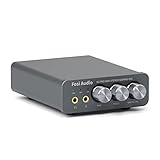
- The upgraded version of Fosi Audio Q4 adds microphone function, K5 Pro headphone DAC amp combo, next-generation audio converter with unrivaled internals, more outstanding performance, and richer audio details. Born for Gaming. K5 Pro stereo DAC headphone amplifier is perfect for your home gaming system, equivalent to an external sound card, suitable for PS5/Computers/PC/MAC/active speakers, etc
- K5 Pro USB DAC converts USB Type C/Optical/Coaxial signals to 3.5MM AUX and RCA signals with low distortion and great dynamic range. Unique design: 2-in-1 USB Type C interface charging port and audio input means K5 Pro is compatible with your phones(Note: Your audio source must be connected to the USB-A/C port.). RCA output can be connected to an amplifier or powered speakers on your desktop. 3.5 MM AUX and microphone interface can drive 16 Ohm to 300 Ohm headphones
- K5 Pro headphone DAC adopts the Texas Instruments NE5532 op-amp chip. The circuit design implementing this DAC has been optimized for a low-noise floor and clean sound. K5 Pro has noticeably improved on overall sound quality, so you can get immersed in your music even more easily. Volume button and on button are combined into one, long press to switch on
- Product Specifications: K5 Pro with master volume/bass/treble control and input mode switch. USB Type C rate: up to 24 bit/96 kHz, Optical/Coaxial sampling rate: up to 24 bit/192 kHz, THD ≤0.003%, SNR ≥110dB. Output power: 1000mw@16Ω, 500mw@32Ω, 300mw@64Ω, 150mw@128Ω, 80mw@300Ω
- What You Get: K5 Pro DAC amp x1, 3.5MM headphone splitter x1, 2-in-1 USB Type A/C to Type C cable x1, User Manual x1, Optical Cable x1
If you add a USB audio device or a wireless headset, treat it as a different route and measure it separately. Do not assume that a route measured on one accessory applies to another.
The Bottom Line
Build the monitor with Oboe, request low-latency performance and exclusive sharing while handling rejection, keep the callbacks free of blocking work, and tune the buffer upward from a stable starting point. Then measure the complete route on each phone and output you support. The published Android figures show what is possible under specific test conditions, but they are not promises for your device.
Quick Recap
Product prices and availability are accurate as of the date/time indicated and are subject to change. Any price and availability information displayed on Amazon at the time of purchase will apply.
Do these 3 things before closing this tab:
1Fix the driver behind crashes, sound loss and screen glitches2Clear out junk files and repair common Windows errors3Scan for outdated or missing drivers - takes under a minute
