
The Tool Desk
Outbyte Driver Updater FREEScan for outdated or missing drivers - takes under a minuteDriver Scan →Outbyte PC Repair FREERepair Windows errors before they cause bigger problemsFix Now →iTechGuides is reader-supported. When you buy through links on our site, we may earn an affiliate commission. As an Amazon Associate I earn from qualifying purchases. Learn more
First determine whether the monitor is losing power or merely losing its video signal. If the power LED goes dark and the on-screen display (OSD) will not open, start with the outlet, cord, adapter, switch, and monitor hardware. If the LED stays lit, turns amber, or shows “No Signal,” the monitor is usually powered; check the computer, input selection, cable, GPU, sleep settings, and display mode. Unplug the monitor and stop testing if you smell burning, see smoke or arcing, hear abnormal buzzing, or notice dangerous heat.
Identify what “shutting off” means
| What you see | Most likely area |
|---|---|
| Power LED is completely dark; OSD does not appear | Outlet, power cord, adapter, switch, or monitor hardware |
| Screen is black but LED remains on | Computer sleep, lost signal, cable, input, GPU, or display settings |
| LED is amber/orange | Standby or no signal on many ASUS models |
| “No Signal,” followed by standby | Computer, GPU output, cable, dock, or selected input |
| ASUS logo appears, then the image disappears | Signal negotiation, unsupported settings, firmware, power circuitry, or hardware |
| Shuts off only during games or at high refresh rates | GPU driver, cable bandwidth, VRR/high-refresh compatibility, heat, or power instability |
| Shuts off after a fixed idle period | Operating-system display timeout or monitor standby |
| Turns off and immediately restarts | Power instability, cable/port negotiation, overheating, firmware, or hardware |
| OSD also disappears | Monitor power delivery or internal hardware rather than the PC signal |
LED colors are not universal across ASUS families, and OLED models can use different indications. Check your exact manual; ASUS’s general guidance is at ASUS monitor no-display troubleshooting.
The decisive five-minute isolation test
- Turn the monitor on and note the LED and any message.
- Disconnect HDMI, DisplayPort, USB-C video, and every other signal cable.
- Open the monitor’s OSD/menu using its controls.
- Leave it powered for several minutes.
- Reconnect only one known-good video source after the test.
- OSD remains visible with no signal: the monitor has power and its basic display electronics are operating. Investigate the computer, cable, input, dock, or display settings.
- OSD stays visible but the computer image vanishes: this is signal loss, not a complete monitor shutdown.
- OSD disappears and the LED goes out: investigate power delivery or monitor hardware.
Quick, low-risk checks
- Wake the computer with a key or mouse movement. A locked, sleeping, or hibernating computer can leave the monitor black while the monitor itself is fine.
- Reseat the monitor’s power cord at both ends. For an external brick, reseat the low-voltage connector and check whether its indicator is lit.
- Try a different wall outlet. Temporarily bypass an extension lead, surge protector, smart plug, or UPS.
- Reseat the video cable, select the matching HDMI, DisplayPort, or USB-C input manually, and disconnect extra displays.
- Remove docks, KVMs, adapters, capture devices, and daisy-chain components while testing.
Check power delivery safely
Use a known-good cord only when its connector and electrical rating match the original. Inspect for bent pins, damaged insulation, discoloration, a loose barrel plug, or a connector that cuts out when the monitor is moved. Never choose an AC adapter merely because its plug fits: voltage, polarity, current capacity, and connector dimensions must match the ASUS specification.
PC Slower Than It Used to Be?
A free scan shows the junk files, broken settings and background clutter dragging Windows down - then fixes them in one click.Free scan · Windows 10 & 11Outdated Drivers Are Slowing You Down
One free scan finds every outdated or missing driver and matches the right update for your exact hardware.Free scan · exact hardware matchASUS states that its LCD monitors support AC 100–240 V, but regional plugs and cords still matter. A portable USB-C display may need its own power source. USB-C video requires a video-capable implementation such as DisplayPort Alt Mode; some DisplayLink models require a driver, and a laptop’s USB-C port may provide charging or data without video. See ASUS’s model-specific guidance at ASUS support.
#1 Best Overall

- 27-Inch Full HD IPS Panel: Enjoy vivid colors and wide viewing angles for work or movies. This 27 inch monitor is a 1080p computer monitor and IPS desktop display for everyday clarity
- 120Hz Refresh Rate & 1ms MPRT: Experience buttery-smooth web scrolling and blur-free action. This 120Hz gaming monitor features a fast 1ms response time, giving you an upgraded PC gaming screen experience
- ASUS Eye Care Technology: Reduce eye strain during long hours of work or play. TV Rheinland-certified filters make this flicker-free eye care monitor suitable for home office setups
- Adaptive-Sync (VRR) Technology: Eliminate screen tearing and choppy frame rates for distraction-free use. This VRR display acts as a brilliantly smooth gaming monitor for any PC gaming setup
- Frameless Edge-to-Edge Design: Maximize desk space with a sleek, modern look. This VESA mount compatible frameless monitor works well for creating a seamless dual monitor setup
Eliminate cables, ports, and input selection
- Reseat the cable at the monitor and computer.
- Inspect both connectors for damage or obstruction.
- Choose the input that matches the connected port.
- Try a known-good cable of the same type.
- Try another monitor input and another graphics-card output.
- Cross-test HDMI and DisplayPort when available.
- Use one video source only.
HDMI is often a useful compatibility test. DisplayPort may be necessary for certain high-refresh, adaptive-sync, or resolution combinations, but a marginal cable or link negotiation can look like a shutdown. Switching interfaces is diagnostic, not proof that one standard is inherently defective. USB-C cables are particularly variable, so verify video capability rather than relying on the connector shape.
Check computer sleep and display timeouts
Distinguish the computer turning off its display from the monitor losing AC power. Review the display-off and sleep timers in Windows or macOS, laptop lid-close behavior, and any corporate power-management policy. A screen saver is not the same as a display-power timeout. If the PC remains responsive when you wake it, the monitor likely entered standby rather than failing.
Review ASUS monitor settings
If the OSD works, inspect sections named System Setup, Power, or Setup. Temporarily test with relevant options such as auto standby, eco or power-saving mode, DisplayPort deep sleep, auto input switching, ambient/proximity features, or a configured signal timeout disabled. Names and locations differ among Eye Care, TUF Gaming, ROG, ProArt, and ZenScreen models, so do not assume an option exists on every display.
Recommended Free Tools
Rank #2

- 24" Full HD IPS Display: Enjoy crisp 1080p visuals and wide 178 viewing angles for work, study, streaming, and daily use
- 99% sRGB Frameless Panel: See vivid, consistent color with a slim modern design for home office, dorm, or dual monitor setups
- 120Hz Smooth Motion: Experience smoother scrolling, video, and casual gaming with a fast refresh rate that helps reduce choppy motion
- 1ms MPRT Adaptive-Sync: Reduce blur, screen tearing, and stutter for smoother gameplay, movies, and everyday entertainment
- ASUS Eye Care Technology: TV-certified Flicker-Free and Low Blue Light help support comfortable viewing during long sessions
Reset the monitor
Record your refresh rate, HDR, picture mode, color profile, input, adaptive-sync, and overdrive settings. Then use the model’s Reset, Restore, or Factory Reset command. ASUS’s example path is Menu → System Setup → Restore factory mode (Reset) → Yes; it is not a universal path. Test afterward with one computer, one cable, and one input.
When resolution, HDR, or refresh rate triggers the failure
- Return to a supported resolution and 60 Hz.
- Temporarily disable HDR and G-SYNC, FreeSync, or Adaptive-Sync.
- If stable, raise the refresh rate gradually and test after each change.
- Remove adapters or docks that may not support the selected bandwidth.
- If the current mode prevents an image, use Windows Safe Mode or another display to select a conservative mode.
An unsupported mode commonly causes a blank image or signal loss; it does not by itself prove that the monitor’s power supply is defective.
Separate a monitor fault from a computer or GPU fault
- Connect the ASUS monitor to another computer.
- Connect a known-good monitor to the original computer.
- For a desktop with a discrete graphics card, ensure the cable is connected to the intended GPU output, not the motherboard output.
- Confirm the graphics card is seated and its auxiliary power connectors are secure, where applicable.
If the ASUS display fails on multiple computers and with multiple cables, the monitor or its power path becomes more likely. If several monitors fail only on the original computer, investigate its GPU, driver, power supply, motherboard output, dock, or operating system. ASUS’s graphics troubleshooting is documented at ASUS motherboard and display support.
Rank #3
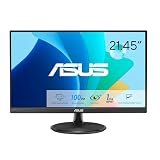
- Full HD Frameless Display: 21.45-inch Full HD (1920x1080) frameless design with 178 wide viewing angle panel
- Smooth Motion Technology: 100Hz refresh rate and 1ms MPRT delivers a seamless, tear-free visual experience by enabling VRR (variable refresh rate)
- DisplayWidget Center Software: ASUS DisplayWidget Center is an app that allows you to tweak monitor settings with a mouse instead of using the buttons on the monitor
- Space-Saving Design: VESA wall-mountable to save on desktop space
- Eye Care Technology: ASUS Eye Care monitors feature TV Rheinland-certified Flicker-free and Low Blue Light technologies to ensure a comfortable viewing experience
Drivers and firmware come after physical tests
Update the GPU driver from the GPU or computer manufacturer when the problem began after a driver change, occurs only in games, or affects one display mode. If ASUS offers firmware for the exact monitor model and revision, follow that model’s instructions and do not interrupt power during the update. Never flash firmware intended for another model or region. A driver cannot restore power to a monitor that fails with every signal cable removed.
Patterns and the most useful interpretation
It turns off only after inactivity
Check operating-system display and sleep timers, laptop lid settings, and monitor standby or eco options. Wake the computer before changing cables.
It turns off during gaming
Test a lower refresh rate, disable HDR and adaptive sync temporarily, try another certified cable, and check GPU temperatures and driver behavior. If the LED goes dark even with no signal cable attached, return to power and hardware testing.
Rank #4

- Display Specifications: 23.8-inch Full HD (1920x1080) frameless design with IPS 178 wide viewing angle panel
- Smooth Motion Performance: 120Hz refresh rate and 1ms MPRT delivers a seamless, tear-free visual experience by enabling VRR (variable refresh rate)
- Connectivity Options: Rich connectivity features HDMI and VGA, plus earphone jack
- Space-Saving Design: VESA wall-mountable to save on desktop space
- Monitor Management Software: ASUS DisplayWidget Center lets users easily change monitor settings via an intuitive interface
It turns off after changing refresh rate
Use Safe Mode or a second display to restore a supported mode, then increase refresh rate in steps. A high-refresh link can expose a weak cable, adapter, dock, or port.
It shows “No Signal”
The monitor is generally powered but cannot detect usable video. Select the correct input, reseat or replace the cable, test another port and computer, and remove intermediary devices.
It turns on briefly, then shuts down or cycles
Test it without any video cable. A repeatable failure after warming up, clicking, or immediate power cycling is consistent with an adapter, overheating, or internal power fault.
Best Value

- High-Resolution QHD Gaming Display: 27-inch QHD (2560 x 1440) gaming monitor with 180Hz refresh rate designed for professional gamers and immersive gameplay
- ASUS Extreme Low Motion Blur Sync Technology: ELMB Sync technology enables ELMB and variable-refresh-rate technologies to work simultaneously to eliminate ghosting and tearing for sharp gaming visuals with high frame rates
- Advanced Synchronization Technologies: FreeSync Premium, G-Sync compatible and AdaptiveSync technology delivers a seamless, tear-free gaming experience by enabling VRR (variable refresh rate) by default
- High Dynamic Range Support: HDR technology supports HDR-10 format to enhance bright and dark areas for improved visual depth and contrast
- Package Contents: DisplayPort cable, L-shaped Screwdriver, Power cord, Power adapter, Quick start guide, Warranty Card
A portable USB-C monitor shuts off
Confirm the USB-C port supports DisplayPort Alt Mode, use a video-capable cable, provide external power where the model requires it, and check whether a DisplayLink driver is needed.
Independent reader supportYour contribution helps us test, update, and keep practical guides available for everyone.When to stop troubleshooting
- The LED goes off with a known-good outlet and correctly rated cable or adapter.
- The OSD cannot remain visible with all signal cables disconnected.
- The same fault follows the monitor to two computers and multiple cables.
- The monitor shuts down after warming up or its adapter becomes unusually hot.
- There is burning odor, smoke, arcing, visible damage, buzzing, or excessive heat.
Do not open the monitor: capacitors and power circuitry can remain hazardous after unplugging. Contact ASUS service instead, especially while the display is under warranty. Have the model, serial number, purchase date, retailer, and a video of the failure ready. ASUS’s serial-number guide is available here, and service escalation starts through ASUS support.
Repair or replace?
Repair or warranty service is the sensible next step when the fault follows the monitor, particularly if it is reproducible without a signal cable. Replacement is more reasonable for an out-of-warranty display when a confirmed repair approaches the cost of a suitable new model. Do not buy a new monitor before the no-signal test and cross-computer test: a defective cable, dock, outlet, GPU, or sleep configuration can make a working display appear dead. ASUS catalog and deal prices vary by region, stock, tax, shipping, and promotion, so treat any listed price as time-sensitive rather than a repair threshold.
Quick Recap
Product prices and availability are accurate as of the date/time indicated and are subject to change. Any price and availability information displayed on Amazon at the time of purchase will apply.

