
iTechGuides is reader-supported. When you buy through links on our site, we may earn an affiliate commission. As an Amazon Associate I earn from qualifying purchases. Learn more
The most important Apple Home privacy review has two parts: configure what each camera records and reports, then verify exactly which people can view cameras, operate locks, or see activity. Camera recording and notifications are separate from per-person viewing rights. Lock access and the lock activity trail are separate again. Work through the settings below after adding or removing a household member, changing an iCloud+ plan, installing a new accessory, or updating the operating system.
Menu names can vary by operating-system version, accessory model, and region. Use the labels shown on your device, and treat the accessory’s own supported features as the final authority.
Start with a privacy inventory
Before changing a setting, list every camera and lock in the Home app and decide what each one should do in three situations:
- When household members are home: Should an indoor camera stop streaming and recording, or should it remain active?
- When everyone is away: Which cameras should record, and which motion types should trigger notifications?
- For other people: Who needs live viewing, recorded clips, remote control, a door code, or no access at all?
This avoids a common mistake: changing a camera’s recording mode without checking who can still view it, or removing a resident without reviewing guest codes and activity visibility.
#1 Best Overall
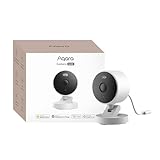
- 2K Clarity Day and Night: The G100 Wi-Fi Camera films in 2304×1296 (3MP) resolution with a 140°FOV and a wide-angle f/1.8 lens for superior image quality. It features two night vision modes: Spotlight Color Night Vision and IR Detection Mode. The spotlight provides illumination in dark, great for color recording outdoors at night. The G100 also includes 940 nm infrared lighting, ensuring covert illumination without alerting potential intruders. (Note: Both Spotlight and IR night vision modes must be manually enabled in the app and do not turn on automatically.)
- Indoor/Outdoor Ready IP65 Protection: With durable, weather-resistant IP65-rated housing, the G100 surveillance camera is both an indoor camera and outdoor security camera, offering reliable home surveillance for flexible indoor or outdoor mounting. Withstands rain, dust, and rugged environments.
- Local and Cloud AI Detection: The G100 surveillance cameras supports local motion and person detection, and the HomeGuardian Plan unlocks cloud-based recognition for pets, vehicles, packages, and faces, with AI event tagging. Integrated Events automatically can be triggered when paired with other Aqara devices (subscription required). It also supports Lens Obstruction Detection, custom audio files, and 2-way audio (Notes: Only in Aqara Home App).
- HomeKit Support & Wide Compatibility: The Aqara G100 Camera provides full support for HomeKit Secure Video (Note:Requires an active iCloud subscription and an Apple Home hub. HomeKit limits resolution to 1080p. When connected to both Apple and Aqara Home, the G100’s resolution in Aqara Home will also be limited to 1080p, but will return to 1296p if HomeKit is disconnected.) The G100 has some of the best third-party ecosystem support on the market, it can stream to Google, Alexa compatible smart displays, and even Home Assistant via the RTSP protocol, making it easier to interact with visitors or check in on loved ones.
- Flexible Storage Methods: Record 24/7 with a microSD (up to 512GB, not included) or NAS. Time-lapse mode compresses 24-hours of footage to 15-second clips (wired connection and microSD card required). Automatically store detected events with end-to-end encryption in the cloud with a HomeGuardian subscription, ensuring protection against data theft and guaranteeing your privacy at home.
How Apple Home camera privacy is divided
Apple Home exposes camera privacy at two distinct levels. The first level controls the camera’s behavior: recording, live streaming, and notifications under different conditions. The second controls people: whether an owner, resident, or other shared user can view streams, view recordings, access the camera remotely, or manage camera settings. Changing one level does not automatically change the other.
HomeKit Secure Video (HKSV) is an additional recording service, not a synonym for every Apple Home camera function. A camera can be compatible with Apple Home yet lack HKSV recording. Verify explicit HKSV support for the camera model you are considering.
Review camera recording and notifications
Open the camera controls
- Open the Home app.
- Open Home Settings.
- Select Cameras & Doorbells.
- Choose a camera and review Activity Notifications and Recording Options separately.
Compatible cameras can notify you about motion. HKSV cameras provide additional conditions, including time, whether the household is home or away, whether a recording is being made, and categories of detected motion. The exact choices shown depend on the camera and the software version.
What’s actually slowing this PC down?
Pick the symptom - the matching free tool is one click away.
Set notifications without assuming recording is enabled
Notification rules tell Home when to alert you; they do not by themselves answer whether clips are retained. Review the camera’s notification conditions and its recording options as two independent decisions. For example, you might allow person notifications while home but disable recording, or record while away and suppress low-value alerts during a busy period.
Motion categories and other conditions are model-dependent. If a control described in Apple’s general documentation is missing, the camera may not support it, or your software version may use a different label.
Choose separate “When Home” and “When Away” recording behavior
In the camera’s Recording Options, inspect the When Home and When Away choices independently. Apple Home uses the device locations of home members to switch between these modes.
- An indoor camera can be set to stop streaming and recording when someone is home while an exterior camera remains active.
- A camera can use a different notification policy at home than it does while everyone is away.
- These are choices, not universal privacy rules; a household may have a legitimate reason to keep an indoor camera active when occupied.
Location-based switching is only as useful as the household’s member list and location settings. Remove former residents and correct stale member accounts before relying on “When Home” and “When Away.”
The Tool Desk
Outbyte Driver Updater FREEFix the driver behind crashes, sound loss and screen glitchesFind Drivers →Outbyte PC Repair FREEClear out junk files and repair common Windows errorsFree Scan →Rank #2

- 2K Clarity Day and Night: The G100 Wi-Fi Camera films in 2304×1296 (3MP) resolution with a 140°FOV and a wide-angle f/1.8 lens for superior image quality. It features two night vision modes: Spotlight Color Night Vision and IR Detection Mode. The spotlight provides illumination in dark, great for color recording outdoors at night. The G100 also includes 940 nm infrared lighting, ensuring covert illumination without alerting potential intruders.
- Indoor/Outdoor Ready IP65 Protection: With durable, weather-resistant IP65-rated housing, the G100 surveillance camera is both an indoor camera and outdoor security camera, offering reliable home surveillance for flexible indoor or outdoor mounting. Withstands rain, dust, and rugged environments.
- Local and Cloud AI Detection: The G100 surveillance cameras supports local motion and person detection, and the HomeGuardian Plan unlocks cloud-based recognition for pets, vehicles, packages, and faces, with AI event tagging. Integrated Events automatically can be triggered when paired with other Aqara devices (subscription required). It also supports Lens Obstruction Detection, custom audio files, and 2-way audio (Notes: Only in Aqara Home App).
- HomeKit Support & Wide Compatibility: The Aqara G100 Camera provides full support for HomeKit Secure Video (Note:Requires an active iCloud subscription and an Apple Home hub. HomeKit limits resolution to 1080p. When connected to both Apple and Aqara Home, the G100’s resolution in Aqara Home will also be limited to 1080p, but will return to 1296p if HomeKit is disconnected.) The G100 has some of the best third-party ecosystem support on the market, it can stream to Google, Alexa compatible smart displays, and even Home Assistant via the RTSP protocol, making it easier to interact with visitors or check in on loved ones.
- Flexible Storage Methods: Record 24/7 with a microSD (up to 512GB, not included) or NAS. Time-lapse mode compresses 24-hours of footage to 15-second clips (wired connection and microSD card required). Automatically store detected events with end-to-end encryption in the cloud with a HomeGuardian subscription, ensuring protection against data theft and guaranteeing your privacy at home. The Aqara Camera G100 requires a power adapter with DC 5V/1A output which is not included in the box. Zigbee2MQTT and comparable third-party USB dongles are not officially supported by Aqara. Full product functionality may be limited or unavailable.
Check who can view each camera
After recording rules, review per-person camera access. Apple documents controls for shared users that can distinguish viewing live streams, viewing recordings, remote access, and camera management. The labels and available permissions can vary by operating system.
- Open Home Settings and review the people listed in the home.
- Open each person’s sharing or camera-access controls.
- For every camera, confirm whether that person can view the live stream.
- Confirm separately whether recordings are visible and whether remote viewing is allowed.
- Remove access for anyone who no longer needs it, rather than assuming a recording-mode change removes their viewing rights.
Perform this check for every camera, especially after adding a family member, ending a tenancy, lending a device, or changing who administers the home. A person who cannot view a particular recording may still have another permission, so inspect each capability rather than relying on a single “camera access” impression.
Understand HomeKit Secure Video storage and limits
Apple says HKSV records clips in an encrypted manner and provides a 10-day activity window when used with iCloud+. Apple’s HomeKit camera security documentation describes an “end-to-end secure and private mechanism to record, analyze and view clips from HomeKit IP cameras without exposing that video content to Apple or any third party.” That is Apple’s documented design claim, not an independent security audit.
| iCloud+ plan | HKSV camera allowance | What the figure means |
|---|---|---|
| 50 GB | 1 camera | Apple’s listed plan limit |
| 200 GB | Up to 5 cameras | Apple’s listed plan limit |
| 2 TB and above | Unlimited cameras | Apple’s listed plan limit |
The 10-day period is an activity window, not a promise that every camera will retain every event for ten full days. Recording availability depends on whether the camera was configured to record, whether an event was detected, and whether the home and network were reachable. Standard Apple Home streaming and HKSV recording are not interchangeable capabilities.
Review video summaries and related processing
For HKSV cameras, Apple provides a home-level control under Home Settings → Apple Intelligence → Summarise Videos, plus controls for individual cameras. Apple’s currently indexed support guidance says video summaries are off by default, while Reduced Notifications is on by default. Defaults and availability can change with software updates, so verify the actual switches on your devices.
Apple describes ordinary camera activity analysis as occurring on home devices, with encrypted camera recordings. For optional video summaries, Apple describes a Private Cloud Compute (PCC) flow in which relevant footage is sent for further analysis, captions return to home devices, and PCC data is permanently deleted. These are Apple’s stated design and privacy claims; they have not been independently audited here.
Summaries are a separate privacy decision from ordinary motion alerts and from a person’s permission to view a camera. If a member should not see a camera, remove that person’s camera access rather than relying on summary settings.
Rank #3
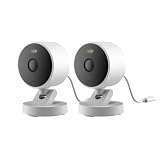
- 2K Clarity Day and Night: The G100 Wi-Fi Camera films in 2304×1296 (3MP) resolution with a 140°FOV and a wide-angle f/1.8 lens for superior image quality. It features two night vision modes: Spotlight Color Night Vision and IR Detection Mode. The spotlight provides illumination in dark, great for color recording outdoors at night. The G100 also includes 940 nm infrared lighting, ensuring covert illumination without alerting potential intruders. (Note: Both Spotlight and IR night vision modes must be manually enabled in the app and do not turn on automatically.)
- Indoor/Outdoor Ready IP65 Protection: With durable, weather-resistant IP65-rated housing, the G100 surveillance camera is both an indoor camera and outdoor security camera, offering reliable home surveillance for flexible indoor or outdoor mounting. Withstands rain, dust, and rugged environments.
- Local and Cloud AI Detection: The G100 surveillance cameras supports local motion and person detection, and the HomeGuardian Plan unlocks cloud-based recognition for pets, vehicles, packages, and faces, with AI event tagging. Integrated Events automatically can be triggered when paired with other Aqara devices (subscription required). It also supports Lens Obstruction Detection, custom audio files, and 2-way audio (Notes: Only in Aqara Home App).
- HomeKit Support & Wide Compatibility: The Aqara G100 Camera provides full support for HomeKit Secure Video (Note:Requires an active iCloud subscription and an Apple Home hub. HomeKit limits resolution to 1080p. When connected to both Apple and Aqara Home, the G100’s resolution in Aqara Home will also be limited to 1080p, but will return to 1296p if HomeKit is disconnected.) The G100 has some of the best third-party ecosystem support on the market, it can stream to Google, Alexa compatible smart displays, and even Home Assistant via the RTSP protocol, making it easier to interact with visitors or check in on loved ones.
- Flexible Storage Methods: Record 24/7 with a microSD (up to 512GB, not included) or NAS. Time-lapse mode compresses 24-hours of footage to 15-second clips (wired connection and microSD card required). Automatically store detected events with end-to-end encryption in the cloud with a HomeGuardian subscription, ensuring protection against data theft and guaranteeing your privacy at home.
Choose camera setups by household need
| Household need | Settings to compare | Question to answer |
|---|---|---|
| Privacy inside the home | Indoor camera’s When Home recording option; per-person viewing rights | Does recording pause when anyone is home, and who can still view the camera? |
| Perimeter awareness | Exterior camera’s When Home and When Away options; motion categories | Should the exterior camera remain active while residents are home? |
| Remote evidence review | Explicit HKSV support; iCloud+ camera allowance; recording options | Will the camera record under the desired conditions and fit the plan limit? |
| Fewer interruptions | Activity Notifications conditions; Reduced Notifications where available | Which events deserve an alert, and which should only be retained? |
Do not infer capabilities from a product’s Apple Home compatibility badge alone. Check for explicit HKSV support, the intended indoor or outdoor placement, recording behavior while home, motion and package/person notification controls, and the number of cameras permitted by the iCloud+ plan.
Recommended Free Tools
Review residents, guests, and smart-lock access
Know the difference between residents and guests
| Access type | Typical scope documented by Apple | Important condition |
|---|---|---|
| Owner or resident | Access to all home accessories, with local and optional remote access | Remote functions require a home hub |
| Guest | Selected doors, locks, and security accessories; can be limited to a schedule and local-only use | Scope is narrower than resident access |
| Guest with a supported lock code | A code can be managed for the selected lock | Not every Home-compatible lock supports access codes |
Review the people list under Home Settings before adjusting individual locks. Remove an obsolete resident account, then inspect guest permissions and codes separately. A guest should not be promoted to resident merely because they need to open one door.
Limit a guest to the doors and times they need
- Open the Home app and go to Home Settings.
- Review the person’s role and identify whether they are a resident or guest.
- For a guest, select only the supported doors, locks, or other security accessories required.
- Set a schedule when the guest should be able to use the accessory, if the lock and software expose scheduling.
- Keep access local-only when remote operation is unnecessary.
- If the lock supports codes, open Accessory Settings → Manage Access and inspect the guest’s code and selected-lock access.
Apple requires a home hub for remote and guest access features. Local-only guest access is narrower, but it still depends on the lock’s supported Home controls. Use the lock’s actual Manage Access screen as the source of truth because access-code support is not universal among Home-compatible locks.
Understand the lock activity trail
Open Home Settings → Activity to review Activity History. Apple documents smart-accessory history that can show events such as locking and unlocking for up to 30 days. Owners and residents can view this history; guests cannot. It is separate from camera recordings and does not contain recorded camera activity.
- Activity History is useful for checking when a lock was operated and by whom when attribution is available.
- It is not guaranteed to capture every event. Apple warns that an outage or an unreachable home hub can prevent events from being logged.
- Remote access is required to view Activity while away from home.
- Turning Activity History off permanently deletes previous activity. Treat that as a destructive privacy choice, not a temporary display setting.
Because the history can be incomplete during connectivity or power interruptions, do not treat an empty period as proof that a lock was never operated.
Quick wins for a faster PC:
Fix the driver behind crashes, sound loss and screen glitchesFind Drivers →Repair Windows errors before they cause bigger problemsFix Now →Scan for outdated or missing drivers - takes under a minuteDriver Scan →Decide whether names appear in activity and notifications
Attribution is a separate privacy control. A member can turn off Attribution in their Home privacy controls to hide their name from arrival and departure information and from accessory-interaction notifications or history.
This does not erase the event itself, and it does not change a guest’s access to a lock. Apple notes that members using Face Recognition may still see the person’s name. If a household needs an anonymous-looking activity trail, check both Attribution and any Face Recognition behavior rather than changing only the activity-history switch.
Rank #4
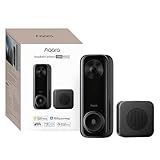
- Works with HomeKit Secure Video and All Major Ecosystems: Fully compatible with Apple HomeKit Secure Video (HSV) for encrypted recording, iCloud storage, and real-time notifications directly on Apple devices. Also compatible with Alexa, Google Assistant, and SmartThings. Pro-level compatibility provides more options via RTSP/ONVIF support, NVR integration, and other advanced setups. *Note: To use this device with HomeKit Secure Video, an iCloud+ plan and an Apple home hub are required.
- 2K HD 165° Head-to-Toe Vision: See everything from packages at your feet to faces at the door. Featuring 2K HD resolution and a 165° ultra-wide field of view with a 3:4 aspect ratio, the G400 doorbell camera provides a vertical perspective that traditional 16:9 cameras miss. Equipped with nearly invisible 940nm infrared LEDs, this doorbell captures bright, high-definition video in total darkness, monitoring discreetly without alerting intruders or disturbing neighbors. *Note: When connected to Apple HomeKit, the resolution is limited to 1200p. This limitation also applies to Aqara Home when both platforms are used simultaneously.
- Reliable Hardwired Power & Stable Wi-Fi 6: You can utilize the high-efficiency PoE connection or reuse your existing 8–24V AC/DC wiring, simplifying the upgrade path while maintaining stability. Additionally, the Wi-Fi video doorbell supports both 2.4GHz and 5GHz Wi-Fi 6 and meets WPA3 security standards for reliable and secure connections.
- Local AI Detections & Custom Replies: Reduce false alarms with local person recognition and zone intrusion, ensuring you're instantly notified when it matters, with no cloud processing required. When someone rings, use custom quick replies or the voice-changing intercom to answer the door safely. Our wired doorbell camera also features visitor face recognition and cloud package identification for total peace of mind.
- IP65 Weatherproof & Easy Setup: Built to withstand the elements with an IP65 rating for dust and water resistance, it works flawlessly in wind and rain. The package includes a wedge kit for optimal positioning and a plug-in chime for indoor alerts. The smart doorbell supports 24/7 continuous recording directly to a microSD card (up to 512GB, not included). For added peace of mind, all local footage is automatically backed up to your SMB-compatible NAS server, keeping your video safe and secure.
A complete review procedure
- Confirm software and accessory support. Note the operating-system version and check each camera or lock’s supported Home features. Expect menu labels to differ.
- Clean the people list. Under Home Settings, remove former residents and confirm that each remaining person has the correct role.
- Audit cameras one at a time. In Home Settings → Cameras & Doorbells, review Activity Notifications, then Recording Options for both When Home and When Away.
- Audit camera permissions. For every person, verify live-stream, recording, remote-viewing, and management rights separately where those controls are offered.
- Check HKSV capacity. Compare the number of HKSV cameras with the iCloud+ allowance: one on 50 GB, up to five on 200 GB, and unlimited on 2 TB and above.
- Review summaries. In Home Settings → Apple Intelligence → Summarise Videos, check the home-level switch and each camera’s setting. Note that Apple’s documented defaults are summaries off and Reduced Notifications on, subject to change.
- Audit lock guests. For each supported lock, use Accessory Settings → Manage Access to confirm selected locks, schedules, and any access code.
- Inspect activity settings. Open Home Settings → Activity, decide whether Activity History should remain enabled, and understand that disabling it permanently deletes prior entries.
- Check Attribution. Each member should decide whether their name appears in arrival, departure, and accessory-interaction notifications or history.
- Test the intended result. From an authorized account, verify the camera view and lock controls. If the home is meant to switch modes based on presence, test the actual home and away states rather than assuming the transition occurred.
Common privacy surprises and fixes
“I stopped recording at home, but another person can still see the camera.”
Recording behavior and viewing permission are separate. Reopen the camera’s per-person access controls and remove live-stream, recording, remote-viewing, or management rights that are no longer appropriate.
“My Apple Home camera does not offer HKSV controls.”
Apple Home compatibility does not guarantee HKSV. Confirm explicit HKSV support for the camera model and check whether the current operating system and iCloud+ account meet the requirements.
Crashes, No Sound, or Screen Glitches?
Random freezes, missing sound and display glitches usually trace back to one bad driver. Find and replace yours safely.Free scan · under a minuteWindows Errors? Fix Them Before They Spread
Repair common Windows errors and clear accumulated junk for a smoother, more stable PC - no reinstall needed.Free scan · no reinstall“A guest can control more than intended.”
Review the person’s role under Home Settings. Residents have broader access than guests. For a guest, narrow the selected accessories, apply a schedule where supported, and use Manage Access to remove an unnecessary code or lock.
“A lock event is missing from Activity History.”
Apple warns that a network outage or unreachable home hub can prevent logging. Check the hub and network state, and remember that Activity History is not a guaranteed forensic record.
“Turning off Activity did not merely hide old entries.”
Apple documents that disabling Activity permanently deletes previous activity. Re-enable it only if you accept that the earlier history cannot be restored.
“A person’s name still appears after Attribution was disabled.”
Attribution affects names in specified arrival, departure, and accessory-interaction notifications or history. Apple notes that Face Recognition can still display a person’s name, so review that feature’s behavior as well.
Free tools Windows power users keep installed
One-click scans. No signup required.
What to revisit after a change
- After adding a household member, verify camera viewing permissions and the person’s effect on When Home and When Away switching.
- After removing a member, check both camera access and any lock codes or guest grants associated with that person.
- After adding a camera, verify HKSV support, iCloud+ capacity, recording modes, notification conditions, and summary settings.
- After replacing a lock, confirm whether access codes, schedules, guest limits, and Activity History are supported by the new model.
- After a major operating-system update, recheck menu labels, defaults, and the availability of camera-summary controls.
Privacy decisions that should remain separate
Four settings are easy to conflate but answer different questions:
- Recording options: When does a camera stream or retain activity?
- Camera access: Which people can view live video, recordings, or remote video?
- Video summaries: Should supported footage be summarized under Apple’s documented processing flow?
- Lock activity and attribution: Which lock events are retained, who can view them, and whether a member’s name is shown?
Review all four whenever the household’s privacy expectations change. No single switch substitutes for the others.
Quick Recap
Product prices and availability are accurate as of the date/time indicated and are subject to change. Any price and availability information displayed on Amazon at the time of purchase will apply.

