
Ultimate Software V2 documents key mapping and macro customization for the 8BitDo Retro Mechanical Keyboard, but 8BitDo’s public documentation does not show a native command for choosing and launching an application. To open a Windows program with a keyboard key, set up a Windows-level shortcut first, then make the 8BitDo key send that shortcut. A macro that types a shortcut is not, by itself, an application launcher.
First, distinguish remapping, macros, and app launching
- Key remapping: Make a programmable key send a different keyboard input, such as F13.
- Macro: Have the keyboard send a sequence of key inputs, such as Ctrl+Shift+K.
- Application launch: Tell the operating system to open a program such as Calculator or Discord.
8BitDo’s support page describes mapping and macro features for Ultimate Software V2, but does not document an executable file picker, a “launch program” action, a shell command, or an application-shortcut import feature. That is a limit of what the published documentation establishes—not proof that no software version or future release could ever add the capability. See 8BitDo’s Ultimate Software V2 support page.
The distinction matters: a macro can send Ctrl+Shift+K, but something else must be configured to interpret that key combination as “open this program.”
Check your exact keyboard and software before changing anything
8BitDo has several keyboard models and editions. Firmware and instructions for the original Retro Mechanical Keyboard should not automatically be applied to the C64, Retro 108, Retro 87 variants, or other editions. Identify the exact model printed on the keyboard or its packaging, and use the matching entry on 8BitDo’s support portal.
#1 Best Overall
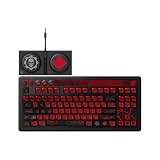
- Officially Licensed by XBOX and Gears of War. Compatible with Windows and Android.
- Hot-Swappable 87-Key RGB Mechanical Keyboard - Features a compact 87-key layout, RGB backlight, and hot-swappable PCB for flexible switch replacement.
- 8BitDo Cloud Gray Linear Switches - Equipped with 8BitDo Cloud Gray linear mechanical switches, co-developed with HUANO, for a smooth and responsive typing feel.
- Triple-Mode Connectivity - Supports Bluetooth, 2.4G wireless, and wired USB-C connections. Compatible with Windows 10 (version 1903) or above, and Android 9.0 or above.
- N-Key Rollover & Programmable Buttons - Supports n-key rollover for accurate input during fast typing and gaming. Includes programmable buttons, function shortcut keys, and Fn lock.
For the Retro Mechanical Keyboard, 8BitDo lists Ultimate Software V2 for Windows 10 and above. Its FAQ names Windows and Android as supported platforms for the keyboard; that does not establish that the desktop software or this macro workflow is available on Android, macOS, or Linux. Bluetooth use also requires BLE. Check the official keyboard FAQ for compatibility details.
The product supports Bluetooth, 2.4GHz wireless, and wired USB, but if you are setting it up or troubleshooting, begin with USB. This removes wireless connection behavior as one possible source of trouble. The product page lists the connection options and programmable-button and macro features.
Rank #2

- Inspired by the classics. Compatible with Windows 10(1903) or above, and Android 9.0 or above.
- Programmable keys, Dual Super Buttons, and Super Stick, with independent control panel.
- 87 keys. Top mount style with Kailh Box White Switches.
- Double-Shot ABS keycaps with SA profile. (C64 Edition only)
- Hot-swappable PCB. Support n-key rollover.
Set up the app shortcut outside 8BitDo first
Use a Windows shortcut mechanism or a separate hotkey utility to associate a unique key combination with the application. The AnandTech thread that prompted this question describes one user’s approach: create an application-launch shortcut in Clavier+, then record that shortcut as an 8BitDo macro. Treat that as a user-reported workaround, not an 8BitDo-supported or independently verified workflow. The thread also reports difficulty recording modifier combinations and timing. Read the original discussion.
- Choose an unused shortcut. Avoid combinations already used by Windows or the target application.
- Configure the shortcut to launch the intended application. The exact controls depend on the Windows feature or third-party utility you choose, so do not assume Ultimate Software V2 can browse to the application for you.
- Make sure the shortcut handler is active. If you use a separate utility, it generally needs to be running and able to receive the shortcut globally.
- Test the combination without the 8BitDo keyboard macro. Press it on a normal keyboard and confirm that the correct application opens. If this does not work, fix the Windows shortcut before configuring the 8BitDo key.
- Keep the shortcut simple. A single global hotkey is easier to diagnose than a long sequence of timed key presses.
Assign the shortcut to an 8BitDo key
Once the Windows shortcut works on its own, configure the keyboard. The official support material confirms mapping and macro customization but does not specify all current in-app labels or a universal menu path, so the following is a workflow rather than a claim about exact button names.
Windows Errors? Fix Them Before They Spread
Repair common Windows errors and clear accumulated junk for a smoother, more stable PC - no reinstall needed.Free scan · no reinstallCrashes, No Sound, or Screen Glitches?
Random freezes, missing sound and display glitches usually trace back to one bad driver. Find and replace yours safely.Free scan · under a minuteRank #3

- Inspired by the classics. Compatible with Windows 10(1903) or above, and Android 9.0 or above.
- 108-key full layout. Integrated numpad and function key shortcuts.
- Kailh Box White Switches V2. Dye-sub PBT keycaps. Top mount style. Hot-swappable PCB. Support n-key rollover.
- Dye-sublimation PBT keycaps with MDA-like height.
- Fast-mapping on programmable buttons (no software needed).
- Connect the correct keyboard, preferably by USB during setup.
- Open Ultimate Software V2 for Windows and select the exact keyboard model.
- Select a programmable key and assign the needed key input or create a macro containing the shortcut.
- Save the configuration to the profile you intend to use.
- Test the assigned key on the desktop and in a text editor before relying on it in a game or work application.
Test the simplest possible assignment first—for example, map a programmable key to F13—then test a short macro. This tells you whether the keyboard and active profile are working before adding the separate app-launch step.
Why a shortcut macro may fail
- The shortcut handler is not running or not global. Confirm the external shortcut works independently and that its utility is active outside its own window.
- The modifier sequence is not a true key chord. A recording that presses Ctrl, then Shift, then K may release a modifier before K is sent. A chord requires the modifiers to remain held while the final key is pressed.
- Recorded pauses or holds interfere. Long delays can make a macro slow; incorrect key-hold timing can make it miss the shortcut. Recreate it as a short sequence rather than trying to salvage a complicated recording.
- The wrong profile is active. A key can be configured in one profile while the keyboard is using another.
- The target app has a conflicting shortcut or focus issue. Try a unique combination and verify which window has focus when you press it.
- The target app is elevated. A shortcut utility running at normal user privilege may not interact as expected with an application running as administrator. Check the app and utility privilege levels rather than assuming the keyboard macro itself is at fault.
- Wireless behavior differs from USB. If the key works over USB but not Bluetooth or 2.4GHz, test the connection path separately before rebuilding the macro.
Troubleshoot in the order that isolates the fault
If Ultimate Software V2 does not detect the keyboard
- Connect by USB, then close and reopen the software.
- Confirm the selected model matches the keyboard; disconnect other 8BitDo devices temporarily if needed.
- Try another USB port or cable.
- Use the model-specific manual and firmware information on the official support page.
If a remap works but the app macro does not
- Verify the external shortcut launches the application without the macro.
- Recreate the macro as a short, clean sequence and check its assignment in the active profile.
- Try a different unused shortcut, then test it on the desktop and in a text editor.
If it works in a text editor but not in the application
- Check for a shortcut conflict or a focus-dependent behavior in the target application.
- If the application runs as administrator, check whether the shortcut utility needs to run at a compatible privilege level.
- Test over USB to separate application or macro behavior from wireless input.
Check firmware only for the matching model
Firmware listings vary by model. The official support portal retrieved August 18, 2026 listed firmware v1.72 for the original Retro Mechanical Keyboard and C64 model; its notes cite improved Bluetooth reconnection stability and fixes for some WPS Office shortcuts. The portal also lists 2.4GHz firmware history, including a fix for occasional double key inputs. These notes are model- and version-specific, not a guarantee that an app-launch macro will work. Check the current listing for your exact keyboard before updating: 8BitDo support.
Rank #4

- 8BITDO RETRO 87-KEY WIRELESS RGB MECHANICAL GAMING KEYBOARD - XBOX EDITION
Which approach makes sense?
| Approach | Best suited to | Trade-off |
|---|---|---|
| Direct key remap | Changing what a key sends, such as assigning an unused function key | Changes the keyboard input; it does not itself launch an application. |
| Windows-level shortcut plus one keyboard hotkey | Opening a program with one key | Requires a Windows shortcut mechanism or utility, and the handler may need to remain active. |
| Recorded macro | Repeated key sequences and combinations | Timing and modifier order can make it harder to debug; it is not equivalent to an operating-system command. |
If app launching is your main reason for choosing a keyboard, judge the software capability separately from the hardware. The Retro Mechanical Keyboard’s official product page lists programmable buttons, macros, hot-swappable switches, and Bluetooth, 2.4GHz, and USB connections; those features do not establish a native executable-launch function. Its style and physical controls may still suit you, but the documented route to app launching is an external shortcut plus a keyboard input.
Quick Recap
Best Value

- Hot-Swappable 87-Key RGB Mechanical Keyboard - Features a compact 87-key layout, RGB backlight, and hot-swappable PCB for flexible switch replacement.
- 8BitDo Cloud Gray Linear Switches - Equipped with 8BitDo Cloud Gray linear mechanical switches, co-developed with HUANO, for a smooth and responsive typing feel.
- Triple-Mode Connectivity - Supports Bluetooth, 2.4G wireless, and wired USB-C connections. Compatible with Windows 10 (version 1903) or above, and Android 9.0 or above.
- N-Key Rollover & Programmable Buttons - Supports n-key rollover for accurate input during fast typing and gaming. Includes programmable buttons, function shortcut keys, and Fn lock.
- Dual Super Buttons with Fast Mapping - The specially designed 8BitDo Dual Super Buttons offer large, programmable keys. Assign macros or other functions instantly—no software required.
Product prices and availability are accurate as of the date/time indicated and are subject to change. Any price and availability information displayed on Amazon at the time of purchase will apply.
What’s actually slowing this PC down?
Pick the symptom - the matching free tool is one click away.

