
Yes—but only with an unofficial, device-specific custom ROM. The practical target is usually Android 7.1.2, not Google’s Android 7.0 update, and each Nexus model needs its own ROM and recovery files. Unlocking the bootloader normally erases the device, so back up first. In 2026, Nougat is best reserved for experimentation or offline use, not a secure daily phone.
Check your exact Nexus model before downloading
“Nexus 7” can refer to two generations and several hardware variants. Their ROMs are not interchangeable. Check Settings > About phone/tablet > Model number, or connect the device and run:

adb shell getprop ro.product.device
adb shell getprop ro.product.model
In bootloader mode, you can also run fastboot getvar product. Match the reported codename to the ROM maintainer’s instructions and filename. If it does not match exactly, stop; do not bypass a recovery or installer device check.
| Device | Codename | Distinction |
|---|---|---|
| Nexus 5 | hammerhead |
Not the Nexus 5X. |
| Nexus 7 (2012) Wi-Fi | grouper |
First-generation Wi-Fi model. |
| Nexus 7 (2012) 3G | tilapia |
Different cellular hardware from Grouper. |
| Nexus 7 (2013) Wi-Fi | flo |
Second-generation Wi-Fi model. |
| Nexus 7 (2013) LTE | deb |
Second-generation LTE model. |
Important: Nexus 5 is hammerhead; Nexus 5X is bullhead. A ROM for one is not a substitute for the other. Likewise, a Grouper build is not for Tilapia, Flo, or Deb.
Windows Errors? Fix Them Before They Spread
Repair common Windows errors and clear accumulated junk for a smoother, more stable PC - no reinstall needed.Free scan · no reinstallCrashes, No Sound, or Screen Glitches?
Random freezes, missing sound and display glitches usually trace back to one bad driver. Find and replace yours safely.Free scan · under a minute#1 Best Overall
What an AOSP ROM is—and what it is not
AOSP is the open-source foundation of Android. A device ROM built from AOSP also needs device-specific kernel and hardware configuration, and may include proprietary firmware components or community fixes. “AOSP-based” therefore does not necessarily mean an untouched Google source build.
These installations are not official Google updates. LineageOS 14.1 is based on Android 7.1.2; other community builds may be labelled AOSP 7.x. Google’s factory-image archive is for Google-supplied stock firmware and restoration, not proof that Google released Nougat for these devices.
Prepare the files and protect your data
- Charge the device to at least 60% and make a complete backup of photos, documents, authenticator data, and app data. Bootloader unlocking normally performs a factory reset.
- Use a Windows, macOS, or Linux computer, a reliable USB data cable, and Android SDK Platform-Tools, which include
adbandfastboot. Windows may require the correct USB driver. - Download a ROM specifically for your confirmed codename, plus the custom recovery version the ROM maintainer specifies. “Newest recovery” is not automatically compatible.
- If you want Google Play services, obtain a compatible GApps package. For these older devices, Android 7.x packages are generally ARM; match the exact Android version and prefer a small package.
- Keep the correct stock factory image or recovery files available in case you need to restore the device. Verify published checksums where available.
Google’s factory-image instructions explain Platform-Tools use and warn that unlocking or flashing can erase data; unlocking also reduces device security.
Unlock the bootloader
Unlocking is destructive to user data. Back up before proceeding, and do not continue if the device or computer connection is unstable.
- Enable USB debugging in Android’s developer options and connect the device to the computer.
- Run
adb reboot bootloaderto enter bootloader mode. - Confirm the computer sees the device with
fastboot devices. - For the original Nexus 5 and Nexus 7, the commonly used legacy command is
fastboot oem unlock. Confirm the unlock on the device if prompted. Do not assumefastboot flashing unlockapplies: Google documents that newer command for Nexus devices made in 2015 or later, such as Nexus 5X and 6P. - After the device restarts into bootloader mode, check with
fastboot getvar unlocked. Output varies by fastboot version, but it should indicate an unlocked state.
Google’s factory-image documentation covers the bootloader and data-erasure warnings. If fastboot devices returns nothing, see troubleshooting below rather than attempting to flash blindly.
Install the recovery specified for your device
Recovery images are device-specific: use one for hammerhead, grouper, tilapia, flo, or deb, as appropriate, and follow the ROM maintainer’s version recommendation. For the documented Nexus 7 (2012) Nougat build, the thread recommends TWRP 3.7.0-9 builds for Grouper and Tilapia; that recommendation is specific to that ROM and those variants.
With the device in bootloader mode and the matching image in the computer’s working directory, the typical commands are:
Rank #2

- Google Pixel 7 is powered by Google Tensor G2; it’s faster, more efficient, and more secure, with the best photo and video quality yet on Pixel[1].Other camera description:Front,Rear.Bluetooth Version 5.2 with dual antennas for enhanced quality and connection.
- Unlocked Android 5G phone gives you the flexibility to change carriers and choose your own data plan[2]; works with Google Fi, Verizon, T-Mobile, AT&T, and other major carriers
- Pixel’s Adaptive Battery can last over 24 hours; when Extreme Battery Saver is turned on, it can last up to 72 hours[3]
- The 6.3-inch Pixel 7 display is super sharp, with rich, vivid colors; it’s fast and responsive for smoother gaming, scrolling, and moving between apps[4]
- Google Pixel 7 has wide and ultrawide lenses with up to 8x Super Res Zoom[5]; and Cinematic Blur brings more drama to your videos
fastboot flash recovery twrp-device-specific.img
fastboot reboot-bootloader
Replace the example filename with the actual recovery image. Some recoveries can instead be booted temporarily, avoiding a permanent recovery flash:
Do these 3 things before closing this tab:
1Clear out junk files and repair common Windows errors2Scan for outdated or missing drivers - takes under a minute3Repair Windows errors before they cause bigger problemsfastboot boot twrp-device-specific.imgUse this only if the recovery image and device support that method. From the bootloader menu, use the volume and power keys to choose Recovery mode.
Install Nougat on a Nexus 7 (2012)
The most clearly identified Nougat route in the available community material is an AOSP-based Android 7.1.2 thread for Nexus 7 (2012) grouper and tilapia. Its packages are separate by variant; the thread lists packages dated June 6, 2025, and recommends specific TWRP builds. Downloads are community-maintained, not Google-supported. Check that the files remain available, that the maintainer still identifies the package for your codename, and that any published checksum matches before flashing.
Follow the maintainer’s current instructions if they differ from this general clean-install sequence:
- Confirm whether the tablet is
grouperortilapia; download only that variant’s Android 7.1.2 package. - Unlock the bootloader and boot or install the recovery version specified in the maintainer’s thread.
- In recovery, back up the device if supported. For a clean install from stock or another Android version, use the wipe instructions in the ROM thread; a typical clean wipe is Dalvik/ART Cache, System, Data, and Cache.
- Flash the matching ROM ZIP. If installing GApps, flash a compatible small package before booting Android; alternatively, leave GApps out.
- Reboot to system and allow the first boot time to complete.
The thread reports limited system space as a cause of GApps failures and identifies Error 70 as a likely insufficient-space problem. Prefer no GApps or a small supported package; follow the maintainer’s documented configuration or partition instructions rather than deleting system files on your own.
Install Nougat on a Nexus 5
The Nexus 5 target is hammerhead. Do not use Nexus 5X (bullhead) files or instructions. The available Nexus 5 community reference is a discontinued Android 11 thread, not a verified current Nougat download source. It discusses partition and GApps constraints, but does not establish a trustworthy Android 7.x package for the Nexus 5.
Only proceed if you can verify a ROM from a credible source that explicitly names hammerhead, provides installation instructions, and has a recoverable download. Do not substitute a Nexus 5X package or an unverified mirror. Once you have a verified package, the general process is to install the maintainer-specified hammerhead recovery, back up, wipe the required partitions, flash the hammerhead ROM, flash compatible ARM/Android 7.1 GApps immediately if wanted, then reboot. If you cannot verify the ROM and its integrity, do not flash it; use stock firmware or choose a better-documented device/build.
Rank #3

- Camera description: Rear
- At a Glance shows you useful info that you need at the right time, like weather alerts, a package delivery or baggage claim info when your flight lands
- Wireless network technology : CDMA
- Connectivity technology : Bluetooth
The Nexus 5 reference on XDA is useful context for partition constraints, not a Nougat download recommendation.
Choose whether to install Google apps
An AOSP ROM can run without Google applications. If you want Google Play services, match the package to the ROM’s Android version and device architecture; for these Android 7.x Nexus builds, that generally means ARM and Android 7.1. A small “pico” package is less demanding than a larger bundle, but can still exceed the available system space on constrained devices.
Recommended Free Tools
| Choice | What it provides | Trade-off |
|---|---|---|
| No GApps | ROM without Google Play Store or Google Play services. | More available system space and fewer Google dependencies. |
| Small/pico GApps | Basic Google components, if compatible. | May still fail when system space is insufficient. |
| Larger GApps package | More Google apps preinstalled. | Higher risk of space errors and added resource use. |
| microG-patched build | An alternative Google-services compatibility layer on a separately patched ROM. | Advanced option; compatibility is not guaranteed and it is not the standard ROM package. |
Install GApps immediately after the ROM, before the first Android boot. LineageOS installation guidance says that booting the ROM first can mean a factory reset is needed before adding GApps; consult its GApps guidance. Do not assume Play Store certification, banking apps, SafetyNet/Play Integrity, or modern streaming apps will work.
Wipes: know what each recovery option removes
Recovery labels vary, so read the selected partitions before confirming. A typical clean install from stock or a different Android version wipes Dalvik/ART Cache, System, Data, and Cache. The exact ROM instructions take precedence.
- Factory reset: usually clears user data, but does not necessarily erase System.
- Format Data: may remove encryption metadata as well as internal user files.
- Advanced Wipe > System: removes the installed operating system.
- Cache/Dalvik wipe: clears temporary files and can help after an upgrade.
- Internal storage: do not wipe it unless your backup and installation ZIPs are stored elsewhere.
The Nexus 7 maintainer discusses system-space issues in the ROM thread; only change partitions or formatting when that build’s instructions explicitly call for it.
Independent reader supportYour contribution helps us test, update, and keep practical guides available for everyone.Transfer files, flash, and start Android
If the ROM and GApps ZIPs are already on the device, select them in recovery. To copy files before wiping, use:
adb push rom.zip /sdcard/
adb push gapps.zip /sdcard/
Substitute the actual filenames. The Nexus 5 has no removable microSD card, making internal storage or ADB sideload the usual options. For sideload, choose the recovery’s equivalent of Advanced > ADB Sideload, then run:
Rank #4
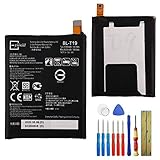
- This battery is compatible with Google Nexus 5X H791 H790, please carefully check your phone model before purchase.
- When you replace your old battery, please carefully and gently disconnect your old battery's cable then connect your new battery to the mainboard. If you phone cannot be powered on with the new battery, you may need to install it again and be sure to check if the cable has been properly connected.
- If you have any questions or got any issues with our product, please feel free to contact us, we will reply to you within 24 hrs. We highly appreciate your kind patience.
- All the batteries have been tested before shipping out, and come with repairing tools for installation. No installation instruction.
- Need professional installation technology,We won't responsible for any damage due to improper operation.
adb sideload rom.zip
adb sideload gapps.zip
The progress percentage may stop below 100% even after the recovery receives the complete package; LineageOS documents this behavior in its FAQ. Check the recovery’s result message before deciding a transfer failed.
- In recovery, make a backup if available and perform the required wipe.
- Flash the correct ROM ZIP.
- Without booting Android, flash compatible GApps if you chose to use them.
- Reboot to system.
The first boot may take much longer than a normal startup while Android optimizes applications. The Nexus 7 maintainer notes that ART optimization can keep the device on the Android splash screen longer after an upgrade. Do not interrupt an ordinary first boot prematurely; if it remains stuck for an extended period, use the troubleshooting steps below.
Troubleshoot common installation failures
fastboot devices shows no device
- Confirm the device is actually in bootloader mode and try
fastboot devicesagain. - On Windows, install the correct USB driver. Try another data-capable cable and direct USB port rather than a hub; reboot the computer if needed.
- Some devices have unreliable bootloader USB behavior. LineageOS troubleshooting suggests trying another port, including USB 2.0 in some cases; see its FAQ.
Wrong-device message or installer rejection
Stop and confirm the device codename against the package. Download the correct variant. Never bypass an updater-script check; it is there to prevent incompatible installation.
Free tools Windows power users keep installed
One-click scans. No signup required.
Error 7
Possible causes include the wrong device build, incompatible recovery or firmware, a damaged download, or a partition-layout mismatch. The Nexus 7 ROM maintainer gives a specific recovery-update remedy involving wiping Boot, System, and Cache and clearing Dalvik without wiping Data. That advice is specific to the circumstances described in its thread; do not apply it to another ROM without its maintainer’s direction. General causes and recovery checks are also covered in the LineageOS FAQ.
Error 70 while installing GApps
This commonly points to insufficient System space. Use no GApps or a smaller supported package, and verify ARM/Android 7.1 compatibility. Use a maintainer-supplied GApps configuration file if available; do not delete system files or reformat partitions unless the ROM instructions specify it.
Bootloop or setup failure
- Allow time for first-boot optimization before intervening.
- Return to recovery and wipe cache/Dalvik.
- Recheck the ROM codename, recovery compatibility, and download integrity.
- Reflash the ROM and, if used, immediately flash its compatible GApps package.
- If upgrading across Android generations, perform the clean install required by the maintainer.
- If the device remains unusable, restore the correct stock factory image.
If recovery appears to be replaced or inaccessible after flashing, follow the ROM maintainer’s steps to reboot directly back into recovery before Android starts. Google setup or Play Store failures can also result from obsolete Play services, uncertified software, an incompatible package, system-space limits, network/date problems, or ROM fingerprint compatibility; successful installation does not guarantee those services.
Restore stock firmware
Use the Google factory-image archive for the exact device and follow its instructions. Restoring stock is a recovery procedure, not a casual downgrade: flashing the factory image normally erases user data. Confirm the model and image before flashing.
Quick wins for a faster PC:
Repair Windows errors before they cause bigger problemsFix Now →Scan for outdated or missing drivers - takes under a minuteDriver Scan →Clear out junk files and repair common Windows errorsFree Scan →Is Nougat worth installing now?
Android 7.1.2 may suit a secondary device for offline use, experimentation, retro games, or media playback—particularly where a newer build is too demanding. It is an obsolete platform in 2026: newer apps may not support it, community hardware support varies, and Play services may be unreliable or identify a Nexus 7 (2012) build as uncertified. Do not rely on it for sensitive banking, authentication, or primary communications. Consider a newer community ROM only when a trustworthy build exists for the exact codename and the hardware can run it acceptably.
Quick Recap
Product prices and availability are accurate as of the date/time indicated and are subject to change. Any price and availability information displayed on Amazon at the time of purchase will apply.

