
Outdated Drivers Are Slowing You Down
One free scan finds every outdated or missing driver and matches the right update for your exact hardware.Free scan · exact hardware matchWindows Errors? Fix Them Before They Spread
Repair common Windows errors and clear accumulated junk for a smoother, more stable PC - no reinstall needed.Free scan · no reinstallTo test a website with NVDA, run a repeatable keyboard-and-speech review: record your NVDA and browser builds, read the page in browse mode, inspect headings, links, landmarks and form fields, then complete representative tasks with Tab, quick-navigation keys and NVDA’s Elements List. Log exactly what NVDA announces, what you expected, and whether focus and errors remain understandable. This finds many practical barriers, but one browser, one NVDA build and a limited set of pages cannot prove full accessibility conformance.
What this NVDA test can—and cannot—tell you
NVDA is a free Windows screen reader. Its documented workflow distinguishes two operating modes:
| # | Preview | Product | Price | |
|---|---|---|---|---|
| 1 |
|
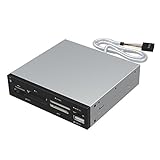
SABRENT 74 in 1 3.5 Inch Internal Flash Media Card Reader/Writer with USB Port (CR-USNT) | $6.99 | Buy on Amazon |
- Browse mode: used for complex, mostly read-only content such as web pages. You move through the document with reading and quick-navigation commands.
- Focus mode: sends most keys to the control that currently has focus, which is necessary for typing and operating many widgets. NVDA can enter it automatically; press Escape to leave, or NVDA+Space to switch modes manually.
A manual pass supplies evidence about the tested pages, task, browser, operating system and NVDA build. It does not establish that untested pages, other browsers, mobile devices or other assistive technologies behave the same way. Combine it with code inspection, automated checks, visual keyboard review and testing with people who use assistive technology. WCAG 3.0 is currently a W3C Working Draft, not a final standard; do not present draft guidance as a conformance verdict.
1. Set up a reproducible test
Record the test combination
Before opening the site, create a small test header containing:
Do these 3 things before closing this tab:
1Clear out junk files and repair common Windows errors2Fix the driver behind crashes, sound loss and screen glitches3Repair Windows errors before they cause bigger problems#1 Best Overall
- Supports 74 different types of memory cards
- Operating System Support: Windows ME/2000/XP/Vista/Window 7/8, Linu/Mac OS X Internal power connector to ensure USB HUB has sufficient power for external USB devices
- Plus 1 x USB 2.0 port
- The 6 card reader slots include all formats of the following flash media types: M2, XD, SD/SDHC/SDXC/MMC, Micro SD/SDHC/SDXC (T-flash) CF/MD, MS (Some card may require adapter)
- Operating system and edition.
- Exact NVDA version and build (the NV Access guide used for this workflow is 2026.3beta1; beta commands can change).
- Browser name and version.
- Page URL, date and time.
- Zoom level, display scaling and any browser extensions that could alter the page.
Use the same combination when rechecking a fix. If you use a beta NVDA build, repeat the check on the current stable release before treating a keystroke difference as a product defect.
Choose a realistic task
Test an outcome a visitor actually needs, such as finding a product detail, following an article link, opening and closing a menu or dialog, signing in, searching, or submitting a contact form. A task exposes problems that a page-by-page reading can miss: lost focus after a dialog opens, instructions that are not associated with fields, or a success message that is never announced.
2. Read and map the page in browse mode
Read once in document order
Load the page and let NVDA start reading from the document position. Listen for a meaningful title, introductory content, headings and the order in which sections are encountered. Ask whether the page still makes sense without visual layout, position, color or images. Note skipped heading levels, repeated navigation that dominates the reading order, unlabeled controls and text that is missing or duplicated.
Use quick navigation
In browse mode, NVDA’s default single-letter commands move through common structures. Hold Shift with the command to move backwards:
What’s actually slowing this PC down?
Pick the symptom - the matching free tool is one click away.
| Purpose | Next | Previous |
|---|---|---|
| Heading | H | Shift+H |
| Link | K | Shift+K |
| Form field | F | Shift+F |
| Landmark | D | Shift+D |
These are defaults and can be customized. If a key does not work, verify that browse mode is active and check the keystroke settings for the installed build.
Open the Elements List
Press NVDA+F7 to open the Elements List in supported web documents. Switch its category to headings, links, form fields, buttons or landmarks. Scan the list for useful names and a sensible hierarchy, then activate an item to jump to it. The list is an efficient map, not a replacement for following the page in reading order: a control can have a good name in the list but still appear in an illogical task sequence.
Refresh a changed document
After a client-side navigation or major update, press NVDA+F5 to refresh the browse-mode document. Use this when the virtual buffer seems stale, but also investigate whether the site’s update was exposed to assistive technology in the first place.
3. Traverse the page with the keyboard
Tab through operable controls
Press Tab and Shift+Tab to move through links, buttons, fields and other focusable elements. For each stop, NVDA should announce an understandable name, the control type and relevant state (for example, expanded, collapsed, checked or disabled). Confirm that:
- Every task control is reachable without a mouse.
- Focus order follows the task and does not jump unexpectedly.
- Focus remains visible in the browser.
- Menus, dialogs, popovers and custom widgets can be entered and exited.
- There is no keyboard trap: a user can always move away.
Use Enter or Space according to the control’s expected behavior. Do not assume a clickable div is equivalent to a button; test whether NVDA identifies it correctly and whether its keyboard operation is predictable.
Know when to switch modes
When focus lands on an edit field, list, slider or similar control, NVDA may enter focus mode automatically. Type or use the control’s documented keys there. Press NVDA+Space to toggle manually when NVDA has chosen the wrong mode; press Escape to leave an automatically entered focus mode and return to browse navigation. Record mode changes that are confusing or prevent a task from continuing.
4. Test forms and dynamic interactions
Enter representative data
Complete the form with valid data, then repeat with each important invalid condition: an empty required field, an incorrectly formatted value, a password policy failure or a server-side rejection. Listen for the label, hint, required state and current value before typing. Submit with the keyboard and verify that:
- The error is announced or otherwise discoverable without searching the page.
- The message identifies the affected field and explains how to fix it.
- Focus moves to a sensible location, usually the first invalid field or an error summary.
- Corrected values are accepted and the user can submit again.
- Success, loading and failure states are announced when they appear.
Operate menus, dialogs and updates
Open and close each menu or dialog using the keyboard. Check that the trigger announces its state, focus enters the new region, and focus returns to the trigger when the interaction closes. For live search results, validation messages, cart updates or tab panels, wait for the update and listen for what changes. If you must move the virtual cursor to discover an update, note that as a usability problem rather than assuming the user will know where to look.
Quick wins for a faster PC:
Scan for outdated or missing drivers - takes under a minuteDriver Scan →Clear out junk files and repair common Windows errorsFree Scan →5. Record findings so another person can reproduce them
Use one record per issue. Include:
- Location: page URL, heading or control name, and the task underway.
- Steps: exact keyboard sequence, entered value and point at which the problem appears.
- Expected result: what a keyboard and screen-reader user needs to hear or operate.
- Actual result: NVDA’s announcement, focus location, mode and visible behavior.
- Environment: operating system, NVDA build, browser version and date.
- User impact: explain the blocked or misleading task in plain language.
- Evidence: a short recording, transcript or screenshot where your team’s policy permits it.
Useful observations include a heading hierarchy that does not convey sections, a link announced only as “click here,” a button that cannot be reached, a dialog that allows focus to escape, or an error that cannot be associated with its field. Describe the behavior; do not label the whole site compliant or non-compliant from one observation.
NVDA keyboard command reference
| Action | Default command | When to use it |
|---|---|---|
| Toggle browse/focus mode | NVDA+Space | Switch between document navigation and control input. |
| Exit automatically entered focus mode | Escape | Return to browse mode after operating a control. |
| Next/previous heading | H / Shift+H | Check section structure. |
| Next/previous link | K / Shift+K | Review link names and destinations. |
| Next/previous form field | F / Shift+F | Move through inputs and controls. |
| Next/previous landmark | D / Shift+D | Check navigation, main, footer and other regions. |
| Elements List | NVDA+F7 | List headings, links, fields, buttons or landmarks. |
| Refresh browse document | NVDA+F5 | Resynchronize after a substantial dynamic change. |
NVDA commands can be configured. Confirm these defaults against the release you document, especially when using 2026.3beta1 documentation.
Independent reader supportYour contribution helps us test, update, and keep practical guides available for everyone.Troubleshooting common test problems
Quick keys do nothing
Focus may be in a text field, the page may not be in browse mode, or single-letter navigation may be disabled. Press NVDA+Space, move focus out of the field, and verify browse-mode settings.
NVDA reads stale content
A single-page application may have changed the visual DOM without updating NVDA’s virtual buffer. Press NVDA+F5, then test whether the update is announced. If refreshing is always required, report the missing or poorly exposed update.
Focus disappears after opening a dialog
Close it with Escape and inspect where focus lands. Reopen it and record whether focus enters the dialog, stays inside while it is modal, and returns to the triggering control. This is a focus-management defect, not merely a reading preference.
A form error is visible but silent
Submit with invalid data while listening, then use Tab and browse navigation to locate the message. Record whether the field’s label, required state and error are connected. Retest after correcting the value to ensure the stale message is removed or updated.
The page sounds different across browsers
Keep the browser and NVDA build in your record. Accessibility trees and mode behavior can vary; reproduce the issue in the same combination before comparing another browser or changing the NVDA release.
Performance, coverage and review limits
For a useful first pass, prioritize the highest-value user journeys and repeat them after major releases. Test authenticated and unauthenticated states, responsive layouts where applicable, and content loaded after scrolling. Lazy-loaded content, third-party widgets and CAPTCHA or bot checks may require a separate test path or an accessible alternative. A manual pass is strongest when paired with source-level review, automated rules and testing by screen-reader users; none of those methods alone covers every barrier.
Or skip the browser setup
If you need a screenshot of the page alongside your accessibility notes, ScreenshotNeo can capture it through one request. It is a website screenshot API and MCP server; it does not replace NVDA testing, but it can preserve the visual state you were reviewing.
cURL (see the ScreenshotNeo API documentation):
curl -G "https://api.screenshotneo.com/v1/shot" -d access_key=YOUR_API_KEY --data-urlencode url=https://stripe.com -o shot.webpPython:
import requests
r = requests.get("https://api.screenshotneo.com/v1/shot", params={"access_key": "YOUR_API_KEY", "url": "https://stripe.com"}, timeout=90)
open("shot.webp", "wb").write(r.content)
Node.js:
const q = new URLSearchParams({ access_key: 'YOUR_API_KEY', url: 'https://stripe.com' });
const res = await fetch(`https://api.screenshotneo.com/v1/shot?${q}`);
Before capture, ScreenshotNeo removes cookie or consent banners, newsletter popups and chat widgets; each step can be turned off. Bot checks or CAPTCHAs, blank pages, timeouts, failed loads and cache hits are not billed, and response headers identify the page verdict and whether it was billed. Its MCP server provides take_screenshot, get_page_info and capture_pdf for Claude, Cursor and other MCP clients. The free plan includes 1,000 screenshots a month with no card; paid plans start at $5 for 3,000. Sign up for the free plan.
Frequently Asked Questions
Is NVDA testing the same as a WCAG audit?
No. It is a practical manual review of selected pages, tasks and one NVDA/browser combination. A conformance assessment requires broader evidence and an agreed standard or version.
Should I test with browse mode or focus mode first?
Start in browse mode to understand structure, then use focus mode when operating fields and widgets. NVDA may switch automatically; verify the mode when a command behaves unexpectedly.
Recommended Free Tools
Can I use NVDA on a Mac or phone?
This workflow is for NVDA on Windows. Other platforms use different screen readers and command sets, so document and test those combinations separately.
How often should a site be retested?
Repeat the recorded journeys after significant template, JavaScript, browser or NVDA changes, and after each accessibility fix that affects the task.
Quick Recap
Product prices and availability are accurate as of the date/time indicated and are subject to change. Any price and availability information displayed on Amazon at the time of purchase will apply.

