
Open the PDF, place the page or area you need at a readable zoom, then use your laptop’s built-in capture tool. On Windows, use Snipping Tool; on macOS, press a Screenshot shortcut or use Preview; on a Chromebook, use Screen Capture. If you need only visible PDF content copied as an image, Adobe Acrobat’s Take a snapshot command is often cleaner than capturing the entire desktop.
Choose the capture area first: a whole screen, one PDF window, or a selected rectangle. Then check whether your system saved a file, copied the image to the clipboard, or did both.
Before you capture: choose the right result
A screenshot records the pixels currently rendered on screen. It does not preserve selectable text, vector quality, document structure, or the original embedded image. Use a screenshot when you need a visual reference, annotation, presentation image, or proof of what was displayed.
- Whole screen: includes the desktop, browser tabs, taskbar, and other visible context.
- Window: captures the PDF application without surrounding windows.
- Region: captures only a page area, figure, table, or paragraph.
- PDF snapshot: copies visible PDF content directly from Acrobat or Preview, usually without application chrome.
For editable text, use the PDF viewer’s Select tool and paste into a document. For an original image, use an image-export or extraction feature when available. A PDF author’s security settings can prevent copying; in Adobe Reader, inspect Document Properties > Security if selection or copying is disabled.
#1 Best Overall

- [5H REINFORCED SHATTER PROTECTION] 5H hardness guards against scratches, scrapes, keyboard indentations and minor daily impacts to keep your laptop screen safe from everyday wear.
- [99.9% HD OPTICAL CLARITY] Ultra-transparent glass restores the original vivid colors and sharp details of your display, no color distortion for office work, design and gaming.
- [SMOOTH, BETTER THAN THE ORIGINAL SCREEN] Preserves original screen responsiveness with zero input lag. Offers seamless viewing and operation experience, compatible with both touchscreen and non-touchscreen.
- [PREMIUM OLEOPHOBIC COATING] Advanced anti-fingerprint nano coating repels oil, sweat and smudges. Silky smooth surface, easy to wipe clean for long-hour daily use.
- Compatible 15.6" Laptop 16:9 Screen ---Chromebook 15.6 screen protector ---Dell XPS/Inspiron/Latitude/Vostro 15.6, Dell Laptop 15.6 screen protector ---Lenovo ThinkPad/Yoga/Flex/Ideapad/Legion 15.6, Lenovo Laptop 15.6 screen protector ---HP Envy/Pavilion/Spectre/ProBook/EliteBook 15.6, HP Laptop 15.6 screen protector ---ASUS VivoBook/Zenbook 15.6, ASUS Laptop 15.6 screen protector ---Samsung Galaxy Book Ion/Flex/Pro 15.6 ---MSI Stealth/Raider 15.6--Acer Aspire/Swift/Nitro 15.6 screen protector
Windows 10 and Windows 11: Snipping Tool
Capture a PDF page or region
- Open the PDF in your preferred viewer and navigate to the page.
- Adjust zoom so text and graphics are legible. Scroll until the content you want is visible.
- Open Snipping Tool from the Start menu. You can also use Windows + Shift + S to open the snipping overlay directly.
- Choose a mode: Rectangular for a clean area, Freeform for an irregular shape, Window for the PDF window, or Full screen for everything visible.
- Drag over the PDF content, or select the PDF window. The capture opens in Snipping Tool for review and editing.
- Use the Save button to choose a location and image format, or use the copy and share controls.
Microsoft describes Snipping Tool as a way to “Take a snapshot to copy words or images from all or part of your PC screen.” The same workflow applies to Windows 10 and Windows 11, although button placement can differ slightly by version.
Get a sharper Windows screenshot
- Maximize the PDF window and hide side panels before selecting a region.
- Increase zoom until small type is readable, but avoid zooming so far that a line or table is cut off.
- Use Window mode when you want consistent edges without manually dragging.
- Paste the result into an image editor if you need to crop, add arrows, or redact information. Redaction by drawing over pixels is not a substitute for removing sensitive data from the source PDF.
Mac: Screenshot shortcuts, Screenshot app, and Preview
Use the built-in keyboard shortcuts
- Open the PDF and position the page.
- Press Shift-Command-3 to capture the entire screen.
- Press Shift-Command-4, then drag, to capture a portion of the screen.
- Press Shift-Command-4, then press Space, to capture a window or menu; click the PDF window.
- Press Shift-Command-5 on macOS Mojave 10.14 or later to open the Screenshot app. Choose the screen, window, or selection controls, then click Capture.
macOS normally saves screenshots to the desktop. In the Screenshot app, open Options to choose another save location, set a timer, or decide whether the floating thumbnail appears. Click the thumbnail to mark up or move the image. Hold Control with a screenshot shortcut when you want the capture copied to the clipboard instead of (or as well as) being saved, then paste it with Command-V.
Capture from Preview
When the PDF is already open in Preview, choose File > Take Screenshot. Preview offers a whole-screen route and is useful when you want a PDF-specific command without switching applications. The exact menu wording can vary with macOS releases.
Rank #2

- 【WIDELY APPLICABLE】Removable design and comes with a macbook air privacy filter protector storage clip that can be taken and used as needed, perfect for various occasions where screen privacy needs to be protected.Like offices, airports, cafes, trains, etc. Compatible with MacBook Air 13.6 & 13 inch (Released In 2022-2026, M2 M3 M4 M5 Chip) - Model: A2681 A3113 A3240 A3449
- 【SUPER EASY INSTALLATION】Peslv has designed an innovative magnetic mounting method in order to improve the installation of the privacy screen MacBook Air 13 inch. The top of the MacBook Air privacy screen has a reinforced magnetic strip, which can be installed in a second by simply aligning it with the top bezel of the screen and gently pressing it. With Peslv privacy screen MacBook Air 13.6 inch, you'll never be stuck in an awkward situation where you don't know how to install it!
- 【STUNNING PRIVACY PROTECTION】To ensure that only the +-30° angle directly in front of the screen is visible, we have corrected the angle of the MacBook Air M2 privacy screen more than 5000 times to ensure that other angles of view are not visible. By getting the Peslv privacy screen MacBook Air 2022 13.6 inches, you can ensure that your computer data privacy is not peeked.
- 【PROTECT SCREEN ALSO EYES】The high-quality materials imported from Japan and the process imported from Germany have greatly improved the performance of the magnetic Mac Air 13.6inch privacy screen. High-quality filter layer that can reduce 95% of blue light and 92% of UV light. Matte surface, anti-glare, effectively intercepts 95% of the reflected light. Anti-scratch layer to avoid scratches from daily use. Protect your screen while protecting your eyesight.
- 【ULTIMATE HIGH DEFINITION】Modeled in accordance with the real screen size 1:1 restoration, the size is perfectly matched. The magnetic strip that strengthens the magnetic force can make the MacBook privacy screen 13 inch stick to the screen tightly. The light-transmitting layer with advanced material has a super high light transmission rate. So all this will make you have a super high definition mac 13 privacy screen with unparalleled picture quality close to the original picture.
Chromebook: Screen Capture
- Open the PDF and display the page or region.
- Press the dedicated Screenshot key if your Chromebook keyboard has one. Otherwise open the system menu and select Screen Capture, or press Shift-Ctrl-Show windows.
- Choose Screenshot, then select full-screen, partial, or window capture.
- For a partial capture, drag around the PDF content. For a window capture, click the PDF window.
- Click the preview to edit or annotate. ChromeOS automatically copies the capture to the clipboard and saves it in Downloads by default.
To change the destination, open the Screen Capture settings and select another folder. If an external keyboard has no Show windows key, Google documents Ctrl-Shift-F5 as the alternative shortcut.
Do these 3 things before closing this tab:
1Clear out junk files and repair common Windows errors2Scan for outdated or missing drivers - takes under a minute3Repair Windows errors before they cause bigger problemsAdobe Acrobat: copy visible PDF content with Take a snapshot
Acrobat’s Snapshot command is different from a desktop screenshot: it copies the selected, visible PDF area as an image to the clipboard, ready to paste into email, an editor, or a document.
Windows Acrobat steps
- Open the PDF in Acrobat.
- Choose Menu > Undo, Redo and More > Take a snapshot.
- Click the page to copy all visible content, or drag a rectangle around a specific area.
- Switch to another application and paste with Ctrl-V.
macOS Acrobat steps
- Open the PDF in Acrobat.
- Choose Edit > Undo, Redo and More > Take a snapshot.
- Click the page or drag around the required area.
- Paste the image with Command-V.
Acrobat menu labels can vary by product version and interface. Snapshot copies what is visibly rendered; it does not extract the original PDF image or turn text into editable text. If the command fails, check Document Properties > Security for copy restrictions and confirm that the PDF is not protected by a viewer policy.
Rank #3

- 【Compatible Model】 This 15.6 inch laptop screen protector is specially compatible with 15.6” Acer /HP /Lenovo /Dell /ASUS /MNN /KYY /ARZOPA laptops and portable monitors with aspect ratio 16:9. Length: 13.6" (345mm), Width: 7.6" (194mm), Diagonal: 15.6" (396mm). Please verify your computer screen's length and width measurements before ordering.
- 【Advanced Blue Light Filtering Technology】 After years of meticulous research, innovation, and extensive user testing by our expert team, this 15.6 screen protector is equipped with 9-layer blue light filtering technology, designed to effectively minimize eye fatigue and discomfort caused by prolonged exposure to blue light radiation.
- 【Superior Anti-Glare Technology】 This anti glare computer screen cover 15.6 inch utilizes advanced anti glare technology to effectively reduce glare and reflections caused by sunlight or bright environments. By shielding your eyes from the disruptive effects of glare, it also helps maintain the cleanliness of your computer screen.
- 【Scratch Resistant Design】 Equipped with advanced scratch-resistant properties, this laptop screen protector 15.6 inch effectively safeguards your screen from scratches and damage. The smooth surface minimizes fingerprints and smudges, making it easy to clean.
- 【Ultimate Viewing Experience】 This 15.6 anti blue light screen protector maintains the clarity and high-definition quality of your display with its high light transmission. Enjoy crisp images and text display without blurring or distortion. It lets maximum brightness and vibrant colours shine through for an immersive viewing experience.
Which method should you use?
| Goal | Best route | Where the result goes |
|---|---|---|
| One rectangular part of a page | Windows Snipping Tool, Mac Shift-Command-4, or Chromebook partial capture | Saved file, clipboard, or both depending on system settings |
| Only the PDF window | Window capture mode on your operating system | Image file and/or clipboard |
| Visible PDF content without window chrome | Acrobat Take a snapshot or Preview’s screenshot command | Clipboard; paste into another application |
| Editable words | PDF viewer Select tool or text extraction | Copied text, subject to PDF permissions |
| Original embedded picture | PDF image export or extraction feature | Original or converted image file, if permitted |
Quality, privacy, and file-handling checks
- Readable scale: zoom before capturing; enlarging a small screenshot later cannot restore detail.
- Complete context: include the page number or document title when the image will be reviewed separately.
- Long pages: a normal screenshot captures only what is visible. Capture multiple regions or use the PDF’s export/print features for a complete document.
- Color and contrast: dark mode or an accessibility filter changes the pixels in the screenshot. Switch to the appearance you want represented.
- Confidential data: check the whole selected area for names, account numbers, notifications, and browser tabs before sharing.
- Format: PNG is generally best for text and diagrams; JPEG can be smaller but may introduce compression artifacts.
Troubleshooting common screenshot problems
The screenshot is blurry or text is unreadable
Return to the PDF, increase zoom, and capture again rather than enlarging the saved image. A high-density or Retina display usually gives more pixels; a screenshot cannot exceed the pixels rendered by the display.
Only part of the table or page appears
The capture tools record the visible viewport. Scroll and take additional, overlapping regions, or use the PDF viewer’s export/print workflow when you need the entire page at once.
The Tool Desk
Outbyte PC Repair FREEClear out junk files and repair common Windows errorsFree Scan →Outbyte Driver Updater FREEFix the driver behind crashes, sound loss and screen glitchesFind Drivers →The capture saved somewhere unexpected
Windows Snipping Tool lets you choose a save location when you save. macOS normally uses the desktop and exposes the destination under Screenshot app Options. ChromeOS uses Downloads by default; change the folder in Screen Capture settings.
Rank #4
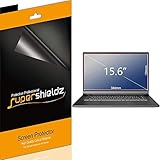
- Made from the high quality Japanese PET film for easy installation and no residue when removed
- High definition transparency film that ensures maximum resolution
- Real touch sensitivity for a natural feel that provides flawless touch screen accuracy
- Protects your screen from daily scratches, dust and scrapes
- Include 3 pcs screen protectors
Nothing pastes after Acrobat Snapshot
Snapshot places an image on the clipboard. Click into a destination that accepts images, then use Ctrl-V on Windows or Command-V on macOS. If copying is blocked, inspect the PDF’s security permissions or use a permitted screenshot of the rendered page.
The PDF is hidden behind a black or blank area
Bring the viewer window to the front, disable a temporary hardware-acceleration or overlay issue if your viewer offers that setting, and try a window or region capture again. If the document itself renders blank, reload it or open it in another permitted PDF viewer; a screenshot cannot recover content that was never rendered.
A keyboard shortcut does not work
Check the operating system and keyboard layout. On a Chromebook, use the on-screen Screen Capture control or the external-keyboard shortcut Ctrl-Shift-F5. On a Mac, use Shift-Command-5 to avoid memorizing separate capture modes.
Quick wins for a faster PC:
Scan for outdated or missing drivers - takes under a minuteDriver Scan →Clear out junk files and repair common Windows errorsFree Scan →Fix the driver behind crashes, sound loss and screen glitchesFind Drivers →Best Value

- Compatible Models: Width: 13 9/16" (13.5 inch/344 mm), Height: 7 5/8" (7.6 inch/194 mm), Diagonal: 15.6" (396.24 mm) widescreen laptops which have a 16:9 aspect ratio. Not touchscreen compatible !!! Not fit for 16:10.Do NOT rely solely on your laptop’s diagonal size when ordering. Use a ruler to measure your screen’s visible area (excluding the black bezels). If the width reads 344mm and height reads 194mm, this filter is a perfect match for your device.
- Keep Information Privacy: Effective "black out" privacy from side views outside the 60-degree viewing angle. Designed for optical clarity when viewing from the front, a person not at the front of the screen can only see the dark side of the screen, so it protects buisness secrets and personal privacy
- Eye and Screen Protection: Privacy filter does not only protect your private life but also protects your eyes by blocking 30% of blue light , blocking the harmful blue light between 380 - 495nm, it filters out the blue light and relieves eye strain. Our laptop privacy screen also helps keep your screen safe from dust and scratches
- Perfect For Open Workspaces: Great for maintaining screen privacy in high traffic areas such as open work spaces, airports, airplanes, commuter trains, coffee shops and other public places, etc
- Easy Installation: Choose between 2 simple Options; Slide-On/Off or Mounted. Not touchscreen compatible
Or skip the browser setup
If the PDF is published on a URL and you need a repeatable, automated capture rather than a one-off laptop screenshot, ScreenshotNeo returns a PNG, JPEG, WebP, or PDF from one GET request. It accepts cookie and consent banners as a visitor, then removes more than 60 known consent platforms, newsletter popups, and chat widgets before capture. Bot checks, CAPTCHAs, blank pages, timeouts, failed loads, and cache hits are not billed, and response headers identify the page verdict and billing status.
See the full parameter list in the ScreenshotNeo documentation. A minimal cURL request is:
curl -G "https://api.screenshotneo.com/v1/shot" -d access_key=YOUR_API_KEY --data-urlencode url=https://stripe.com -o shot.webpPython:
import requests
r = requests.get("https://api.screenshotneo.com/v1/shot", params={"access_key": "YOUR_API_KEY", "url": "https://stripe.com"}, timeout=90)
open("shot.webp", "wb").write(r.content)
Node.js:
const q = new URLSearchParams({ access_key: 'YOUR_API_KEY', url: 'https://stripe.com' });
const res = await fetch(`https://api.screenshotneo.com/v1/shot?${q}`);
For AI workflows, its MCP server provides take_screenshot, get_page_info, and capture_pdf tools for Claude, Cursor, and other MCP clients. Every feature is available on every plan; 1,000 shots per month are free with no card, and paid plans start at $5 for 3,000 shots. Create a free ScreenshotNeo account to try it.
Frequently Asked Questions
Can I screenshot a PDF without installing software?
Yes. Windows Snipping Tool, macOS Screenshot, and Chromebook Screen Capture are built in. Open the PDF and capture the required window or region.
Will a screenshot include every page of a PDF?
No. A normal screenshot records the currently visible screen. Capture additional regions or use a PDF export workflow for a complete multi-page document.
Why can’t I select or copy text from my PDF?
The file may contain scanned pages or copying restrictions. Check Document Properties > Security in Adobe Reader; use OCR or an approved extraction method when you have permission.
Quick Recap
Product prices and availability are accurate as of the date/time indicated and are subject to change. Any price and availability information displayed on Amazon at the time of purchase will apply.

