
Quick wins for a faster PC:
Clear out junk files and repair common Windows errorsFree Scan →Scan for outdated or missing drivers - takes under a minuteDriver Scan →Repair Windows errors before they cause bigger problemsFix Now →iTechGuides is reader-supported. When you buy through links on our site, we may earn an affiliate commission. As an Amazon Associate I earn from qualifying purchases. Learn more
A display that brightens and dims by itself is usually responding to one of several separate controls: the room’s light, the content on screen, a presence sensor, a graphics-driver power feature, or the monitor’s own firmware. The fix depends on which behavior you are seeing.
Start with the first two Windows settings below. If the problem occurs only when you look away, skip to Adaptive Dimming. If you are using a desktop monitor, Windows may not control its brightness at all—the monitor’s physical controls may be the correct place to fix it.
1. Turn off automatic brightness for changing room light
Some laptops and 2-in-1 PCs have an ambient-light sensor. Windows uses it to adjust the built-in display when the surrounding room becomes brighter or darker. It does not judge the brightness of the web page, video, or app on screen.
Free tools Windows power users keep installed
One-click scans. No signup required.
- Open Start > Settings > System > Display.
- Expand the Brightness section.
- Turn off Brightness automatically when lighting changes.
This option is device-dependent, so it may not be present on your computer. Windows uses a stepped, bucket-based response rather than reacting to every tiny change in light, and the exact behavior can vary by manufacturer. On an HDR display, changes can also take longer because Windows adjusts for perceived brightness rather than simply applying an immediate percentage change.
#1 Best Overall

- Glare-Free Lighting for Long Screen Sessions – Engineered with a 45° asymmetric optical design, Quntis monitor light bar directs light downward onto your desk, not your screen or eyes. The computer monitor light features 76 LEDs that deliver bright, even, flicker-free, RG0 no-blue-light-hazard illumination, meeting IEEE/IEC standards. Minimize eye fatigue and maintain lasting comfort through hours of work, study, or gaming.
- Flexible Dimming for Any Scenario - Supports 20%–100% brightness and 3000K–6500K stepless adjustment, this monitor light always matches your needs. Easily switch between warm, soft light for late-night reading, natural light for office work and video conferences, or bright, cool light for focused coding and design. Customize your illumination for any task to stay focused at work, immersed in entertainment, and comfortable for your eyes.
- Smart Remote & Memory - Adjust brightness and color temperature via a dedicated remote to keep your workflow uninterrupted. One remote controls multiple light bars—perfect for multi-monitor setups. With smart memory, it automatically restores your last settings when powered on and no endless adjustments. Perfect for professionals working early mornings or students studying late at night, your custom lighting is ready instantly.
- Universal Fit & Space-Saving - The adjustable clamp securely fits flat, thick, irregular, and up to 1000R curved monitors without screen damage or blockage. An L-shaped Type-C port leaves ample space to mount a webcam without obstruction. By mounting above your monitor, it frees up desk space to keep your workspace neat and organized. Ideal for daily office work, remote meetings, live streaming, content creation, or immersive gaming, this ensures a cleaner, more efficient desktop experience.
- Ra95 High CRI & Color Accuracy - Featuring a professional Ra95 CRI, this monitor lamp simulates natural light to deliver accurate colors and rich detail. It effectively minimizes color distortion, reducing eye effort when viewing colors or reading text. It's a strong choice for design work, photo editing, video projects, content creation, and other tasks where accurate color perception matters.
If this setting is missing, the display may not have an ambient-light sensor, or the manufacturer may control the feature through its own utility or firmware.
2. Disable Content Adaptive Brightness Control
If the screen changes when you switch between dark and bright pages—for example, from a mostly black video scene to a white document—Content Adaptive Brightness Control (CABC) is a likely cause. CABC changes brightness and contrast according to the content being displayed, generally to improve power efficiency.
- Go to Start > Settings > System > Display.
- Open Brightness.
- Find Change brightness based on content.
- Choose Off.
The available choices are Off, Always, and On Battery Only. Choose On Battery Only if you want the feature while unplugged but not while using AC power.
Crashes, No Sound, or Screen Glitches?
Random freezes, missing sound and display glitches usually trace back to one bad driver. Find and replace yours safely.Free scan · under a minutePC Slower Than It Used to Be?
A free scan shows the junk files, broken settings and background clutter dragging Windows down - then fixes them in one click.Free scan · Windows 10 & 11CABC applies to the built-in screen, not every monitor connected to a Windows PC. The control may be absent because the laptop maker must enable the feature; it is not available on every laptop or 2-in-1. Turning it off can also reduce battery life. On some Surface devices, connecting the power supply temporarily disables the content-adaptive behavior without changing the setting.
3. Disable presence-based Adaptive Dimming
Brightness that changes when you leave your desk, look away, or move out of the camera’s view may be caused by Adaptive Dimming, not by the ambient-light sensor or CABC. On supported Windows 11 version 22H2 and later devices, a presence sensor detects whether you are paying attention and dims the display when you are not.
Rank #2
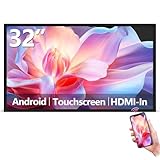
- Sleek, Ultra-Narrow Bezel Design: This 32 inch wall-mounted monitor features a lightweight aluminum frame with a seamless, flat-wall mount design. Suitable for 24/7 high traffic work environment, it supports both horizontal and vertical mounting with 400x200mm VESA compatibility, blending style and functionality effortlessly
- Capacitive Multi-Point Touchscreen: 16:9 FHD 1920 x 1080P G+G touch panel, compatible with Windows/Android (not compatible with Mac OS), plug and play via HDMI cable, and support touch reverse control (need to connect Touch USB-A cable). Built-in 2 x 5W speakers
- Multifunctional External Display: This touchscreen monitor is compatible with computers, laptops, tablets, smartphones, and gaming devices. It can be used as a POS system touchscreen terminal, industrial control system, restaurant menu display, as well as a second display for devices such as PCs and Switch
- Open App Ecosystem: Can download and install any application you need, powered by Android 13 with 4GB RAM and 64GB storage, can handles most tasks with ease. Ideal for indoor settings like malls, restaurants, retail stores, cinemas, and hotels, this interactive kiosk is simple to operate and highly adaptable for various commercial needs
- 100% Satisfaction Guaranteed: As a direct factory supplier of commercial displays, we offer high-quality, cost-effective digital signage. Certified by FCC, CE, RoHS, and 3C, our product comes with good warranty, ensuring reliable performance and peace of mind for your business
- Open Start > Settings > System > Power & battery.
- Expand the display or screen-related settings and look for the option concerning dimming when you look away.
- Turn off the setting that dims the screen when you are not looking at it.
The exact wording and location can vary with Windows updates and the laptop manufacturer. Some Windows 11 versions also include a separate setting for whether presence-based dimming is allowed when an external monitor is connected. Check that option too if the dimming happens while a second display is attached.
This feature normally waits before repeatedly switching between dimmed and normal states, while returning to normal brightness happens immediately. Windows also avoids applying the dimming during video playback and ongoing calls in supported scenarios. If the screen dims during those activities, investigate the other fixes below.
4. Turn off Intel display power savings
On certain Intel-based Surface devices, Intel’s graphics power-saving feature can alter the built-in display’s brightness or contrast. Microsoft documents this workaround for Surface Go, Surface Laptop 2 and newer, Surface Laptop Go models, Surface Pro 6 and newer, Surface Book 3, and Intel versions of Surface Laptop Studio.
First, check the processor in the Surface app. Open Device information > View More, then read the Processor entry.
- Open Intel Graphics Command Center. Install it from the Microsoft Store if it is not already installed and your device supports it.
- Select System > Power.
- Set Display Power Savings to Off.
Microsoft suggests trying the Power Efficiency slider first by moving it to the left. Disabling the feature can shorten battery life. For maximum runtime, Microsoft’s documented recommended Power Efficiency level is 6 for Surface Go, Surface Laptop 3, Surface Laptop Go, Surface Laptop Go 2, and Surface Pro 7, and 4 for the other listed devices.
Rank #3

- [Show Mac Colors] Calibrated for MacBook with BenQ’s exclusive color tuning, offering a vibrant P3 wide color gamut for MacBook Pro and MacBook Air.
- [Expand MacBook with USB-C] Connect and expand your MacBook display with a single USB-C cable.
- [Integrated MacBook Controls] Adjust brightness and volume directly from your MacBook keyboard.
- [Versatile Connectivity] 2 HDMI and 2 USB-C ports—The dual USB-C ports deliver 90W for your MacBook, and 15W to charge your iPad or iPhone.
- [Adjustable Stand] Adjust height, tilt, swivel, and pivot for maximum comfort.
5. Change the power mode on affected AMD Surface models
Some Surface models with AMD processors can retain a fixed brightness more reliably in the highest performance power mode. This is specifically documented for the 15-inch Surface Laptop 3 and Surface Laptop 4 with AMD processors; it is not a general fix for every AMD laptop.
The Tool Desk
Outbyte PC Repair FREEClear out junk files and repair common Windows errorsFree Scan →Outbyte Driver Updater FREEFix the driver behind crashes, sound loss and screen glitchesFind Drivers →- Select the battery icon on the Windows taskbar.
- Move the power-mode slider to Best performance.
- Use the laptop for a few minutes and check whether the brightness still changes.
If the behavior stops, the graphics power policy was probably involved. The trade-off is higher power consumption and potentially shorter battery life. When running on battery, Recommended is Microsoft’s battery-saving alternative, but the brightness behavior may return.
6. Check the monitor itself and update the display driver
External monitor: use its controls
On a desktop PC, Windows may show no brightness slider because Windows generally controls the built-in display of a laptop rather than the backlight of a conventional external monitor. Change the setting using the monitor’s physical buttons or on-screen display (OSD) menu instead.
Look for and disable manufacturer-specific features such as:
- Auto Brightness or Ambient Light
- Dynamic Contrast
- Eco or Power Saving mode
- HDR automation
- Local dimming or similar backlight controls
These features run in the monitor’s firmware. A Windows brightness setting cannot disable a mode implemented solely in the monitor’s menu. If the monitor changes brightness even before Windows loads, during the manufacturer logo, or while connected to another computer, the monitor’s OSD settings, cable, power supply, or hardware are more likely than Windows to be responsible.
Rank #4

- Versatile Full HD IPS Display: Elevate your home office or study space with this 32 Inch 1080p (1920 x 1080) LED monitor; enjoy an IPS panel that delivers consistent colors and wide viewing angles for clear visuals from any perspective
- Smooth Adaptive Sync Performance: Enjoy fluid visuals for casual gaming and multimedia with VESA Adaptive Sync technology; this feature enables a smooth 75Hz refresh rate to ensure consistent frame rates and reduced screen tearing for a seamless experience
- Enhanced Viewing Comfort: Minimize eye fatigue during long workdays or study sessions with integrated Flicker-Free technology and a Blue Light Filter; these eye care features provide a more comfortable viewing experience for students and professionals
- Tailored ViewMode Settings: Optimize screen performance with ViewSonic exclusive ViewMode presets; quickly switch between “Game,” “Movie,” “Web,” “Text,” and “Mono” modes to get the ideal gamma curve, contrast, and brightness for any task or application
- Flexible Connectivity: Seamlessly connect your laptops, PCs, and Macs with versatile input options; this monitor features HDMI and VGA inputs, providing the reliable compatibility needed for both modern hardware and legacy devices in any setup
Built-in display: update the display adapter
If you are using a laptop and the Windows brightness slider is missing or does nothing, update the graphics driver:
- Search the taskbar for Device Manager and open it.
- Expand Display adapters.
- Right-click the display adapter and select Update driver.
- Choose the option to search for an available driver, or install the latest driver supplied by the laptop manufacturer.
Restart Windows after the driver update. Also install the manufacturer’s system, chipset, and firmware updates if the problem began after a Windows upgrade or BIOS update. Avoid downloading display drivers from random driver sites.
Identify the cause before changing more settings
| What you observe | Most likely cause | Where to look |
|---|---|---|
| Brightness follows sunlight, lamps, or room lighting | Ambient-light brightness | Settings > System > Display > Brightness |
| Brightness changes between dark and white content | Content Adaptive Brightness Control | Change brightness based on content |
| Screen dims when you leave or look away | Presence-based Adaptive Dimming | Power & battery or manufacturer presence settings |
| Change happens mainly on battery | Intel or AMD graphics power management | Intel Graphics Command Center or Windows power mode |
| Windows has no brightness slider | External monitor or missing display driver | Monitor OSD or Device Manager |
| Brightness changes before Windows starts | Monitor firmware or hardware | Monitor controls, cable, or manufacturer support |
Make one change at a time, then test with a bright web page, a dark video scene, and the same content on battery and AC power. That makes it easier to tell which control actually stopped the change.
These instructions focus on Windows 11. Windows 10 support ended on October 14, 2025; Microsoft says it no longer provides free Windows Update security fixes or technical support for Windows 10.
Recommended Free Tools
The Bottom Line
For a built-in Windows 11 display, first disable Brightness automatically when lighting changes and set Change brightness based on content to Off. If the dimming follows your movements, turn off Adaptive Dimming. Surface owners may also need to adjust Intel Graphics Command Center or the power mode for specific AMD models. For an external monitor, use its own OSD controls—Windows cannot override every monitor firmware feature.
Best Value
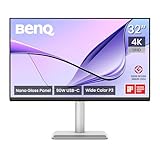
- [Show Mac Colors] Calibrated for MacBook with BenQ’s exclusive color tuning, offering a vibrant P3 wide color gamut for MacBook Pro and MacBook Air.
- [Expand MacBook with USB-C] Connect and expand your MacBook display with a single USB-C cable.
- [Integrated MacBook Controls] Adjust brightness and volume directly from your MacBook keyboard.
- [Versatile Connectivity] 2 HDMI and 2 USB-C ports—The dual USB-C ports deliver 90W for your MacBook, and 15W to charge your iPad or iPhone.
- [Adjustable Stand] Adjust height, tilt, swivel, and pivot for maximum comfort.
FAQ
Why does my monitor get brighter when I open a white webpage?
On a supported laptop display, this is commonly Content Adaptive Brightness Control. Go to Settings > System > Display > Brightness and set Change brightness based on content to Off. On an external monitor, disable Dynamic Contrast, Eco, or Auto Brightness in the monitor’s own OSD menu.
Why is there no brightness slider in Windows 11?
Windows may not provide a slider for an external monitor. Use the monitor’s physical buttons or on-screen menu. If the display is built into a laptop, update the graphics driver through Device Manager > Display adapters.
Does Windows automatic brightness respond to what is on the screen?
No. The setting called Brightness automatically when lighting changes uses the device’s ambient-light sensor. Brightness changes caused by screen content are associated with Content Adaptive Brightness Control instead.
Why does the screen dim when I look away?
A supported Windows 11 PC may be using presence-based Adaptive Dimming. Turn off the setting that dims the screen when you look away in the system power or display settings. Manufacturer software may expose the same control under a different name.
Will disabling adaptive brightness reduce battery life?
It can. CABC and Intel display power savings are designed partly to reduce power consumption. Disabling them may keep brightness more stable but can shorten battery runtime.
Quick Recap
Product prices and availability are accurate as of the date/time indicated and are subject to change. Any price and availability information displayed on Amazon at the time of purchase will apply.

