
Recommended Free Tools
There are two different problems people call “extra space” in Microsoft Word:
- Actual spaces: you typed two or more spacebar characters between words.
- Visual gaps: Word is spreading words apart because the paragraph is justified, or because character spacing has been changed.
Use the first method when you want to clean the document’s text. Use the other methods when the text contains normal single spaces but looks too spread out.
1. Replace two spaces with one
This is the most reliable method for removing repeated spaces from the document itself.
- Open the document in Word for Windows.
- Go to Home > Editing > Replace, or press Ctrl+H.
- In Find what, press the spacebar twice.
- In Replace with, press the spacebar once.
- Select Replace All.
Word replaces every exact occurrence of two consecutive spaces with one. If some text contains three or more spaces, repeat the replacement until Word reports that there are no more matches. A run of three spaces can become two on the first pass and one on the second.
What’s actually slowing this PC down?
Pick the symptom - the matching free tool is one click away.
#1 Best Overall

- 𝐄𝐫𝐠𝐨𝐧𝐨𝐦𝐢𝐜 𝟕-𝐏𝐨𝐬𝐢𝐭𝐢𝐨𝐧 𝐕𝐢𝐞𝐰𝐢𝐧𝐠: This TONOS document holder for desk offers 7 adjustable viewing positions for typing, reading, studying, proofreading, and transcription. Use it as a copyholder, page holder, document holder stand, paper stand for desk, or standing clipboard to keep reference pages upright and easy to follow.
- 𝐌𝐮𝐥𝐭𝐢𝐟𝐮𝐧𝐜𝐭𝐢𝐨𝐧𝐚𝐥 𝐟𝐨𝐫 𝐏𝐚𝐩𝐞𝐫𝐬, 𝐁𝐨𝐨𝐤𝐬 & 𝐑𝐞𝐜𝐢𝐩𝐞𝐬: Use this versatile desktop stand as a book holder, book page holder, sheet holder, clipboard stand, recipe holder, or recipe book stand. It keeps worksheets, documents, books, music sheets, and recipes visible while helping organize your workspace and everyday office desk accessories.
- 𝐒𝐭𝐮𝐫𝐝𝐲 𝐒𝐭𝐚𝐢𝐧𝐥𝐞𝐬𝐬 𝐒𝐭𝐞𝐞𝐥 & 𝐀𝐁𝐒 𝐁𝐮𝐢𝐥𝐝: Made with a durable stainless steel backplate and ABS components, this document holder stand features a wide stable base and bottom support arms for papers, catalogs, worksheets, and books. A practical addition to office supplies, secretary office supplies, teacher supplies, and everyday desk organization.
- 𝐅𝐨𝐥𝐝𝐚𝐛𝐥𝐞, 𝐂𝐨𝐦𝐩𝐚𝐜𝐭 & 𝐄𝐚𝐬𝐲 𝐭𝐨 𝐒𝐭𝐨𝐫𝐞: Measuring approximately 9.05"W x 12.08"H with a 2.48" base depth, this foldable copyholder stores easily in a drawer, shelf, cabinet, or bag. Its compact design works well for home offices, classrooms, libraries, dorms, and homeschool essentials without taking over your desk.
- 𝐑𝐞𝐚𝐝𝐲 𝐟𝐨𝐫 𝐒𝐜𝐡𝐨𝐨𝐥, 𝐂𝐥𝐚𝐬𝐬𝐫𝐨𝐨𝐦 & 𝐄𝐯𝐞𝐫𝐲𝐝𝐚𝐲 𝐖𝐨𝐫𝐤: Ideal for students, teachers, secretaries, and professionals, this hands-free paper holder for desk supports note-taking, data entry, lesson planning, reading, and studying. A useful choice for school supplies, back to school supplies, classroom essentials, classroom supplies, teacher must haves, college school supplies, and school essentials.
For a document that needs careful review, use Replace instead of Replace All. This lets you inspect each match before changing it. The Find and Replace controls also include Find Next.
Microsoft’s Find and Replace instructions document these controls and the Ctrl+H shortcut.
2. Use Advanced Find and Replace for special cases
Basic replacement is enough for ordinary double spaces. Advanced Find and Replace is useful when the unwanted gap is connected to special characters or formatting—for example, text copied from another document with inconsistent formatting.
- Select View > Navigation Pane.
- Select the magnifying glass.
- Open Settings, then choose Advanced Find & Replace.
- In the expanded dialog, select Replace.
- Enter the text or character you want to find and the replacement text.
- If the expanded controls are not visible, select the arrow at the bottom of the dialog.
The expanded dialog exposes Special, Format, and the Use wildcards check box. Use Special when the target is a special Word character rather than an ordinary typed space. Use Format to find text with a particular font, style, or other formatting, then choose Find Next, Find All, or a replacement command.
Be cautious with wildcard recipes copied from the internet. Word’s wildcard behavior can vary by search pattern and version, and Microsoft’s cited instructions do not specify a universal “remove every run of whitespace” pattern. Test a wildcard search on a copy of the document before replacing anything.
Rank #2

- Great for Body Health: The document holder is adjustable with 7 position at the backstand to adjust height and angle to make you easily reading without straining your back, shoulders or neck, then you can enjoy reading books while promoting a proper posture and even improve the spinal health.
- HIGH PRACTICAL: Design with Highlighting Line Guide makes you're easier to see where you left off and keep your track while typing, reading or transcribing. Comes with page holder clip to ensure documents do not slide. Help you work more efficiently.
- Really Sturdy & Stable: The bottom is designed with a page support clip to keep the book open on the page you need to read. The metal backplate, easily supports your documents. Very sturdy and can withstand multiple sizes of papers, recipes, books, magazines, textbooks and catalogs.
- Premium Material: The Book Stand is made of high-quality metal and ABS, with a polished and baked-on finish, it's durable, smooth, not easily broken, easy to clean and looks stylish, and has rounded corners to protect hands from injury or scratches.
- Foldable & Compact: 13.9" x 8.3" (35.5cm x 21cm). Fold quickly and store easily. Portable and lightweight, easy to carry to library, home, office and outdoor. Great gift for colleague, children, friend and family.
See Microsoft’s Advanced Find and Replace guidance for the current interface.
3. Condense the character spacing
Use this when the words contain normal spaces but the entire line looks too loose. It changes the spacing between all selected characters; it does not delete space characters.
- Select the affected text.
- Go to Home.
- Select the Font dialog box launcher—the small arrow in the Font group.
- Open the Advanced tab.
- Under Spacing, choose Condensed.
- Enter a small value in By, then select OK.
Start with a modest amount. Condensing affects letters, punctuation, and spaces evenly, so an aggressive setting can make the type look cramped. Expanded does the opposite. Kerning adjusts selected character pairs and is not a general solution for multiple spaces between words.
This Font dialog method is available in Word for Microsoft 365, Word 2024, Word 2021, Word 2019, and Word 2016. It changes appearance only: copying the text elsewhere can still carry the original repeated spaces.
4. Reduce horizontal text scaling
Horizontal scaling is another layout adjustment for text that is too wide. It is not a text-cleaning tool.
Rank #3
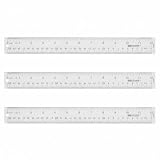
- Versatile Acrylic Ruler for All Needs - This 12 inch ruler is perfect for students and teachers. An essential measuring tool, its transparent design allows for precise measurements and easy page viewing
- Easy-To-Read Markings for Accuracy - Our straight edge ruler features clear metric and imperial markings, ensuring every measurement is readable, ideal for kids and precise drawing, enhancing your schoolwork
- Enhanced Drawing Experience - With raised beveled edges, this ruler minimizes smudging and enhances precision. Perfect for school projects, this acrylic ruler ensures every line is crisp and accurate for students
- Convenient Design for Everyday Use - This ruler features extra end margins for clear starts and stops and includes a storage hang hole. The transparent ruler is ideal for both classroom and office use
- Premium Quality from Westcott - Known for quality measuring tools, this Westcott ruler combines durability with functionality. Ideal for the classroom or office, this clear ruler ensures accuracy in every project
- Select the text.
- Open Home > Font dialog box launcher > Advanced.
- Find Scale.
- Enter a percentage below 100%, such as 95%.
- Select OK and check the result.
A value below 100% compresses the characters horizontally; a value above 100% stretches them. Unlike Find and Replace, this does not remove extra spaces between words. It changes the width and shape of the characters, and using a very low percentage can visibly distort the typeface.
Use scaling for a heading, table cell, or short line that barely misses its available width—not as a substitute for cleaning repeated spaces.
Do these 3 things before closing this tab:
1Clear out junk files and repair common Windows errors2Fix the driver behind crashes, sound loss and screen glitches3Repair Windows errors before they cause bigger problems5. Turn off justification when word gaps are stretched
If the gaps appear mainly on lines across the page, the paragraph may be justified. Justified alignment keeps both the left and right edges straight by adding space between words.
- Click in the affected paragraph, or select several paragraphs.
- On the Home tab, select Align Left.
Keyboard shortcuts are:
| Action | Windows | Mac |
|---|---|---|
| Align left | Ctrl+L | Command+L |
| Justify | Ctrl+J | Command+J |
Left alignment gives the paragraph a ragged right edge and normally removes the large visual gaps created by justification. It does not remove two or more actual space characters. If the gaps remain when the paragraph is left-aligned, run the two-spaces-to-one replacement.
What will not remove spaces between words?
Several Word settings affect lines or paragraphs rather than word spacing:
Rank #4

- Ruler Reading Focus with Tinted Guide - Reading ruler features a tinted guide that highlights a single line, reducing eye strain and boosting reading accuracy when reviewing digital documents, notes, and diagrams for study and drafting
- Dual Scales for Imperial and Metric - This dual-scale instrument serves as a classroom essentials tool, offering imperial and metric readouts on a clear ruler surface for quick layout, accurate conversions, and reliable drafting projects
- Precision Markings for Clarity - Precise numerals and graduations provide visibility on this instrument, turning everyday measurement into a school essentials ruler for designers, engineers, and students who demand accuracy in layouts and study work
- Straight Edge for True Layout - With a straight edge for true lines, this tool improves alignment and confidence for school supplies for kids and professionals, delivering steady visuals and reliable grid references during drafting and note taking
- Versatile Use Across Environments - Ideal for home, school, shop, or office, this 15-inch clear plastic ruler travels easily between projects, supports precise measurements, and keeps your workflow efficient in drafting, design, and study tasks
- Home > Line and Paragraph Spacing changes vertical space between lines.
- Paragraph > Before and After change space around paragraphs.
- Don’t add space between paragraphs of the same style affects paragraph spacing.
- Design > Paragraph Spacing > No Paragraph Space changes paragraph and line spacing; it does not remove repeated spaces typed between words.
These settings are appropriate when the problem is vertical spacing, not when a sentence contains multiple spacebar characters.
Quick wins for a faster PC:
Fix the driver behind crashes, sound loss and screen glitchesFind Drivers →Clear out junk files and repair common Windows errorsFree Scan →Scan for outdated or missing drivers - takes under a minuteDriver Scan →Which method should you use?
| What you see | Best method | What changes |
|---|---|---|
| Two or more spaces were typed between words | Replace | Deletes the extra space characters |
| Special characters or formatting are involved | Advanced Find and Replace | Finds a defined character or formatting condition |
| All selected characters look too far apart | Condensed spacing | Changes visual character spacing |
| A line or heading is slightly too wide | Scale below 100% | Compresses character width |
| Word gaps expand across justified lines | Align Left | Stops justification from stretching word gaps |
For a document being submitted or shared, start with Replace. Formatting adjustments can make a page look better, but they leave the underlying text unchanged.
Independent reader supportYour contribution helps us test, update, and keep practical guides available for everyone.FAQ
How do I remove multiple spaces between words in Word?
Press Ctrl+H, enter two spaces in Find what, enter one space in Replace with, and select Replace All. Repeat the operation if the document contains runs of three or more spaces.
Why does Word show huge spaces between words?
The paragraph is probably justified. Select the paragraph and choose Align Left, or press Ctrl+L on Windows or Command+L on Mac. If the gap is caused by actual repeated spaces, use Find and Replace as well.
Does Condensed spacing delete extra spaces?
No. Condensed changes the visual spacing between every selected character. The original space characters remain in the text and can still appear when the text is copied.
Free tools Windows power users keep installed
One-click scans. No signup required.
Best Value

- 12" triangular architect scale designed to facilitate the drafting and measuring of architectural drawings, such as floor plans, blue Prints, and orthographic projections
- Triangular ruler features 3 sides with 6 different scales, and made from high Impact aluminum, build to last
- Laser etched scales never fading. Architect ruler with enduring laser cut imperial prints for accuracy. They will not wipe or scratch off ever
- Professional grade for accuracy color coded triangular scale for easy and quick selection of the desired scale
- Standard imperial measurements: 1-1/2, 1, 3/4, 3/8, 3/16, 3/32, 1/2, 1/4, 1/8, 3, 16
Does No Paragraph Space remove spaces between words?
No. Design > Paragraph Spacing > No Paragraph Space changes line and paragraph spacing. It does not remove spaces typed between words.
Can I remove every possible whitespace character with one Word command?
Do not assume that a wildcard pattern will work universally across Word versions. The basic replacement pane targets the exact text entered in Find what. Test any Advanced Find and Replace wildcard on a copy of the document first.
The Bottom Line
To remove spaces from the actual text, use Ctrl+H and replace two spaces with one, repeating the replacement for longer runs. If the text is clean but the gaps look too large, switch justified paragraphs to left alignment. Condensed character spacing and horizontal scaling are visual layout changes, not replacements for text cleanup.
Sources: Microsoft Find and Replace; Microsoft character spacing and scaling; Microsoft indents and spacing.
Quick Recap
Product prices and availability are accurate as of the date/time indicated and are subject to change. Any price and availability information displayed on Amazon at the time of purchase will apply.

