
Windows 11 gives you several ways to manage software. Use Settings or the Start menu for most apps, Control Panel for older desktop programs, and WinGet when you want to install or remove software from a terminal.
The right method depends on how the program was packaged. A Microsoft Store app may appear only in Settings, while a traditional desktop application may use its own uninstaller through Control Panel. If an app is broken but you do not want to remove it, try Repair or Reset first.

Install a program from the Microsoft Store
For apps distributed through Microsoft Store, open the Microsoft Store from Start, search for the app, and select Get, Install, or the button showing the app’s price. Windows downloads and installs the app, then usually adds it to the Start menu.
- Open Start and select Microsoft Store.
- Search for the application by name.
- Open the correct result and select Get or Install.
- When installation finishes, select Open, or find the app under Start → All apps.
Check the publisher and app name before installing similarly named results. Store apps normally update through the Microsoft Store, whereas many desktop programs update through their own updater.
#1 Best Overall

- Instantly productive. Simpler, more intuitive UI and effortless navigation. New features like snap layouts help you manage multiple tasks with ease.
- Smarter collaboration. Have effective online meetings. Share content and mute/unmute right from the taskbar (1) Stay focused with intelligent noise cancelling and background blur.(2)
- Reassuringly consistent. Have confidence that your applications will work. Familiar deployment and update tools. Accelerate adoption with expanded deployment policies.
- Powerful security. Safeguard data and access anywhere with hardware-based isolation, encryption, and malware protection built in.
Install a program from a downloaded installer
If you downloaded software from the publisher’s website, look in your Downloads folder for an installer ending in .exe or .msi.
- Open File Explorer with
Windows + E. - Select Downloads in the left pane.
- Double-click the installer.
- Approve the User Account Control prompt if you trust the publisher and expected the installation.
- Follow the setup wizard. Review optional offers, installation folders, and shortcut choices rather than accepting every checkbox automatically.
- Launch the program from Start → All apps.
Download installers from the software publisher whenever possible. Avoid “download” buttons that lead to unrelated advertising or bundled installers.
Install programs with WinGet
WinGet is Windows Package Manager’s command-line tool. On Windows 11, it is delivered as part of App Installer, a Windows component updated through Microsoft Store on desktop editions.
Open Windows Terminal, PowerShell, or Command Prompt. You can search for an application before installing it:
winget search <appname>For example:
winget search 7zipReview the results, including the application name, publisher, and ID. Then install the intended package:
winget install <appname>Using the package ID is often safer than using a short name when search returns several results. A typical command looks like this:
winget install --id 7zip.7zipThe installer may request administrator approval. If you decline an elevation prompt when elevation is required, the installation fails. Running Windows Terminal as administrator can avoid some prompts, but you should still verify the package before installing it.
Rank #2

- UPGRADE WINDOWS 11 HOME TO PRO – Designed for PCs currently running an activated Windows 11 Home edition. Upgrade your existing system to Windows 11 Pro without performing a clean installation.
- DIGITAL ACTIVATION KEY FOR 1 PC – Includes one activation key to upgrade one compatible Windows 11 Home PC to Windows 11 Pro. No physical product, disc, or USB drive will be shipped.
- FAST DIGITAL DELIVERY – Your activation key and step-by-step upgrade instructions are delivered through Amazon Seller Messages within 4 hours or less after purchase.
- UNLOCK WINDOWS 11 PRO FEATURES – Upgrade to Pro to access additional features designed for security, productivity, remote access, and professional use.
- PLEASE CHECK BEFORE PURCHASING – This product is specifically for upgrading an existing Windows 11 Home installation to Windows 11 Pro. It is not intended for Windows 10 or as a clean Windows installation license.
Use this command to see available WinGet commands and options:
The Tool Desk
Outbyte Driver Updater FREEFix the driver behind crashes, sound loss and screen glitchesFind Drivers →Outbyte PC Repair FREERepair Windows errors before they cause bigger problemsFix Now →winget --helpFix a missing WinGet command
If WinGet is unavailable immediately after a user’s first Windows sign-in, its registration may still be completing. Run this command in PowerShell:
Add-AppxPackage -RegisterByFamilyName -MainPackage Microsoft.DesktopAppInstaller_8wekyb3d8bbweIf App Installer is present but winget is still not found, the WinGet client may not be on the system PATH. Restarting Windows and updating App Installer are sensible first checks. WinGet is also not included by default in Windows Sandbox; Microsoft documents separate bootstrapping steps for that environment.
Remove an app from the Start menu
This is the quickest method for many installed applications:
- Select Start → All apps.
- Find the program in the list.
- Right-click it, or press and hold it on a touchscreen.
- Select Uninstall.
- Complete the program’s uninstaller if another window opens.
If Uninstall is not available, use Settings or Control Panel instead.
Remove a program from Windows 11 Settings
- Open Start → Settings.
- Select Apps → Installed apps.
- Find the application. You can use the search box or sort the list.
- Select the More button (…) beside it.
- Select Uninstall, then follow the prompts.
The current Windows 11 label is Installed apps. Apps & features is the older Windows 10 wording, so instructions using that label do not match the current Settings layout.
Some programs cannot be uninstalled from Settings. This does not necessarily mean they cannot be removed; try Control Panel for traditional desktop software.
Rank #3

- Computer Werx compatible with /replacement for Win 11 Pro 64 Bit DVD Install repair recover & restore with key code plus Open office 2024. Win 11 can be used to do a fresh install, repair, or upgrade from Win 10 Pro & Win 11 Home & can also repair, restore & recover Windows. Open Office 2024 is compatible with Microsoft office that include programs such as: Word, Excel, math formula, drawing program, database and a presentation software. Supports all versions of operating systems
Remove a traditional desktop program with Control Panel
Older desktop applications often register their uninstallers in Control Panel.
- Search the taskbar for Control Panel and open it.
- Select Programs → Programs and Features.
- Right-click the program.
- Select Uninstall or Uninstall/Change.
- Follow the application’s uninstaller.
If the program offers Change rather than a direct uninstall, open it and choose the removal option in the setup wizard.
Recommended Free Tools
Remove programs with WinGet
First display installed packages:
winget listThis list can include applications that were not originally installed with WinGet. In many cases, WinGet can still invoke their registered uninstallers.
To uninstall by name, use:
winget uninstall --name "Application Name"WinGet may find multiple matches. Use an exact name, ID, version, or source to identify the correct program.
| Task | Command |
|---|---|
| Remove by exact name | winget uninstall --name "Application Name" --exact |
| Remove by application ID | winget uninstall --id <application-id> |
| Remove a particular version | winget uninstall --name "Application Name" --version <version> |
| Remove all versions | winget uninstall --name "Application Name" --all-versions |
| Restrict the search to the WinGet source | winget uninstall --name "Application Name" --source winget |
For example, Microsoft documents uninstalling by an exact product ID with a command such as:
winget uninstall --id "{24559D0F-481C-F3BE-8DD0-D908923A38F8}"remove and rm are aliases for uninstall, so these also work:
Do these 3 things before closing this tab:
1Fix the driver behind crashes, sound loss and screen glitches2Repair Windows errors before they cause bigger problems3Scan for outdated or missing drivers - takes under a minutewinget remove "Application Name"
winget rm "Application Name"Be careful with short or partial names. WinGet’s default query can behave like a substring search, and an ambiguous result can prompt for more filtering. Inspect the result before confirming removal.
Rank #4
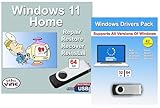
- Install, upgrade, repair or restore your operating system.
- Perfect for installs that are corrupted or full of viruses.
- Repair BOOTMGR is missing, NTLDR is missing, Blue Screens of Death (BSOD) and more.
- Works on any make or model computer, as long as you have a valid product key to install.
- Key is included to activate & register the software
Repair or reset an app instead of uninstalling it
Uninstalling is not always the best first step. If an app crashes, will not open, or behaves incorrectly, Windows 11 may be able to repair it without deleting its data.
- Open Start → Settings.
- Go to Apps → Installed apps.
- Select the … button beside the app.
- Select Advanced options.
- Select Repair.
Repair does not appear for every app. If it is unavailable or does not fix the problem, return to the same screen and select Reset. Resetting can remove the app’s data and settings, so use it only after checking what will be lost.
For a traditional desktop program, open Control Panel → Programs → Programs and Features, right-click the program, and select Repair. If Repair is not offered, choose Change and look for a repair option in the installer.
What’s actually slowing this PC down?
Pick the symptom - the matching free tool is one click away.
What to do when an app will not uninstall
Restart Windows first
A pending update, locked file, or background process can prevent removal. Save your work, restart the PC, and try the same uninstall method again.
Close the program and related processes
Exit the app from its notification-area icon as well as its main window. Programs that start with Windows, such as security tools, sync clients, and game launchers, may keep files open. Do not terminate an unfamiliar process simply because its name looks related; use the publisher’s documented method where possible.
Try the other Windows interface
If the app is absent from Settings, check Control Panel → Programs and Features. If it is absent from Control Panel, check Settings and the app’s own folder for an uninstall.exe file. Do not delete the program folder as a substitute for uninstalling: that can leave services, startup entries, and registry data behind.
Use Microsoft’s install and uninstall troubleshooter when appropriate
Microsoft’s Program Install and Uninstall troubleshooter is designed for damaged uninstall data, incomplete removal information, and certain corrupted registry entries. It can also ask for the product code from an MSI package if it cannot identify the program automatically. Microsoft currently emphasizes Windows 11’s built-in repair, reset, uninstall, restart, and recommended-troubleshooting options; treat the downloadable troubleshooter as a targeted fallback rather than the first step for every Windows 11 problem.
Scan suspicious software rather than relying on uninstall
If you suspect malware, unwanted pop-ups, or a program you did not install, run a scan with Windows Security. Ordinary uninstall procedures may not remove malicious components or persistence mechanisms.
Why some programs cannot be removed
Some Windows components and built-in apps are protected or do not provide a normal uninstall option. Settings may show no Uninstall command, and Control Panel may not list them. Avoid deleting system folders or using random PowerShell scripts to force removal, because that can damage Windows features or future updates.
Microsoft Store apps and desktop programs also use different installation and removal systems. A desktop-program troubleshooting tool is not a general fix for a Store app. For Store apps, use Settings, the Microsoft Store, or the app’s available repair/reset options.
FAQ
Where is Add or Remove Programs in Windows 11?
Windows 11 does not use the old “Add or Remove Programs” name in Settings. Open Start → Settings → Apps → Installed apps. For older desktop programs, open Control Panel → Programs → Programs and Features.
PC Slower Than It Used to Be?
A free scan shows the junk files, broken settings and background clutter dragging Windows down - then fixes them in one click.Free scan · Windows 10 & 11Crashes, No Sound, or Screen Glitches?
Random freezes, missing sound and display glitches usually trace back to one bad driver. Find and replace yours safely.Free scan · under a minuteWhy is an app missing from Installed apps?
Some programs are not currently removable from Settings. Look in Control Panel → Programs → Programs and Features, or run the program’s own uninstaller. Built-in Windows components may not offer removal at all.
Can I uninstall a program with Command Prompt?
Yes. WinGet works from Command Prompt, PowerShell, and Windows Terminal. Run winget list to identify installed packages, then use a precise command such as winget uninstall –id
Does WinGet remove apps that it did not install?
Sometimes. Microsoft states that winget list can display applications installed by other methods, and WinGet may be able to remove those applications through their registered uninstallers.
Should I repair or uninstall a broken app?
Try Repair first if it is available. Go to Settings → Apps → Installed apps → … → Advanced options → Repair. Use Reset if Repair is unavailable or ineffective, keeping in mind that Reset can delete app data and settings.
Quick wins for a faster PC:
Scan for outdated or missing drivers - takes under a minuteDriver Scan →Repair Windows errors before they cause bigger problemsFix Now →Fix the driver behind crashes, sound loss and screen glitchesFind Drivers →Why does WinGet show several applications for one search?
The search term may match multiple names, publishers, or package sources. Narrow the command with –id, –name, –exact, –version, or –source winget before confirming the uninstall.
The Bottom Line
Use Settings → Apps → Installed apps for the normal Windows 11 workflow, and use Control Panel → Programs and Features when an older desktop program is not listed in Settings. Install downloaded software through a trusted installer, or use WinGet with winget search followed by a carefully checked winget install. For broken software, try Repair before Reset or uninstalling.
Quick Recap
Product prices and availability are accurate as of the date/time indicated and are subject to change. Any price and availability information displayed on Amazon at the time of purchase will apply.

