
Free tools Windows power users keep installed
One-click scans. No signup required.
To collaborate on a Word document in real time, store one supported file—preferably a .docx—in OneDrive or SharePoint Online and share it with collaborators who have editing permission. Open the shared document in Word for the web or a current desktop version of Word; Word for the web is generally the safest choice for seeing collaborators’ presence and edits as they happen.
This guide explains how to share the document, choose permissions, review and recover changes, and troubleshoot common collaboration problems.
What you need for real-time Word collaboration
Before inviting anyone, check these requirements:
- Use Word for the web or a current desktop version of Word. Word for the web is usually the most predictable option when everyone needs to see changes as they happen.
- Store the document in OneDrive or SharePoint Online. A file on your computer, a USB drive, a network share, or an ordinary email attachment is not a shared live document.
- Use a supported format. A standard .docx file is the best choice for browser-based coauthoring.
- Give collaborators appropriate permissions. Can edit allows direct changes. Can review is for comments and suggested changes, while Can view is read-only.
There is no separate Start Coauthoring command. Share the cloud document and have collaborators open that same file. Word for the web displays people currently in the document and uses colored indicators to show where they are working. Everyone edits the same cloud-hosted document rather than separate copies that must later be merged.
Move the Word document to OneDrive or SharePoint
If the document is saved locally, upload it before sharing. In OneDrive, select Upload, choose Files, and select the Word document. In a SharePoint document library, select Upload and then choose the file.
Quick wins for a faster PC:
Repair Windows errors before they cause bigger problemsFix Now →Scan for outdated or missing drivers - takes under a minuteDriver Scan →#1 Best Overall

- Stepless Dimming Mode: The desk light offers effortless switching of color temperatures (2700K-6500K) and stepless dimming (1% - 100%) to meet your arbitrary color temperature and brightness needs, providing you with a healthy and comfortable office lighting experience. It is perfect for you and your child to read, work, study, unwind, draw, knitting, sew, craftwork, etc
- 360° Adjustable & Long Flexible Gooseneck: The long flexible gooseneck with 360° adjustable, easy adjustment to your preferred position, giving you full control over the direction of light. Our LED table lamp is made of aluminum and ABS material for excellent heat dissipation and a long lifespan of up to 60,000 hours. Additionally, the office lamp includes a built-in wire management feature, allowing you to neatly collect and conceal the wires, ensuring a clean and organized desk setup
- Big Size & Fit Models: Our table lamp features a 17-inch extra-wide lamp bar that can fully light up your workspace, providing you with enough brightness to complete any task. It is suitable for a maximum work height of about 31 inches, making it compatible with 30-inch monitors (backward compatible with 29-inch, 27-inch, 24-inch, and other monitors). Office desk lamp with easy installation and an adjustable metal clamp design, the sturdy metal clips can support desktops up to 2.36 inches thick
- Energy Saving & Eye Care: Our eye care light is composed of 100 high-quality lamp beads, it consumes a remarkable 85% less energy than traditional incandescent lamps. This clip lamp experience uniform brightness, a wide lighting range, and an absence of bothersome strobes, blue light hazards, and glare. Our lamp emits soft, eye-friendly light that safeguards your eyesight and minimizes eye fatigue even during extended periods of use.
- Reliable USB Adapter & Customer Service: To ensure a seamless experience, office desk lamp come with a complimentary 5V/3A reliable adapter, providing you with everything you need right out of the box. The package includes: 1x Eye-caring Desk Lamp, 1x Metal Clamp, 1x Power Adapter(5V/3A), 1x User Manual. our dedicated customer support team is here to assist you promptly and effectively
For the smoothest experience, use the .docx format. Word for the web can display older .doc files, but it cannot save changes to that format in place. When you edit a .doc file in the browser, Word creates a new .docx copy and leaves the original unchanged. Make sure everyone uses the new copy after conversion.
Share a Word document for editing
Share from Word for the web
- Open the file in Word for the web.
- Select Share.
- Open the permission control and choose the required access.
- Enter recipients’ names or email addresses.
- Add an optional message.
- Select Send.
Word emails recipients a link to the cloud document. You can also select Copy Link and send it through another email service, chat app, or team messaging system.
Choose the permission before sending
| Permission | What the recipient can do | Best use |
|---|---|---|
| Can edit | Modify the document directly | Writing and editing together |
| Can review | Comment and make suggestions without directly editing the document | Proofreading or approval workflows |
| Can view | Read the document without editing it | Sharing a finished or reference copy |
To configure a link, select the permission control next to the recipient field. When copying a link, use the link-settings control next to Copy link and select the required access level.
A Can review link does not override permissions someone already has through the file or SharePoint library. If that person can still open the document in Editing mode, open Manage access and change or remove their existing permission.
Recommended Free Tools
A view-only link protects the original file from direct editing, but it does not prevent someone from downloading and changing a copy.
How collaborators join the document
When a recipient selects the sharing link, the document normally opens in a browser. They can edit in Word for the web or select Open in Desktop to use the installed Word application.
In Word for the web, collaborators can see who else is working in the file and colored presence indicators show where people are editing. Desktop Word may show similar presence information, but how quickly edits appear depends on the Word client and document content.
For the clearest live experience, have everyone use Word for the web. Desktop coauthoring depends on Word version, document content, and whether lock-free coauthoring is available.
Rank #2

- 【TOUCH CONTROL DIMMABLE DESK LAMP】 the LED desk light has 5 light colors and 3 brightness levels. You can easily choose a variety of lights for painting, reading, writing, crafts, nail light for desk, kindle reading lighting needs. easily adjust the brightness by touch. Cool white lighting great suit for working, studying, reading.
- 【FOLDABLE AND PORTABLE DESIGN】This foldable LED desk lamp with 230° flexible arm and 90° base axis, good help to save desk space. Whether you’re soldering, sewing, puzzling, or doing nail art, this flexible design banishes shadows and casts even illumination exactly where you need it. When not in use, fold it flat for compact storage.Easy to place in shelves, bags, suitcases, and box. perfect office desk accessories and office decor home essentials
- 【Convenient USB A+C Ports 】This desk light has useful 5V/2.1A USB A & type-C charging ports , it’s so convenient to charge your different devices at the same time, such as mobile phones, tablets, kindle readers and so on.No extra wall adapters needed—keep your workspace tidy and your devices within arm’s reach while you focus on your projects.
- 【Sleep Night Light】our LED desk lamp come with small night light,soft and not harsh warm color light, accompany you to sleep all night, ideal for bedside lamps,table lamps . It's also the ideal nail light nail desk
- 【EYE CARING TABLE LAMP】This touch table lamps are designed to be soft, stable, and non-flickering light. The office desk lamp adopts surface led light source design which could perfectly eliminate glare, visual fatigue, and improve visual effects.
Word for the web versus desktop Word
Word for Microsoft 365, Word 2024, and Word 2021 can use lock-free coauthoring when the session and document support it. In that mode, multiple people can edit the same paragraph, and Word enables the feature automatically. There is no switch to turn on.
If lock-free coauthoring is unavailable—for example, because someone uses an older or unsupported Word version, or the document contains unsupported content—Word can fall back to its older behavior. A paragraph being edited by another person may be unavailable until that person saves. Word may also show a compatibility-mode indicator in the status bar.
Older Word versions may allow simultaneous editing without live updates. You may see another author’s changes only after that person saves or you refresh the document. Multiple people being able to edit the file does not always mean every keystroke appears instantly in desktop Word.
Understand AutoSave and manual saving
For Microsoft 365 documents stored in OneDrive, OneDrive for Business, or SharePoint Online, AutoSave is enabled by default. It saves changes automatically, generally every few seconds.
In Word for Microsoft 365, the AutoSave switch is near the upper-left of the document window. If a file is not yet in OneDrive or SharePoint, turning AutoSave on prompts you to choose a cloud location.
To change the default AutoSave behavior for cloud files in Word for Windows, use:
File > Options > Save > AutoSave OneDrive and SharePoint Online files by default on Word
AutoSave may be unavailable when the file is stored locally, on a file server, on on-premises SharePoint Server, in an older format such as .doc, or while synchronization is paused.
What’s actually slowing this PC down?
Pick the symptom - the matching free tool is one click away.
Rank #3

- Multiple Lighting Choices. This led desktop lamp offers 5 lighting modes that can each be paired with one of the 5 brightness levels for a total of 25 different light settings.
- Eye Care Diffused Non-Flickering Lighting. With frosted shade and a long lamp head, it cast a broader span of soft light, efficiently reduce the contrast between your monitor and the surrounding area, creating a more comfortable environment for your eyes.
- Sleek and Minimalist. It won’t hog space on your desk, fits nicely in any desk, work bench, sewing table, bedside nightstands, nail station etc.
- Energy Saving LED Lamp No Heat Up. Reduce the electricity bill by 75% and do not overheat like other traditional lights. Keep your workspace cool and comfortable.
- Fully Adjustable Angle. Flexible to bend the main body of the lamp and the top light bar. You can focus the light exactly where you need it.
Selecting File > Save in a supported coauthoring session saves your changes to the server, refreshes the document with other authors’ changes, and updates the server’s version history.
Discuss edits with comments
Comments let collaborators discuss wording without interrupting the document’s main text.
- In Word for the web, select Review > New Comment. You can also right-click in the document and select New Comment.
- Type the comment.
- Select Post.
To answer a comment, select Reply. To notify a collaborator, type @, begin entering their name, and select them from the suggestions. Select Show Comments to view the comment thread.
Comments are separate from tracked revisions. Turning Track Changes off, or accepting all tracked changes, does not remove comments. Resolve or delete comments separately when the discussion is finished.
The Tool Desk
Outbyte Driver Updater FREEScan for outdated or missing drivers - takes under a minuteDriver Scan →Outbyte PC Repair FREEClear out junk files and repair common Windows errorsFree Scan →Use Track Changes for controlled editing
When you need a record of proposed wording, enable Track Changes before people begin editing. In Word for the web, select:
Review > Track Changes
The menu provides these choices:
- For Everyone — track changes made by all authors.
- Just Mine — track only your own changes.
- Off — stop marking new changes.
To control how revisions appear, select Review > Markup view and choose Simple Markup, All Markup, No Markup, or Original.
No Markup only hides revisions; it does not accept or delete them. To permanently remove tracked revisions, use Accept or Reject.
In desktop Word, common review controls include Review > Changes > Next, Review > Accept, Review > Reject, and Review > Reviewing Pane.
Rank #4
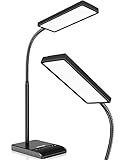
- RG0 Certified Eye-Caring Desk Lamps: LEPOWER LED desk light is designed with RG0 lamp beads and professional optical lenses, which 100% prevent hazardous blue light. Our desk lighting has reached the RG0 level in IEC 62778, effectively protecting your eyes from fatigue and preventing vision loss
- Upgraded Lamp Panel: LEPOWER office desk lamp has a 200% wider panel, and its lighting area is up to 50”. This 12 W LED table light casts 800 LM soft bright light, which is 100% brighter while giving off 1400 lux
- 50 Lighting Choices: 5 color temperatures x 10 brightness levels, easily adjust the desk lights to suit your mood or surroundings. Dimmable Led lamp desk is suitable for working, studying, reading, drawing, sewing, nail, puzzle, craft, etc
- Flexible Gooseneck Design: LEPOWER gooseneck desk lamps feature an enduring metal gooseneck. This 360° adjustable gooseneck can help to project the light to any position needed
- Touch Control & Smart Memory: Easily adjust the Light settings not only with the traditional +/- buttons but also with the stepless slide-control bar. With Smart Memory Function, the office desk lamp will remain its last settings when turned back on so you don’t have to adjust it all over again
A person using a Can review link cannot directly edit the document. Their comments and suggested changes must be approved by someone with full editing rights. Existing permissions can still grant broader access, so check Manage access if a reviewer unexpectedly has editing access.
If Track Changes is locked, reviewers may be unable to turn it off or accept and reject revisions until the owner unlocks the document. In supported desktop versions, the owner can lock tracking through Review > Protect > Protect Document, then set and confirm a password.
Recover from unwanted edits with Version History
For a file stored in OneDrive or SharePoint in Microsoft 365, select its file name and then choose Version History.
- Select the earlier version you want to inspect.
- Review its contents.
- Select Restore if it should replace the current version.
Version History applies to files stored in OneDrive or SharePoint in Microsoft 365; it is not available for every local Word file or every third-party storage service.
PC Slower Than It Used to Be?
A free scan shows the junk files, broken settings and background clutter dragging Windows down - then fixes them in one click.Free scan · Windows 10 & 11Outdated Drivers Are Slowing You Down
One free scan finds every outdated or missing driver and matches the right update for your exact hardware.Free scan · exact hardware matchRestoring replaces the current file with the selected version; it does not create a separate comparison copy. If you need to preserve the current state, save or download a copy before selecting Restore.
Independent reader supportYour contribution helps us test, update, and keep practical guides available for everyone.Why Word coauthoring may not work
Check these conditions if the Share button, presence indicators, or live editing behavior is missing:
- The document is not in OneDrive or SharePoint Online.
- The file uses a format unsupported for the coauthoring protocol.
- The document is checked out.
- The document is password-protected or encrypted with Information Rights Management.
- A sensitivity label does not support coauthoring.
- The document is marked as final or has editing restrictions.
- The file contains an OLE object, an ActiveX control in the document body, master documents, subdocuments, or HTML framesets.
- The file is unusually large.
- An administrator has enabled a policy such as Disable Automerge Client Policy or Disable Co-Authoring Client Policy.
If a document is marked as final, open it in desktop Word and turn off final status. If editing restrictions are enabled, the owner or administrator may have to remove them; a recipient cannot always fix the restriction from their own copy.
File formats and macros
Use .docx for browser coauthoring. Word for the web can open formats including .docx, .dotx, .docm, .dotm, older .doc and .dot files, and .odt in some SharePoint-library situations. However, formats Word can open are not necessarily supported for live coauthoring.
Best Value

- Long Flexible Goose-Neck & Extended Lifespan: This desk lamp features a 360° long flexible goose neck, allowing you to direct the light precisely where you need it. the high-quality aluminum light board ensures superior heat dissipation and extends the lamp's service life up to 50,000 hours.
- Versatile Lighting Modes: With 3 color modes (2700K-warm, 4500K-warm white light, and 6500K-cool light) and 10 brightness levels, you can tailor the lighting to suit your preferences and activities, creating an optimal and eye-friendly environment.
- Eye-Caring & High Brightness: Equipped with high-quality lamp beads, this light prevents glare, flickering, and ghosting, ensuring a uniform, soft light with large coverage to protect your eyes during prolonged use. The ultra-thin light bar design improves light transmittance for optimal brightness.
- Easy Installation & Energy Efficient: Pre-assembled and ready to use, this lamp plugs into any USB port for immediate illumination; energy-efficient LED technology ensures long-lasting performance. For any issues, our customer support is available to assist you.
- Memory Function & Reliable USB Adapter: Featuring a memory function, this lamp restores your previous settings when turned on again; comes with a safe and reliable 5V/2A adapter, eliminating the need for an additional purchase.
Macros do not run in Word for the web. Editing a macro-enabled document in the browser may create a new .docx copy, which does not preserve the macro-enabled format. Use desktop Word when the macro-enabled file must retain its macros. Microsoft also notes that editing macro code in collaborative desktop workflows requires checking the file out, changing the code, and checking it back in.
Fix common synchronization messages
| Message | What it means | What to do |
|---|---|---|
| Upload Failed: Save As / Discard | Word cannot merge local edits with newer server changes. | Select Save a Copy and save the local version under a new name. Reopen the live document and copy back changes that were not uploaded. |
| Refresh | The server has a newer version and Word has no local edits to merge. | Select Refresh, then continue working. |
| Upload Pending | Word cannot currently save to the server, often because of a network problem. | Leave Word open with AutoSave enabled while it retries the upload. |
| Upload Failed: Resolve Conflict | Your local edits conflict with another author’s edits. | Select Resolve, open the Conflicts tab, select Next, then accept or reject each conflict. |
When handling a conflict, do not immediately close Word or discard the local copy. First preserve any text you still need, especially when the message offers Save a Copy.
A note about a reported formatting-loss issue
Microsoft documented a Word coauthoring issue in which styles, table borders or banding, and fonts could lose formatting during collaboration. Microsoft marked the issue fixed in an update dated December 1, 2025, but files already affected may still need repair.
For an affected file, open it in desktop Word and select File > Save As to create a new .docx copy. Close and reopen that copy, then reapply formatting that was already lost. Preserve the original first so you can compare versions or restore content if necessary.
A practical collaboration workflow
- Prepare the file: convert it to .docx, remove unnecessary unsupported objects, and ensure it is not marked final or checked out.
- Upload one master copy: place it in the correct OneDrive folder or SharePoint library.
- Share by link: choose Can edit for direct coauthoring, Can review for controlled feedback, or Can view for reading only.
- Ask everyone to open the same link: do not distribute downloaded attachments as working copies.
- Use comments for questions: mention people with @ instead of burying decisions in email.
- Enable Track Changes when approvals matter: use markup views to inspect proposals, then accept or reject them.
- Save deliberately before major handoffs: even with AutoSave, selecting File > Save refreshes the document and records a server version.
- Use Version History for recovery: preserve a copy before restoring an earlier version.
FAQ
Can two people edit a Word document at the same time?
Yes. Store a supported document, preferably a .docx file, in OneDrive or SharePoint Online and share it with Can edit permission. Word for the web is generally the safest choice for seeing changes as they happen.
Do I need to enable a coauthoring mode in Word?
No. There is no separate Start Coauthoring command. Sharing the cloud-hosted document and opening it simultaneously is enough.
What is the difference between Can edit and Can review?
Can edit allows direct changes. Can review allows comments and suggested changes without direct editing, although existing file or SharePoint permissions can give someone broader access.
Why can’t I see another person’s changes immediately in desktop Word?
Your Word version or the document’s content may not support lock-free coauthoring. Word can fall back to behavior in which changes appear after the other author saves or you refresh.
Do these 3 things before closing this tab:
1Fix the driver behind crashes, sound loss and screen glitches2Repair Windows errors before they cause bigger problems3Scan for outdated or missing drivers - takes under a minuteCan I collaborate on a .doc file?
For reliable browser coauthoring, convert it to .docx. Word for the web can display .doc files but cannot save them in that format, so editing may create a new .docx copy.
Can I recover a Word document after someone makes unwanted changes?
If the file is stored in OneDrive or SharePoint in Microsoft 365, open Version History, inspect an earlier version, and select Restore. Save a copy of the current version first if you may need it.
The Bottom Line
For dependable real-time Word collaboration, keep one .docx file in OneDrive or SharePoint Online and share its link—not an email attachment—with the right permission. Use Word for the web when live presence and updates matter most, Track Changes when edits need approval, comments for discussion, and Version History when something goes wrong.
Quick Recap
Product prices and availability are accurate as of the date/time indicated and are subject to change. Any price and availability information displayed on Amazon at the time of purchase will apply.
What’s actually slowing this PC down?
Pick the symptom - the matching free tool is one click away.

