
iTechGuides is reader-supported. When you buy through links on our site, we may earn an affiliate commission. As an Amazon Associate I earn from qualifying purchases. Learn more
The right drawing tablet with a screen depends first on whether you want a display that connects to a computer or a standalone tablet. The evidence supports four current candidates to compare—not an objective top five or a tested ranking: Huion Kamvas 13 (Gen 3), Huion Kamvas Pro 16 V2, Wacom Cintiq, and XPPen Artist Pro 16TP.
For manga work, weigh usable canvas area, controls, display details, computer setup, and desk space together. A larger screen can make a canvas and palettes easier to see, but it also takes up more room; no single size suits every artist.
First, distinguish a pen display from a standalone tablet
Many products described as drawing tablets with screens are pen displays: they show your computer’s desktop and let you draw directly on the display with a pressure-sensitive pen. Wacom describes its Cintiq line this way, as a creative pen display for direct on-screen drawing. See Wacom’s Cintiq product page.
A standalone drawing tablet is a different buying choice because it does not rely on a connected computer in the same way. Confirm which type a specific model is before comparing prices or assuming it can run your preferred drawing apps on its own. Creative Bloq also distinguishes pen displays from standalone stylus tablets in its 2026 drawing-tablet roundup.
#1 Best Overall
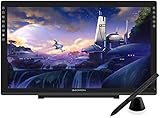
- Please kindly note that GAOMON PD2200 drawing tablet is not a standalone tablet, It must be connected to a laptop or computer to work.
- 【FOR ONLINE TEACHING & MEETING】You can use GAOMON PD2200 pen display tablet for online education and remote meeting. It works with most online meeting programs, like Zoom, and so on. 【FOR DIGITAL ART & CREATION】-- It's not only for beginner but also for professionalists in digital drawing, sketching, graphics design, 3D art work, animation, etc. 【FOR ANNOTATING AND SIGNATURE】--It is also broadly used in annotating and signing file in excel, word, pdf, ppt, etc.
- 【FULL GLASS STYLISH DESIGN】 It’s full glass design with 8 touch keys. No PVC frame on 3 sides.【HD FULL-LAMINATED SCREEN & 130% sRGB/92%NTSC】--Visually the parallax will be deduced to the lowest level. 【WITH AG-FILME PRE-APPLIED】--To protect the PD2200 drawing monitor during long shipping and to avoid bubble when applying film, we applied an anti-glare film in advance in our no dust factory. After you peel off the outside layer protective film, the real film remains on PD2200.
- 【8192 LEVELS PRESSURE & BATTERY-FREE PEN AP32】【TILT SUPPORT FUNCTION】--GAOMON PD2200 Drawing Display Tablet uses 8192 battery-free pen with tilt support function allow you to create your remarkable piece with superior control and stunning fluidity. [PEN HOLDER & PEN NIBS]-- 8 replacement nibs are put inside the pen holder. [8 TOUCH SHORTCUTS]--They are areavailable to customize in GAOMON driver.
- 【1000: 1 CONTRAST RATIO】--Enables more clear and vivid images effects. 【OTHER DISPLAY INFO】--Max Viewing Angle: 89°/89°(H)/89°/89°(V) (Typ.)(CR>10). Display Area: 476.64 x 268.11mm(18.8*10.6 inches). Resonse Time: 25MS. 【HOW TO UNSE OSD MENU】--Longe Press Menu Button for 6 seconds to active the OSD panel. You can adjust the color, brightness, etc here. 【HOW TO ADJUST COLOR】--Go to RGB-Color--Color Effect--Enter ''USER''--Then you can adjust the hue & saturation of RGBCYM here.
Four screen-equipped models worth comparing
These candidates span compact and mid-size pen displays. The listed specifications are manufacturer descriptions, not independent performance test results; they do not establish which model produces the best manga linework.
| Model | What the source establishes | Useful manga-workflow comparison |
|---|---|---|
| Huion Kamvas 13 (Gen 3) | Huion describes a 13-inch-class display with Canvas Glass, PenTech 4.0, color features, and dual dials. | Consider its compact footprint alongside the drawing area and whether the dual dials suit your frequently used controls. Huion Kamvas 13 (Gen 3) |
| Huion Kamvas Pro 16 V2 | Huion specifies a 15.6-inch Full HD screen and PenTech 4.0. | Compare the mid-size workspace with the resolution and price available in your market. Huion Kamvas Pro 16 V2 |
| Wacom Cintiq | Wacom identifies Cintiq as a creative pen-display line for direct on-screen drawing with a pressure-sensitive pen. | Check the exact Cintiq model: screen size, controls, compatibility, and price vary by model. Wacom Cintiq |
| XPPen Artist Pro 16TP | XPPen describes a 15.6-inch 4K UHD pen display with full lamination and stated color-gamut specifications. | Assess whether the higher resolution and display features matter for your workflow relative to cost and computer setup. XPPen Artist Pro 16TP |
There is not enough verified model-specific information here to responsibly name a fifth pick. Adding one simply to meet a five-item headline would make the shortlist less reliable. These four are candidates to compare, not a ranked set of manga-specific winners.
Rank #2

- Please kindly note that GAOMON PD1161 drawing tablet is not a standalone tablet, It must be connected to a laptop or computer to work.
- [Create Right On Screen]: Sketch, draw and paint directly on the full HD 11.6" IPS screen of GAOMON PD1161 drawing tablet. And the pre-installed matte film on display makes it feel like sketching on paper while reducing uncomfortable glare and reflection at the same time.
- [Vivid Color Perfomance]: A combination of 72% NTSC (100% SRGB) color gamut and 16.7 million display colors enables to present your drawings in a more lifelike way with smoother color gradation on this drawing tablet for pc.
- [Battery-free Stylus AP50 ]: Say goodbye to the hassle of charging, GAOMON PD1161 graphics tablet includes a battery-free pen AP50 with 8192 levels of pressure sensitivity and tilt function, which is easy to control, giving you the familiar feel of standard pencil.
- [Customize Your Workflow]: The 8 press keys on the side of the PD1161 drawing monitor and 2 pen buttons can be programmble in the driver, which is great to get easy shortcus and improve workflow. Warm Reminder: it is not a standalone drawing tablet, so it should work with a computer running windows or mac OS.
How to choose for manga drawing
Match screen area to your workspace
A screen should leave room to see both the canvas and the tools you use alongside it. A manga artist cited in Creative Bloq’s feature preferred a 15.6-inch display as a balance between portability and work area; that is one person’s preference, not a universal size rule. Read the manga-artist feature.
Do these 3 things before closing this tab:
1Fix the driver behind crashes, sound loss and screen glitches2Repair Windows errors before they cause bigger problems3Scan for outdated or missing drivers - takes under a minuteThink about your usual canvas zoom, how often you keep palettes open, and whether the display will stay on a desk or travel with you. Also account for your posture during long drawing sessions: a screen that fits the desk but forces an uncomfortable working position may be a poor fit.
Rank #3

- [Full-Laminated Screen]Drawing Tablet with Screen 11.6-inch FHD (1920*1080) full-laminated, anti-glare screen, the UE12 provides a zero-parallax drawing experience, ensuring precise, high-definition drawings down to the minutest details. With an ultra-wide color gamut of 124% sRGB, every stroke comes to life in vibrant hues. You can easily switch between three color spaces (sRGB, Adobe RGB, DCI-P3)
- [Battery-Free Stylus] The Pen Tablet features a slender pencil-like design for a comfy grip feel. With its inherent convenience, the stylus body is equipped with two programmable hot keys, allowing you to effortlessly toggle between drawing tools and maximize your efficiency. It incorporates 16K-level pressure sensitivity and 60° tilt recognition for a natural and smooth drawing experience akin to using a pencil, with no delays or lags. Plus, enjoy the eight replacement nibs inside the package.
- [8 Shortcut Keys ] The UE12 Graphics Tablet is equipped with 8 customizable shortcut keys boasting a concave-convex design, which facilitates blind operation. These convenient shortcut keys allow you to easily access commonly used drawing tools, such as pen, eraser, brush size adjustment, and undo function.
- [Dual Type-C Ports&3 in 1 Cable] The UE12 drawing pad comes with dual Type-C ports, allowing blind plug-in and providing flexible connection methods. It supports direct connection via a single full-featured USB-C cable, enabling you to immediately start your creative journey on computers, laptop, Android phones and tablets.
- [OS Support&Softwares Compatibility] The UE12 art tablet is compatible with major operating systems such as Windows 7 or later, macOS 10.10 or later, Android 10.1 or later, and Chrome 88 or later. It also supports a wide range of mainstream drawing and design software, such as Adobe Photoshop, Illustrator, Manga Studio, CorelPainter, ibis, and so on. With its comprehensive compatibility, it caters to all your creative needs (drawing, animation, image editing, 3D sculpture, etc.)
Look beyond pen pressure figures
Pen pressure specifications alone do not prove that a display will produce better lines. Consider how the pen feels in your own drawing workflow, whether your usual strokes and line weights are comfortable, and whether shortcut controls help you work efficiently. The manufacturer feature claims listed above do not substitute for an individual hands-on assessment.
Compare the display surface and controls
Full lamination, glass finish, color features, and resolution describe different aspects of a display. Compare those claims with how you draw, the space available for controls, and your preferred way to access shortcuts. Do not infer a model’s full color performance from a single specification.
Rank #4

- 143% sRGB Color Gamut:143% sRGB ultra-high color gamut, the UE16 drawing tablets with screen showcases an exceptional ability to reproduce 16.7 million colors with its 8-bit color depth. This precision and finesse ensure an accurate and vivid portrayal
- Four Color Spaces:With the options of sRGB, Adobe RGB, DCI-P3, and Black & White mode, the UE16 drawing tablet allows you to seamlessly transition between different visual experiences whether you're drawing, designing, or simply reading
- 16K Pressure Sensitivity:Art tablet offers a remarkable pressure level, ensuring that your creations are rich and vibrant.Whether you are drawing or writing, each stroke is effortlessly translated onto the screen, resulting in flawless and precise lines
- Pencil-like Grip:The graphic tablet designed with a slim body for comfortable grip, U-Pencil features two customized hotkeys and a pressure-sensitive eraser. With the quick access to drawing tools, your creative process will be more smooth and seamless
- Shortcut Keys & Wheel:Featuring 8 physical shortcut keys, digital drawing tablet provides a tactile feedback that enhances the drawing experience.the scroll wheel allows for seamless transition between 4 preset functions by pressing the switch button
Confirm the computer setup and included accessories
Before choosing a pen display, verify its computer and operating-system requirements, connection method, and what accessories are included for the exact model and bundle sold in your region. Do not assume that a pen, stand, or replacement part made for one device will fit another. Wacom’s accessory and product compatibility matrix, dated April 2024, illustrates that compatibility is model-specific; check current support before buying an accessory.
Recommended Free Tools
Check local availability and bundle details
Prices, stock, bundles, and affiliate terms have not been verified for a particular country or sales date. Check the manufacturer or retailer serving your market for current pricing and availability, and confirm the exact model name before ordering. WEBTOON’s 2024 creator handbook offers general creator-tool advice, but any prices it lists are dated and should not be treated as current.
Quick Recap
Best Value

- Battery-Free Pen: StarG640 drawing tablet is the perfect replacement for a traditional mouse! The XPPen advanced Battery-free PN01 stylus does not require charging, allowing for constant uninterrupted Draw and Play, making lines flow quicker and smoother, enhancing overall performance
- Ideal for Online Education: XPPen G640 graphics tablet is designed for digital drawing, painting, sketching, E-signatures, online teaching, remote work, photo editing, it's compatible with Microsoft Office apps like Word, PowerPoint, OneNote, Zoom, Xsplit etc. Works perfect than a mouse, visually present your handwritten notes, signatures precisely
- Compact and Portable: The G640 art tablet is only 2 mm thick, it's as slim as all primary level graphic tablets, allowing you to carry it with you on the go
- Chromebook Supported: XPPen G640 digital drawing tablet is ready to work seamlessly with Chromebook devices now, so you can create information-rich content and collaborate with teachers and classmates on Google Jamboard’s whiteboard; Take notes quickly and conveniently with Google Keep, and effortlessly sketch diagrams with the Google Canvas
- Multipurpose Use: Designed for playing OSU! Game, digital drawing, painting, sketch, sign documents digitally, this writing tablet also compatible with Microsoft Office programs like Word, PowerPoint, OneNote and more. Create mind-maps, draw diagrams or take notes as replacement for mouse
Product prices and availability are accurate as of the date/time indicated and are subject to change. Any price and availability information displayed on Amazon at the time of purchase will apply.

