
iTechGuides is reader-supported. When you buy through links on our site, we may earn an affiliate commission. As an Amazon Associate I earn from qualifying purchases. Learn more
wg-easy provides a browser-based interface for administering WireGuard; it does not replace WireGuard or remove the need to configure the host’s network. The project recommends Docker Compose for a basic setup. You will need a host you can administer, a public IP address or domain, a supported CPU architecture, and a plan for protecting access to the web UI.
What you need before installing wg-easy
The v15.4 Getting Started guide lists a manageable host, a domain name or public IP address, and either x86_64 or arm64 architecture. The Basic Installation tutorial also requires curl and directs users to install Docker. Its Compose-based approach is the project’s recommended basic route.
- A host you control: This can be existing hardware or a server with the required architecture. You must be able to administer its operating system and networking.
- A public endpoint: A public IP address or domain lets WireGuard clients reach the server. Your network or hosting provider must allow the relevant traffic.
- Docker and Compose: Install Docker using its current instructions for your operating system, and confirm Docker Compose is available.
- Network and firewall access: Be prepared to configure the server firewall and any provider-level networking rules.
- A secure UI access plan: Decide how you will restrict or protect access to the browser-based administration interface before making it reachable from the internet.
The project also documents Docker Run and Podman alternatives. Choose one of those only if its documented instructions suit your runtime and you can manage its configuration, persistence, and updates. The project README calls Compose “the easiest way to run WireGuard Easy”; that is the project’s characterization, not a comparative performance result. See the wg-easy README and the version-specific documentation for supported methods.
Choose the image tag for your wg-easy version
Check the tag in the Compose file you use rather than assuming a generic tag means the newest release. As documented in the v15.4 Getting Started guide, latest points to v14 and should be avoided if you intend to install version 15. The guide describes these tags:
#1 Best Overall

- 【AC1200 Dual-band Wireless Router】Simultaneous dual-band with wireless speed up to 300 Mbps (2.4GHz) + 867 Mbps (5GHz). 2.4GHz band can handles some simple tasks like emails or web browsing while bandwidth intensive tasks such as gaming or 4K video streaming can be handled by the 5GHz band.*Speed tests are conducted on a local network. Real-world speeds may differ depending on your network configuration.*
- 【Easy Setup】Please refer to the User Manual and the Unboxing & Setup video guide on Amazon for detailed setup instructions and methods for connecting to the Internet.
- 【Pocket-friendly】Lightweight design(145g) which designed for your next trip or adventure. Alongside its portable, compact design makes it easy to take with you on the go.
- 【Full Gigabit Ports】Gigabit Wireless Internet Router with 2 Gigabit LAN ports and 1 Gigabit WAN ports, ideal for lots of internet plan and allow you to connect your wired devices directly.
- 【Keep your Internet Safe】IPv6 supported. OpenVPN & WireGuard pre-installed, compatible with 30+ VPN service providers. Cloudflare encryption supported to protect the privacy.
| Tag | What it selects | When to use it |
|---|---|---|
15 |
The latest minor version in major version 15; the guide says releases within that major line do not introduce breaking changes. | The guide recommends this tag for following the major 15 line. |
15.0 |
The latest patch in minor version 15.0. | Use it if you specifically want to stay on the 15.0 minor line. |
15.0.0 |
That specific release; it does not receive updates. | Only if you need to hold that exact release and will manage updates deliberately. |
edge |
Frequent builds from the master branch, described as mostly unstable. | For users who deliberately want development builds, not a routine stable installation. |
development |
Pull-request builds. | For development or testing, not a normal deployment. |
latest |
Points to v14 according to the v15.4 guide. | Avoid it when installing version 15. |
These meanings are the ones stated in the v15.4 documentation; check the matching version’s guide when choosing a tag because image-tag behavior can change.
Install wg-easy with Docker Compose
Follow the official tutorial for the version you intend to run. The documented basic flow is to create a configuration directory, download that version’s Compose file into it, enter the directory, and start the service. The precise file and settings matter: ports, environment variables, mounts, capabilities, and image tags can differ by version.
Rank #2

- 【DUAL BAND AX TRAVEL ROUTER】Products with US, UK, EU Plug; Dual band network with wireless speed 574Mbps (2.4G)+2402Mbps (5G); 2.5G Multi-gigabit WAN port and a 1G gigabit LAN port; USB 3.0 port; Wi-Fi 6 offers more than double the total Wi-Fi speed with the MT3000 VPN Router.
- 【VPN CLIENT & SERVER】OpenVPN and WireGuard are pre-installed, compatible with 30+ VPN service providers (active subscription required). Simply log in to your existing VPN account with our portable wifi device, and Beryl AX automatically encrypts all network traffic within the connected network. Max. VPN speed of 150 Mbps (OpenVPN); 300 Mbps (WireGuard). *Speed tests are conducted on a local network. Real-world speeds may differ depending on your network configuration.*
- 【OpenWrt 21.02 FIRMWARE】The Beryl AX is a portable wifi box and mini router that runs on OpenWrt 21.02 firmware. It supports more than 5,000 ready-made plug-ins for customization. Simply browse, install, and manage packages with our no-code interface within Beryl AX's Admin Panel.
- 【PROTECT YOUR NETWORK SECURITY】Our pocket wifi, unlike other vulnerable portable wifi hotspot for travel purposes supports WPA3 protocol–Preventive measures against password brute-force attacks; DNS over HTTPS & DNS over TLS–Protecting domain name system traffic and preventing data eavesdropping from malicious parties; IPv6–Built-in authentication for privacy protection, eliminating the need for network address translation.
- 【VPN CASCADING AT EASE】Surpassing the mediocre performance of most VPN routers for home usage, the Beryl AX is capable of hosting a VPN server and VPN client at the same time within the same device, enabling users to remote access local network resources like Wi-Fi printers or local web servers, and accessing the public internet as a VPN client simultaneously.
- Create a working directory. Choose a location on the host where you can keep the Compose file and manage the deployment.
- Download the official Compose file. Use the download command and file location given by the matching Basic Installation tutorial. Avoid substituting an old third-party Compose example without checking every setting against the current version.
- Enter that directory. Run Compose commands from the directory containing the Compose file.
- Review the configuration. Confirm the selected image tag, host or domain settings, configured ports, and persistence mount. Use the official version-specific example as the source for exact values.
- Start the service. Run
sudo docker compose up -dfrom the project directory, as in the basic tutorial. - Check its status and logs. Use Docker’s status and log commands to confirm that the container started and to diagnose configuration or port errors. The exact outcome depends on your host and chosen configuration.
Keep the WireGuard configuration persistent
The v15.4 Getting Started guide shows examples mounting a named volume, etc_wireguard, at /etc/wireguard inside the container. That location holds WireGuard configuration and is a persistence point: keep the volume declaration and mount intact when managing or replacing the container. Use the exact volume syntax in your selected version’s Compose file.
Open the WireGuard port and protect the web UI
The WireGuard endpoint and the administration interface are different services with different access needs. In its basic tutorial, wg-easy says to allow UDP 51820 through the firewall when a firewall is enabled. This is the tutorial’s default, not a universal port requirement: if your configuration uses another port, make the corresponding firewall and network changes. A hosting provider may also have separate firewall or network controls.
Rank #3
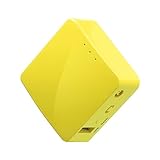
- 【WIRELESS MOBILE MINI TRAVEL ROUTER】 Convert a public network (wired or wireless) to a private Wi-Fi for secure surfing. Tethering. Powered by any laptop USB, power banks or 5V/2A DC adapters (sold separately). 39g (1.41 Oz) only, portable and pocket friendly. 2.4GHz ONLY
- 【OPEN SOURCE & PROGRAMMABLE】 OpenWrt pre-installed, USB disk extendable.
- 【LARGER STORAGE & EXTENDABILITY】 128MB RAM, 16MB Flash ROM, dual Ethernet ports, UART and GPIOs available for hardware DIY.
- 【OPENVPN CLIENT】 OpenVPN client pre-installed, compatible with 30+ VPN service providers.
- 【PACKAGE CONTENTS】 GL-MT300N-V2 (Mango) mini router (2-year Warranty), USB cable, Ethernet cable, User Manual. Please update to the latest firmware.
Do not treat permission to connect to the WireGuard UDP endpoint as permission to expose the management UI. The project README recommends setting up a reverse proxy for secure web UI access from the internet and also points to a reverse-proxy-free guide for those not using a proxy. Follow the route that matches your setup; do not publish the administration interface without following the project’s access guidance. The README lists features including 2FA and OIDC, but their availability and setup details should be checked in the documentation for your installed version.
The official project instructions are the reference for wg-easy settings. A third-party 2025 Vultr deployment guide illustrates one possible Docker Compose, persistent-volume, Nginx Proxy Manager, and Let’s Encrypt pattern; it is an example rather than the authority for current wg-easy configuration. If following that guide’s Nginx Proxy Manager walkthrough, it includes replacing the initial credentials—do not skip that security step.
Rank #4
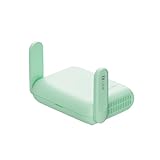
- 【DUAL BAND WIFI 7 TRAVEL ROUTER】Products with US, UK, EU, AU Plug; Dual band network with wireless speed 688Mbps (2.4G)+2882Mbps (5G); Dual 2.5G Ethernet Ports (1x WAN and 1x LAN Port); USB 3.0 port. Enjoy gaming and streaming across up to 120 devices.
- 【HIGH SPEED VPN CLIENT & SERVER】Max. VPN speed of 1100 Mbps (WireGuard); 1000 Mbps (OpenVPN-DCO). OpenVPN and WireGuard are pre-installed, compatible with 30+ VPN service providers (active subscription required). Simply log in to your existing account with our portable wifi device, and Beryl 7 automatically encrypts all network traffic within the connected network. *Speed tests are conducted on a local network. Real-world speeds may differ depending on your network configuration.*
- 【OpenWrt 21.02 FIRMWARE】The Beryl 7 (GL-MT3600BE) is a high-performance Wi-Fi 7 travel router, built with OpenWrt 21.02 (Kernel 5.4.281) for maximum customization and advanced networking capabilities. With 512MB storage, total customization with open-source freedom and flexible installation of OpenWrt plugins.
- 【PERFECT PORTABLE WIFI ROUTER FOR TRAVEL】The Beryl 7 is an ideal international wireless portable wifi travel router. With its mini size and travel-friendly features, the pocket Wi-Fi router is the perfect companion for travelers in need of a secure internet connectivity on the go. portable wi-fi for traveling, hotels or cruise ships.
- 【PROTECT YOUR NETWORK SECURITY】Our pocket wifi, unlike other vulnerable portable wifi hotspot devices for travel purposes supports WPA3 protocol–Preventive measures against password brute-force attacks; DNS over HTTPS & DNS over TLS–Protecting domain name system traffic and preventing data eavesdropping from malicious parties; IPv6–Built-in authentication for privacy protection, eliminating the need for network address translation.
Open the UI and add a WireGuard client
Once the container is running and you have configured access using the project’s guidance, use the web UI to manage client profiles. The project README lists client creation, editing, deletion, enable/disable controls, QR-code display, configuration downloads, connection status, traffic charts, and client expiration as capabilities. The exact labels and available options can vary by version.
- Create a client in the wg-easy interface and save the profile.
- Either download its configuration file or display its QR code.
- Install WireGuard client software on the device that will connect.
- Import the downloaded profile into the WireGuard client, or scan the QR code where supported.
- Connect from the device and check the UI’s connection information, if available in your version.
The profile is the client-side configuration; wg-easy’s UI does not itself install WireGuard software on phones or computers.
Best Value

- 【DUAL BAND WIFI 7 TRAVEL ROUTER】Products with US, UK, EU, AU Plug; Dual band network with wireless speed 688Mbps (2.4G)+2882Mbps (5G); Dual 2.5G Ethernet Ports (1x WAN and 1x LAN Port); USB 3.0 port.
- 【NETWORK CONTROL WITH TOUCHSCREEN SIMPLICITY】Slate 7’s touchscreen interface lets you scan QR codes for quick Wi-Fi, monitor speed in real time, toggle VPN on/off, and switch providers directly on the display. Color-coded indicators provide instant network status updates for Ethernet, Tethering, Repeater, and Cellular modes, offering a seamless, user-friendly experience.
- 【OpenWrt 23.05 FIRMWARE】The Slate 7 (GL-BE3600) is a high-performance Wi-Fi 7 travel router, built with OpenWrt 23.05 (Kernel 5.4.213) for maximum customization and advanced networking capabilities. With 512MB storage, total customization with open-source freedom and flexible installation of OpenWrt plugins.
- 【VPN CLIENT & SERVER】OpenVPN and WireGuard are pre-installed, compatible with 30+ VPN service providers (active subscription required). Simply log in to your existing VPN account with our portable wifi device, and Slate 7 automatically encrypts all network traffic within the connected network. Max. VPN speed of 100 Mbps (OpenVPN); 540 Mbps (WireGuard). *Speed tests are conducted on a local network. Real-world speeds may differ depending on your network configuration.*
- 【PERFECT PORTABLE WIFI ROUTER FOR TRAVEL】The Slate 7 is an ideal portable internet device perfect for international travel. With its mini size and travel-friendly features, the pocket Wi-Fi router is the perfect companion for travelers in need of a secure internet connectivity on the go in which includes hotels or cruise ships.
Update wg-easy and avoid inconsistent container state
From the directory containing the Compose file, the official update tutorial directs users to pull the configured image and recreate the service:
- Run
docker compose pull. - Run
docker compose up -d.
Use the official tutorial and documentation matching your deployed version to confirm the current update procedure. The Getting Started guide cautions to use Compose up and down, rather than start and stop, because the latter may leave the container improperly destroyed and lead to inconsistent startup state. Preserve the persistent WireGuard volume while updating.
Quick Recap
Troubleshoot common setup problems
- Compose cannot find the file: Run the command from the directory containing the downloaded Compose file, and confirm the file has the name and location used by the tutorial.
- The container fails to start: Review Docker status and logs, then check the version-specific Compose settings, image tag, and whether another service is already using a configured port.
- The client cannot connect: Confirm the configured WireGuard port is allowed as UDP in the host firewall and any provider-level controls, and that clients are using the server’s correct public IP or domain and port.
- The UI is unreachable or exposed unexpectedly: Check the UI’s configured access path and follow the project’s reverse-proxy or reverse-proxy-free guidance. Do not assume the WireGuard UDP firewall rule configures or secures browser access.
- Configuration disappears after recreation: Verify that the Compose file still declares and mounts the persistent volume at the intended container path, such as the documented
etc_wireguardvolume at/etc/wireguard.
Product prices and availability are accurate as of the date/time indicated and are subject to change. Any price and availability information displayed on Amazon at the time of purchase will apply.

