
The Tool Desk
Outbyte PC Repair FREERepair Windows errors before they cause bigger problemsFix Now →Outbyte Driver Updater FREEFix the driver behind crashes, sound loss and screen glitchesFind Drivers →iTechGuides is reader-supported. When you buy through links on our site, we may earn an affiliate commission. As an Amazon Associate I earn from qualifying purchases. Learn more
Visual regression testing compares a fresh screenshot of a page or component with an approved baseline. A difference shows that the rendered interface changed; it does not automatically mean something is broken. The comparison helps teams spot layout and appearance changes that functional tests may not catch, then decide whether to fix the change or approve it.
How does visual regression testing work?
- Choose a meaningful view and state. Select representative pages or components, then make the test reach the state that matters—for example, a form showing validation or a navigation menu that is open.
- Save the expected appearance. Capture a reference screenshot, called a baseline. Playwright creates reference screenshots on the first run of a screenshot test. Playwright’s screenshot testing documentation explains this workflow.
- Capture and compare after a change. Run the same test against the updated code and compare the new capture with the baseline. In Playwright,
toHaveScreenshot()waits for two consecutive screenshots to match before comparing the final capture with the expectation. See the Playwright assertion reference. - Review the diff. The changed pixels may indicate an unintended CSS or layout break, an intentional design update, or noise from the capture environment. A diff identifies a visual change; a person or configured review policy determines what to do about it.
- Update the baseline only when appropriate. If the new appearance is intentional, review and update the expected screenshot. Playwright documents updating snapshots with its update-snapshots flag. A hosted review workflow can also present the new capture alongside the baseline for approval.
What can screenshot diffs catch that functional tests miss?
A functional test can confirm that a button works, a form submits, or a route loads while overlooking a problem with how the page looks. A checkout button could still respond to automation even if a banner obscures it for a person. Visual checks add a way to detect changes in layout, visibility, spacing, and other rendered details. Chromatic describes this distinction in its visual testing documentation.
Use visual assertions alongside, not instead of, functional checks. Screenshot comparisons show whether the rendered state differs from the approved reference; they do not verify every behavior or establish that a changed design is unusable.
What’s actually slowing this PC down?
Pick the symptom - the matching free tool is one click away.


Why are my screenshots different?
Rendering environment
The same page can render differently across host operating systems, browser versions, settings, hardware, power sources, or headless and headed modes. Playwright recommends creating and comparing screenshots in the same environment where practical. Keep the browser, operating system, viewport, and capture settings consistent between baseline creation and test runs to reduce avoidable differences. Playwright lists factors that can affect screenshot comparisons.
Changing content and motion
Timestamps, animations, rotating promotions, and remote data can change between captures even when the code under test has not. Playwright’s stylePath option can apply a stylesheet during capture to hide or control volatile elements. This is a practical way to reduce noise, not a guarantee that every source of nondeterminism will disappear. Prefer controlling the test data and state where possible, and avoid hiding content whose appearance is important to the test.
#1 Best Overall
Comparison tolerance
Playwright supports a maximum differing-pixel count and a color-difference threshold. Its documentation describes the color threshold as configurable, including zero for strict comparison and one for lax comparison. A strict setting can surface subtle defects but may also report harmless rendering variation; a looser setting can suppress noise while overlooking small changes. Calibrate thresholds against your actual rendering setup and review representative diffs rather than assuming one value is right for every project. See Playwright’s threshold guidance.
Should I use local Playwright tests or a hosted visual testing service?
The choice depends on how your team wants to capture, store, and review screenshots. The documented workflows establish different approaches, not a universal winner or a proven accuracy ranking.
| Approach | What it offers | Questions to weigh |
|---|---|---|
| Playwright screenshot assertions | A browser-test workflow with reference screenshots and screenshot assertions. | Do you already use Playwright? Can you keep the capture environment consistent? How will you store and update baselines? Which browsers and viewports need coverage, and how much effort will stabilizing captures take? |
| Hosted visual testing, such as Chromatic | Cloud screenshot capture, pixel comparison with a prior baseline, and a workflow to review visual changes. See Chromatic’s visual testing guide, capture documentation, and review documentation. | What rendering environment and browser coverage are provided? How does review and approval fit your team? How does the service integrate with CI, store snapshots, and fit your service and cost requirements? Check current service details directly. |
A local workflow may suit teams that want screenshot assertions within their existing browser tests and can manage baseline consistency. A hosted workflow may suit teams that want cloud capture and a visual review process. Compare the documented workflows against your requirements; the available documentation does not establish comparative performance, adoption, or pricing.
Independent reader supportYour contribution helps us test, update, and keep practical guides available for everyone.How do I make screenshot tests useful?
- Test states that matter. Include views where a visual defect would affect a user, not just the default page load.
- Keep captures repeatable. Use the same environment and settings for baseline and comparison runs where practical.
- Control volatile elements deliberately. Stabilize test data or use capture-time styling for content that changes independently of the code being checked.
- Review before accepting a baseline update. Confirm that a difference reflects an intended design change rather than an unnoticed regression.
- Tune tolerance to the project. Balance sensitivity against noise using representative diffs, not a universal threshold.
Playwright and Chromatic documentation describe the workflows above; they do not establish independent comparative performance. Product features can also change, so consult the linked documentation for current behavior.
Quick Recap
Best Value
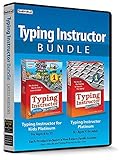
- Works on Windows 11, 10 & 8
- Kids ages 6 to 12 and older kids to adults learn to type on exciting adventures outside the classroom
- Both typing programs provide rewards every step of the way and learn in English or spanish
- Teaches keyboard basics following an age appropriate typing plan
- Typing Instructor is a registered trademark & box images and screenshots are copyrights of Individual Software Inc.
Rank #4
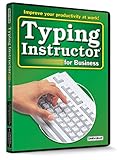
- Works on Windows 11, 10, & 8
- Typing Instructor for Business also adds fun and challenge to the process of learning to type
- Four exciting typing games and interesting articles for practice
- Proven touch-typing teaching methods provide step-by-step instruction & instant feedback
- Typing Instructor is a registered trademark & box images and screenshots are copyrights of Individual Software Inc.
Product prices and availability are accurate as of the date/time indicated and are subject to change. Any price and availability information displayed on Amazon at the time of purchase will apply.

