
iTechGuides is reader-supported. When you buy through links on our site, we may earn an affiliate commission. As an Amazon Associate I earn from qualifying purchases. Learn more
Start by identifying your Astro A50 generation and platform: troubleshooting steps for Gen 2, Gen 3, newer A50 models, and A50X are not interchangeable. The official guidance cited below is mainly for Gen 2 and Gen 3; if your software or menus differ, check Logitech Support for your exact model before changing settings.
Before troubleshooting: identify your A50 and connection
Check the model or generation printed on the headset, base station, or product documentation. Also note whether you are using a PC, Xbox, or PlayStation, and whether game audio reaches the base station over optical, USB, or another connection. The instructions below are generation- and platform-specific where stated; in particular, the Xbox One setup example is not a universal console setup.
- Use Gen 2 guidance only for Gen 2 hardware and Gen 3 guidance only for Gen 3 hardware.
- For a newer A50 or A50X, confirm that the support article and software controls match your exact model before applying them.
- Change one connection or setting at a time so you can tell which check affects the symptom.
A50 has sound in one ear, no sound, or poor balance
Logitech’s Gen 2 and Gen 3 one-channel audio articles cover different hardware and platforms. Their shared diagnostic checks are sync, connections, volume, game/voice balance, and testing with another compatible device. For Gen 3, also verify the base station’s Console/PC mode against the device in use.
- Check base-station mode (Gen 3): select Console when using a console and PC when using a computer, as appropriate to the Gen 3 guidance.
- Resync and reseat: confirm the headset is synced to its transmitter or base station, then place it securely in the dock. Check that it is seated as expected for charging and connection.
- Inspect the audio path: if your setup uses an optical cable, ensure it is connected securely and to the appropriate optical input on the console and base station. Optical connections do not apply to every platform or A50 setup.
- Set a neutral baseline: raise the headset volume and center the game/voice balance. This helps determine whether the apparent missing channel is actually a low level or an imbalanced mix.
- Cross-test: connect the headset/base station to another compatible computer or console. If the symptom changes, the original platform, port, or connection path may be involved; if it follows the headset, share that result with support.
These checks come from Logitech’s Gen 3 one-channel audio guidance and Gen 2 one-channel audio guidance. They are diagnostics, not a guarantee that a particular component is faulty or repaired.
#1 Best Overall

- 100% Compatible with original battery.
- 2.Battery Voltage:3.7V Battery Capacity:1000mAh, For battery part number:533-000169 / 533-000191 623441
- Compatible for ASTRO Gaming A50 Wireless Headset + Base Station Gen 4 battery
- Warranty :Rest assured with 60 days Refund and 12 months Warranty;24 x 7 email support.
A50 mic not working or people cannot hear you
Logitech’s outgoing-voice troubleshooting page applies to Gen 3. Work through its checks before assuming the microphone itself has failed:
- Confirm that the base station is set to the correct mode for the platform.
- Connect the base station to a different USB port.
- On the console, check that the base station is selected as the voice audio source.
- Reseat the USB and other connections in the audio path.
If people still cannot hear you, note the platform, selected voice device, and checks completed before contacting Logitech Support. The Gen 3 instructions are available in Logitech’s outgoing-voice article.
Rank #2

- Model Specific: Compatible with ASTRO A50 and A40 gaming headsets for precise headband screw replacement.
- Restore Function: Replaces lost or damaged screws to securely reattach headband components.
- Quick Fix: An easy and cost-effective solution to extend the life of your headset.
- Simple Installation: Tighten with a cross screwdriver,just match the screws and tighten.
- Accessory Support: Helps keep your headset functional and comfortable for continued gaming use.
A50 won’t charge or power on
The available charging and power instructions are for Gen 2, so do not assume they apply to a newer A50 generation. Logitech’s Gen 2 article suggests holding the power button to initiate pairing when the headset is unresponsive, then pressing the button again to check whether it powers off. It also mentions allowing the battery to drain fully. Battery-drain advice is unusual and may take time; if these steps do not help, contact support rather than inferring that a particular battery or replacement part is needed. See Logitech’s Gen 2 charging and power article.
The Tool Desk
Outbyte Driver Updater FREEFix the driver behind crashes, sound loss and screen glitchesFind Drivers →Outbyte PC Repair FREEClear out junk files and repair common Windows errorsFree Scan →Pairing, firmware, and software setup
Gen 3 firmware instructions are legacy guidance
Logitech’s Gen 3 firmware article describes connecting the base station to a PC over USB, placing the headset on the base station, confirming that charging is indicated, and using ASTRO Command Center to update the headset and base station. The same page says Logitech’s Firmware Update Tool is “no longer supported or maintained by Logitech.” Treat the procedure as legacy: verify the current software and update route for your exact model instead of assuming that the old tool or instructions remain available. See the Gen 3 firmware page.
Rank #3
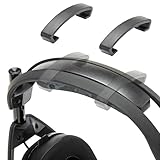
- Perfect Compatibility for Astro A50 Series: WC ClampZ A50 is designed exclusively for Astro A50 Gen 1, 2, 3, 4, Gen 5, and A50X, ensuring a snug fit and seamless integration with your headband and cushion.
- Stop Headband Cushion Flipping: Tired of your headband rotating or lifting during use? These brace clamps lock it in place, eliminating shifting and restoring consistent comfort.
- Comfort Without Compromise: By keeping your headband properly aligned, WC ClampZ A50 enhances overall wearability and pressure distribution, making your headset more comfortable for extended sessions.
- Durable & Lightweight Plastic Construction: Unlike brittle or abrasive options, our clamps are made of resilient plastic—offering a reliable hold without damaging your headset.
- 2-Pack, Easy to Install: Each package includes 2 WC ClampZ A50 with a tool-free snap-on design, so you can secure both sides in under a minute.
Xbox One setup is not a general A50 setup recipe
Logitech’s Gen 3 Xbox One setup article covers USB power and optical connections, current firmware, console audio configuration, and a 50/50 game/voice balance. Those steps describe an Xbox One example only. Do not transfer its optical-cable or console-menu instructions to Xbox Series consoles, PlayStation, or PC without checking the setup guidance for that exact platform and A50 generation. See Logitech’s Gen 3 Xbox One setup article.
Independent reader supportYour contribution helps us test, update, and keep practical guides available for everyone.When to contact support
Contact Logitech Support with your A50 generation, platform, connection type, symptom, and troubleshooting steps already tried when the problem persists. This is especially useful if audio or microphone behavior changes across devices, charging remains unreliable, or the current software does not match the legacy Gen 2 or Gen 3 directions above. Do not order a transmitter, base station, or cable based only on a symptom: compatibility depends on the exact A50 generation and platform.
Quick Recap
Best Value

- 3.7v Rechargeable Battery pack compatible with Logitech Gaming Headset, for ASTRO Gaming A50 // Logitech G Astro A30 // Logitech Astro A30 Lightspeed // Astro A30-XBOX// ASTRO A20 Gen 2 // ASTRO Gaming A20 Wireless Headset.
- 533-000169 battery 1000mAh for Astro A50 replacement battery, A30 headset battery replacement ,logitech Astro a20 gaming headset replacement.
- 3.7v rechargeable battery replacement for Logitech G Astro A50, Astro A30 gaming headset is compatible with original, plug and play, fits 600-00191 battery replacement.
- Gaming A50 battery Don't work with Astro A50 wireless and Astro A50 gen 3 wireless headset. // The battery pack fit 533-000169 battery replacement.
- Safety Features: The 3.7v rechargeable Lipo battery is built with high-quality materials and features built-in protection against overcharging, overheating, and short circuits, this ensures the battery operates optimally and eliminate the risk of any potential hazards.
Rank #4

- Compatibility: The headband is only compatible with Astro A50 GEN4 , GEN5 and A50X Headset. Not fit other models.
- Superior Velvet Material: The A50 Gen 4 headband is made of high-quality velvet material. Makes you feel still comfortable and enjoyable after hours of gaming or music.
- Easy to Install: The A50 Gen4 headband is very easy to install.
- WHAT YOU GET: 1. 1 x Headband. 2. 30 Days Worry-free replacement or refund.
Product prices and availability are accurate as of the date/time indicated and are subject to change. Any price and availability information displayed on Amazon at the time of purchase will apply.
What’s actually slowing this PC down?
Pick the symptom - the matching free tool is one click away.

