
Outdated Drivers Are Slowing You Down
One free scan finds every outdated or missing driver and matches the right update for your exact hardware.Free scan · exact hardware matchPC Slower Than It Used to Be?
A free scan shows the junk files, broken settings and background clutter dragging Windows down - then fixes them in one click.Free scan · Windows 10 & 11iTechGuides is reader-supported. When you buy through links on our site, we may earn an affiliate commission. As an Amazon Associate I earn from qualifying purchases. Learn more
If Intel VT-x is disabled, virtualization software may be unable to use your processor’s hardware virtualization features. The available official guidance does not show that this setting makes ordinary Windows applications slower, so enabling it is not a general PC speed tweak. It is relevant when you need a virtual machine or another feature that relies on hardware virtualization.
What VT-x does—and what it does not do
Intel VT-x is Intel’s processor virtualization technology. Virtualization software can use processor extensions to run virtual machines, but the processor must support the feature and firmware must make it available. See Intel’s explanation of why virtualization can show as disabled even when supported and Intel’s setup guidance for a new motherboard.
Turning VT-x on may resolve a virtualization application’s inability to use hardware virtualization. It is not established as a way to speed up everyday Windows apps, and there is no general speed gain to promise: results would depend on a specific workload and hardware.
Recommended Free Tools
Why Windows or an app may report virtualization unavailable
Check these layers rather than assuming the CPU is unsupported:
#1 Best Overall

- Sold as 1 Each.
- Features a 3.4GHz Intel Core i5-1335U 10-core processor with up to 4.6GHz speed and 12MB cache memory
- 256GB SSD keeps your running programs active while your computer resumes from suspension in seconds
- Windows 11 Home operating system provides an intuitive and user-friendly interface
- 8GB memory smoothly runs your games, photo and video editing applications
- Processor support: The processor must support Intel virtualization technology.
- Firmware setting: The PC’s BIOS or UEFI must support the feature, and virtualization must be enabled there. Processor support by itself is not enough.
- Windows features: Some uses may also require a Windows component such as Virtual Machine Platform. This is a separate setting from firmware virtualization. Microsoft describes these requirements in its Windows virtualization guide.
- Another virtualization component: Intel notes that only one software component can use the hardware extensions at a time. If an app reports a conflict, another hypervisor or virtualization component may already be using them.
How to enable virtualization in BIOS or UEFI
- Identify your PC model and manufacturer. Have the model information ready and find the manufacturer’s instructions for its firmware. Menu names and locations vary by device.
- Open Windows Recovery’s UEFI options. In Windows 10 or 11, go to Settings > System > Recovery > Advanced startup, select Restart now, then choose Troubleshoot > Advanced options > UEFI Settings > Restart. Exact labels or availability can vary with Windows version and OEM configuration. Microsoft documents this route in its Enable Virtualization on Windows guide.
- Find the virtualization setting. Follow the device maker’s instructions and look for a virtualization option. Its wording and location differ across firmware interfaces; do not rely on a universal menu path.
- Enable only the needed setting, save, and restart. Microsoft cautions: “Only change what you need to in the UEFI (or BIOS). Adjusting other settings might prevent you from accessing Windows.”
- Try the virtualization app again. If it still reports that virtualization is unavailable, review processor support, firmware enablement, required Windows features, and possible use by another virtualization component.
When to change a Windows feature instead
Firmware virtualization and Windows optional features are related but distinct configuration layers. Enabling VT-x in firmware does not automatically install or enable every Windows feature an application may require. If an app’s documentation calls for Virtual Machine Platform or another Windows virtualization component, check that requirement separately; do not turn off security features just because an app reports a problem.
Microsoft’s Windows 10/11 guidance notes that many Windows devices already have virtualization enabled. If your intended virtual machine or feature works, there is no reason to change firmware settings merely to pursue an unsupported general performance boost.
Quick Recap
Best Value
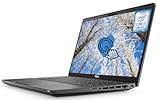
- 【Powerful Intel Core i7-8665 Processor】The Dell Latitude 5400 Laptop features a high-performance Intel Core i7-8665U processor. This quad-core processor delivers exceptional speed and multitasking capabilities with a Turbo Boost up to 4.8 GHz. Its 8MB Smart Cache further enhances data access efficiency, effectively reducing wait times and boosting overall productivity.
- 【14'' FHD Touchscreen Display】Equipped with a 14-inch Full HD (1920×1080) touchscreen, the Dell 5400 Laptop delivers a crisp and vibrant visual experience. The touch functionality enhances convenience, enabling intuitive navigation—ideal for quickly zooming in on maps, annotating documents, or operating touch-friendly applications.
- 【16GB RAM and 512GB SSD】With 16GB of DDR4 memory, the Dell touchscreen laptop runs multiple background applications smoothly. Paired with a 512GB solid-state drive, data access and storage speeds are lightning-fast. This storage solution combines ample capacity with rapid read/write performance, effortlessly accommodating vast amounts of critical work files, high-definition media resources, and large software installations.
- 【Connectivity Ports】This Dell laptop features a comprehensive array of ports to meet all your connectivity needs. It includes USB 3.1 and HDMI.
- 【Windows 11 Pro】The Latitude 5400 laptop runs Windows 11 Pro, delivering enhanced security features and productivity tools. This system includes advanced security measures such as BitLocker encryption to protect your data in the event of loss or theft.
Rank #4

- Smooth Multitasking with Intel Core i3 Processor: Powered by the latest Intel Core i3-N305 8-core, 8-thread processor with up to 3.8GHz max turbo frequency, this laptop delivers smooth, responsive performance for everyday tasks — perfect for work, study, and online browsing.
- Vibrant 15.6" Full HD Touchscreen Display: Enjoy crisp visuals and interactive control on a 15.6-inch Full HD (1920×1080) IPS touchscreen. The anti-glare BrightView panel and micro-edge design provide wide viewing angles and immersive clarity for streaming and productivity.
- Smart Productivity with Windows 11 and AI Copilot: Pre-installed Windows 11 with Microsoft Copilot helps you work smarter — generate summaries, organize tasks, and access intelligent suggestions directly from your desktop. Seamlessly integrated for study, creativity, and daily planning.
- Enhanced Audio, Camera & Connectivity: Experience clear video calls with the HP True Vision 720p HD camera featuring a privacy shutter and dual array microphones with AI noise reduction. Stay connected with fast Wi-Fi 6 and Bluetooth 5.3 for reliable wireless performance.
- Portable Design with Full-Size Keyboard & Long Battery Life: Type comfortably on the full-size keyboard with numeric keypad and work anywhere with up to 10.25 hours of battery life. The lightweight 3.53 lb design makes it easy to carry, ideal for home, school, or travel.
Rank #3

- 2025 Gen Intel U7 Power: Dominate multitasking with the Intel Ultra 7 processor (12 cores, up to 5.2GHz) and Intel Integrated Graphics—ideal for work, gaming, and creative projects.
- Immersive 2K Touchscreen: 16" micro-edge display (1920 x 1200) with ultra-slim bezels for vivid visuals, seamless multi-monitor setups, and responsive touch controls.
- Lightning-Fast Storage: 32GB DDR5 RAM and 2TB PCIe NVMe SSD boot apps in seconds, store large files, and deliver 15x faster performance than HDDs.
- All-Day Productivity: HP Fast Charge (50% in 45 mins) and Wi-Fi 7/Bluetooth 6.0 keep you connected. Includes FHD camera with HDR auto-switch, dual mics, and USB-C/USB-A/HDMI ports.
- Copilot AI in Windows 11: Get intelligent assistance and relevant answers with a single press of the Copilot key.Do more with AI as your personal assistant. Advanced AI Noise Reduction, Enjoy clearer team conversations with AI noise reduction.
Rank #2

- Processor : HP 15.6" laptop equipped with Processor(10 cores, L3 cache, up to 4.4 GHz burst frequency) with Intel Iris Xe Graphics. The laptop easily run all your applications, stable performance.
If the setting is missing or virtualization still fails
- Confirm the exact processor and PC model, then check their manufacturer documentation for processor and firmware support.
- Make sure you are following instructions for the specific computer or motherboard; firmware interfaces differ.
- Check whether the Windows feature required by your virtualization software is enabled.
- If a competing hypervisor or virtualization component may be active, consult the application’s guidance before changing Windows security or virtualization settings.
- If the firmware interface is locked, inaccessible, or damaged, contact the PC manufacturer or an authorized service provider rather than changing unrelated firmware options.
Product prices and availability are accurate as of the date/time indicated and are subject to change. Any price and availability information displayed on Amazon at the time of purchase will apply.
Free tools Windows power users keep installed
One-click scans. No signup required.

