
Windows Errors? Fix Them Before They Spread
Repair common Windows errors and clear accumulated junk for a smoother, more stable PC - no reinstall needed.Free scan · no reinstallCrashes, No Sound, or Screen Glitches?
Random freezes, missing sound and display glitches usually trace back to one bad driver. Find and replace yours safely.Free scan · under a minuteiTechGuides is reader-supported. When you buy through links on our site, we may earn an affiliate commission. As an Amazon Associate I earn from qualifying purchases. Learn more
Among the 6 of the best add-ons for Blender in 2026, no single tool is best for everyone: MACHIN3tools improves general workflow, Hard Ops and Boxcutter target hard-surface modeling, RetopoFlow handles manual retopology, Auto-Rig Pro streamlines character rigs, Zen UV improves UV production, and Geo-Scatter populates environments.
The list is organized by production bottleneck rather than popularity. A character artist, environment artist, hard-surface modeler, and beginner need different tools, and most Blender users should learn the native workflow before buying several add-ons.
Key takeaways
- MACHIN3tools is the strongest general productivity choice, but beginners should learn Blender’s standard shortcuts before depending on its menus and keymaps.
- Hard Ops and Boxcutter are a complementary pair for repeated boolean-based hard-surface work, not a substitute for topology, bevel, shading, and export knowledge.
- RetopoFlow 4.0 requires Blender 4.3 or later and is designed for deliberate manual retopology on sculpted, scanned, simulated, or dense meshes.
- Auto-Rig Pro is most valuable when character rigging, animation preparation, or game-engine export is a recurring task rather than a one-off need.
- Zen UV targets demanding UV, texel-density, stacking, and inspection workflows, while Geo-Scatter targets repeated environment and vegetation placement.
- Native Blender tools—including Boolean and Bevel modifiers, Geometry Nodes, Rigify, the UV Editor, and manual retopology—may already be sufficient for many projects.
How were these six Blender add-ons selected?
These recommendations solve six different recurring production problems: everyday navigation, hard-surface modeling, retopology, character rigging, UV preparation, and environment scattering. The goal is not to pretend that unrelated tools can be ranked on one universal scale. The better question is: which add-on removes the bottleneck in your current Blender workflow?
A useful add-on should have a clear job to do, reduce repetitive work, remain useful beyond a beginner tutorial, and work sensibly with Blender’s native modifiers, Geometry Nodes, standard rigs, renderers, and export pipelines. Maintenance, documentation, compatibility, learning curve, reversibility, and recovery options also matter. Marketplace popularity can provide supporting evidence—Superhive’s add-on marketplace lists Auto-Rig Pro, RetopoFlow 4, MACHIN3tools, UVPackmaster, and Hard Ops/Boxcutter among popular or top-selling products—but sales ranking is not a performance benchmark.
#1 Best Overall
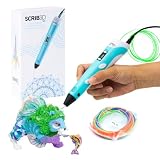
- [A GIFT FOR THE WHOLE FAMILY] Create, Draw, Doodle, and Build in 3D with this affordable yet high grade 3D pen. The new SCRIB3D P1 3D Pen helps improve spatial thinking, creativity and artistic skills. Great for quality family time and as a practical tool for making handmade gifts or decorations, or for everyday fixes around the home. The P1 Pen features a stepless speed function designed for optimal speed control no matter the task - whether slower intricate projects or faster infill work.
- [READY-TO-USE KIT] Includes 3 colors (30 feet) of PLA plastic to keep you Doodling for ages, as well as a power adapter, step-by-step manual, and a free stencil guide. Just plug in, heat it up and enjoy the fun of creating three-dimensional masterpieces. PLA is a versatile, easy-to-use printing plastic that is great for both first time and advanced users.
- [BEGINNER FRIENDLY] Plug the adapter into the back of the pen and choose your filament. The red light will turn on indicating warm up, this will take about 2-3 mins. Double click the forward button to start and feed the filament through the back of the pen. Once the filament has reached the nozzle of the pen, click forward to stop. Press and hold the forward button or double click for a continous flow. Once you have completed your design, press and hold the reverse button to retract filament.
- [MULTI-FUNCTIONAL] The SCRIB3D P1 Pen is temperature adjustable to accommodate multiple types of filament: PLA (160-210℃, 320-410°F) or ABS (210-235℃, 410-455°F). Unlike other 3D printing pens, the P1 has an easy-to-use stepless speed slider, designed for optimal speed adjustment. Perfect for any task, from slow & intricate projects to faster infill work.
- [SAFE & RISK FREE PURCHASE] The P1's ceramic nozzle and premium motor ensure safety and high performance without clogging. Equipped with 2 minute auto sleep function after 3D doodling stops, anti clogging features, and intititve controls ensure a seamless Doodling experience. 1 year guarantee and responsive customer service. Buy with 100% confidence. If there are any quality issues or you need getting started tips, please feel free to contact us and we'll be happy to help.
Which Blender add-on should you choose?
| Reader need | First choice | Main benefit | Skip it if… |
|---|---|---|---|
| Faster navigation, selection, and scene management | MACHIN3tools | General workflow utilities and configurable pie menus | You are still learning Blender’s standard shortcuts |
| Products, props, vehicles, weapons, or sci-fi assets | Hard Ops + Boxcutter | Fast boolean cutting and hard-surface management | You mainly create organic or sculpted forms |
| Clean topology over a sculpt or high-poly mesh | RetopoFlow | Controlled manual retopology | You only make simple low-poly primitives or need automatic remeshing |
| Character rigs and game-oriented export | Auto-Rig Pro | Streamlined initial rig creation and export preparation | You never animate and only need a static pose |
| UV layouts, stacking, inspection, and texel density | Zen UV | A broad set of UV editing and checking tools | Your project uses procedural materials with little UV work |
| Grass, rocks, trees, debris, or repeated environment assets | Geo-Scatter | Controlled distribution across surfaces | The scene is small or objects are quicker to place manually |
1. MACHIN3tools: best general workflow add-on
MACHIN3tools is a broad productivity toolkit for navigation, selection, viewport work, object management, pie menus, and modeling-oriented operations. Unlike a dedicated UV or rigging add-on, MACHIN3tools acts as a daily workflow layer across several Blender editors and modes.
The add-on is a good choice for intermediate users who repeatedly switch between Object, Edit, Sculpt, and other modes, or who prefer keyboard- and pie-menu-driven work. Faster access to common commands can reduce friction across almost every project, and the workflow improvements can complement specialist tools such as Hard Ops, Boxcutter, or Zen UV.
MACHIN3tools is not automatically essential. Its breadth means that new users must configure the groups they want, and shortcut conflicts can disrupt tutorials, studio keymaps, or personal preferences. A beginner who has not learned Blender’s native navigation may end up memorizing the add-on instead of understanding the underlying commands.
Do these 3 things before closing this tab:
1Scan for outdated or missing drivers - takes under a minute2Repair Windows errors before they cause bigger problems3Fix the driver behind crashes, sound loss and screen glitchesCompatibility and installation
The developer’s MACHIN3tools installation documentation lists support guidance for Blender 4.2 LTS through Blender 5.1 and identifies release 1.13.8 as released on February 16, 2026. The documentation also explains that Blender 4.2 and later classifies MACHIN3tools as a “Legacy Addon,” even though Blender supports drag-and-drop ZIP installation.
Check the exact Blender version and current installation instructions before downloading. Export your Blender preferences before enabling a shortcut-heavy add-on, and learn the native command behind any shortcut you rely on.
Choose MACHIN3tools if: general navigation, selection, and scene-management friction is slowing you down across many projects.
Use native Blender instead if: you are still learning the default interface or need a dedicated solution for UVs, retopology, rigs, or scattering.
2. Hard Ops + Boxcutter: best for hard-surface modeling
Hard Ops and Boxcutter are commonly used together for manufactured forms. Boxcutter focuses on fast boolean-based cutting, slicing, and shape blocking, while Hard Ops provides workflow tools for modifiers, bevels, shading, booleans, and hard-surface scene management.
The pair fits product design, props, vehicles, weapons, architecture, and sci-fi assets built from panels, cutouts, vents, seams, and other mechanical details. A fast non-destructive blockout workflow is especially valuable when an artist creates this kind of asset repeatedly.
According to the Superhive marketplace listing captured on August 18, 2026, the Hard Ops / Boxcutter Ultimate Bundle showed a price of $38. That is a dated marketplace snapshot, not a permanent price; confirm the current product page before buying.
What are the limitations of Hard Ops and Boxcutter?
Hard Ops and Boxcutter do not automatically produce clean production topology. Boolean-heavy scenes can become difficult to manage when the artist ignores object naming, modifier order, scale, mesh density, bevel width, normals, and shading. A result that looks acceptable in a viewport may need substantial cleanup for close-up rendering, subdivision, baking, deformation, or game-engine optimization.
What’s actually slowing this PC down?
Pick the symptom - the matching free tool is one click away.
The workflow can also become shortcut-dependent. A shared project may be harder for another artist to understand if the file depends on unfamiliar keymaps or undocumented modeling conventions. The tools are strongest for fast concept and product-visualization workflows; deformation-ready or tightly optimized game topology still requires deliberate modeling decisions.
Rank #2

- WACOM’S BEST PEN TECHNOLOGY: Pro Pen 3 offers amazing precision, 8192 pressure levels, tilt support & lag-free tracking for smooth, precise strokes; choose slim, straight or flared grip, adjust balance & button layout for precision and comfort
- DIAL INTO PRODUCTIVITY: Speed up and stay in the creative flow with 10 customizable tablet ExpressKeys & 2 mechanical dials conveniently located at the top of the tablet and close to your keyboard for efficiency
- DESIGNED FOR MODERN MONITORS: With a versatile 16:9 format perfect for multiple monitors and wide displays; medium size has a large active area with a small footprint 11.4 x 8.1” / 291 x 206 mm
- SLEEK AND STURDY: Measuring 4mm at its thinnest this professional-grade drawing tablet feels like pen-on-paper on your desk, combined with the robust durability of magnesium making it equally suited for your office or life on the go
- WIRELESS FREEDOM: use Intuos Pro with USB or connect wirelessly via Bluetooth to multiple computers with a simple switch
Do you need Hard Ops and Boxcutter?
Native Blender Boolean and Bevel modifiers, plus the built-in Bool Tool, can handle basic hard-surface work. Add Hard Ops and Boxcutter when boolean cutting and mechanical modeling are repeated bottlenecks, not simply because a demonstration looks fast.
MESHmachine is better viewed as a complementary cleanup and surface-refinement tool than as an automatic replacement. Superhive’s category listing showed MESHmachine prices from $44.99 to $344.99 on August 18, 2026, so the additional purchase makes most sense when surface finishing—not initial cutting—is the problem.
Choose Hard Ops + Boxcutter if: you regularly model manufactured objects and want a faster boolean-centered workflow.
Quick wins for a faster PC:
Fix the driver behind crashes, sound loss and screen glitchesFind Drivers →Clear out junk files and repair common Windows errorsFree Scan →Skip it if: you mainly sculpt, model organic characters, or only create occasional simple hard-surface objects.
3. RetopoFlow: best for manual retopology
RetopoFlow is designed for creating a deliberate, lower-density mesh over a sculpt, scan, simulation result, or dense model. RetopoFlow is particularly useful when edge flow must support deformation, baking, or controlled game and animation topology rather than merely reducing polygon count.
The add-on does not make retopology automatic. The artist still needs to understand anatomy, deformation, loops, poles, surface direction, and appropriate polygon density. That learning requirement is a strength for users who need control and a drawback for anyone expecting a one-click remesh.
Which Blender versions support RetopoFlow 4?
RetopoFlow’s official installation documentation states that RetopoFlow 4.0 is compatible with Blender 4.3 or later and supports Windows, macOS, and Linux for the listed versions. Older RetopoFlow releases target older Blender versions, so selecting the matching build matters.
Free tools Windows power users keep installed
One-click scans. No signup required.
The same documentation states that RetopoFlow’s code is GPL 3.0 licensed while its non-code assets are not open source. “Free” or source-available should therefore not be interpreted as meaning every bundled asset has the same license.
How do you install or repair RetopoFlow?
- Confirm the installed Blender version and download the corresponding RetopoFlow build.
- Open Blender and choose Edit > Preferences > Add-ons.
- Open the top-right dropdown and choose Install From Disk.
- Select the original ZIP file without extracting it.
- Enable RetopoFlow 4.
If installation fails, remove the old version, close Blender, reopen Blender, reinstall the correct original ZIP, and enable the add-on again. If a ZIP was automatically extracted, recompress it before trying to install it. The official troubleshooting guidance also recommends testing with factory-default settings to separate add-on conflicts from preference or keymap problems.
Blender’s Shrinkwrap modifier, snapping, and native retopology tools are viable alternatives for occasional work. Automated tools such as Quad Remesher or Instant Meshes may be preferable when speed matters more than hand-directed edge flow.
Choose RetopoFlow if: sculpt-to-game, sculpt-to-animation, scan cleanup, or other manual retopology tasks occur regularly.
Skip it if: your models are simple primitives, you only need automatic remeshing, or you rarely create a lower-resolution surface.
Rank #3

- Turn your ordinary drawings into 3D works of art
- Stepless speed slider lets you regulate flow for optimal control of material while you're drawing
- New: ultrasonic sealed nozzle is nearly clog-proof and provides market leading durability
- The Super 3D Printing Pen is great for kids, artists and engineers of all ages
- Kit includes 3 colors of PLA plastic filament A/C adapter and slim, ergonomic touch pen with 1 year limited warranty
4. Auto-Rig Pro: best for character rigging and export
Auto-Rig Pro streamlines initial character rig creation, animation preparation, and export. The add-on is especially relevant to artists sending animated characters from Blender to a game engine or another production tool.
Rigging is a major bottleneck for character artists who do not want to build every control system manually. Auto-Rig Pro can be a stronger fit than a general animation utility when the same character pipeline is repeated across projects.
The marketplace category page captured on August 18, 2026 showed Auto-Rig Pro price options ranging from $25 to $227. Those visible options represent different editions or licenses rather than one universal price, so check the Auto-Rig Pro product page for the applicable tier before purchase.
Recommended Free Tools
What does Auto-Rig Pro not solve?
Auto-Rig Pro does not replace knowledge of deformation, weight painting, constraints, corrective shape keys, facial setup, or animation cleanup. A rig that behaves correctly in Blender may not export identically to Unreal Engine, Unity, Godot, or another target. Bone naming, rest pose, scale, retargeting, baked constraints, and export settings can all affect the result.
Existing skeletons may need remapping rather than a new rig, and advanced facial deformation may require additional setup. Users who only pose a static character or produce still images will usually have a weaker reason to buy a dedicated rigging system.
Blender’s free Rigify add-on is a credible alternative for users willing to learn Blender’s rigging ecosystem. Mixamo can be convenient for rapid cloud-based auto-rigging and animation reuse, while manual armatures or engine-specific tools provide more direct control in specialized pipelines.
Choose Auto-Rig Pro if: repeated rigging, animation preparation, retargeting, or export consumes more time than modeling.
The Tool Desk
Outbyte Driver Updater FREEScan for outdated or missing drivers - takes under a minuteDriver Scan →Outbyte PC Repair FREERepair Windows errors before they cause bigger problemsFix Now →Skip it if: characters remain static, you need only occasional posing, or your studio requires a completely custom rig standard.
5. Zen UV: best for advanced UV editing
Zen UV focuses on UV marking, unwrapping, relaxing, transforming, aligning, stacking, texel-density management, trim-sheet workflows, and visual inspection. The product description lists checks for overlap, flipped islands, stretching, padding, and borders.
Zen UV is a strong fit for game art, texturing, baking, and any workflow where multiple assets must maintain consistent texel density. Inspection tools can identify problems before an artist begins painting or baking, when UV errors are more expensive to repair.
Zen UV’s product listing identified the product as version 5.3.3 in the research capture dated August 18, 2026. The current price should be checked on the product page because prices and version availability can change.
Is Zen UV better than Blender’s UV tools?
Zen UV adds workflow depth and specialized controls; it does not remove the need to understand seams, distortion, island layout, packing, texel density, and texture resolution. Blender’s native UV Editor is capable of professional work, and procedural or triplanar materials may make conventional UVs unnecessary for some projects.
Rank #4
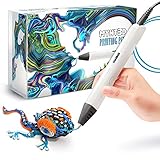
- Watch imagination come to life with the Professional 3D Pen
- Adjustable feed lets you regulate speed & flow for optimal control of material while you're drawing
- Temperature is adjustable in 1 degree increments from 140 to 230 C, for optimal fine-tuning
- Large, OLED display lets you monitor temperature of material to help you achieve a wide variety of effects
- Kit includes 3 colors of PLA plastic filament, A/C adapter and slim, ergonomic pen with 1 year limited warranty
UVPackmaster is a credible alternative when optimized packing is the primary constraint. The Superhive category listing showed visible UVPackmaster prices from $55 to $349 on August 18, 2026, which means UVPackmaster is not automatically the cheaper option.
Choose Zen UV if: UV consistency, stacking, trim sheets, baking, or texel-density inspection is a recurring production concern.
Skip it if: your assets use simple materials, procedural mapping, or only occasional uncomplicated UV layouts.
6. Geo-Scatter: best for environments and vegetation
Geo-Scatter distributes assets across surfaces with controls for density, scale, rotation, and environment-style setups. The add-on is suited to grass, rocks, trees, debris, repeated props, and large natural scenes where manual placement becomes repetitive.
Geo-Scatter represents the environment-production category that modeling, rigging, and UV add-ons do not cover. Controlled variation can make repeated assets look less uniform while preserving an editable distribution system.
What should you watch for with scattering systems?
Dense scatter systems can increase memory use and slow viewport or render evaluation. Results depend on the source assets’ polygon count, scale, orientation, materials, and optimization. Converting instances to real geometry can create a sudden memory and performance cost, so retain instances where the pipeline permits.
Geo-Scatter is not necessarily a complete vegetation or asset library. A scene may still require separate grass, rock, tree, debris, or material assets. Small scenes can be faster to populate manually, and exported scenes may need a deliberate strategy for instances and dependencies.
Outdated Drivers Are Slowing You Down
One free scan finds every outdated or missing driver and matches the right update for your exact hardware.Free scan · exact hardware matchPC Slower Than It Used to Be?
A free scan shows the junk files, broken settings and background clutter dragging Windows down - then fixes them in one click.Free scan · Windows 10 & 11Native Blender Extensions and Geometry Nodes can handle many scattering tasks. Geometry Nodes is a better starting point for users who want to build procedural systems themselves. Botaniq is a relevant alternative when the main need is a ready-made vegetation library rather than distribution controls.
Choose Geo-Scatter if: environment population, vegetation variation, or repeated asset placement is taking substantial manual effort.
Skip it if: the scene is small, objects are unique, or manual placement is faster than setting up a distribution system.
Independent reader supportYour contribution helps us test, update, and keep practical guides available for everyone.Should you buy Blender add-ons or use native tools?
Most Blender users should start with native tools and add a paid extension only when a repeated bottleneck justifies the cost. Native Boolean and Bevel modifiers cover basic hard-surface work; Geometry Nodes handles many procedural distribution systems; Rigify provides a free rigging route; Blender’s UV Editor supports serious UV work; and manual retopology remains possible without RetopoFlow.
What’s actually slowing this PC down?
Pick the symptom - the matching free tool is one click away.
| Workflow | Native starting point | When the add-on becomes worthwhile | Potential alternative |
|---|---|---|---|
| General productivity | Blender shortcuts, menus, and workspace customization | Repeated navigation and selection friction affects every project | MACHIN3tools |
| Hard surface | Boolean, Bevel, and Bool Tool | Boolean-heavy modeling is a frequent professional task | Hard Ops + Boxcutter |
| Retopology | Snapping and Shrinkwrap | Manual edge-flow control is needed repeatedly | RetopoFlow |
| Rigging | Rigify or manual armatures | Multiple characters or export targets require a repeatable pipeline | Auto-Rig Pro |
| UVs | Blender UV Editor | Texel density, stacking, inspection, or packing limits production | Zen UV or UVPackmaster |
| Scattering | Geometry Nodes and collection instances | Large environments require fast, controlled population | Geo-Scatter or Botaniq |
A paid add-on buys speed, convenience, integration, and specialized controls—not a replacement for fundamentals. The practical buying rule is simple: buy the tool that fixes the bottleneck you encounter repeatedly, not the tool with the most impressive demonstration.
Best Value

- Large Active Drawing Space: UGEE M708 V3 graphic drawing tablet features 10 x 6 inch large active drawing space with papery texture surface, provides enormous and smooth drawing for your digital artwork creation, offers no-lag sketch and painting experience
- 16384 Passive Stylus Technology: A more affordable passive stylus technology offers 16384 levels of pressure sensitivity allows you to draw accurate lines of any weight and opacity according to the pressure you apply to the pen, sharper line with light pressure and thick line with hard pressure for artistry design or unique brush effect for photo retouching
- Compatible with Multiple System and Softwares: Powerful compatibility, tablet for drawing computer, perform well with Windows 11/10/8/7, Mac OS X 10.10 or later, Android 10.0 or later, mac OS 10.12 or later, Chrome OS 88 or later and Linux; Driver program works with creative software such as Photoshop, Illustrator, Macromedia Flash, Comic Studio, SAI, Infinite Stratos, 3D MAX, Autodesk MAYA, Pixologic ZBrush and more
- Ergonomically Designed Shortcuts: 8 customizable express keys on the side for short cuts like eraser, zoom in and out, scrolling and undo, provide a lot more for convenience and helps to improve the productivity and efficiency when creating with the drawing tablet
- Easy Connectivity for Beginners: The UGEE M708 V3 offers USB to USB-C connectivity, plus adapters for USB C, ensuring easy connection to various devices and allowing beginner artists to set up quickly and focus on their creativity without compatibility concerns; Whether using a laptop, desktop, chromebook, or tablet, the UGEE M708 V3 provides a seamless experience for those just starting their digital art journey
How should you choose by Blender workflow?
- Beginner: learn native navigation, modeling, UV, Geometry Nodes, and rigging basics first. Consider MACHIN3tools only after Blender’s default shortcuts feel familiar.
- Hard-surface artist: start with Hard Ops + Boxcutter. Consider MESHmachine later if boolean cleanup and surface refinement become the next bottleneck.
- Character artist: use RetopoFlow for controlled mesh cleanup and Auto-Rig Pro when rigging, animation, or export becomes repetitive.
- Game artist: prioritize Zen UV or UVPackmaster for consistent UV production and Auto-Rig Pro for animated character export.
- Environment artist: consider Geo-Scatter, but optimize source assets and preserve instancing where possible.
- Budget-conscious user: begin with Blender’s native tools, Rigify, Geometry Nodes, and free or community alternatives before buying specialist software.
What can go wrong after installing Blender add-ons?
Installation fails
Wrong Blender versions, extracted ZIP files, old installations, duplicate copies, conflicting preferences, and legacy-addon differences are common causes. Confirm the exact Blender version, download the matching build, remove the old installation, restart Blender, install the original ZIP, and enable only the required add-on. If the problem persists, test a clean Blender configuration.
Shortcuts conflict
MACHIN3tools and hard-surface tools can introduce shortcut-heavy workflows. Export Blender preferences before installation, inspect keymap conflicts, avoid blindly importing a complete preference file, and retain knowledge of the native command for every important operation.
A file opens without the add-on but is not fully editable
A Blender file may render correctly on another computer while still depending on missing linked assets, external textures, custom node groups, add-on-specific data, unsupported modifiers, or instanced assets stored outside the project. Test both rendering and editability on a clean machine before delivery.
Performance gets worse
Boolean-heavy modeling can slow modifier evaluation, dense scattering can increase memory use, large UV or asset libraries can increase load times, and converting instances to real geometry can cause a sudden performance cost. Add-on-heavy startup configurations also make troubleshooting more difficult, so enable tools selectively.
How should you check compatibility before buying?
Blender changes quickly, and “works with Blender 4.x” is not precise enough. Check the add-on’s exact supported point releases, operating-system support, installation method, license terms, update policy, and export compatibility before purchase. Blender’s official Extensions platform and legacy ZIP add-ons are distinct distribution models; not every commercial add-on is installed through Extensions.
RetopoFlow provides an example of the level of care required: its official documentation identifies a specific Blender 4.3-or-later requirement and gives a version-specific recovery procedure. MACHIN3tools likewise documents both supported versions and its legacy-addon status. For Auto-Rig Pro, Zen UV, Hard Ops, Boxcutter, and Geo-Scatter, confirm the vendor’s current compatibility statement on the product page before committing a production file.
Keep the original ZIP files, license or purchase records, and a tested copy of the add-on with archived projects. A future Blender update may change menus, APIs, modifier behavior, or installation requirements.
Free tools Windows power users keep installed
One-click scans. No signup required.
Frequently Asked Questions
Are these six Blender add-ons essential for beginners?
No. These six Blender add-ons are not essential for beginners because Blender already includes capable modeling, UV, Geometry Nodes, and rigging tools. Learn the native workflow first, then add one tool when a repeated bottleneck is clear.
Which is the best Blender add-on for hard-surface modeling?
Hard Ops and Boxcutter are the strongest choice in this list for repeated hard-surface modeling because Boxcutter accelerates boolean cutting while Hard Ops manages related modeling, modifier, bevel, and shading workflows. The pair does not guarantee clean topology or export-ready meshes.
Which Blender add-on is best for retopology?
RetopoFlow is the best choice in this list for controlled manual retopology over sculpted, scanned, simulated, or dense meshes. RetopoFlow 4.0 requires Blender 4.3 or later, according to its official installation documentation.
What is the best Blender add-on for character rigging?
Auto-Rig Pro is the best choice in this list for recurring character rigging, animation preparation, and game-oriented export. Rigify is a free native alternative, while manual armatures provide more direct control.
What is the best Blender add-on for scattering environments?
Geo-Scatter is the best choice in this list for distributing vegetation, rocks, debris, and repeated assets across environments. Native Geometry Nodes can provide a capable alternative for users willing to build their own procedural systems.
The Bottom Line
Do not install all six automatically. Start with native Blender tools, identify the task that repeatedly consumes time, and choose the matching specialist: MACHIN3tools for general workflow friction, Hard Ops + Boxcutter for hard surfaces, RetopoFlow for manual retopology, Auto-Rig Pro for character rigs and export, Zen UV for demanding UV work, or Geo-Scatter for large environment populations.

