
iTechGuides is reader-supported. When you buy through links on our site, we may earn an affiliate commission. As an Amazon Associate I earn from qualifying purchases. Learn more
Spotify’s defaults are not universally annoying, but five settings can make playback behave differently from what you expect: Autoplay continues after your selected music ends, Smart Shuffle adds recommendations, Canvas shows looping visuals, volume normalization evens out loudness, and automatic quality adjustment can change audio quality to help prevent stuttering. Turn off only the behaviors you dislike; each has a trade-off, and options can vary by app, device, plan, and account.
Which Spotify settings should you change?
Use this as a preference guide, not a ranking of objectively bad defaults. Spotify’s support pages explain what these controls do, but do not claim these are the five most annoying settings. The first three are mainly about playback behavior and visuals; the last two are sound and connection trade-offs.
| Setting | What changing it addresses | What disabling or changing it costs | Availability or caveat |
|---|---|---|---|
| Autoplay | Music continuing after the selected content ends | Playback stops instead of continuing with more music | Look in Settings and privacy; exact path varies |
| Smart Shuffle | Recommendations mixed into a listening session | You lose those recommendations | The documented mobile control is for Premium; free mobile listeners have different availability |
| Canvas and video | Looping visuals and other video during playback | You lose those visual features; some Canvas visuals can still appear with free audio ads | Video settings apply across platforms and devices where the account is used |
| Volume normalization | Differences in loudness between tracks | Track-to-track loudness varies more if normalization is off | Spotify Connect can prevent changes to audio settings while it is playing on another device |
| Automatic audio-quality adjustment | Quality changing to help avoid stuttering | A fixed higher setting may use more data or storage and can buffer on an unstable connection | Quality options depend on plan and device |
1. Turn off Autoplay if you want playback to stop at the end
If you have wondered, “How do I stop Spotify from playing after my playlist ends?”, Autoplay is the setting to check. Spotify says switching it off stops playback after the selected content ends. That is useful when you want an album, playlist, or queue to be the whole listening session rather than a starting point for more music.
Do these 3 things before closing this tab:
1Fix the driver behind crashes, sound loss and screen glitches2Repair Windows errors before they cause bigger problems3Scan for outdated or missing drivers - takes under a minuteOpen Settings and privacy and look for Playback or Autoplay. The precise menu path may differ by app version or platform. If you like music continuing after your chosen content, leave Autoplay enabled; turning it off means playback will stop.
#1 Best Overall
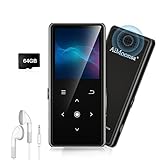
- ★【64GB Large Storage & HIFI Lossless Sound】 Each MP3 Player is equipped with a 64GB large-capacity TF card, which allows you to download thousands of your favorite music. And through the powerful DSP audio decoder chip, the most original sound is presented to you. It can ensure the high sound quality of HIFI.(Supports TF cards up to 256GB.)
- ★【Upgraded Bluetooth 5.2 & Support Multiple Formats】 Latest Version Bluetooth 5.2 means that faster transmission speed, longer connection distance and stronger anti-interference ability.Reduced power consumption for more power savings. And support APE / FLAC / WMA / MP3 / ACELP and other lossless formats.
- ★【Built-in HD Speaker & Easy to Carry】 The MP3 player has built-in HD speakers, which can play music without earphones, and no longer need to feel the pain of wearing earphones. MP3 player length is 3.6", width is 1.7" and thickness is 0.35". The body is made of hard and light zinc alloy and weighs only 70 grams. Lightweight and easy to carry.
- ★【Multifunctional MP3 Player for Many Occasions】 Multiple functions in one, music play, FM radio (need to insert a wired headphones), voice recorder, e-book, Alarm clock. Touch buttons with backlight to solve the problem of button noise. Perfect for Sport, Sleeping, Reading, Leaning, Meeting etc.
- ★【Great Gift】Each package contains an MP3 player, wired earphones, a 64GB TF card, a card reader, and a Type-C data cable. It makes an ideal gift for your children, partner, parents, or family on birthdays, Christmas, Thanksgiving, and other special occasions. If you have any questions, feel free to contact us anytime.
2. Disable Smart Shuffle if you do not want recommendations mixed in
Smart Shuffle mixes recommendations into a listening session. Spotify describes it as a way to keep a session fresh with recommendations that match its vibe. If you want only the tracks you selected, the recommendations may be unwelcome.
Premium mobile
On Premium mobile, Spotify documents this path: Settings and privacy > Playback > Include Smart Shuffle in play modes. Turn off that control to remove Smart Shuffle from the available play modes.
Free mobile and identifying recommendations
Spotify says Smart Shuffle is always active on mobile for free listeners, so the Premium control is not a universal off switch. To spot a recommendation, look for the Enhance badge beside the artist in the Now Playing bar. Menu labels and availability can differ by account and app version.
What’s actually slowing this PC down?
Pick the symptom - the matching free tool is one click away.
Rank #2

- 【64GB BUILT-IN LARGE STORAGE CAPACITY】Different from other large memory MP3 players on the market, the AGPTEK M3 boasts an impressive 64GB of internal storage, can expandable 128GB memory card (total up to 192G). [Other brands have no built-in memory and can only be used with TF card.]【Tip: The file size of a single transfer should not exceed 3GB to ensure the transfer speed and stability.】
- 【Bluetooth 5.3 & Automatic Reconnection】AGPTEK M3 MP3 music player adopts Bluetooth 5.3 technology, more stable connection, better compatibility, and lower consumption. You can pair the Bluetooth MP3 Player with wireless headphones or a Bluetooth speaker, automatically connects to the last Bluetooth device it was connected to, as soon as it is activated.
- 【HiFi Lossless Sound & Sports Partner】 With a professional audio decoding chip and smart noise reduction chip, AGPTEK MP3 player brings you original lossless music. With breakpoint resume function, perfect for doing sports, Yoga, exercise, running, travel, etc. Supports music formats like MP3/APE/FLAC/WMA/WAV/AAC [Note It does not directly support Audible, Apple music and iTunes.]
- 【Multi-function & Long battery life】 M3 MP3 player with Music Play, Video, Recording, Radio, Pictures, e-Books, Pedometer, A-B repeat, etc. Built-in 500mAh battery, it only takes 2.5 hours to fully charge and enjoy long hours of music. Perfect solution to replace mobile phone music, save mobile phone power. (To save power, the player will automatically power off after 5 minute of inactivity. You can turn it off in the settings.)
- 【 2.4'' SCREEN & LINE-IN FUNCTION】Features a 2.4-inch TFT color screen, bringing a clear and beautiful display. Metal middle frame with ABS plastic back shell,the size is approximately 4.4 inches × 2.06 inches × 0.39 inches, Weight: approximately 3.6 oz. And it supports Line-in recording and playback capabilities. Use a LINE IN cable to record from two MP3 players or connect with other devices for recording or play music.
3. Turn off Canvas or video if moving visuals distract you
Canvas is a short looping visual shown while a song plays. Spotify also provides controls for broader video formats. Disabling these is most useful if you prefer a less animated playback screen; Spotify says Canvas uses very little data and does not continue running in the background, so it is not a major data-saving measure.
On a phone or tablet, Spotify’s documented path is Settings and privacy > Content and display > Videos and Canvas. Spotify says the video settings apply across platforms and devices where you use the account. One exception matters: free, ad-supported listeners may still see Canvas visuals with audio ads, and video ads cannot be disabled through these settings.
4. Adjust volume normalization only if you prefer more variation
Volume normalization balances soft and loud songs to create a more uniform listening experience. If you would rather hear greater differences in loudness from track to track, turning normalization off is a reasonable preference experiment. It is not an objective sound-quality upgrade: it changes playback loudness consistency, not a guaranteed improvement to the recording.
Rank #3

- No Setup, Just Play: Preloaded with Spotify, Spotify Kids, Amazon Music, Pandora, Deezer, TIDAL, and YouTube Music; save time and enjoy your favorite songs, audiobooks, and podcasts the moment you power on
- Hear Every Detail, Feel Every Note: HiBy Music preloaded for lossless playback; customizable modes adapt to your style; pure, uninterrupted sound keeps you immersed in music you love
- Open Stories, Dive In: Audible, Libby, and LibriVox preloaded; enjoy rich sound, free library books, and classic tales anytime for an easy, immersive storytelling experience
- Clearer Sound, Smoother Play: 12nm CPU powers stable performance; hardware-level FLAC/APE decoding reveals richer details in every track
- Stay Synced, Play Seamless: Android 14 with Google Play keeps apps updated automatically; your playlists, favorites, and subscriptions follow you across phone, tablet, and player
Spotify says normalization adjusts tracks to -14 dB LUFS during playback. Premium listeners can choose among these modes, with the levels Spotify specifies:
Free tools Windows power users keep installed
One-click scans. No signup required.
| Premium mode | Target level | Spotify’s stated use |
|---|---|---|
| Loud | -11 dB LUFS | Noisier environments; less dynamic levels |
| Normal | -14 dB LUFS | Spotify’s normal setting |
| Quiet | -19 dB LUFS | Quieter environments |
These are Spotify’s stated levels, not a promise that every listener will perceive the modes identically. On mobile, the typical path is Settings and privacy > Playback. Spotify warns that audio settings cannot be changed while Spotify Connect is playing on another device.
Independent reader supportYour contribution helps us test, update, and keep practical guides available for everyone.5. Set audio quality manually only if your connection and data allow it
Spotify enables automatic audio-quality adjustment by default to help playback avoid stuttering. If you want a consistent quality setting, you can turn automatic adjustment off and choose one yourself. But a fixed high setting uses more streaming data, and higher download quality uses more storage. On a limited data plan or an unstable connection, automatic adjustment may be the better choice.
Rank #4

- [Immersive Sound Experience & Dual Connectivity] Experience unparalleled sound quality with this wireless Bluetooth speaker's 2 drivers and advanced technology that delivers powerful, well-balanced sound with minimal distortion. Connect two speakers together to create an immersive stereo sound experience and fill any room with powerful sound. Perfect for gaming, music, and movie playback
- [Tough & Weather-Resistant] Engineered to handle rough use and adverse weather conditions, this speaker features a durable design and an IPX5 rating for protection against water splashes and spills. It's an ideal choice for outdoor events, and is perfect for use at parties, at the pool, on the beach, while camping or hiking, and more
- [Long-lasting Playtime & Extended Bluetooth Connectivity] Experience extended playtime with up to 24 hours(50% Vol and light off) per charge and extended wireless range with Bluetooth 5.3, reaching up to 100 feet from your device. The multicolor lights on the speaker can also be turned off with a simple button press to save the battery and adapt to your needs. Keep in mind that the actual playtime can vary depending on volume level, audio content, and usage
- [Vibrant Light Effects] Bring a new level of excitement to your party with the dynamic multi-color light show that syncs to the beat of the music, you can easily customize the light effects to suit your preference by simply pressing the Light button. Make any gathering more memorable with these visually stunning light effects that will elevate the atmosphere
- [Everything You Need] The package includes 1 waterproof Bluetooth speaker (Item Dimensions D x W x H: 7.87"D x 2.76"W x 2.81"H, Weight: 1.28lb), 1 Type-C charging cable, and a quick start guide, all backed by lifetime technical support. The built-in microphone allows for hands-free phone calls and you can also play music from other devices using the AUX jack (not included). It's a perfect gift for men and women. It is also suitable as white elephant gifts for adult, stocking stuffers for men and women, Christmas gifts,birthday gifts, mothers day gifts,fathers day gifts,Valentine's Day,mens gifts,and various anniversary gifts for him.
Spotify’s published quality guide gives approximate options of 24 kbit/s Low, 96 kbit/s Normal, 160 kbit/s High, and 320 kbit/s Very High. Its guide also lists lossless streaming up to 24-bit/44.1kHz FLAC for Premium. These are approximate, and availability depends on plan and device; the lossless option is not available to every listener.
To stop Spotify from changing audio quality, open its audio-quality settings, disable automatic adjustment, and choose the quality you want. Menu names and paths may vary by platform and version. A fixed high setting is most sensible with reliable Wi-Fi and ample data; it may increase buffering risk when the connection is weak. Spotify’s Data Saver guidance says it reduces app data use by showing fewer images and reducing audio quality.
Quick wins for a faster PC:
Clear out junk files and repair common Windows errorsFree Scan →Scan for outdated or missing drivers - takes under a minuteDriver Scan →How to choose what to turn off
- Want a hard stop at the end of an album or playlist? Turn off Autoplay.
- Want only tracks you selected? Disable Smart Shuffle where your plan and platform provide that control.
- Prefer a still playback screen? Disable Canvas and video, while keeping the free-ad exception in mind.
- Prefer more natural loudness differences? Try turning off normalization; if you want consistency, keep it on or choose a mode suited to your environment.
- Want fixed quality? Disable automatic adjustment only if you can accept the data, storage, and buffering trade-offs.
Spotify’s documentation was accessed on October 7, 2026, and does not state publication dates. Because settings change and interfaces differ, treat the paths here as current examples rather than universal instructions.
Quick Recap
Sources
- Spotify Support: Data Saver
- Spotify Support: Smart Shuffle
- Spotify Support: Volume normalization
- Spotify Support: Audio quality
- Spotify Support: Video settings
- Spotify Engineering: How we ensure a consistent loudness level on your device
Product prices and availability are accurate as of the date/time indicated and are subject to change. Any price and availability information displayed on Amazon at the time of purchase will apply.

