
Do these 3 things before closing this tab:
1Repair Windows errors before they cause bigger problems2Fix the driver behind crashes, sound loss and screen glitches3Clear out junk files and repair common Windows errorsiTechGuides is reader-supported. When you buy through links on our site, we may earn an affiliate commission. As an Amazon Associate I earn from qualifying purchases. Learn more
These 35 YouTube video ideas cover tutorials, experiments, reviews, Shorts, live streams, and repeatable series. Choose one that gives a specific viewer a clear result, then use YouTube Analytics to see how it performs against content of the same type.
Start with a format you can make with your current equipment and audience. The best idea is one you can demonstrate clearly and improve based on viewer response.


35 creative YouTube video ideas
1. Solve one annoying tech problem
Choose a problem people regularly search for, such as “Why is my laptop slow?” or “How do I stop Android apps draining the battery?” Record the fix from diagnosis to result. Keep the title specific and show the problem within the first few seconds.
The Tool Desk
Outbyte PC Repair FREERepair Windows errors before they cause bigger problemsFix Now →Outbyte Driver Updater FREEFix the driver behind crashes, sound loss and screen glitchesFind Drivers →2. Test a popular life hack
Try a widely shared cleaning, cooking, organization, or productivity hack and show whether it works. Use a simple structure: the claim, the test, the result, and your verdict. This can become a repeatable “Does it actually work?” series.
#1 Best Overall
3. Before-and-after transformation
Transform a desk, budget PC, bedroom, phone home screen, video-editing setup, or old photograph. Film the starting condition, explain your plan, and reveal the result with matching camera angles.
4. Build something under a strict budget
Set a limit such as $25, $50, or $100 and create the best setup you can. Ideas include a home office, gaming corner, podcast kit, emergency kit, or beginner camera rig. Show every purchase so viewers can judge the trade-offs.
5. One-week skill challenge
Spend seven days learning a skill: touch typing, drawing, video editing, juggling, coding, public speaking, or a new language. Include daily progress rather than presenting only the polished final result.
PC Slower Than It Used to Be?
A free scan shows the junk files, broken settings and background clutter dragging Windows down - then fixes them in one click.Free scan · Windows 10 & 11Outdated Drivers Are Slowing You Down
One free scan finds every outdated or missing driver and matches the right update for your exact hardware.Free scan · exact hardware match6. Explain a complicated topic with ordinary objects
Use cards, coins, food, or household items to explain cloud storage, artificial intelligence, Wi-Fi, cryptocurrency, computer memory, or how recommendation systems work. Visual explanations make technical subjects more approachable.
7. “I used only…” challenge
Complete a task with an unusual restriction, such as editing a video only on a phone, working for a day with free software, or taking photos with a ten-year-old camera. The restriction creates the story and gives viewers a clear reason to click.
8. Compare the cheap, mid-range, and premium option
Compare three products or services at different price points. Test the same features in the same order and identify who should buy each one. This format works for microphones, keyboards, headphones, apps, tools, and kitchen equipment.
9. Hidden features viewers may have missed
Collect useful but obscure features in Windows, iPhone, Android, Google Maps, YouTube, or a popular app. Demonstrate each feature on screen instead of reading a list. A focused video with five strong tips is usually more useful than one with 30 rushed tips.
Quick wins for a faster PC:
Repair Windows errors before they cause bigger problemsFix Now →Fix the driver behind crashes, sound loss and screen glitchesFind Drivers →10. Recreate an old advertisement or tutorial
Recreate a vintage commercial, early internet tutorial, movie poster, or retro tech demonstration using modern equipment. Put the original and your version side by side, then explain what changed.
11. “What happens if I…” experiment
Test a safe, measurable question: What happens if you charge a phone with different adapters? Can a free editor produce a professional result? How much battery does a particular setting save? Define the test before you start and report the limitations.
12. Make a beginner’s roadmap
Create a practical first-month plan for learning photography, programming, gaming, drawing, music production, or video editing. Include what to learn first, what to skip, free resources, and a realistic weekly schedule.
13. Review something you used for 30 days
A long-term review is more valuable than a first impression. Track problems, comfort, reliability, maintenance, and whether the product changed your routine. State clearly who should and should not buy it.
14. Fix or restore an old item
Restore an old computer, console, camera, piece of furniture, bicycle, or appliance. Viewers enjoy the diagnosis as much as the repair, so show failed attempts and unexpected costs rather than hiding them.
15. Follow a professional workflow
Ask a photographer, chef, developer, mechanic, designer, or teacher to show how they approach a real task. Focus on decisions and shortcuts that beginners would not see from the finished result.
16. Local hidden gems guide
Cover independent restaurants, quiet workspaces, free attractions, repair shops, walking routes, or unusual stores in your area. Add prices, opening times, accessibility information, and transport details so the video remains useful beyond entertainment.
17. Answer the questions nobody asks
Find the small practical questions surrounding a popular subject. For example: “What happens to your data after deleting an app?” or “How do you clean a mechanical keyboard?” Search comments, forums, and your own inbox for overlooked questions.
18. Viewer chooses the next step
Let viewers vote on the next product to test, recipe to cook, game to play, or repair to attempt. Show the poll result in the following video and credit the winning suggestion. This gives people a reason to subscribe and return.
19. Turn a long tutorial into a visual checklist
Condense a process into a step-by-step checklist: setting up a new laptop, preparing a video upload, securing an online account, or backing up photos. Use on-screen labels and demonstrate each step rather than relying on narration alone.
20. Myth-busting video
Test claims about technology, fitness, food, productivity, or household devices. Separate personal experience from evidence, explain your test conditions, and avoid presenting a small experiment as scientific proof.
21. Make a useful template or free resource
Create a spreadsheet, checklist, thumbnail template, study planner, budgeting sheet, or editing preset. Walk viewers through it, explain how to customize it, and provide the download through a safe, clearly described link where appropriate.
22. Behind the scenes of a finished project
Show how you made a video, website, song, illustration, meal, costume, or school project. Include planning, discarded versions, equipment, and the final result. Behind-the-scenes videos are also efficient because much of the footage is created during another project.
23. “I tried the top five…”
Try the five most recommended note-taking apps, free fonts, productivity methods, camera apps, budget recipes, or beginner games. Use identical criteria and rank them at the end. Explain the scoring system before testing.
24. Teach through a real mistake
Show an error you made and the exact point where things went wrong. Then explain how to prevent it. Honest failure often produces stronger engagement than a flawless demonstration because viewers recognize the situation.
25. One object, five uses
Find five practical uses for an old phone, tablet, webcam, cardboard box, spare monitor, or smart speaker. The format works well for viewers who want to reuse equipment instead of buying something new.
26. Short-form “one tip, one result” series
Make each Short solve one narrow problem: one keyboard shortcut, one camera setting, one editing trick, or one privacy improvement. Shorts can be up to three minutes long, but a compact idea often works better when the viewer can understand it immediately.
For computer uploads, use a square or vertical video and go to YouTube Studio → CREATE → Upload videos. YouTube allows up to 15 Shorts in one batch, but each upload still needs to be opened with EDIT DRAFT so you can complete its details before publishing.
27. “Watch me improve” time-lapse
Record yourself improving a drawing, room, spreadsheet, garden, coding project, or fitness routine over several sessions. Add dates, measurable milestones, and short explanations of what changed between attempts.
28. Live troubleshooting clinic
Invite viewers to submit problems before a live stream, then solve a selection on camera. Set boundaries around personal data and never ask people to reveal passwords, recovery codes, or private account information.
Recommended Free Tools
To livestream, your channel must be verified, have no live-streaming restrictions during the previous 90 days, and the streamer must be at least 16. YouTube supports mobile, webcam, encoder, and console streaming.
29. Live “build with me” session
Work on a real project while viewers watch: assemble a PC, organize files, code a small app, paint, study, or edit a video. Use periodic progress checkpoints so the stream has structure instead of becoming unbroken background footage.
30. Live product testing with viewer questions
Test a device or service live and let viewers request specific tests. Prepare a backup plan in case the product fails, and disclose whether you received it for free or have an affiliate relationship.
31. Dual-format live event
Design a live show for both desktop and mobile viewers. YouTube can send simultaneous horizontal and vertical streams: on a computer, open YouTube Studio → Create → Go live → Live Control Room → Stream → Stream settings → Dual stream, then turn on the toggle.
Free tools Windows power users keep installed
One-click scans. No signup required.
With YouTube’s Auto option, the vertical version is created from a center crop of the horizontal stream. Check the crop before starting because the vertical format cannot be removed after the stream begins. Mobile viewers in the Shorts feed may see the vertical version; other viewers see the horizontal stream. Both versions share one chat, notification, and stream URL. Fan-funding features depend on channel and feature eligibility, so they are not available automatically to every channel or live format.
32. Community decision versus expert decision
Ask viewers to choose between two products, designs, recipes, or approaches. Then ask an experienced person to make the same choice and compare the reasoning. The contrast creates a natural discussion without requiring manufactured conflict.
33. “Can free tools do it?” challenge
Attempt a professional-looking result using only free software, free stock assets, and equipment you already own. State the tools and limitations, then show which parts were genuinely difficult.
34. Revisit your old advice
Return to a video you published six or twelve months ago. Test whether the advice still works, identify what aged badly, and update the recommendation. This is particularly useful for software, phones, online services, and creator equipment.
What’s actually slowing this PC down?
Pick the symptom - the matching free tool is one click away.
35. Build a series around a measurable goal
Choose a goal with a visible outcome: reach 1,000 words a day, reduce monthly spending by $100, learn 50 keyboard shortcuts, publish 20 Shorts, or improve a game ranking. Each episode should report the same few measurements so viewers can follow progress.
Best Value
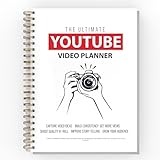
- 📕 BUILD YOUR AUDIENCE - This planner is a straight forward how to YouTube better book. Every step and tool in this planner will increase capturing the attention of new viewers and new subscribers.
- 📕 ULTIMATE YOUTUBE GROWTH - This 2024 planner for YouTube contains tools to build an engaged audience, increasing your watch time, and getting more exposure to the general YouTube public.
- 📕 CONTENT CREATION MADE EASY - This 2024 Planner makes video creation simple, yet super effective. Ensure your videos flow well, and never miss a video deadline.
- 📕 GENERATE CONSISTENCY - This YouTube planner 2023-2024 can be a daily planner or monthly planner depending on the content you want to create, and help you stay, organized and consistent.
- 📕 FOR ALL CREATORS - This is not just a 2024 planners for women, or men. This is a video creation and organizing guide for who'm ever wants to improve their content productivity and growth.
How to choose the best idea before filming
- Check audience demand. In YouTube Studio, open Analytics → Trends to look for topics your audience watches and possible content gaps.
- Match the format to the idea. Use a Short for one clear tip or quick result, a standard video for comparisons and tutorials, and a live stream for interaction or an evolving project.
- Write the promise first. Complete this sentence: “By the end of this video, the viewer will know, see, or achieve…” If the answer is vague, narrow the topic.
- Plan the proof. Decide what footage demonstrates the claim: a screen recording, measurement, side-by-side comparison, test result, or before-and-after shot.
- Make three versions. Turn one topic into a full video, a Short containing the strongest moment, and a community post asking a related question.
Which analytics matter for these ideas?
Open YouTube Studio → Analytics → Content and select the relevant content chip, such as Videos, Shorts, or Live. A chip may not appear if your channel has no content of that type. YouTube recommends comparing content with other content of the same type because viewers behave differently across formats.
| Format | Useful signals | What the result can tell you |
|---|---|---|
| Shorts | Shown in feed, How many chose to view, views, likes, comments, subscribers, remixes | Whether Shorts appeared in the feed, viewers watched instead of swiping away, and the idea prompted interaction or reuse |
| Standard videos | Traffic sources, watch time, audience retention, click-through rate | How viewers found the video and whether the topic held their attention |
| Live streams | Concurrent viewers, chat activity, watch time, returning viewers | Whether the subject supported real-time participation |
| Series | Returning viewers, subscribers, views across related uploads | Whether the concept is strong enough to repeat |
For Shorts, How many chose to view compares viewers who watched with viewers who swiped away; it is different from the raw view count. Shown in feed counts appearances in the Shorts Feed, not views or standard-video impressions. Since March 31, 2025, a Shorts view counts when the Short starts or replays, without a minimum watch-time requirement. Engaged views remains available as the earlier-style metric in Analytics.
For deeper comparisons, open a report and select SEE MORE or ADVANCED MODE. You can compare content and export data. At the channel level, Analytics → Audience includes when viewers are on YouTube and which formats they watched during the previous 28 days—useful when scheduling a Premiere or live event. YouTube is gradually rolling out an updated Studio experience beginning July 2026, so pages may look different across accounts.
Publishing mistakes that can undermine a good idea
- Private uploads: For creators aged 13–17, the default video privacy setting is Private. Check visibility if an upload seems to have disappeared.
- Unlicensed music: A Short made elsewhere with copyrighted material can receive a Content ID claim. A valid takedown can remove it and may lead to a copyright strike.
- Weak vertical framing: A horizontal video cropped automatically can cut off captions, products, or faces. Keep important action near the center when planning a vertical version.
- Unstructured live streams: Prepare an opening, segments, viewer prompts, and a closing time. “Going live and seeing what happens” rarely gives viewers a reason to stay.
- Misreading live data: Live Control Room and YouTube Analytics may differ because Analytics data is processed and despammed. Vertical-only dual-stream metrics can take 24 hours to appear.
FAQ
What is the easiest YouTube video idea for a new creator?
Start with a focused tutorial, comparison, or one-tip Short about something you already use. A narrow topic is easier to film and title than a broad vlog, and it gives viewers a clear reason to watch.
Are YouTube Shorts still limited to 60 seconds?
No. YouTube currently allows Shorts up to three minutes long. A Short uploaded from a computer must use a square or vertical aspect ratio.
How many Shorts can I upload at once?
The YouTube Studio computer uploader accepts up to 15 short videos at a time. Each draft must still be opened with EDIT DRAFT so its details can be completed before publication.
Should I make Shorts or long videos?
Use Shorts for quick demonstrations, single tips, reactions, and visually obvious results. Use standard videos for detailed tutorials, comparisons, experiments, and stories. Check Analytics → Audience → Formats your viewers watch on YouTube for evidence about your existing audience.
What’s actually slowing this PC down?
Pick the symptom - the matching free tool is one click away.
Can a beginner livestream on YouTube?
Yes, if the channel is verified, has no live-streaming restrictions in the previous 90 days, and the streamer is at least 16. YouTube supports mobile, webcam, encoder, and console streaming, subject to feature eligibility.
How do I find video ideas based on my audience?
Open YouTube Studio → Analytics → Trends for content gaps and viewing interests. Also check Analytics → Audience for top geographies, subtitle or CC languages, viewer activity times, and formats your audience watches.
The Bottom Line
The strongest idea is not necessarily the most unusual one. It is the one with a specific viewer, a visible result, and a format you can repeat. Choose one concept from the list, publish a small test, then compare it with other videos of the same type in YouTube Studio. Let watch behavior, comments, subscribers, and returning viewers—not guesswork—decide what you make next.
Quick Recap
Product prices and availability are accurate as of the date/time indicated and are subject to change. Any price and availability information displayed on Amazon at the time of purchase will apply.

