
iTechGuides is reader-supported. When you buy through links on our site, we may earn an affiliate commission. As an Amazon Associate I earn from qualifying purchases. Learn more
There is no universal top ten for GNOME: the right apps depend on what you do, what your distribution already includes, and which GNOME release you use. This first part covers seven useful starting points from GNOME’s official app catalog, spanning app management, extensions, backups, security codes, music, file transfers, and prototyping. Treat the catalog as a place to discover options, not as a ranked list or a guarantee that every app fits every distribution.
How to choose apps for GNOME
Start with a task you want to improve, then check whether your distribution already provides a suitable app and whether the app supports your GNOME release. GNOME’s official app catalog groups apps into Core apps, Circle apps, and Development Tools. That makes it a useful discovery source, but a catalog listing alone does not establish compatibility with every distribution or GNOME version.
The seven picks below are organized by what they help you do, not by a measured ranking. The available information supports these seven recommendations; it does not establish a definitive set of ten best apps for every GNOME setup.
Manage extensions and software
GNOME Extensions: manage Shell extensions
GNOME Extensions is for managing extensions: you can update them, open their preferences, disable them, or remove them. Its official page lists GNOME 3.36 or newer as the minimum requirement. It lists version 50.0, released on March 14, 2026; check the app page and your distribution’s package information for the version available to you.
#1 Best Overall

- Live Boot: Simply plug the USB drive into your computer, select the USB drive as your boot device, and experience Linux Mint without installation. This allows you to test the OS and its features before making any changes to your system.
- Install Option: Once you've tested and decided to keep Linux Mint, you can easily install it on your computer directly from the USB drive.
- Pre-installed software like LibreOffice for office tasks, a capable web browser (Firefox), email client (Thunderbird), and multimedia tools. This minimizes the need for additional downloads, saving you time and effort.
- Resource Efficiency: Designed to run efficiently on a variety of hardware configurations. It demands fewer system resources compared to some other operating systems, making it an excellent choice for older computers or devices with limited hardware specifications.
- Compatible with PC/Laptop/Desktop brands - Dell, HP, Sony, Lenovo, Samsung, Acer, Toshiba & more. Minimum system requirements 4 GB RAM Dual-Core Processor (2 GHz) 20 GB of free disk space
Extensions can change GNOME Shell’s interface and behavior, but they are not all maintained or supported by GNOME itself. GNOME’s extension information page explains: “Since extensions are created outside of the normal GNOME design and development process, they are supported by their authors, rather than by the GNOME community.” Before installing one, check that it supports your GNOME version and appears actively maintained. If an extension causes trouble, disable or remove it with GNOME Extensions.
GNOME Software: discover and maintain apps
GNOME Software helps you find, install, update, and remove apps and system extensions. It is a useful first place to look when you want to manage software through a graphical interface. Availability and the software sources it can access depend on your distribution’s setup. Its official page lists version 51.0, released September 10, 2026; that listing does not mean every distribution already provides that version.
Rank #2

- 🚀Experience cutting-edge Linux with the newest Fedora release, featuring the latest kernel, GNOME desktop, and developer tools.
- 🔥 Latest Fedora Linux 44 Release: Enjoy the newest and most advanced version of Fedora Linux, built for speed, performance, and reliability — powered by cutting-edge open-source technology.
- 💻 Plug & Play Installation: Boot directly from the included USB drive — no setup or downloads required. Try Fedora live or install it permanently on your system with ease.
- 🔒 Secure & Trusted Build: Professionally prepared using the official Fedora 44 ISO, verified and tested to ensure authenticity, security, and stability.
- ⚙️ Ideal for Developers & Power Users: Fedora 44 includes the latest software packages, GNOME desktop, and developer tools — perfect for programming, testing, or daily computing.
Back up personal files
Pika Backup: schedule personal-data backups
Pika Backup supports scheduled backups of personal data to local or remote storage. Its listed features include encryption, browsing backup archives, and recovering files or folders. It is powered by BorgBackup, but it is not a complete system-recovery tool: do not rely on it to restore an entire operating system and all installed software.
For a local backup, an external USB drive is one possible storage option; it is not a requirement, and the official app page does not prescribe a capacity, speed, interface, durability rating, or particular model. Pika Backup can also use remote backup destinations. The GNOME app page lists version 0.8.4, released August 4, 2026.
Rank #3
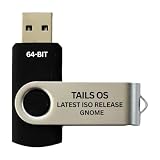
- PHYSICAL USB FLASH DRIVE – Contains the bootable Tails USB image for compatible 64-bit x86-64 desktop and laptop computers.
- GNOME DESKTOP – Provides the official GNOME desktop environment with access to applications, files, workspaces, and system settings.
- PORTABLE LIVE SYSTEM – Starts from the USB flash drive for installation or evaluation without replacing the computer’s existing operating system.
- HARDWARE REQUIREMENTS – Requires a computer capable of starting from USB; 3 GB RAM is recommended for smooth operation, and hardware support varies.
- OPEN-SOURCE INSTALLATION MEDIA – Debian-based open-source operating system supplied with printed initial-start instructions.
Handle everyday utilities
Authenticator: generate two-factor codes
GNOME’s catalog describes Authenticator as an app for generating two-factor codes. Consider it if you want a GNOME app for that task. The catalog description does not establish details such as supported account formats or synchronization options, so check the app’s current listing before relying on a particular capability.
Amberol: play music
Amberol is described in the GNOME catalog as a focused music player. It may suit someone who wants a dedicated player rather than a broader media-management workflow. The catalog description alone does not establish supported file formats or library features.
Rank #4

- BOOTABLE LINUX INSTALLER: Includes one USB flash drive containing the Debian 13.6 GNOME 64-bit installer for installation or evaluation on compatible computers
- GNOME DESKTOP ENVIRONMENT: Provides a clean and focused desktop with organized application access and straightforward navigation
- DEBIAN STABLE SERIES: Prepared with Debian 13.6 Trixie, the current stable Debian release for compatible 64-bit PC hardware
- 64-BIT HARDWARE SUPPORT: Intended for compatible Intel and AMD desktop and laptop computers that support startup from a USB device
- INSTRUCTIONS INCLUDED: Initial installation guidance is provided; verify compatibility and back up important files before installation
Warp: transfer files
GNOME describes Warp as a fast and secure file-transfer app. That makes it a candidate when moving files is the task you want to simplify. The catalog description does not specify transfer methods, network requirements, or compatibility details, so verify those against the app’s current information and your setup.
Quick wins for a faster PC:
Clear out junk files and repair common Windows errorsFree Scan →Fix the driver behind crashes, sound loss and screen glitchesFind Drivers →Prototype with GNOME technologies
Workbench: experiment with GNOME development
Workbench is listed as a tool for prototyping with GNOME technologies. It is most relevant to people exploring or building GNOME interfaces, rather than users looking for a general-purpose desktop utility. The catalog description does not establish specific language, framework, or GNOME-version requirements.
Quick Recap
Check compatibility before installing
- Look for the app first. Your distribution may already include an app or provide it through its own software tools.
- Check version support. Confirm the app’s stated requirements against your installed GNOME release; do not treat a catalog listing as universal compatibility certification.
- Use the right source. Check the app’s official page and your distribution’s software information for a supported installation route and the version actually available to you.
- Assess the trade-off. Extensions can modify Shell behavior and rely on their authors for support; Pika Backup protects personal data but does not provide complete system recovery.
- Choose by workflow. Install only what solves a real need, and check for overlap with tools already on your system.
Product prices and availability are accurate as of the date/time indicated and are subject to change. Any price and availability information displayed on Amazon at the time of purchase will apply.

