
What’s actually slowing this PC down?
Pick the symptom - the matching free tool is one click away.
iTechGuides is reader-supported. When you buy through links on our site, we may earn an affiliate commission. As an Amazon Associate I earn from qualifying purchases. Learn more
If your USB-C device will not charge, first check the outlet and connections, then test a known-good charging cable and a compatible adapter—one component at a time. Restart the device and inspect the port for visible debris or damage. If the connector or cable is wet, disconnect it and let it dry; do not try to charge through moisture. USB-C describes the connector, not a guaranteed charging protocol or speed, so use accessories that meet your device maker’s requirements.
The safest approach is fault isolation. Change one part of the setup, observe what happens, and record whether the device shows any charging symbol, warning, or change in battery level. That process can identify a bad cable or adapter without encouraging you to force a connector, scrape a port, or keep using an accessory that may be unsafe.
Why won’t my USB-C device charge?
A USB-C device needs a working power source, a suitable adapter, a cable that supports charging, and a functioning device port. A fault or mismatch in any one of those parts can interrupt charging. A hub, dock, computer port, or multiport adapter adds another connection to check, so troubleshooting is clearest when you simplify the setup and test each component separately.
The shape of the plug does not tell you what a cable or charger can do. The USB Implementers Forum (USB-IF) states in its product and packaging guidance: "USB Type-C® is not USB Power Delivery". USB Type-C identifies a connector system; USB Power Delivery (USB PD) is a separate power capability. Product capabilities vary, and USB-IF advises against treating the labels as interchangeable.
#1 Best Overall

- Fast Charging: ELECBRAIN 100W USB-C Power Adapter will smart identify your devices automatically. its Charging power Up to 96W, 90W, 87W, 67W, 65W, 61W, 45W, 30W, 29W, 25W, 20W,18W ; PD 20V=5A; 18V=5A; 15V = 5A; 10V=5A; 9V=3A; 5V=3A. It supports USB-C PD 3.0 Charging protocol. Quick charge for your USB-C devices
- Safety and Wide Compatibility: Super safety with fivefold protections:over-current protection, over-voltage protection, over-heating protection, short-circuiting protection,over-charge protection. Wide Compatibility, it can automatically recognize your device and provide the fastest and most efficient output current
- Widely Compatibility: ELECBRAIN 100W USB-C Power Adapter Charger specially designed for charging your USB C device, 100W USB C Charger with 4.9ft USB-C Cable, Which with E-mark Chip, Compatible with Lenovo, Acer, Dell, Asus, and all USB-C charger devices, laptops and android phones. It can automatically recognize your device and provide the fastest and most efficient output current
- Full Safety Protection: In order to let you use our USB C charger with confidence, each of our chargers has undergone professional technical inspections before shipment to ensure excellent performance and safety. ELECBRAIN charger has a built-in heat dissipation system to prevent the charger from overheating at full power output. The built-in IC chip technology provides overload short-circuit /overheat protection, so there’s no worries about damaging functional devices
- Safety Certification: The 100W USB C fast charger have passed the US charger was certificated with safety certification standards.Intelligent output and protection, avoid sparks, overheat,overcurrent.USB C Cable supports safe speed charging and fast data transfer to ensure safety for you and your device
That distinction matters when a device refuses to charge, charges slowly, or works only with certain accessories. A cable may fit the port but lack the charging capability the device needs. Likewise, an adapter’s connector alone does not confirm that it supports the protocol or output required by a particular model.
A device that is completely unresponsive can have a different symptom from one that displays “charging” but gains little battery. In either case, begin with the external parts you can safely test. Do not diagnose a failed battery or port merely because one charger did not work; a cable, outlet, adapter, dock, or protocol mismatch can produce the same first impression.
Start with a safe, one-change-at-a-time check
- Use a known-working wall outlet. Connect the adapter directly to the outlet and, if practical, check that outlet with a known-good device.
- Reseat both cable connections. Unplug and reconnect the cable at the adapter and device ends. Check that the adapter is firmly connected to the outlet.
- Simplify the charging path. If you are charging through a dock, hub, computer, or multiport charger, remove it from the setup and try a compatible wall charger directly, when available.
- Test a known-good cable and adapter. Use accessories known to charge a compatible device. Change only one component at a time, so you can tell which change affects the result.
- Restart the device. Follow its manufacturer’s restart guidance, then try charging again with the known-good setup.
- Inspect the port and cable. Look for visible lint, debris, corrosion, or damage. Do not force a connector or insert metal objects into the port.
Apple’s Mac charging guidance recommends checking the outlet, reconnecting the adapter, and checking the cable; Google’s Pixel guidance also advises using compatible charging equipment. Their steps are useful examples, but device-specific instructions and accessory requirements differ by model.
The Tool Desk
Outbyte Driver Updater FREEFix the driver behind crashes, sound loss and screen glitchesFind Drivers →Outbyte PC Repair FREEClear out junk files and repair common Windows errorsFree Scan →Record what changes
For each test, keep the same device and outlet while changing only one item. Note whether the device recognizes the charger, displays a battery icon, begins gaining charge, or shows a liquid or accessory warning. If a replacement cable works, put the original aside rather than continuing to alternate between them. If nothing changes with a known-good setup, keep that result for the manufacturer or repair provider; it is more useful than trying many unrecorded combinations.
Allow time for a completely depleted battery
A device with a very low battery may not show an immediate percentage increase. After confirming a compatible, dry connection, leave it connected while following the model’s normal charging guidance. Do not use a marginal cable, move the plug repeatedly, or keep reconnecting a wet connector in an attempt to make an indicator appear. If the device still gives no response after a reasonable charging attempt with known-good equipment, continue with the isolation steps and model-specific support rather than assuming the battery is defective.
Test the cable and adapter separately
Check whether the cable supports charging
USB-C cables are not all equivalent. Some support data transfer but will not charge a Mac, according to Apple’s support guidance. A cable that fits, or that transfers data, is not automatically suitable for charging your device. When possible, try a cable already known to charge a compatible device and that meets the target device’s power needs.
Look at the cable itself for cuts, crushed sections, bent ends, discoloration, or looseness. Physical appearance is not a complete capability test, so a cable that looks fine can still be unsuitable. Conversely, a visibly damaged cable should not be kept in service just because it occasionally works.
Quick wins for a faster PC:
Fix the driver behind crashes, sound loss and screen glitchesFind Drivers →Repair Windows errors before they cause bigger problemsFix Now →Scan for outdated or missing drivers - takes under a minuteDriver Scan →If the device charges only when you bend, twist, or move the cable, stop using that cable. A connection that depends on an angle can indicate a cable or connector problem; continuing to manipulate it does not identify which part is at fault and can make safe, reliable use harder. Replace or have the suspect accessory evaluated rather than holding it in position.
Rank #2

- the Only Charger You Need: Say goodbye to your old chargers. Anker 735 Charger (Nano II 65W) has the power you need to fast charge your phone, tablet, and USB-C notebook from a single charger.
- High-Speed Charging: Connect a single device to get a 65W max charge—that’s enough to power up a 2020 MacBook Pro 13″ at full speed. And when you connect three devices, power will be distributed efficiently between ports to ensure you get the best charge.
- Compact Design: Power up to 3 devices with a charger that’s roughly the size of an AirPods Pro case.
- Powered by GaN II Technology: With a 100% increase in operating frequency, an innovative stacked design, and an upgraded circuit board structure, GaN II technology makes our latest charger smaller without sacrificing a drop of power.
- What You Get: Anker 735 Charger (Nano II 65W) / PowerPort III 3-Port 65W Pod, welcome guide, our worry-free 18-month warranty, and friendly customer service.
Check the adapter and power source
Try the existing adapter with another compatible device, if one is available. Then try the target device with a known-good compatible adapter and cable. If the target charges with the replacement setup, test the original adapter and cable individually to narrow down the suspect item. If it still does not charge, the result does not by itself prove that the device battery or port has failed.
Check the adapter’s cable socket and housing for visible damage, unusual heat, or a burning smell. Stop using an adapter with those signs and follow the maker’s support guidance. A different outlet can rule out the wall connection, but changing the outlet and both accessories at once makes the result harder to interpret.
When you test, keep the outlet and device the same while changing one accessory. For example, test a replacement cable with the original compatible adapter before changing both accessories together. If you swap the outlet, adapter, cable, and charging path all at once, a successful result may restore charging without identifying which part was responsible.
Use the result to choose the next step
| Test result | What it tells you | Next step |
|---|---|---|
| The device charges with a known-good cable but not the original cable. | The original cable is a likely suspect; the result does not establish why it failed. | Stop using a cable that is damaged or works only when moved. Use a charging-capable replacement that meets the device’s needs. |
| The device charges with another compatible adapter but not the original one. | The original adapter or its power connection is a likely suspect. | Check the outlet and adapter connection, then replace the adapter only if testing points to it or it is visibly damaged. |
| The device charges from a wall adapter but not through a hub, dock, or computer. | The added charging path may be involved; the test does not identify a specific fault in that path. | Check the manufacturer’s instructions for that hub, dock, or computer port, or use the compatible direct wall connection. |
| The device does not charge with a known-good compatible outlet, adapter, and cable. | The basic accessory checks have not isolated the problem. A device-side issue is possible but not diagnosed by this result alone. | Follow the manufacturer’s model-specific support steps or arrange professional inspection. |
| The device charges slowly with one setup but normally with another. | The slower combination may have different protocol, power, or cable capabilities. | Compare the model’s requirements with the adapter and cable specifications; do not assume the connector is the limiting factor without checking. |
Distinguish no charging from slow charging
“Won’t charge” can describe several outcomes: no battery increase, an intermittent charging icon, a warning, or charging that is much slower than expected. First confirm which behavior you are seeing. If the percentage never rises or the device repeatedly disconnects, prioritize the outlet, cable, adapter, moisture, and port checks. If the percentage rises slowly but consistently, investigate compatibility and the device’s model-specific charging limits before replacing parts.
Charging speed is negotiated by the device and compatible power equipment. A charger with a larger number on its label does not force that amount into every device, and a high-wattage charger does not guarantee faster charging. The cable also has to support the needed charging capability. Compare the complete combination—device, adapter, cable, and any dock—not just the connector shape.
Check charger compatibility before buying
Choose an adapter by checking the device maker’s stated protocol and power requirements, not by assuming that every USB-C charger works the same way. USB PD negotiates power between compatible components, and the result depends on the device, adapter, and cable. A higher wattage printed on a charger does not guarantee that every device will accept that power or charge faster.
For context, USB-IF announced USB Power Delivery Revision 3.1 in 2021. The standard update enables up to 240 W over full-featured USB Type-C cable and connector configurations. USB-IF identified fixed-voltage levels of 28 V, 36 V, and 48 V for up to 140 W, 180 W, and 240 W respectively; before that update, USB PD was limited to 100 W using a 20 V solution and 5 A-rated USB-C cables. Those are specification capabilities, not recommendations for an individual device or evidence that a charger, cable, and device in front of you support those levels.
Those figures also do not mean that every USB-C port can use 240 W. The device, adapter, and full-featured cable must support the relevant capability, and the device maker may set a lower limit. Treat the specification ceiling as technical context, not as a shopping target.
Rank #3

- High-Speed Charging: The 100W USB C port pumps out enough power to charge a wide range of devices in record time. Charge your MacBook Pro 16" (M1 Max, 2021) to 100% in 1 hour and 20 minutes, so you can stay productive all day.
- Wide Compatibility: From phones to laptops and more, our proprietary PowerIQ 3.0 technology provides flawless compatibility with virtually any mobile device.
- Foldable and Portable: The charger's compact size and foldable plug make it easy to take wherever you go, while saving valuable space in your bag or pocket.
- Safer Charging Experience: Our exclusive ActiveShield safety technology provides 24/7 temperature monitoring to ensure safety for you and your connected devices.
- What You Get: Anker 317 Charger (100W), 5ft / 1.5m USB C to USB C cable (placed behind the plastic tray compartment), welcome guide, our worry-free 18-month warranty, and friendly customer service.
Google’s Pixel support guidance recommends compatible USB Power Delivery or PPS adapter options for Pixel devices and notes that charging speeds vary by Pixel model. That is a model-family example, not a wattage rule for other phones, tablets, or computers. Check the instructions for your exact model before buying an adapter or cable.
- Confirm that the adapter supports a charging protocol accepted by your device.
- Check the device maker’s required or recommended power rating for your model.
- Confirm that the cable supports charging at the power level you need; connector fit alone is not enough.
- Check whether a multiport adapter divides or changes its available output when other ports are occupied, using the maker’s specifications.
- Replace accessories when testing points to them, or when they are damaged or unsuitable—not simply because a higher-rated product is available.
Can I use any USB-C charger?
No universal answer follows from the USB-C plug alone. You can use a charger only when its protocol and output are compatible with the device and the cable is rated for the required charging capability. USB-IF explicitly separates USB Type-C from USB Power Delivery. Read the device maker’s requirements for the exact model, and use a known-compatible charger when troubleshooting.
What to do if the USB-C port is wet or dirty
If there may be moisture
If a liquid alert appears or the port or cable is wet, disconnect the cable and do not charge until the connector and cable have dried. Apple warns that charging while a USB-C port is wet can corrode the pins and cause permanent damage or loss of function. Treat a repeated liquid alert as a reason to stop charging and consult the device maker’s support guidance rather than repeatedly reconnecting the cable.
PC Slower Than It Used to Be?
A free scan shows the junk files, broken settings and background clutter dragging Windows down - then fixes them in one click.Free scan · Windows 10 & 11Outdated Drivers Are Slowing You Down
One free scan finds every outdated or missing driver and matches the right update for your exact hardware.Free scan · exact hardware matchDo not try to defeat a liquid warning by switching chargers, pushing the plug harder, or repeatedly reconnecting it. Check both the device connector and the cable end, since moisture on either side can make the connection unsafe. Follow the manufacturer’s drying instructions for your model; if the warning persists after the parts are dry, arrange support instead of guessing that the port is clean.
If you see debris or damage
Inspect the port visually, without forcing the plug or inserting metal objects. If the connector does not seat normally, the port looks damaged or corroded, or charging changes when the plug is moved, stop using the suspect connection and seek model-specific support. Do not assume that scraping or another do-it-yourself cleaning attempt is safe; the available guidance does not establish that cleaning will resolve a damaged port.
A small amount of visible lint does not prove that debris is the cause, and an apparently clean port does not rule out an internal fault. Never use the charging test as a reason to apply pressure to a loose connector. If you cannot inspect the port safely, let an authorized provider do it.
Common mistakes that make troubleshooting harder
- Changing everything at once. A new outlet, cable, adapter, and dock may restore charging but leave you unsure which part failed.
- Assuming all USB-C cables are charging cables. Data transfer or physical fit does not establish charging capability.
- Buying the highest-wattage charger automatically. The device may accept less, and the cable or protocol may limit the result.
- Applying another model’s advice. Pixel PPS guidance, for example, is not a universal requirement for every USB-C device.
- Forcing or scraping the port. Metal objects and pressure can damage contacts, and no general cleaning action is established as a fix.
- Charging through moisture. A wet connector can corrode and permanently damage the port.
- Continuing with a cable that works only at an angle. Movement-dependent charging is a reason to stop using the cable and have the accessory evaluated.
- Assuming a slow charge means a failed battery. Check protocol, power, cable, and model limits first.
When to stop troubleshooting and seek service
After checking the outlet and connections, restarting the device, and testing a known-good compatible cable and adapter, continued failure warrants the device maker’s model-specific support steps. A loose or visibly damaged port, repeated liquid alerts, or failure across known-good accessories may require professional inspection. These signs justify escalation but do not, on their own, identify a particular failed component.
Stop using an accessory and follow manufacturer guidance if you notice visible damage, liquid exposure, unusual heat, a burning smell, or a cable that works only at an angle. Do not keep charging through a suspect cable or port to see whether the problem improves. If the device is only charging slowly rather than not charging at all, begin by checking compatibility: the accessory combination and the device model can affect charging speed, and a USB-C connector does not establish the supported speed.
Rank #4
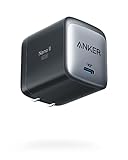
- The Only Charger You Need: Say goodbye to your old power bricks. Anker 715 Charger (Nano II 65W) has the power you need to fast charge your phone, tablet, and USB-C notebook from a single tiny charger.
- High-Speed Charging: Charge a 2020 MacBook Air in less than 2 hours, a MacBook Pro 13ʺ at full speed, an iPhone 13 up to 3× faster than with an original 5W charger, and charge the latest Samsung phones at full speed with Samsung Super Fast Charging.
- Downsized Design: At 58% smaller than an original 61W USB-C charger, and with a foldable plug, Anker Nano II takes up less space while giving you just as much power.
- Powered by GaN II Technology: With a 100% increase in operating frequency, an innovative stacked design, and an upgraded circuit board structure, GaN II technology makes our latest charger smaller without sacrificing a drop of power.
- What You Get: Anker 715 Charger (Nano II 65W) / Anker Nano II 65W, welcome guide, our worry-free 18-month warranty, and friendly customer service (cable not included).
When contacting support, provide the exact device model, the adapter and cable labels, whether the outlet was tested, which known-good combinations were tried, and any warning or liquid alert shown. This information helps support distinguish an accessory problem from a device-side issue without asking you to repeat unsafe tests.
Independent reader supportYour contribution helps us test, update, and keep practical guides available for everyone.Why a USB-C charger may seem not to work
- The outlet or a connection is not supplying power. Verify the outlet and reseat the cable and adapter before replacing anything.
- The cable is not suitable for charging. Try a known-good charging cable; data capability and plug shape do not guarantee charging support.
- The adapter does not match the device’s needs. Check the model’s supported charging protocol and power requirements.
- A hub, dock, or computer port complicates the test. Simplify the path with a compatible direct wall connection when practical.
- Moisture or physical damage makes charging unsafe or unreliable. Disconnect the cable and follow the manufacturer’s guidance instead of forcing or manipulating the connector.
- The cause is not isolated by accessory tests. Use model-specific support or professional inspection rather than assuming a battery or port diagnosis.
There is no single universal cause or failure-rate figure established here for USB-C charging problems. The dependable way to narrow down the cause is to isolate the outlet, adapter, cable, charging path, and device without applying one model’s requirements to another.
Frequently asked questions
Why is my USB-C charger not working even though it fits?
A USB-C connector can fit while the cable or adapter lacks the charging capability your device requires. Try a known-good charging-rated cable and compatible adapter, changing one item at a time. Confirm the exact model’s protocol and power requirements.
Do these 3 things before closing this tab:
1Fix the driver behind crashes, sound loss and screen glitches2Clear out junk files and repair common Windows errors3Scan for outdated or missing drivers - takes under a minuteWhy does my device only charge when I move the cable?
Angle-dependent charging indicates a suspect cable or connector. Stop bending or holding it in position, especially if there is visible damage, heat, or an unusual smell. Test a known-good cable; if the problem remains, seek model-specific service for the port.
Can a USB-C cable transfer data but not charge?
Yes. Apple’s Mac guidance notes that some USB-C cables support data transfer without charging. Physical fit and data capability do not prove that a cable can provide the power your device needs.
Will a higher-wattage USB-C charger make my device charge faster?
Not necessarily. USB PD negotiates power among compatible components, and the device may accept less than the adapter’s maximum. The protocol, cable, and model all matter, so follow the device maker’s specifications.
What should I do when a liquid alert appears?
Disconnect the cable and do not charge until the port and cable are dry. Apple warns that charging a wet USB-C port can corrode pins and cause permanent damage or loss of function. If the alert returns, follow the manufacturer’s support guidance.
Is USB-C the same as USB Power Delivery?
No. USB-IF states that USB Type-C is not USB Power Delivery. USB-C describes the connector system; USB PD is a separate power capability that compatible products may support.
Best Value

- Ultra-Compact USB C Charger: Experience the power of GaN technology with this 30W Anker 5Charger (Nano 3), delivering 70% smaller size than original chargers while maintaining high-speed charging for devices like iPhone 15/Pro/Pro Max/Pro/Pro Max, Galaxy, and iPad.
- Versatile USB C Charging Solution: Designed for various devices, this USB C charger can power up earbuds, phones, tablets, and even MacBook Air, making it a must-have accessory for all your charging needs.
- Fast and Efficient Charging: With 30W output, this USB C charger provides full-speed charging for iPhone Pro and Pro Max, charges iPad Air (5th Generation) to 50% in just 45 minutes, and supports Samsung Super Fast Charging (25W) for a seamless charging experience.
- Advanced Safety Features: Equipped with ActiveShield 2.0 technology, this USB C charger intelligently monitors temperature over 3 million times per day, offering twice the protection of ActiveShield 1.0 and ensuring the safety of your devices during charging.
- Comprehensive Package: The Anker 511 Charger (Nano 3, 30W) comes with a welcome guide, a worry-free 24-month warranty, and friendly customer service (cable not included), making it a reliable and convenient choice for all your USB C charging needs.
Why does my device charge from a wall adapter but not from my laptop, hub, or dock?
The added path may not provide the required protocol or power, or it may have its own fault. Simplify the setup with a compatible direct wall charger, then check the computer, hub, or dock maker’s instructions.
When should I replace the charger or cable?
Replace an accessory when cross-testing points to it or when it is damaged, unsuitable, unusually hot, or works only when moved. Do not replace parts solely because a higher-wattage option exists, and do not continue using a suspect accessory while waiting for improvement.
Frequently Asked Questions
Why is my USB-C charger not working even though it fits?
USB-C fit does not guarantee charging support. Test a known-good charging-rated cable and compatible adapter, one component at a time, and check your model’s protocol and power requirements.
Free tools Windows power users keep installed
One-click scans. No signup required.
Why does my device only charge when I move the cable?
Stop using that cable and do not hold it at an angle. Test a known-good cable; if the issue remains, seek support for possible connector or port damage.
Can I use any USB-C charger?
No. USB-C identifies the connector, not a universal charging protocol or speed. Match the adapter and cable to the exact device requirements.
What should I do if the USB-C port is wet?
Disconnect the cable and wait until the port and cable are dry. Charging a wet connector can corrode pins and cause permanent damage; follow the manufacturer’s guidance if an alert persists.
Will a higher-wattage charger charge every device faster?
No. USB PD negotiates power, and the device, protocol, and cable determine the result. A higher maximum rating does not guarantee faster charging.
Recommended Free Tools
When should I seek repair?
Escalate after a known-good compatible outlet, adapter, and cable fail, or sooner if there is visible damage, repeated liquid alerts, unusual heat, or a burning smell.
The Bottom Line
Start with a known-working outlet, reseat every connection, and remove hubs or docks from the test. Try a known-good charging-capable cable and compatible adapter one at a time, then restart the device. USB-C fit alone does not promise USB Power Delivery, a particular wattage, or charging support. If the port or cable is wet, damaged, hot, or works only at an angle, stop using it. Persistent failure with known-good equipment calls for the manufacturer’s model-specific support or an authorized repair provider.
Quick Recap
Product prices and availability are accurate as of the date/time indicated and are subject to change. Any price and availability information displayed on Amazon at the time of purchase will apply.

