
iTechGuides is reader-supported. When you buy through links on our site, we may earn an affiliate commission. As an Amazon Associate I earn from qualifying purchases. Learn more
A loud tablet fan usually means the device is working hard or is operating in a hot, poorly ventilated environment. A warm tablet may also be normal during charging, first-time setup, updates, synchronization, or demanding games. First, confirm that your model actually has an internal fan: many tablets use passive cooling and have no fan or exhaust vent at all. Then reduce the workload, improve airflow, stop using the tablet if a cooling warning appears, and seek model-specific service if abnormal heat continues after the device has cooled.
The steps below separate normal heat from symptoms that need attention. They apply only within the limits of the cited manufacturers’ guidance; temperature behavior, warning messages, operating systems, and repair procedures vary by model.
Start by checking whether your tablet has a fan
Do not diagnose every warm tablet as a fan problem. Many tablets cool passively through their chassis. ASUS notes that some convertible devices use passive cooling without a fan or exhaust vent. On such a model, there is no internal fan to become loud, rattle, or stop turning. A warm surface is therefore a different issue from a noisy fan in a fan-equipped Windows tablet.
How to identify the cooling design
- Find the exact model name and generation in the tablet’s Settings app, on its original packaging, or on the chassis label.
- Read that model’s official specifications and support pages. Look specifically for a fan, active cooling, an exhaust vent, or passive cooling.
- Look for ventilation openings without inserting anything into them. A smooth, sealed chassis is not proof by itself, but it makes passive cooling more likely.
- Use the manufacturer’s instructions for that exact model rather than a generic fan-cleaning or disassembly guide.
If the documentation confirms passive cooling, investigate workload, charging, sunlight, cases, and ventilation instead of searching for a replaceable fan. Opening a sealed tablet can damage the device and may affect warranty coverage.
#1 Best Overall

- ❄ 【COOL DESIGN】ACEDAYS ipad cooler is new design,designed for tablets,laptops,steam deck,switch and others who use devices for extended periods.The fuselage was made of alloy,PC,magnet.It gives off colorful lights and LED temperature display when connected to the power.and there are two-stage refrigeration adjustment.
- ❄ 【SIMPLE CONTROL】Need to plugged in. there are Two-stage refrigeration adjustment,including Icebound mode and Freezing mode.Built-in type-c port, plug-and-play. (The package include a Charging cable and Magnetic disk.)
- ❄ 【RAPID COOLING DOWN】The ipad cooling case breaking through the power limit of traditional mobile phone radiators, the maximum power of laptop cooling slim reaches 20W.With the semiconductor technology, it's the same refrigeration principle as the refrigerator, not the ordinary fan cooling.Built-in 40×40mm chilling plate,instant cooling when connect the power,no need waiting to avoid overheat and ensure stabilize your live streaming or gaming experience.
- ❄ 【MAGNETIC SUCTION DESIGN】 The magnetic suction sheet consists of a highly thermally conductive steel plate and a strong adhesive, which can be used for a long time after a single installation. The heatsink will automatically absorb when it is close to it and will not fall off during use.
- ❄ 【UNIVERSAL COMPATIBILITY】The tablet Radiator Perfectly supports tablets/ipad (up to 13 inches), and laptops (suggest in 13 inches). Such as 12.9-inch iPad Pro, 9.7-inch iPad,iPad mini 1-4, iPad Air, Microsoft Surface Pro3 4, Surface Pro 5, Surface Pro 6, Surface Pro 7, Surface Pro X, Surface Go 1 2, MacBook Air 13'' 2017 2020 MacBook Pro 13'',Dell XPS 13, Steam Deck,Switch,etc.
Why a fan-equipped tablet gets loud or hot
Heavy CPU or GPU work
Fan speed normally follows workload. Microsoft Support explains that a Surface may become warmer when it is performing many tasks or is heavily utilized on one task. ASUS gives similar guidance for applicable Windows devices: intensive CPU- or GPU-heavy work can make the fan run faster.
Typical triggers include sustained gaming, video production, 3D applications, large downloads combined with other work, and many active background processes. A short burst of noise while an intensive task is running is usually a response to heat production, not evidence that the fan has failed. The useful test is whether the sound and warmth fall after the demanding work stops and the tablet has time to cool.
Warm surroundings or restricted ventilation
Ambient conditions change how quickly the chassis can release heat. Microsoft says a Surface in surroundings warmer than 25° C (77° F) may need its fan more often or at a higher speed; that is Surface-specific guidance, not a universal safe-temperature threshold for every tablet. Huawei advises avoiding direct sunlight and poorly ventilated locations.
What’s actually slowing this PC down?
Pick the symptom - the matching free tool is one click away.
Blankets, bedding, cushions, and tightly enclosed bags can hold heat around the device. A case can also obstruct openings on a fan-equipped model if it was not designed for that tablet. Move the device to a hard, open surface with clear airflow before deciding that the fan itself is defective.
Charging and background setup work
Charging adds heat, and the tablet may also be doing background work at the same time. Microsoft notes that additional cooling may be needed before charging completes and that setup activity can temporarily increase fan activity. Xiaomi’s REDMI Pad 2 Pro guidance attributes warmth during first use to data recovery, updates, and app synchronization, and recommends avoiding heavy workloads while the tablet is charging during setup.
Rank #2

- ✅【Perfect Ergonomic Viewing】- Our tablet/laptop stand is designed to provide the perfect ergonomic viewing. By elevating the screen to an appropriate height, our laptop cooling stand can help you avoid discomfort in the neck caused by looking down and reduce strain on your eyes from being too close to the screen.
- ✅【Super Cooling】 - The tablet/laptop cooling pad features an enlarged big fan that effectively dissipates heat and prevents your laptop from getting too hot.
- ✅【Height and Angle Adjustable】- Working in your most comfortable position can boost your productivity and creativity. This stand allows you to adjust freely the height to 11.8 inches adjust angle from 0 to 360 degrees, so you can comfortably work in sitting positions.
- ✅【Graphene Carbon Steel Support】-This Graphene Carbon Steel stand features a strong bearing force and can support as much as 22 pounds (10 kilograms). The solid base prevents your laptop from tipping over while you're using it, even if you are typing or drawing. Note: We suggest using an external keyboard and mouse so you can type efficiently without the laptop keyboard being wobbly.
- ✅【360° of Smooth Rotation】 Tri-fold adjustable cute desk accessories: Adjust your view to perfection with this new 360° rotatable tablet holder stand for desk. Whether it's for work, streaming, or video calls desk organizers and accessories, achieve the perfect angle every time. Its innovative adjustment locking mechanism ensures your tablet always stays in place, securely and comfortably iPad holder stand.
A tablet that is warmer only while charging or completing first-run synchronization should be observed after those activities finish. If it remains abnormally hot with the charger disconnected and demanding work stopped, follow the escalation steps below.
Blocked vents, dust, abnormal resource use, or fan wear
For applicable computers and handhelds, ASUS lists blocked vents, dust, unusual resource use, environmental conditions, and fan wear among possible causes of excessive fan activity. These are general fan-equipped-device possibilities, not proof that a particular tablet has a clogged vent or worn bearing.
Free tools Windows power users keep installed
One-click scans. No signup required.
Do not push objects into a vent, pour liquid into an opening, or open a sealed tablet simply to remove dust. Check the exterior for an obvious obstruction, close unnecessary software, and use the manufacturer’s support process if the symptom persists.
Cause-and-response overview
| Likely contributor | What you may notice | First response | Scope or qualification |
|---|---|---|---|
| Demanding CPU/GPU workload | Fan accelerates during gaming or other intensive work; chassis warms | Stop or pause the demanding task and close unneeded apps | Microsoft and ASUS guidance for applicable fan-equipped devices |
| High ambient temperature | Fan runs more often in a hot room or direct sun | Move to shade and a cooler, ventilated surface | Microsoft’s 25° C / 77° F reference is Surface-specific |
| Blocked or poorly ventilated placement | Heat accumulates on bedding, cushions, or in an enclosed space | Place the tablet on a hard, open surface; clear the openings | Huawei advises avoiding poorly ventilated locations |
| Charging or first-use activity | Warmth and fan activity rise while charging, updating, or syncing | Reduce workload; disconnect power and let the tablet cool if it becomes hot | Microsoft and Xiaomi describe these conditions for their products |
| Possible hardware or airflow fault | Rattle, grinding, fan that does not turn, or heat that continues after cooling time | Stop experimenting and contact the manufacturer | ASUS and Sony recommend model-specific support for persistent symptoms |
Safe troubleshooting sequence
Work through these steps in order. Each step is designed to remove a common, reversible cause before you consider service.
1. Confirm the model and cooling design
Record the exact model, operating system, and any warning text. Check the official specification or support page to determine whether the tablet has an internal fan. This prevents you from treating normal passive-chassis warmth as a fan failure and helps support staff give the correct instructions.
Rank #3
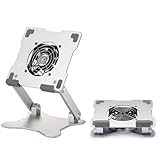
- 【 More Durable】 Made of high-quality aluminum and super high strengthened alloy steel material - More durable & Long useful life.
- 【 COMPATIBILITY 】 Applies to 4 - 15 inches tablets and cellphones, such as new 2024 / 2022 / 2021 iPad Pro 11 / 12.9 / 13'', iPad 10.9, iPad Air 5 / 6, iPad mini 1-6, iPad Pro 9.7 / 10.5, Kindle, Microsoft Surface Pro 10 9 8 7+ X 7 6 5 4 3, Surface Go,Galaxy Tabs, MacBook Air 13'' 2017 2020 MacBook Pro 13'',Dell XPS 13 and more.
- 【 DOUBLE-AXIS DESIGN】It can be easily adjusted to the required angle to obtain the best view with a sturdy state.-A solid structure & Multi-Angle. Supporting both vertical and horizontal viewing. The ergonomic design is suitable for typing, zoom meeting, watching videos, gaming,working,drawing etc.
- 【 Tablet stand with cooling fan】 Equipped with a USB ultra-quiet fan. It will provide excellent airflow over the back of your device. Keep your device from overheating.
- 【100% custome service in 24 hours】Please give us a chance to serve you first if you have any problem with our product.
2. Reduce the workload
- Save your work and pause demanding games, video exports, 3D apps, or other sustained intensive tasks.
- Close apps you are not using, especially those that continue processing in the background.
- Stop unnecessary downloads or synchronization temporarily if the tablet is already hot.
- Wait several minutes and observe whether fan speed and surface temperature begin to fall.
Microsoft says lowering utilization can reduce the need for assisted cooling. If the noise drops as the workload drops, workload is a strong contributor. If the fan remains loud with the tablet idle and well ventilated, continue to the environmental and service checks.
Quick wins for a faster PC:
Clear out junk files and repair common Windows errorsFree Scan →Fix the driver behind crashes, sound loss and screen glitchesFind Drivers →Repair Windows errors before they cause bigger problemsFix Now →3. Check the surroundings and airflow
- Move the tablet out of direct sunlight.
- Place it on a firm, uncovered surface rather than a bed, blanket, cushion, or closed case.
- Make sure any documented intake or exhaust openings are not covered by your hands, case, stand, or nearby objects.
- Give the device space around those openings; do not press it against another warm object.
Huawei specifically recommends avoiding direct sunlight and poorly ventilated places. Do not use a household hair dryer, ice pack, or liquid to force cooling; sudden temperature changes and moisture can create additional damage.
4. Handle a hot tablet while charging
If the tablet is noticeably hot during charging, disconnect the charger and let the device cool in a ventilated place. Huawei advises against using a device while it is charging as a heat-reduction measure. Follow the charging instructions supplied for your model, including any requirements about the approved charger and cable.
Do not resume heavy gaming or other sustained intensive work immediately after reconnecting power. If the same abnormal heat returns repeatedly with ordinary use, document when it happens and contact the manufacturer rather than repeatedly testing it under load.
5. Allow first-use setup to finish
On a new or recently reset tablet, data recovery, system updates, and app synchronization can run in the background. Xiaomi identifies those activities as possible reasons a REDMI Pad 2 Pro becomes warm during first use and recommends avoiding heavy workloads while charging during setup.
Rank #4

- 【40W Ultra-Fast Cooling】 The wired magnetic tablet cooler features Black Shark’s proprietary ICECOLD 2.0 cooling system, capable of reducing the device’s temperature by approximately 113℉. With a powerful 14N magnetic force, it securely attaches to your tablet to prevent it from falling. NOTE: Connection to power supply required for use. Power must exceed 40W for optimal performance. Data cable not included in packag.
- 【Simple Control】The cell phone cooling fan features a built-in Type-C interface, so you can start using it right away by simply connecting the power cable. Click the button to switch between Overclock Mode, Smart Mode, Silent Mode, and Custom Mode.
- 【Compact & Lightweight Design】At just 0.33 lbs, this magnetic tablet cooler adds virtually no extra weight to your device. Its thoughtful design leaves your hands free for full-screen gaming without feeling bulky or getting in the way.
- 【In-APP Control】Take full command via the "Shark Arsenal" APP. Effortlessly switch between power modes, fine-tune fan speeds, and personalize RGB lighting effects and colors — all from your phone, no need to reach for the cooler.
- 【Ultra-Silent Cooling】Thanks to its optimized fan blade design and noise-dampening structure, the cooler operates at a mere 30dB in silent mode. Whether you're grinding in ranked matches, streaming videos, or in a shared space, it delivers powerful cooling without disturbing your focus or those around you.
Keep the tablet ventilated, leave it connected only as directed by the manufacturer, and let setup tasks complete. The explanation is specific to Xiaomi’s stated product guidance; other models may schedule setup work differently.
6. Respond immediately to a cooling warning
When a Samsung Galaxy phone or tablet displays “Device cooling down,” stop using it and let it cool. Samsung says the device may reduce performance, stop charging, or limit other functions while the warning is active. Do not dismiss the message and continue gaming, streaming, or charging in a hot environment.
Once the warning clears, return to normal use gradually. If it reappears during light work, appears in a cool and ventilated room, or does not clear after the device has cooled, use Samsung’s support process for the exact model.
7. Inspect only what the manufacturer tells you to inspect
With the tablet powered down and cool, look for an obvious external obstruction around documented vents. Do not insert pins, brushes, or compressed-air nozzles into a sealed opening unless the manufacturer’s instructions explicitly permit that method. A real fan that rattles, grinds, intermittently stops, or never spins when the device is under a documented heavy workload may need service.
The Tool Desk
Outbyte PC Repair FREEClear out junk files and repair common Windows errorsFree Scan →Outbyte Driver Updater FREEScan for outdated or missing drivers - takes under a minuteDriver Scan →8. Record the symptom before contacting support
Write down the model, operating-system version, charger in use, room conditions, task running, warning text, and whether the symptom disappears after cooling. A short recording of an unusual rattle can help a support technician, but do not deliberately overheat the tablet to reproduce a problem.
Best Value

- Dual USB Hub: With a built-in dual USB hub, the laptop fan enables you to connect additional USB devices to your laptop, providing extra connectivity options for your peripherals. Warm tips: The packaged cable is a USB-to-USB connection. Type C connection devices require a Type C to USB adapter. Please plug the cooling pad's USB cable into a 5V 1A adapter for best performance; otherwise, the fans may fail to spin or run at very low speed.
- Whisper-Quiet Operation: Enjoy a noise-free and interference-free environment with super quiet fans, allowing you to focus on your work or entertainment without distractions.
- Enhanced Cooling Performance: The laptop cooling pad features 5 built-in fans (big fan: 4.72-inch, small fans: 2.76-inch), all with blue LEDs. 2 On/Off switches enable simultaneous control of all 5 fans and LEDs. Simply press the switch to select 1 fan working, 4 fans working, or all 5 working together.
- Ergonomic Design: The laptop cooling stand also serves as an ergonomic stand, offering 6 adjustable height settings that enable you to customize the angle for optimal comfort during gaming, movie watching, or working for extended periods. Ideal gift for both the back-to-school season and Father's Day.
- Secure and Universal Compatibility: Designed with 2 stoppers on the front surface, this laptop cooler prevents laptops from slipping and keeps 12-17 inch laptops—including Apple Macbook Pro Air, HP, Alienware, Dell, ASUS, and more—cool and secure during use.
How to tell normal activity from a likely fault
Signs that usually point to workload or environment
- The fan becomes louder only during a demanding game or other intensive task.
- The chassis cools after the task stops and the tablet is moved to an open surface.
- Warmth occurs during charging, first-run updates, data recovery, or synchronization and then subsides.
- The tablet works normally once it is out of direct sun and away from heat-retaining surfaces.
Signs that justify manufacturer service
- The tablet remains abnormally hot after heavy work has stopped and it has had time to cool.
- A physical fan produces persistent rattling or grinding, or fails to turn when cooling is required.
- A cooling warning repeatedly appears during light use or in a cool, ventilated environment.
- Charging repeatedly stops because of heat, or the device cannot return to normal operation after cooling.
Sony advises repair or support when its tablet becomes abnormally hot. ASUS likewise directs users toward support when suspected fan wear, blocked airflow, or other hardware causes remain after basic checks. Use your own manufacturer’s service channel, warranty terms, and model-specific instructions; do not open a sealed tablet based on generic online advice.
Should you use an external tablet cooling fan?
A clip-on or stand-mounted cooler can be a limited, optional accessory for a compatible tablet used for sustained gaming. Huawei support says that playing high-intensity games with a fan or air conditioner can accelerate heat dissipation. That statement does not establish a universal performance improvement, a safe temperature, or compatibility with a particular accessory.
Check compatibility before buying or attaching one
- Dimensions: Confirm the cooler’s supported width, thickness, and mounting area against the tablet without its case and with the case installed if you intend to keep it on.
- Attachment method: Verify that clamps, magnets, adhesive pads, or stands will not press buttons, cover cameras, or damage the finish.
- Vent placement: Make sure the accessory does not block the tablet’s own intake or exhaust openings.
- Power connection: Check the cooler’s power requirement and whether using it will occupy the tablet’s only port or require a separate power source.
- Noise: A second fan adds its own sound. Choose an arrangement that does not make the device harder to use.
- Manufacturer guidance: Follow both the tablet maker’s and cooler maker’s instructions, especially for charging and case use.
An external cooler is not a remedy for a failed internal fan, a charging fault, or a tablet that repeatedly displays a cooling warning. Solve the underlying airflow or hardware issue first and treat an accessory as optional assistance for a compatible use case.
Windows Errors? Fix Them Before They Spread
Repair common Windows errors and clear accumulated junk for a smoother, more stable PC - no reinstall needed.Free scan · no reinstallOutdated Drivers Are Slowing You Down
One free scan finds every outdated or missing driver and matches the right update for your exact hardware.Free scan · exact hardware matchWhat the cited manufacturer guidance does—and does not—establish
| Manufacturer or product family | Supported point | Important limit |
|---|---|---|
| Microsoft Surface | Fan speed follows workload; warmer surroundings can increase fan activity; setup and charging may require additional cooling | Applies to Surface guidance, not a universal threshold for all tablets |
| ASUS applicable Windows devices | Intensive CPU/GPU work, blocked vents, dust, abnormal resource use, environmental conditions, and fan wear can affect cooling | General guidance for applicable fan-equipped devices, not proof of a fault in every tablet |
| Huawei devices | Avoid direct sun and poorly ventilated places; avoid using the device while charging to reduce heat; a fan or air conditioner may accelerate dissipation during high-intensity games | Follow the instructions for the specific Huawei model |
| Samsung Galaxy phones and tablets | “Device cooling down” can reduce performance, stop charging, or limit functions; stop use and let the device cool | Warning behavior and wording may differ on other product families |
| Xiaomi REDMI Pad 2 Pro | First-use data recovery, updates, and synchronization can cause warmth; avoid heavy workloads while charging during setup | Product-specific explanation |
| Sony tablets | Abnormal heat is a reason to seek repair or support | Use Sony’s process for the exact model and warranty status |
A practical decision path
- No internal fan confirmed: Treat the issue as passive-cooling warmth. Reduce load, improve ventilation, and follow the model’s charging guidance.
- Fan present and loud only under heavy work: Pause the workload, close unneeded apps, and observe whether the sound falls as the tablet cools.
- Hot while charging or setting up: Disconnect power if it is hot, let it cool, and allow setup, updates, or synchronization to finish before resuming intensive work.
- Cooling warning displayed: Stop using the tablet and let it cool. Do not override charging or performance limits.
- Noise, heat, or warnings persist at idle: Stop experimenting and contact the manufacturer with the model and symptom details.
There is no manufacturer-supported universal temperature number or published universal rate of tablet overheating in the guidance cited here. The meaningful comparison is your model’s documented behavior before and after workload, ventilation, and charging conditions are changed.
Quick Recap
Product prices and availability are accurate as of the date/time indicated and are subject to change. Any price and availability information displayed on Amazon at the time of purchase will apply.

